Windows 11 includes a powerful built-in firewall that acts as the first line of defense against unauthorized access, malware communication, and suspicious network activity. While it works well with default settings, proper configuration can significantly improve your system’s security.
1. Keep Windows Defender Firewall Enabled at All Times
Disabling the firewall leaves your system exposed to external threats, even if antivirus software is installed.
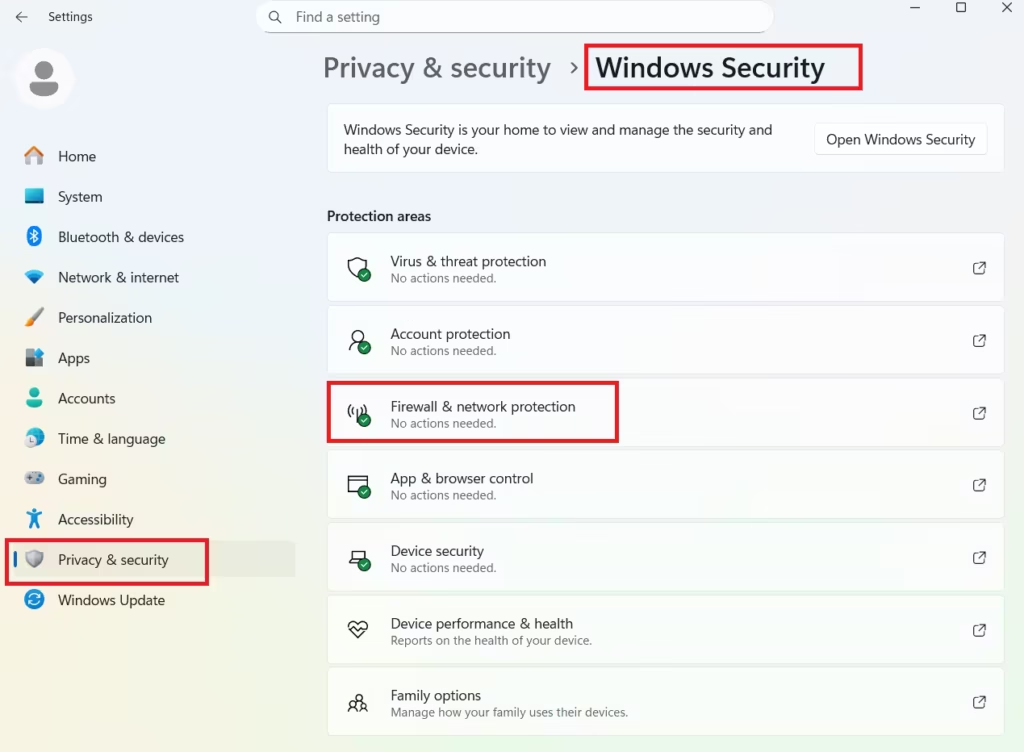
How to check firewall status
- Press Win + I → Privacy & security
- Open Windows Security
- Select Firewall & network protection
- Make sure Domain, Private, and Public networks all show Firewall is on
If any profile is off, turn it on immediately.
2. Use Separate Firewall Profiles for Each Network Type
Windows 11 applies different firewall rules depending on the network you’re connected to:
- Domain – Work or organization networks
- Private – Home or trusted networks
- Public – Airports, cafés, hotels
Best practice
- Keep Public network settings the most restrictive
- Avoid allowing unnecessary apps on Public networks
This reduces exposure when using unsecured Wi-Fi.
3. Review and Limit Apps Allowed Through the Firewall
Many apps automatically request firewall access during installation.
To review allowed apps
- Open Windows Security
- Go to Firewall & network protection
- Click Allow an app through firewall
Security tips
- Remove apps you no longer use
- Avoid allowing unknown software
- Restrict games and utilities on Public networks
You can always re-enable an app if it stops working.
4. Block Unused Ports (Advanced – Optional)
Unused open ports increase the attack surface of your system.
When to use this
- If you know which ports your system does not need
- If you do not run servers or network services
How it works (overview)
- Create inbound or outbound firewall rules
- Block specific TCP or UDP ports
Important: Blocking the wrong port can break internet access or apps. If you’re unsure, skip this step.
5. Enable Firewall Notifications for Blocked Apps
Firewall notifications alert you when an app attempts to access the network.
Why this matters
- Helps detect suspicious background activity
- Prevents silent access approvals
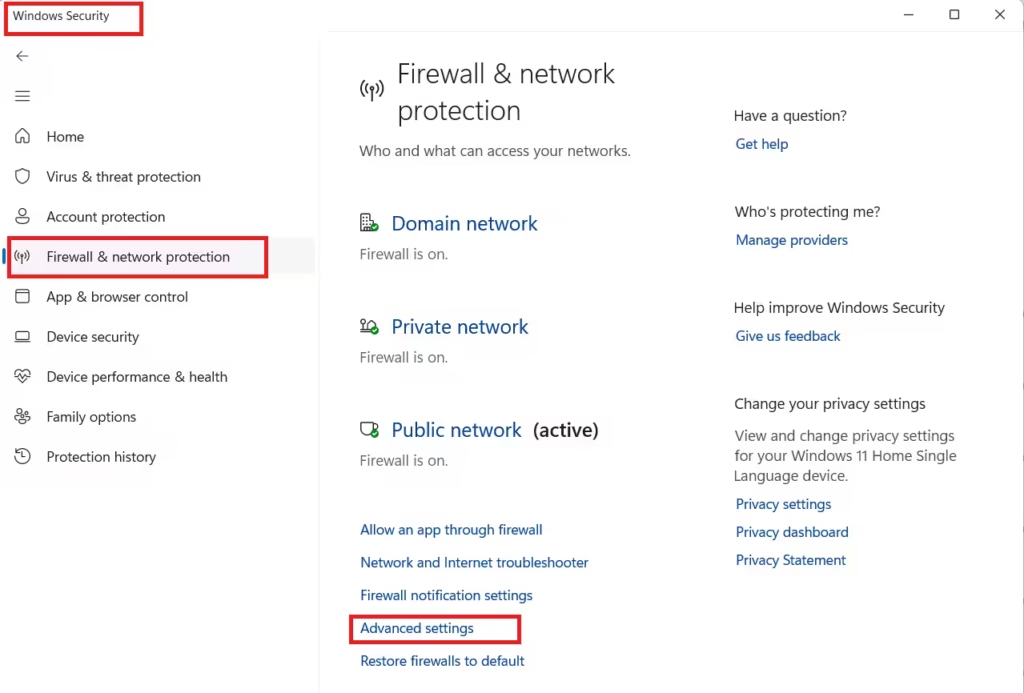
How to enable
- Open Windows Security
- Go to Firewall & network protection
- Click Advanced settings
- Open Windows Defender Firewall Properties
- Enable Display notifications
6. Enable Firewall Logging (Advanced – Troubleshooting Use)
Firewall logs help identify blocked connections and network issues.
Useful for
- Diagnosing connection failures
- Checking what the firewall blocked
What to enable
- Log dropped packets
- Increase log file size
This is optional and mainly useful for advanced troubleshooting.
7. Customize Network Profiles to Block Incoming Connections
You can strengthen protection by blocking incoming connections on each network profile.
Best practice
- Block incoming connections on Public networks
- Allow only trusted apps on Private networks
Warning: Blocking all incoming connections may affect:
- File sharing
- Printers
- Local network apps
Apply this carefully, especially on home networks.
8. Use Firewall Monitoring Tools
Windows 11 includes built-in monitoring options to review firewall activity.
You can:
- Check active firewall rules
- Review connection security rules
- Monitor network security events
This helps you understand how your firewall is protecting your system.
FAQs
What are the best Windows 11 firewall best practices?
The best Windows 11 firewall best practices include keeping the firewall enabled on all networks, using separate profiles for public and private connections, limiting allowed apps, enabling notifications, and blocking unnecessary inbound traffic to reduce security risks.
Is Windows Defender Firewall enough to protect Windows 11?
Yes, Windows Defender Firewall is enough for most users when configured correctly. It provides strong network-level protection against unauthorized access and works effectively alongside built-in Windows security features.
Should I enable Windows 11 firewall on public Wi-Fi networks?
Yes, you should always enable Windows 11 firewall on public Wi-Fi networks. Public networks are more vulnerable to attacks, and keeping the firewall active helps block unauthorized connection attempts.
Can Windows 11 firewall block malware and hackers?
Windows 11 firewall can block hackers and malicious connections by preventing unauthorized inbound and outbound network traffic. While it does not remove malware, it helps stop threats from communicating over the internet.
Do firewall rules slow down Windows 11 performance?
No, properly configured firewall rules do not slow down Windows 11. The firewall runs efficiently in the background and has minimal impact on system performance.
Is it safe to block ports using Windows 11 firewall?
Blocking ports using Windows 11 firewall is safe only if you know which ports are unnecessary. Blocking the wrong ports may cause apps or internet services to stop working, so beginners should keep default settings.
How often should I review Windows 11 firewall settings?
You should review Windows 11 firewall settings occasionally, especially after installing new apps or connecting to new networks. Regular reviews help ensure only trusted programs have network access.
Can I use a third-party firewall with Windows 11?
You can use a third-party firewall with Windows 11, but it is not required for most users. Windows Defender Firewall already provides strong protection and is well integrated with the operating system.
Windows 11 Firewall is highly capable when configured correctly. By applying these best practices, you reduce security risks, gain better control over network activity, and strengthen protection without relying on third-party tools.
For most users, the basic steps provide strong protection, while advanced options should be applied only if you understand their impact.

