Microsoft has released Windows 11 KB5074109 as the January 2026 Patch Tuesday cumulative update for Windows 11 25H2 and 24H2. The update focuses on security patches, stability fixes, networking reliability, and power efficiency improvements. It also includes offline installers (.msu) for users who prefer manual installation or manage multiple PCs.
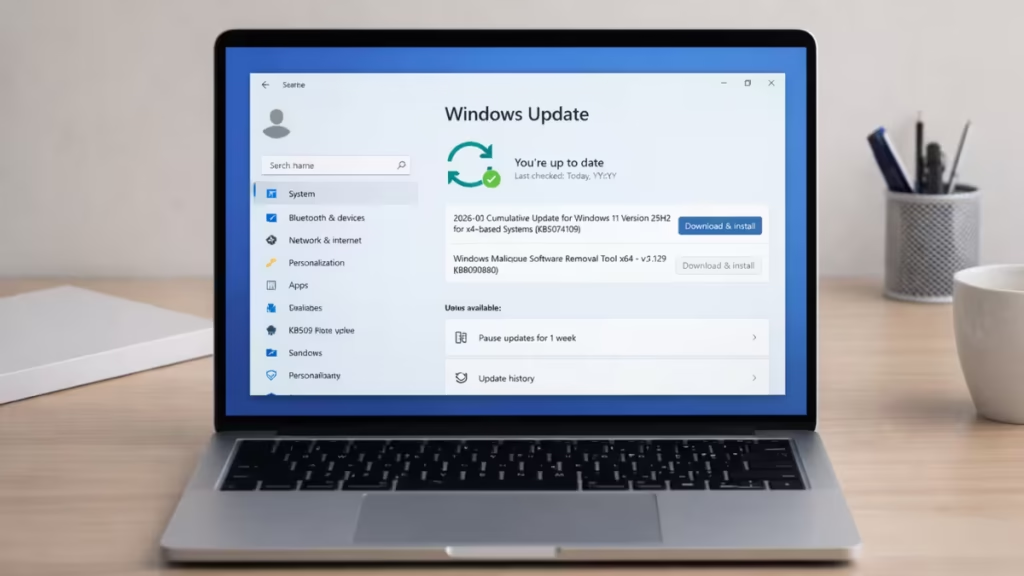
If your system runs Windows 11 25H2 or 24H2, this update installs automatically unless you pause updates.
Windows 11 KB5074109 Update
KB5074109 is a mandatory cumulative security update. Microsoft ships it to close known vulnerabilities and fix system-level bugs reported in recent months.
After installation:
- Windows 11 25H2 moves to Build 26200.7623
- Windows 11 24H2 moves to Build 26100.7623
Microsoft maintains identical code bases for 25H2 and 24H2, so both versions receive the same fixes and behavior changes.
This update also includes bundled components that increase download size. Microsoft now packages AI-related components with monthly updates, even on non-AI PCs, which explains the larger file size.
Key Fixes and Improvements in KB5074109
This release focuses on reliability rather than feature expansion. Here are the fixes that directly impact users and IT environments.
1. Compatibility: Legacy Modem Drivers Removed
Microsoft removed the following legacy modem drivers:
- agrsm64.sys (x64)
- agrsm.sys (x86)
- smserl64.sys (x64)
- smserial.sys (x86)
Which means- any hardware that depends on these drivers will no longer function after installing the update. This mainly affects older dial-up modems, serial modem devices, and embedded communication hardware.
2. Networking Fixes
WSL VPN connectivity restored
- Fixed an issue where mirrored networking in Windows Subsystem for Linux (WSL) failed and showed “No route to host” errors.
- The bug prevented access to corporate resources over VPN connections, even when Windows itself stayed connected.
Azure Virtual Desktop RemoteApp stability
- Fixed RemoteApp connection failures in Azure Virtual Desktop (AVD) environments that appeared after earlier updates.
These fixes improve reliability for developers, IT admins, and remote workers who rely on VPN and virtualization workflows.
3. Power and Battery Optimization
Microsoft fixed an issue where devices equipped with a Neural Processing Unit (NPU) stayed powered on even when idle. This behavior increased unnecessary power usage and affected battery life on supported hardware.
After the update, affected systems return to normal idle power behavior.
4. Secure Boot Certificate Deployment (Enterprise)
Windows quality updates now include device eligibility data for controlled rollout of new Secure Boot certificates. Only systems that demonstrate successful update signals receive the certificates.
This phased approach reduces deployment risk for managed environments.
5. Windows Deployment Services (WDS) Behavior Change
Windows Deployment Services (WDS) no longer supports hands-free deployment by default. Microsoft hardened this behavior for security reasons.
IT administrators should review the updated deployment guidance before upgrading production imaging systems.
6. WinSqlite3.dll Security Update
Microsoft updated WinSqlite3.dll, a core Windows component. Some security tools previously flagged it incorrectly as vulnerable.
Important clarification:
- WinSqlite3.dll is different from sqlite3.dll used by third-party apps.
- If a security product still flags sqlite3.dll inside an application, update that app instead.
Reported Issues After Installing KB5074109
Microsoft confirms one remaining issue:
Password Icon Missing on Lock Screen
After installing KB5074109, the password icon may not appear on the lock screen sign-in options. The clickable area still works, so you can move your cursor over the blank space and click to enter your password normally.
This issue mainly affects enterprise or managed devices. Most Home and Pro users are unlikely to encounter it. Microsoft applies Known Issue Rollback (KIR) automatically to resolve the problem. IT administrators can also deploy a temporary Group Policy fix if needed.
How to Install KB5074109 Automatically
For most users, Windows installs the update automatically.
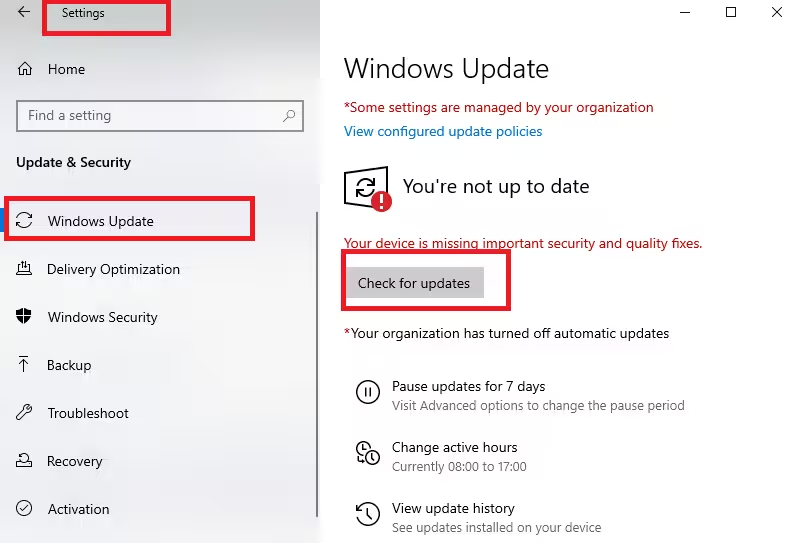
Steps:
- Open Start → Settings → Windows Update
- Click Check for updates
- Allow Windows to download and install KB5074109
- Restart when prompted
How to Download KB5074109 Manually (.msu)
Manual installation helps when:
- Windows Update fails
- You manage multiple machines
- You need offline installation
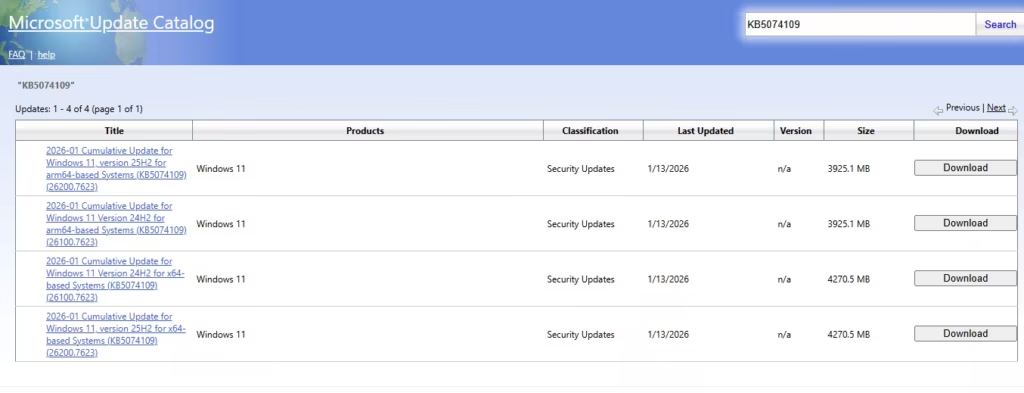
Steps:
- Open the Microsoft Update Catalog
- Search for KB5074109
- Select the correct package:
- x64-based systems
- ARM64-based systems
- Download the .msu file
- Double-click the file to install
- Restart after completion
Tip: Always verify system architecture before downloading to avoid installation errors.
KB5074109 Update Size and Installation Time
Typical package sizes:
| OS Version | Architecture | Approx Size |
|---|---|---|
| Windows 11 25H2 | x64 | ~4.2 GB |
| Windows 11 25H2 | ARM64 | ~3.9 GB |
| Windows 11 24H2 | x64 | ~4.2 GB |
| Windows 11 24H2 | ARM64 | ~3.9 GB |
Installation usually completes within 10–15 minutes on a stable broadband connection.
FAQs
What is Windows 11 KB5074109?
Windows 11 KB5074109 is a mandatory cumulative security update for Windows 11 25H2 and 24H2 that fixes security vulnerabilities, improves networking reliability, optimizes power usage, and updates system components.
Which Windows versions receive KB5074109?
KB5074109 applies to Windows 11 version 25H2 and version 24H2. Both versions receive the same fixes and improvements because they share the same code base.
What build number does KB5074109 install?
After installing KB5074109, Windows 11 25H2 updates to Build 26200.7623, while Windows 11 24H2 updates to Build 26100.7623.
How do I download Windows 11 KB5074109 offline?
You can download the KB5074109 offline installer (.msu) from the Microsoft Update Catalog by selecting the correct architecture and running the installer manually.
Is Windows 11 KB5074109 mandatory?
Yes, KB5074109 is a mandatory Patch Tuesday security update and installs automatically unless updates are paused.
What issues does KB5074109 fix?
KB5074109 fixes WSL VPN connectivity errors, Azure Virtual Desktop RemoteApp failures, excessive power usage on NPU devices, and security detection issues related to WinSqlite3.dll.
Does KB5074109 remove any drivers?
Yes, KB5074109 removes legacy modem drivers including agrsm64.sys, agrsm.sys, smserl64.sys, and smserial.sys, which may affect older modem hardware.
Are there any known issues with KB5074109?
The update may hide the password icon on the lock screen in some managed environments, but the sign-in option still works and Microsoft provides a rollback mitigation.
How long does KB5074109 take to install?
KB5074109 typically installs within 10 to 15 minutes depending on system speed and internet connection.
Should I install Windows 11 KB5074109 now?
You should install KB5074109 to stay protected with the latest security fixes unless your system relies on legacy modem hardware or enterprise imaging workflows that require testing.
Windows 11 KB5074109 delivers important stability and security improvements without introducing disruptive changes. Most users can install it safely through Windows Update. Advanced users and IT teams can rely on the .msu packages for controlled deployment and offline installations.
If you notice unexpected behavior after installation, document the error messages and system changes before attempting rollback or advanced troubleshooting.

