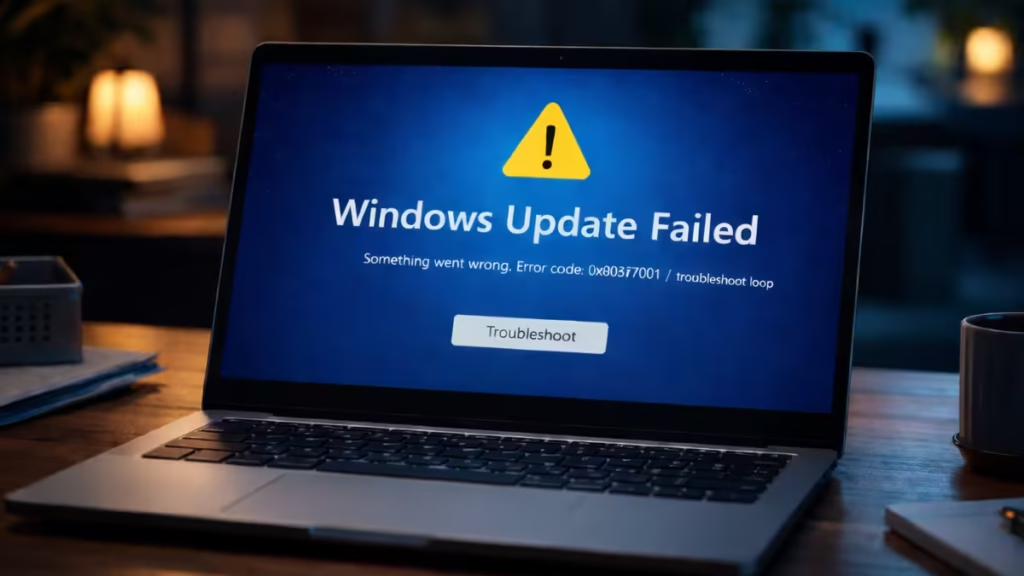
If Windows 11 is not activating after a hardware upgrade, you will likely see error 0x803F7001 or get stuck in an endless troubleshoot loop. This usually happens after changing key components like the motherboard or CPU, which makes Windows treat your system as a new device. As a result, your license cannot be verified automatically. In this guide, you will learn exactly how to fix the issue step by step and reactivate Windows quickly.
Note: Steps in this guide are for Windows 11. Windows 10 follows a similar process with minor UI differences.
What Is Error 0x803F7001?
Windows shows 0x803F7001 when it cannot detect a valid license on your device. This usually happens after:
- Changing motherboard or CPU
- Replacing multiple components
- Reinstalling Windows
Windows treats your system as a new device, so activation fails.
Why Windows Activation Fails After Hardware Upgrade
Before fixing the issue, understand the root cause:
- License is linked to old hardware
- Device no longer exists in Microsoft account
- Activation server cannot verify ownership
- Troubleshooter cannot find matching device
That is why the troubleshooter keeps looping.
Quick Checklist Before Fixing
Make sure:
- You are signed into your Microsoft account
- Internet connection is stable
- You are using the same account linked earlier
- Your Windows edition matches your license (Home/Pro)
Method 1: Reactivate Using Microsoft Account
Use this if your license was linked earlier.
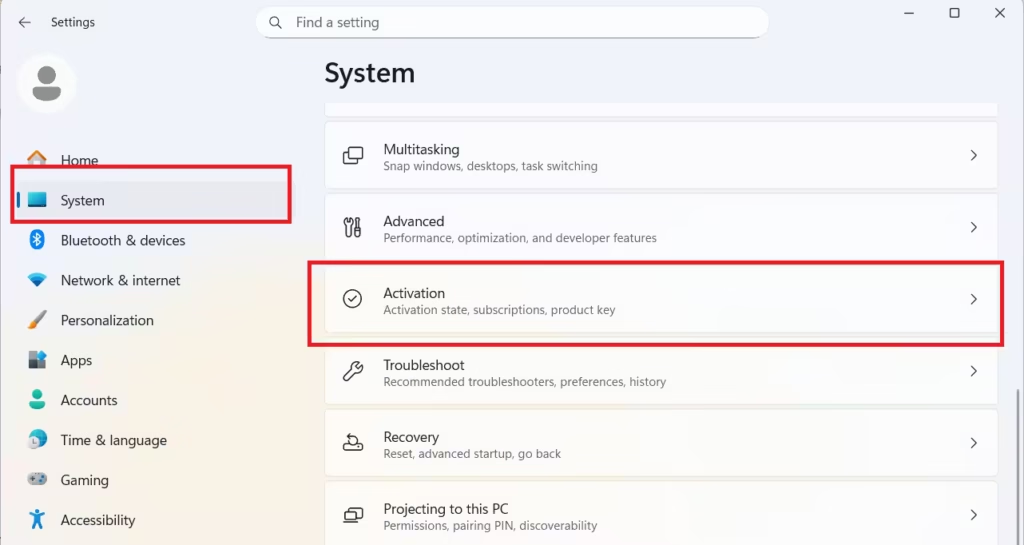
Steps:
- Open Settings
- Go to System → Activation
- Click Troubleshoot
- Select I changed hardware on this device recently
- Sign in to your Microsoft account
- Select your old device
- Click Activate
This is the most reliable method.
Method 2: Enter Product Key Manually
Use this if you have a retail product key.
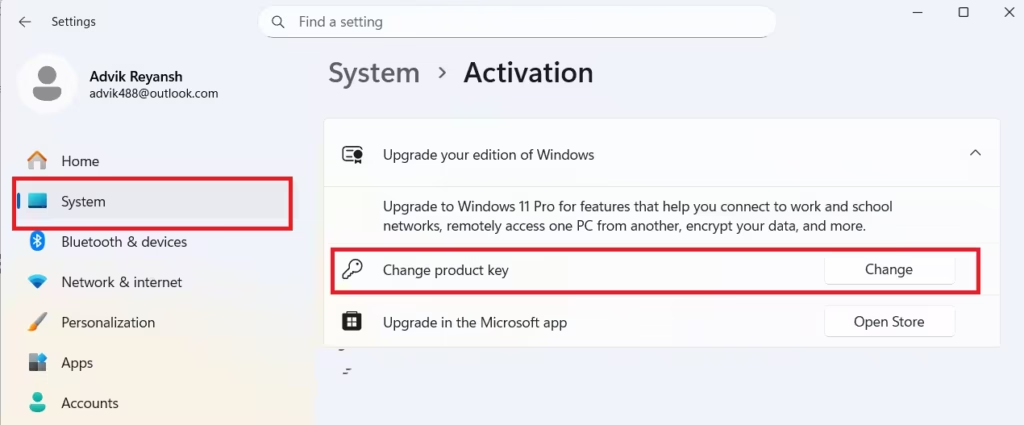
Steps:
- Open Settings → System → Activation
- Click Change product key
- Enter your 25-character key
- Click Next → Activate
Method 3: Fix Windows Activation Troubleshoot Loop
Use this if the Troubleshooter shows no devices, loops endlessly, or fails after signing in.
If the Troubleshooter keeps looping, the issue is usually caused by a broken license cache or account mismatch. Follow these steps carefully.
Step 1: Clear License Cache and Reset Activation
- Open Command Prompt as Administrator
- Run:
slmgr /upkThis removes the current product key from your system.
- Then run:
slmgr /cpkyThis removes the key from registry storage so it cannot be recovered by third-party tools. This is a security cleanup step and is different from removing the active key.
- Restart your PC
Step 2: Re-enter Your Product Key
- Go to Settings → System → Activation
- Click Change product key
- Enter your key again
- Click Activate
Step 3: Check Microsoft Account Device Limit
If your device does not appear:
- Sign in to your Microsoft account
- Open Devices section
- Remove unused or duplicate devices
Then retry activation.
Step 4: Fix Account Sync Issues
- Sign out of your Microsoft account
- Restart your PC
- Sign back in
Then run Troubleshooter again.
Step 5: Run Troubleshooter Again
Go to:
- Settings → Activation → Troubleshoot
Your device should now appear correctly.
Method 4: Activate Windows Using Phone (slui 4)
Use this when online activation fails repeatedly or gets stuck.
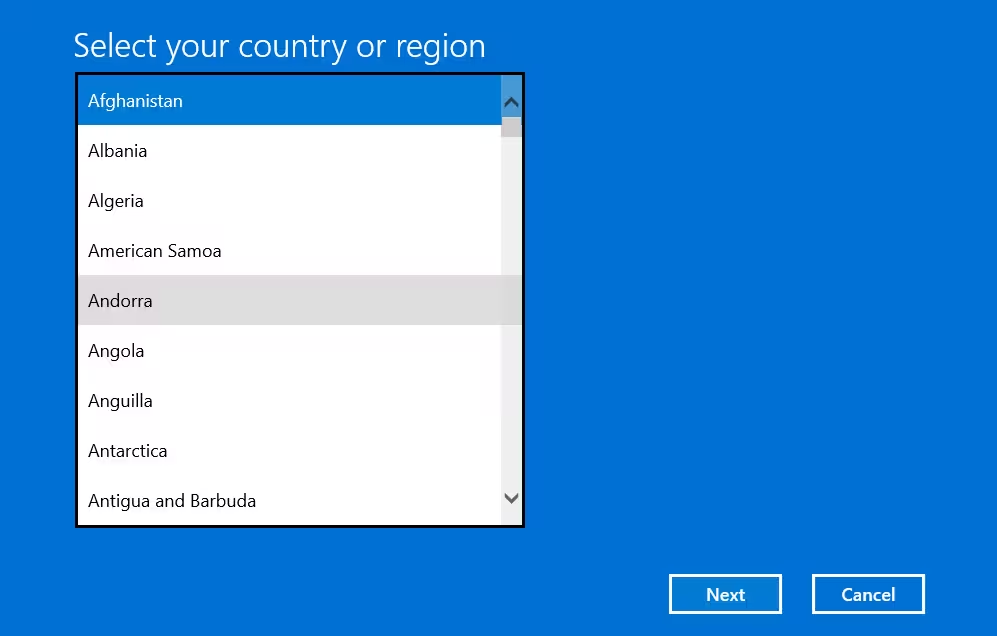
Steps:
- Press Win + R
- Type:
slui 4 - Select your country
- Call the number shown
- Follow the automated system
- Enter the confirmation ID
This bypasses most online activation issues.
Method 5: Contact Microsoft Support (Final Option)
Use this if all methods fail.
Steps:
- Open Get Help app
- Search for Windows activation issue
- Scroll down → click Contact Support
- Choose chat or call
A support agent may be able to manually verify and reactivate your license, but results depend on your license type and account history.
Important Activation Tips
- OEM licenses cannot be transferred to new hardware
- Retail licenses can be reused after verification
- Removing your old device can break activation
- Major hardware upgrades always require reactivation
- If you upgraded from Windows 10 to Windows 11 using the free upgrade, your license is linked to your Microsoft account, not a product key — use Method 1
FAQs
What does error 0x803F7001 mean in Windows 11?
Error 0x803F7001 means Windows cannot find a valid license on your device, usually after a hardware change like a motherboard upgrade.
Why is Windows 11 stuck in activation troubleshoot loop?
The troubleshoot loop occurs when Windows cannot match your current device with a previously linked license, often due to hardware changes or account mismatch.
How do I fix Windows 11 not activating after hardware upgrade?
Sign in with your Microsoft account, run the Activation Troubleshooter, re-enter your product key, or use phone activation if the issue persists.
Can I reuse my Windows license after changing motherboard?
Yes, but only if it is a retail or Microsoft account-linked digital license; OEM licenses cannot be transferred.
How do I activate Windows 11 using phone activation?
Press Win + R, type slui 4, select your country, and follow the automated steps to enter the confirmation ID.
Why is my device not showing in Activation Troubleshooter?
Your device may not appear if it was removed from your Microsoft account, linked to a different account, or hidden due to device limits.
Does reinstalling Windows fix activation issues?
No, reinstalling Windows does not fix activation issues because activation depends on your license and account, not the installation.
What happens if I remove my old device from Microsoft account?
Removing your old device can break the license link, preventing automatic activation after hardware changes.
Is Windows activation affected by server issues?
Yes, temporary Microsoft server issues can cause activation failures, and retrying later usually resolves it.
What is the fastest way to fix Windows activation error?
The fastest fix is to sign in with your Microsoft account and use the Activation Troubleshooter with the “I changed hardware” option.
Windows 11 activation fails after a hardware upgrade because your device identity changes. The system cannot match your license automatically, which leads to error 0x803F7001 or a troubleshoot loop.
Start with account-based activation. If that fails, reset the license cache, use phone activation, or contact support. In most cases, activation works once ownership is verified.
