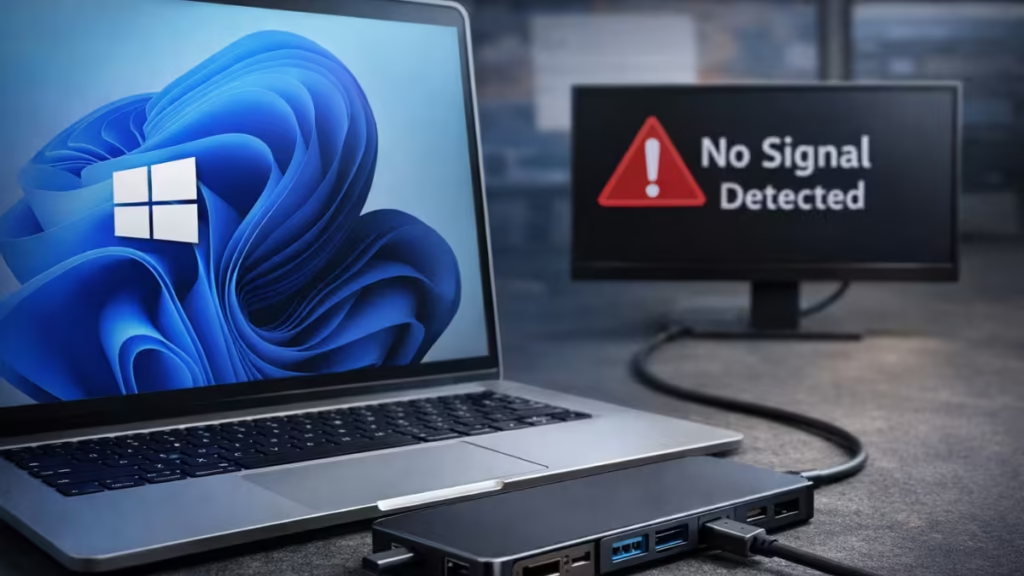
If Windows 11 shows “We didn’t find another display” when you connect a monitor through a USB-C docking station, the issue usually comes from drivers, not hardware.
You may notice:
- HDMI works when connected directly
- The dock charges your laptop and connects USB devices
- The external monitor is not detected
This clearly means Windows cannot send video through the USB-C dock, even though the dock itself is working.
Why Windows 11 Is Not Detecting Second Monitor via USB-C Dock
Before fixing it, understand what is failing. This issue occurs because:
- Windows updates replace stable graphics drivers
- USB-C or Thunderbolt controller drivers break
- DisplayLink software is missing (for some docks)
- BIOS or firmware becomes incompatible
In simple terms, the video signal path through USB-C is disrupted.
Quick Checklist Before Fixing
Run these quick checks to avoid unnecessary steps:
- Monitor is powered on
- Correct input source (HDMI/DisplayPort) is selected
- USB-C cable supports video (not charging-only)
- Dock works with another laptop (if possible)
- Direct HDMI connection works
If direct connection works but dock fails, the issue is software-related.
Method 1: Reinstall Graphics Driver (Most Important Fix)
Windows often installs a generic GPU driver that breaks USB-C display output.
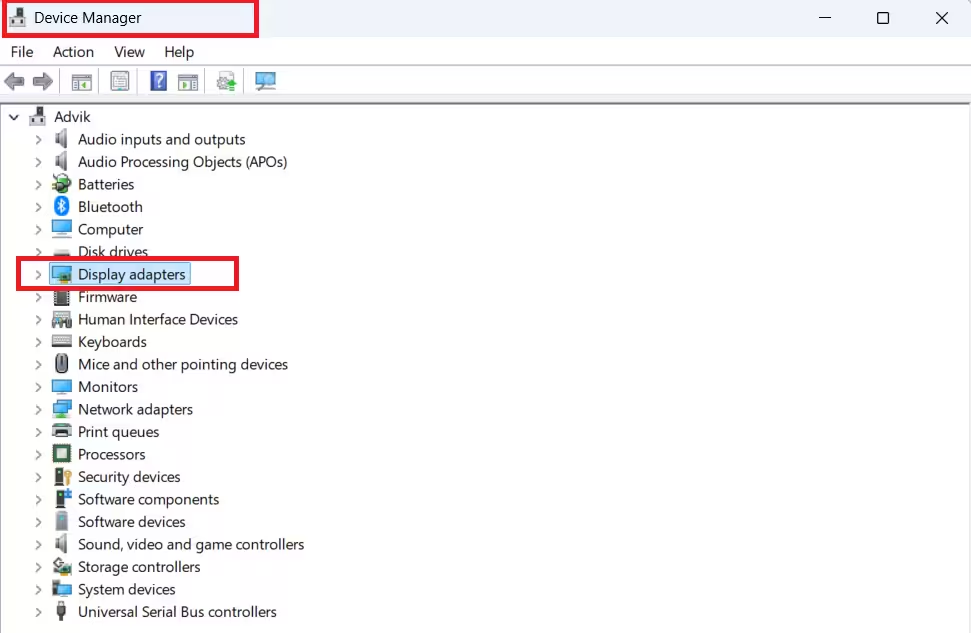
Steps:
- Open Device Manager
- Expand Display adapters
- Right-click your GPU → Uninstall device
- Restart your PC
- Download the latest driver from your laptop manufacturer
- Install it manually
This restores proper video output through the dock.
Method 2: Update USB-C / Thunderbolt Drivers
Your docking station depends on these drivers to send video.
Steps:
- Visit your laptop manufacturer’s support page
- Install:
- Chipset driver
- USB controller driver
- Thunderbolt driver (if available)
- Restart your system
Without these drivers, Windows cannot communicate with the dock properly.
Method 3: Install DisplayLink Driver (For Compatible Docks)
Some USB-C docks require DisplayLink software to render video.
Steps:
- Download the driver from the official DisplayLink site
https://www.synaptics.com/products/displaylink-graphics - Install and restart your PC
This enables display output on USB-based docks.
Method 4: Force Detect Monitor
Sometimes Windows fails to auto-detect displays.
Steps:
- Open Settings → System → Display
- Scroll to Multiple displays
- Click Detect
If it fails:
- Open Device Manager
- Disable your GPU → Enable it again
- Click Scan for hardware changes
Method 5: Perform Power Reset
This resets internal hardware controllers.
Steps:
- Shut down your laptop
- Disconnect dock and charger
- Hold power button for 30 seconds
- Start your laptop
- Reconnect the dock
This clears USB-C controller glitches.
Method 6: Update BIOS and Firmware
Outdated firmware often causes docking issues.
Steps:
- Visit your laptop manufacturer website
- Download the latest BIOS update
- Install carefully and restart
Many USB-C issues are fixed at firmware level.
Method 7: Fix Dual-GPU (Hybrid Graphics) Issues
Many laptops use both integrated (Intel/AMD) and dedicated (NVIDIA) GPUs. USB-C ports are often wired to only one GPU.
If Windows uses the wrong GPU, the dock may not detect displays.
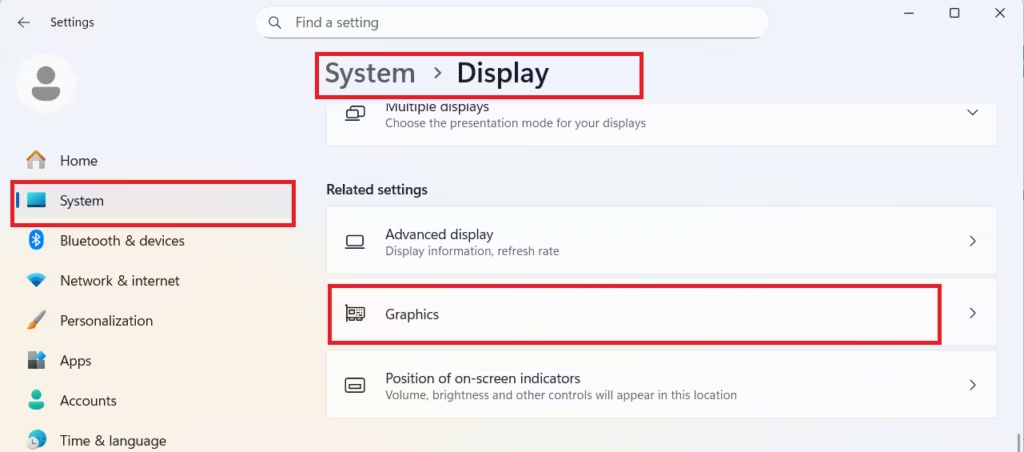
Steps:
- Open Graphics Settings
- Set apps to use Power Saving (Integrated GPU) or test both modes
- Update both GPU drivers (integrated + dedicated)
This ensures the correct GPU handles display output.
Method 8: Roll Back Windows Update (Last Resort)
If the issue started after a Windows update, rolling back can restore stability.
Steps:
- Open Settings → System → Recovery
- Click Go back
- Follow on-screen steps
This option is only available within 10 days of the update.
Rolling back may remove recent security patches, so use it as a temporary fix.
Check Dock Compatibility to Fix Monitor Detection Issues
Different docking stations behave differently.
Brands like:
- Dell WD series
- CalDigit
- Anker
often require firmware updates or dedicated drivers.
Always check the official website of your dock manufacturer for updates.
FAQs
Why is my USB-C dock not detecting a monitor in Windows 11?
This usually happens due to broken graphics drivers, missing DisplayLink software, or USB-C controller issues after a Windows update.
Does every USB-C cable support video output?
No. Many USB-C cables only support charging or data. You need a cable that supports DisplayPort Alt Mode.
What is DisplayLink and when do I need it?
DisplayLink is software that enables video over USB. You need it if your dock does not use native GPU output.
Why does HDMI work but the dock does not?
HDMI sends video directly from the GPU. A dock depends on drivers and firmware, so software issues can break it.
Can Windows updates break docking station support?
Yes. Updates can replace drivers or change system behavior, causing docks to stop detecting monitors.

