When Windows 11 Pro fails to activate after a reinstall or system transfer, the issue is rarely random. In most cases, activation breaks because Microsoft can’t verify the original license binding to your hardware. This commonly happens after resetting Windows, replacing major components, or moving the OS to a new PC.
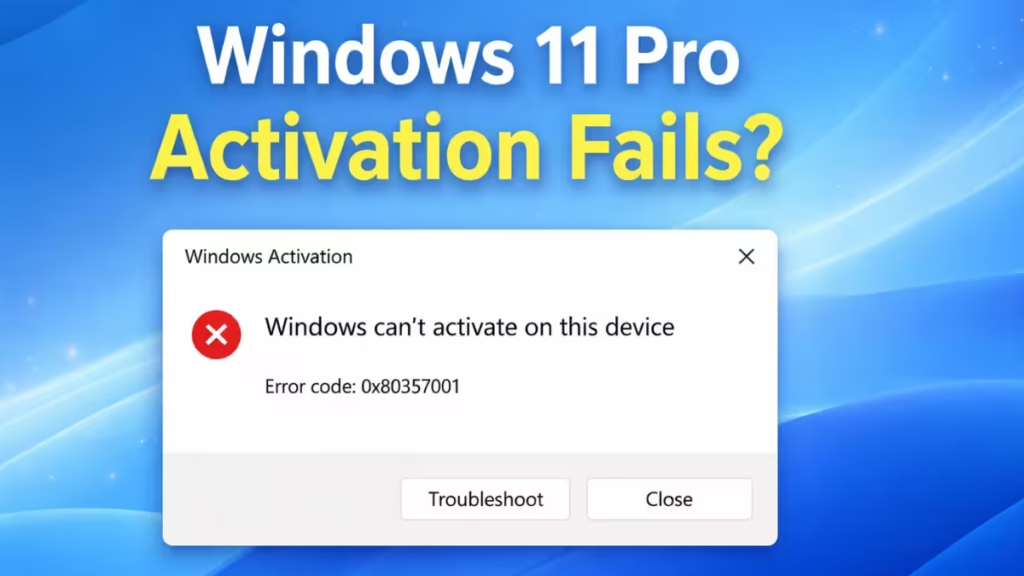
Why Windows 11 Pro Activation Fails After Reinstall or Transfer
Windows 11 activation relies on a digital license that’s tied to your system hardware. Activation errors usually appear when:
- The motherboard was replaced or upgraded
- Windows was reinstalled without linking a Microsoft account
- A Windows 11 Home key is used on Pro
- The system was cloned to a new PC or drive
- Activation servers can’t verify the license online
When this happens, Windows shows messages like:
- “Windows can’t activate on this device”
- “We can’t reach Windows activation servers”
- Error code 0x803F7001 or 0xC004F213
Fix 1: Verify You Installed the Correct Windows Edition
Before applying any fixes, confirm that Windows 11 Pro is actually installed.

How to check:
- Press Windows + I
- Go to System → About
- Check Windows specifications
If it shows Windows 11 Home, a Pro key will never activate.
You must upgrade to Pro before activation works.
Fix 2: Run the Windows Activation Troubleshooter
Microsoft includes a built-in tool that can recover licenses after reinstalls.
Steps:
- Open Settings
- Go to System → Activation
- Click Troubleshoot
- Select “I changed hardware on this device recently”
- Sign in with the Microsoft account used earlier
If your license was previously linked, Windows will reactivate automatically.
Fix 3: Activate Using a Valid Windows 11 Pro Product Key
If you own a retail key, manually re-entering it often fixes activation failures.
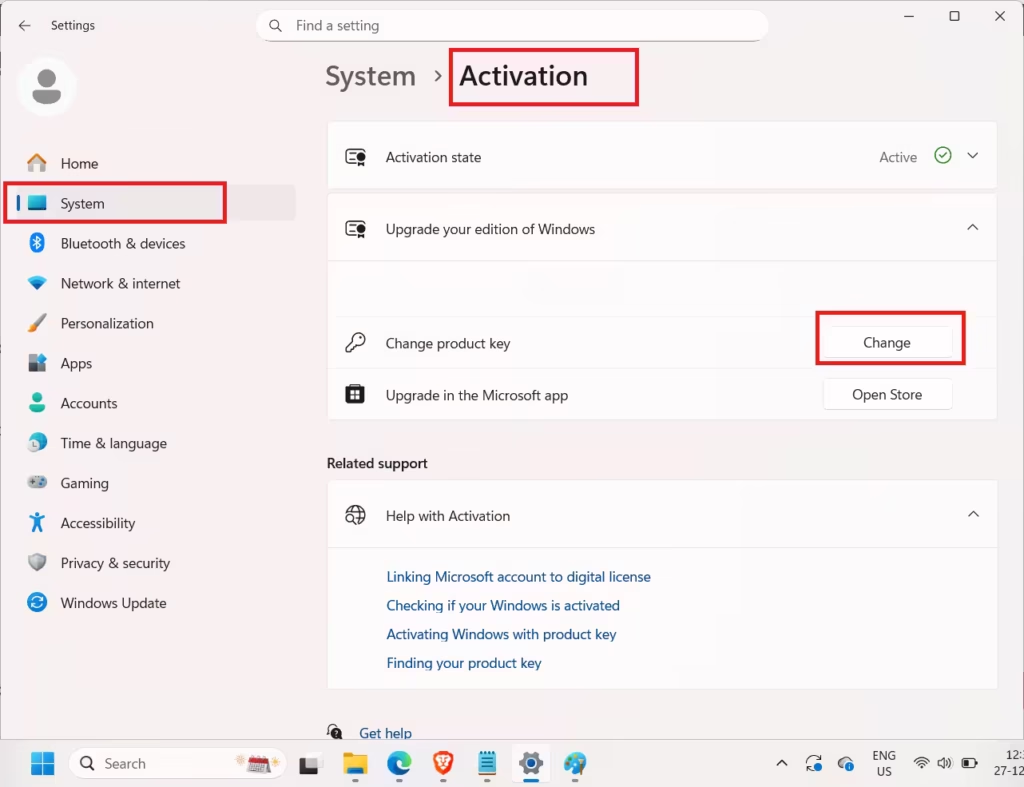
Steps:
- Open Settings → System → Activation
- Click Change product key
- Enter your 25-character Windows 11 Pro key
- Click Next and complete activation
Make sure the key matches Windows 11 Pro, not Home.
Fix 4: Check Microsoft Account License Linking
Digital licenses are stored under your Microsoft account. If the account isn’t linked, activation fails after reinstall.

To confirm:
- Go to Settings → Accounts
- Ensure you’re signed in with a Microsoft account
- Return to Activation
- Check for “Windows is activated with a digital license linked to your Microsoft account”
If it’s missing, sign out and sign back in, then retry activation.
Fix 5: Activate Windows Using Command Prompt (Advanced)
This method forces Windows to re-register the license with Microsoft servers.
Steps:
- Search Command Prompt
- Right-click → Run as administrator
- Enter the following commands one by one:
slmgr /ipk YOUR-PRODUCT-KEY
slmgr /ato
Restart your system after completion.
Fix 6: Check Internet, Date, and Time Settings
Activation verification fails if system time or region is incorrect.
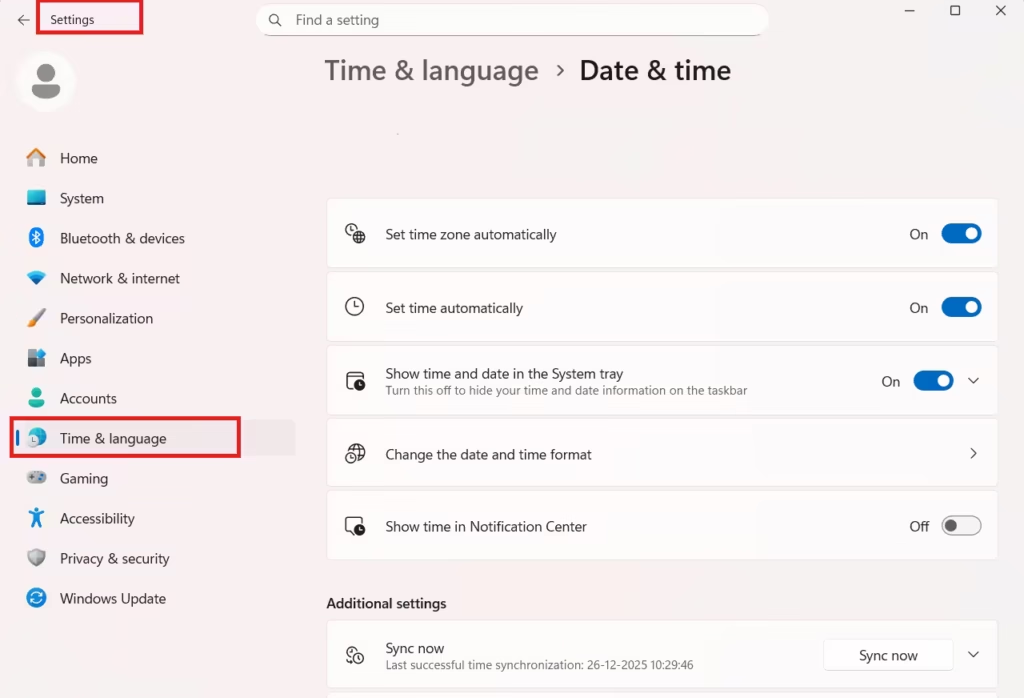
What to verify:
- Internet connection is stable
- VPN is disabled temporarily
- Date & time set automatically
- Correct region selected
To check:
- Settings → Time & Language → Date & Time
- Enable Set time automatically
Retry activation once corrected.
Fix 7: Contact Microsoft Support (Last Resort)
If your license is genuine but still won’t activate, Microsoft can manually reassign it.
When to contact support:
- Motherboard replaced
- Device permanently changed
- Retail license not transferring automatically
Use Microsoft Activation Support Chat and provide:
- Microsoft account email
- Previous activation details
- Proof of purchase (if requested)
FAQs Windows 11 Pro Activation Issues
Why does Windows 11 Pro activation fail after reinstall?
Windows 11 Pro activation fails after reinstall when Microsoft cannot verify the original digital license. This usually happens if the license was not linked to a Microsoft account, the hardware signature changed, or the wrong Windows edition was installed.
Can Windows 11 Pro activate again after a clean install?
Yes, Windows 11 Pro can activate again after a clean install if the license is linked to the same Microsoft account or the same hardware. Retail licenses reactivate automatically once online verification succeeds.
Why does Windows 11 Pro not activate after system transfer?
Windows 11 Pro does not activate after system transfer because the license is tied to the original hardware, especially the motherboard. Transferring Windows to a new PC requires a retail license and manual reactivation.
Does changing the motherboard break Windows 11 Pro activation?
Yes, changing the motherboard often breaks Windows 11 Pro activation because Windows treats it as a new device. Activation can usually be restored using the Activation Troubleshooter with a linked Microsoft account.
How do I fix Windows 11 Pro activation after hardware change?
To fix Windows 11 Pro activation after a hardware change, run the Activation Troubleshooter, select “I changed hardware on this device recently,” and sign in with the Microsoft account used previously.
Can I activate Windows 11 Pro without a product key?
Yes, Windows 11 Pro can activate without a product key if a digital license is already linked to your Microsoft account and the system hardware matches the original activation record.
Why does Windows 11 Pro show “We can’t activate Windows on this device”?
This error appears when Windows activation servers cannot validate the license due to hardware changes, incorrect edition installation, internet issues, or an unlinked Microsoft account.
Is Windows 11 Pro activation affected by internet issues?
Yes, Windows 11 Pro activation requires an active internet connection. Incorrect date, time, region settings, or VPN usage can block license verification and cause activation to fail.
Can OEM Windows 11 Pro licenses be transferred?
No, OEM Windows 11 Pro licenses are permanently tied to the original device and cannot be transferred to another PC. Only retail licenses support system transfer.
Will reinstalling Windows erase my activation permanently?
No, reinstalling Windows does not permanently erase activation. As long as the license is valid and linked to your Microsoft account or hardware, Windows 11 Pro can be reactivated.
Windows 11 Pro activation failures after reinstall or transfer are license-verification issues, not system errors. Following the fixes above resolves activation in most cases without reinstalling Windows again.

