before. This happens because the update changes hardware identifiers that Windows uses to verify your license. When that verification fails, Windows reports that the device hardware has changed and blocks activation.
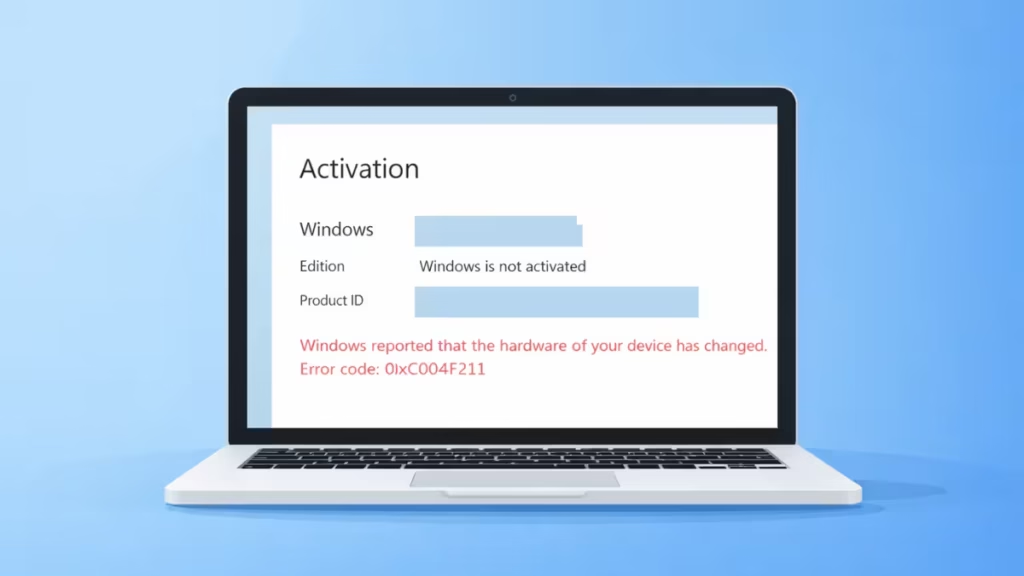
In many cases, Windows also fails to reactivate automatically, and the Activation Troubleshooter may display the message:
“We can’t reactivate Windows on this device. Try again later.”
This does not mean your Windows license is invalid or lost. It simply means Windows needs to be manually reactivated after the BIOS update. This guide explains why the error appears and walks you through the exact steps to restore Windows activation without reinstalling the operating system.
This guide explains why the error appears and walks you through the exact steps to restore Windows activation without reinstalling the OS.
Step 1: Confirm Your Windows License Type
Before applying fixes, verify whether your license is digital or product key–based.
- Open Settings
- Go to System → Activation
- Check the activation status message
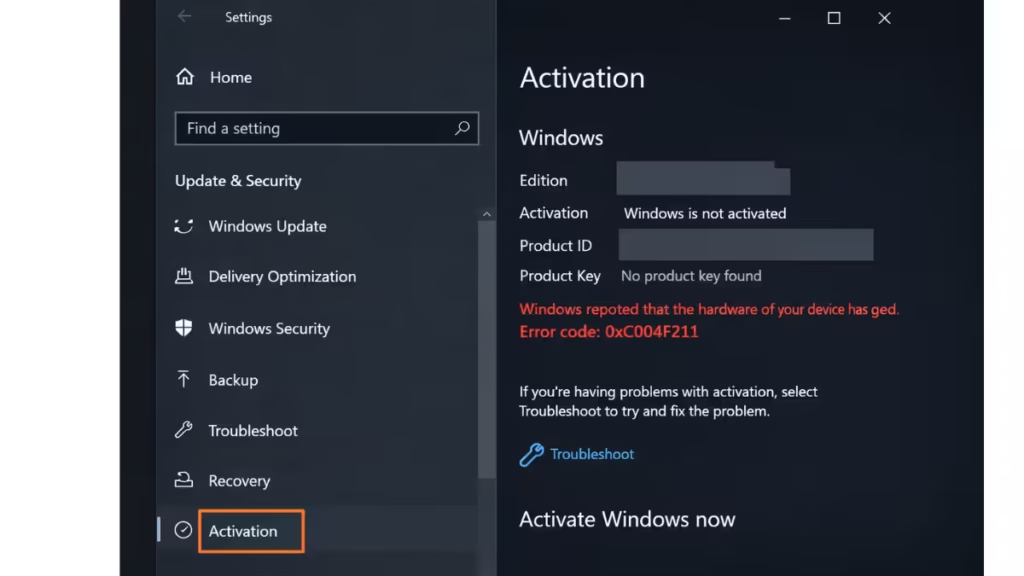
You’ll usually see one of these:
- Windows is activated with a digital license
- Windows is activated using a product key
This determines which fix will work.
Step 2: Sign In With the Microsoft Account Linked to Windows
If your Windows license is digital, it must be linked to your Microsoft account.
- Open Settings → Accounts
- Sign in with the same Microsoft account used when Windows was first activated
- Restart your PC
- Go back to Settings → System → Activation
- Click Troubleshoot
If the account is linked correctly, Windows often activates automatically after reboot.
Step 3: Use the “I Changed Hardware on This Device” Option
If the troubleshooter fails on the first attempt, try this manual path:
- Open Settings → System → Activation
- Click Troubleshoot
- Select I changed hardware on this device recently
- Sign in to your Microsoft account
- Choose your current PC from the device list
- Click Activate
This step is critical after BIOS or motherboard-related changes.
Step 4: Reactivate Windows Using Command Prompt
If the activation UI fails, force activation manually.
- Press Windows + X
- Select Terminal (Admin) or Command Prompt (Admin)
- Run the following commands one by one:
slmgr /ipk YOUR-PRODUCT-KEY
slmgr /ato
Replace YOUR-PRODUCT-KEY with your original Windows key.
Restart your PC after running the commands.
Step 5: Check BIOS Settings After the Update
Some BIOS updates reset key system values.
Enter BIOS and verify:
- Date and time are correct
- Secure Boot is enabled (if previously enabled)
- TPM is enabled (especially for Windows 11)
Save changes and reboot, then recheck activation.
Step 6: Contact Microsoft Support (Last Resort)
If none of the above steps work, Microsoft must manually validate your license.
Contact Microsoft Support and explain:
- You updated the BIOS
- Windows shows error 0xC004F211
- Activation Troubleshooter fails
They can reassign the license to your device if it’s genuine.
Why the Activation Troubleshooter Often Fails
The troubleshooter fails when:
- The Microsoft account isn’t linked properly
- Hardware ID changed too much after BIOS update
- Activation servers temporarily reject auto-verification
Manual reactivation almost always resolves this.
Will Reinstalling Windows Fix Error 0xC004F211?
Reinstalling Windows does not help unless activation is resolved first. The error will return after setup if the license issue remains.
Always fix activation before considering a reinstall.
FAQs
What is Windows activation error 0xC004F211?
Windows activation error 0xC004F211 happens when Windows detects a major hardware change, often after a BIOS update, and fails to verify the license.
Why does a BIOS update cause error 0xC004F211?
A BIOS update can reset or change hardware identifiers, which makes Windows think the PC has changed and blocks automatic activation.
Is error 0xC004F211 a serious problem?
No, error 0xC004F211 is not serious and does not damage Windows; it only prevents activation until the license is verified again.
Can I fix Windows activation error 0xC004F211 without reinstalling Windows?
Yes, you can fix error 0xC004F211 by reactivating Windows using your Microsoft account or product key without reinstalling Windows.
Why does the Windows Activation Troubleshooter fail after a BIOS update?
The Activation Troubleshooter may fail if the Microsoft account is not linked to the license or if the hardware change cannot be verified automatically.
Does error 0xC004F211 delete files or apps?
No, Windows activation error 0xC004F211 does not affect your files, apps, or personal data in any way.
Does error 0xC004F211 affect Windows 11?
Yes, error 0xC004F211 affects both Windows 10 and Windows 11 after BIOS or hardware-related updates.
Will an OEM Windows license reactivate after a BIOS update?
In most cases, an OEM license reactivates automatically after a BIOS update or after running the activation troubleshooter.
What if my Windows license was upgraded from Windows 7 or 8?
Upgraded licenses remain valid but may require manual reactivation after a BIOS update due to hardware ID changes.
Can Microsoft Support fix error 0xC004F211?
Yes, Microsoft Support can manually reactivate Windows if the license is genuine and activation fails after a BIOS update.
Will error 0xC004F211 happen again after future updates?
Once Windows is reactivated, error 0xC004F211 usually does not return unless another major hardware change occurs.
Error 0xC004F211 after a BIOS update is a licensing mismatch—not a broken Windows install.
By re-linking your Microsoft account or re-entering your product key, you can fully restore activation without reinstalling Windows.
If the issue persists even after following all steps above, drop your system details in the comments—we’ll help you resolve it.

