When Windows updates fail to install, the system can enter a loop where updates install, roll back, and reinstall repeatedly. This happens when Windows detects a problem during setup and cancels the update to protect system stability.
This issue looks serious, but in most cases, it can be fixed without reinstalling Windows or losing files.
Follow the steps below in order. Each step targets a deeper cause of the update loop, and you can stop as soon as the update installs successfully.
Why Windows Updates Keep Installing and Rolling Back
Windows enters an install–remove loop when something blocks the update process. Common causes include:
- Corrupted Windows Update cache files
- Incomplete or failed previous updates
- Damaged system files
- Conflicting drivers or external devices
- Low free disk space
- Broken update servicing components
When Windows cannot complete an update, it automatically rolls back the changes and retries after restart.
Step 1: Pause Windows Updates to Stop the Loop
First, stop Windows from retrying the failed update.
- Open Settings
- Go to Windows Update
- Click Pause updates
- Pause updates for 1 week
This prevents Windows from immediately reinstalling the same broken update while you fix the issue.
Step 2: Disconnect Non-Essential Devices
External devices can interfere with updates.
- Unplug:
- USB drives
- External hard disks
- Printers
- Docking stations
- Restart the PC
- Try Windows Update again
If the update installs successfully, reconnect devices after completion.
Step 3: Restart Windows Update Services
Next, reset the update services that manage downloads and installation.
- Press Win + R
- Type
services.mscand press Enter - Restart these services:
- Windows Update
- Background Intelligent Transfer Service (BITS)
- Windows Update Medic Service
Restarting these services clears stuck installation states.
Step 4: Clear the Windows Update Cache (Critical Fix)
A corrupted update cache is the most common cause of install–remove loops.
- Press Win + R
- Type
services.msc - Stop:
- Windows Update
- BITS
- Open File Explorer and go to:
C:\Windows\SoftwareDistribution- Delete all files and folders inside
- Restart the stopped services
Windows will rebuild fresh update files automatically.
Step 5: Repair Corrupted System Files
If core system files are damaged, updates cannot complete.
- Open Command Prompt (Admin)
- Run:
sfc /scannow- Wait for the scan to finish
- Then run:
DISM /Online /Cleanup-Image /RestoreHealthThese commands repair Windows components used during updates.
Step 6: Repair Windows Using the Built-In Update Recovery Option
If updates still install and roll back, the update engine itself may be damaged. Windows 11 includes a recovery option that reinstalls update components without removing apps or personal files.
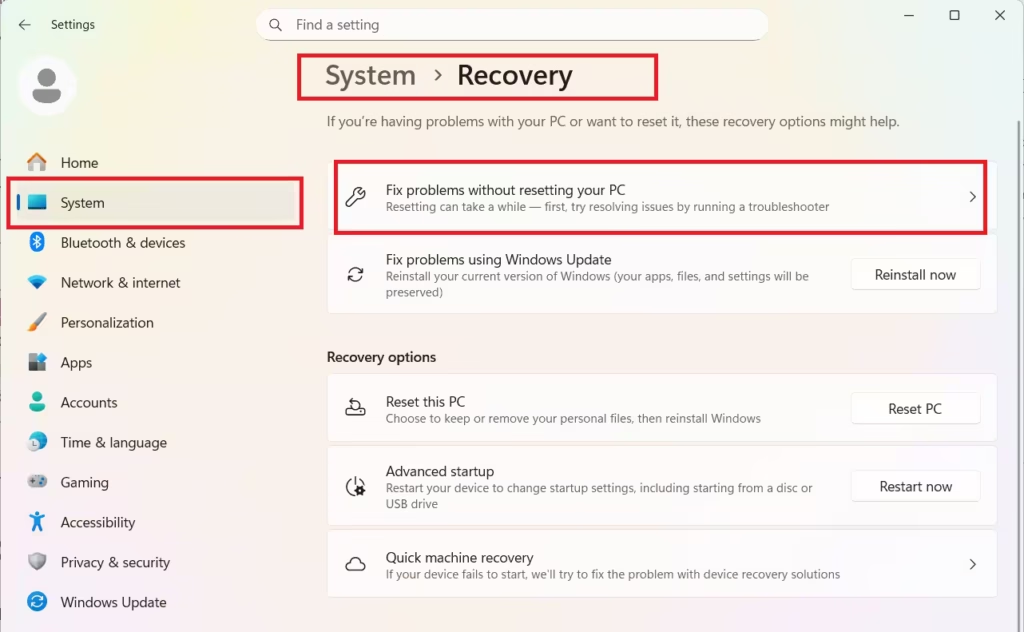
How to use it
- Open Settings
- Go to System → Recovery
- Under Fix problems using Windows Update, select Reinstall now
- Keep the device connected to power and the internet
- Let Windows complete the repair and restart
After restart, check Windows Update again.
Step 7: Install the Failing Update Manually
If Windows Update continues to fail, manual installation is reliable.
- Go to Settings → Windows Update → Update history
- Note the failed KB number
- Download the same KB from the Microsoft Update Catalog
- Install it manually
- Restart the PC
This bypasses the automatic update process.
Step 8: Check Disk Space and Drivers
Updates may fail if system requirements are not met.
- Ensure at least 20–25 GB free space on the system drive
- Update storage, graphics, and chipset drivers
- Temporarily disable third-party antivirus software
Restart and retry Windows Update.
Step 9: Run the Windows Update Troubleshooter
Windows includes an automated repair tool.
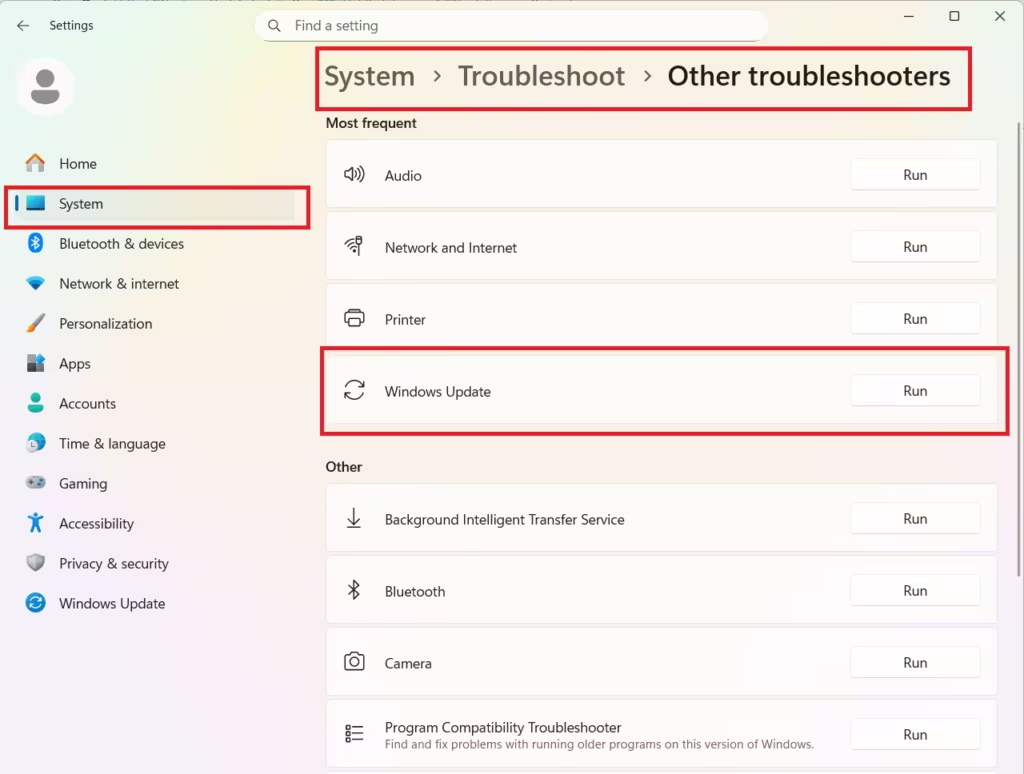
- Open Settings → System → Troubleshoot
- Go to Other troubleshooters
- Run Windows Update
- Apply suggested fixes
- Restart the system
When a Reset Is Necessary
If updates still loop after all steps:
- Use Reset this PC
- Choose Keep my files
- Avoid removing apps unless required
This refreshes Windows while preserving personal data.
A Windows Update install–remove loop usually indicates corrupted update files or servicing components, not a hardware failure. By pausing updates, clearing the update cache, repairing system files, using the built-in update recovery option, and manually installing updates, most systems can install the latest updates successfully.
If the problem continues, comment below with your Windows version, failed KB number, and error code, and we’ll help you resolve it.

