Getting hit with the “Integrity Error 0x8000002” while launching Apex Legends? This frustrating error is caused by background programs, anti-cheat conflicts, or corrupted files. But don’t worry—here’s the most complete guide to fix it.
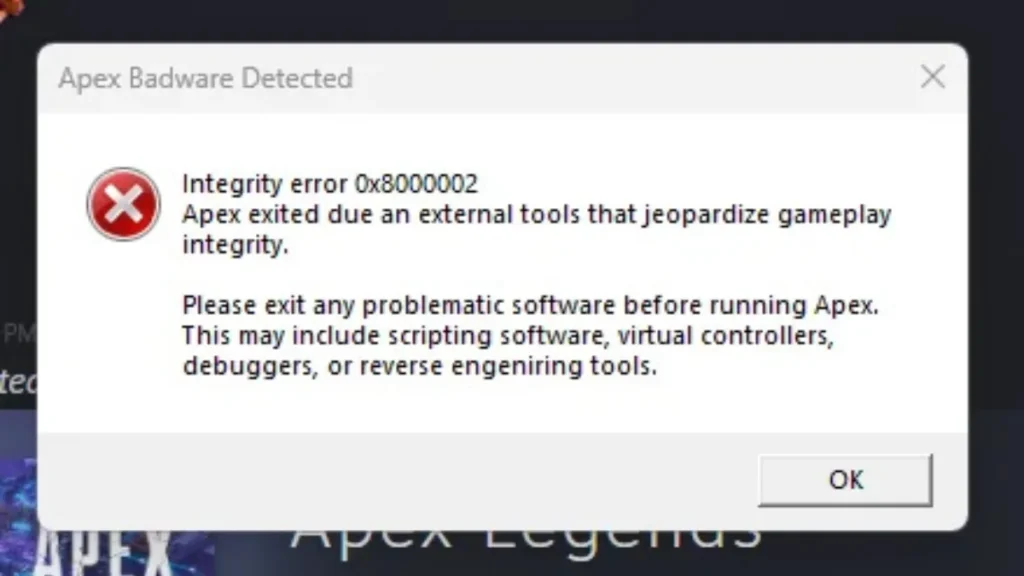
What Is Integrity Error 0x8000002?
Error Message: “Apex exited due to an external tool that jeopardizes gameplay integrity.”
This means Apex Legends’ anti-cheat system has flagged background software or services as potential threats—even if they aren’t cheats. Common causes include:
- Controller emulators like DS4Windows
- AutoHotkey scripts or macro software
- Media tools like TrayMenu.exe (VLC)
- Antivirus tools or RGB sync apps
- Software with kernel-level access like Riot Vanguard
How to Fix Apex Legends Integrity Error 0x8000002
Method 1: Uninstall Third-Party Antivirus
- Go to Control Panel → Uninstall a Program
- Remove antivirus like Avast, McAfee, Aost
- Restart your PC
- Try launching Apex again
Method 2: Delete easyanticheat Folder + Verify Game Files
- Exit Riot Vanguard or similar apps from system tray
- Navigate to:
C:\Program Files (x86)\Steam\steamapps\common\Apex Legends- Delete the
easyanticheatfolder - Open Steam or EA App
- Right-click Apex Legends → Properties → Installed Files → Verify integrity
- On EA App: Click 3 dots next to game → Repair
Method 3: Delete the respawn Folder
- Navigate to:
C:\Users\[Your Username]\Saved Games- Delete the
respawnfolder - Launch Apex after verifying files as above
Method 4: Uninstall Banned or Conflicting Software
Uninstall the following if present:
- AutoHotkey
- DS4Windows
- FaceIt
- Riot Vanguard
- Cheat Engine
- reWASD (even if not actively running)
- Daemon Tools
- FlowLauncher
- Seelen UI
- MicMute
- TrayMenu.exe (VLC background process)
- RGB software like Rob Manager or LED sync tools
Use Task Manager: Sort by Publisher and close suspicious/non-Microsoft processes.
Additional Fixes
- Linux Not Supported: If you’re on Linux (e.g. Mint), the game is no longer supported due to anti-cheat restrictions.
- Clear Cache:
- EA App: Help → App Recovery → Clear Cache
- Steam: Settings → Downloads → Clear Download Cache
- DISM and SFC Scan:
Open CMD as Admin:
DISM /Online /Cleanup-Image /RestoreHealth
sfc /scannow- Update GPU Drivers & Windows
- Try a Full Game Reinstall if nothing works
- Factory Reset was a last resort that worked for some players
Bonus Tips
- Many players fixed the error by uninstalling Daemon Tools — worked instantly.
- Others found TrayMenu.exe from VLC to be the issue — closing it in Task Manager resolved the error.
- Some reported that ending FlowLauncher in Task Manager allowed Apex to launch.
- Even when reWASD wasn’t actively running, uninstalling it fixed the issue.
- Disabling tools like MicMute and Seelen UI helped several users restore normal game launch.
Final Thoughts
If you’ve tried basic repairs with no luck, dig into the lesser-known processes listed above. Apex’s anti-cheat can be very sensitive to even normal apps. Keep Task Manager open, sort by publisher, and end one process at a time.
Still stuck? EA Forums and Support might be the next step—and sometimes, a random restart works wonders too.
Let us know what worked for you in the comments!

