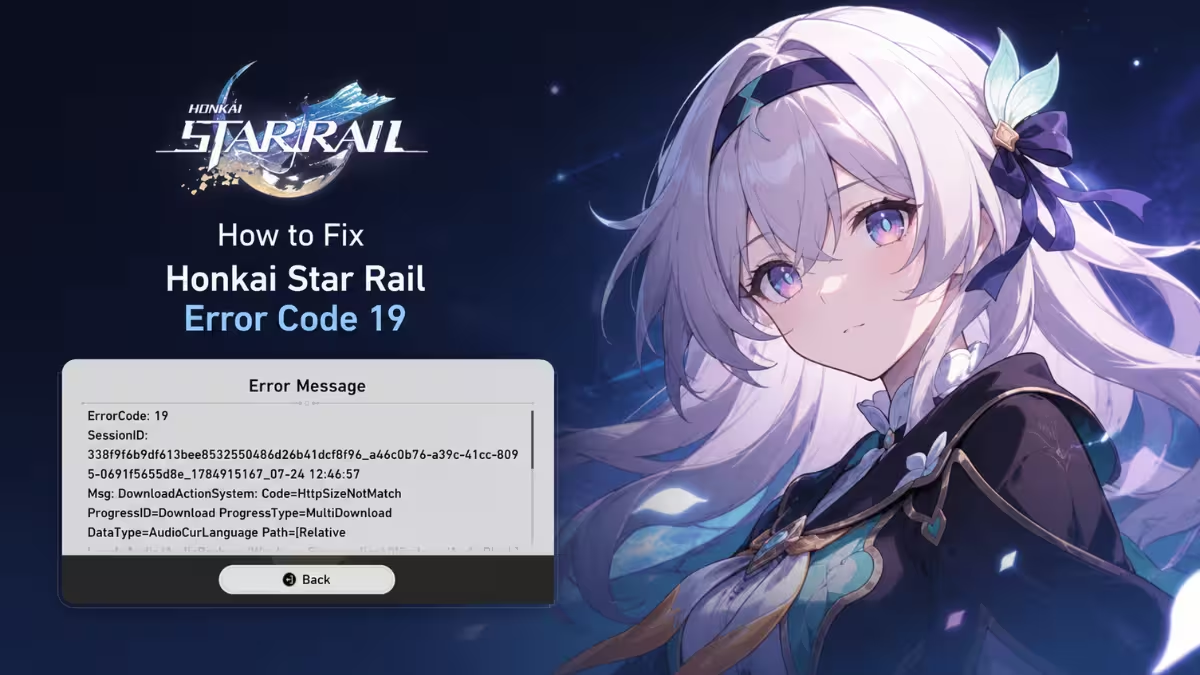
Honkai Star Rail players are hitting Error Code 19 while updating the game, with the download freezing at 0.01 percent before the error window appears. Here is what causes it and how to fix it on PC and mobile.
Before trying any fix below, check if the servers are congested, since Error Code 19 often shows up right after a major patch when too many players are downloading resources at once. Check the official Honkai Star Rail X account or HoYoLAB for server status announcements, or community hubs like Reddit for server status reports. If others are reporting the same issue during a patch rollout, waiting an hour before retrying is often faster than working through every fix.
What Causes Error Code 19
The error message points to specific causes behind the failed update, based on the exact code and file path it shows.
- The error message shows Code=HttpSizeNotMatch during ProgressType=MultiDownload, meaning the downloaded file size does not match what the server expects.
- It occurs specifically on DataType=AudioCurLanguage, pointing to a corrupted or mismatched audio package file in the AudioBlock folder.
- A stuck or corrupted download cache in the launcher can trigger the same mismatch.
- An active VPN connection has interfered with the download for some players.
Fix 1: Log Out and Log Back In (PC and Mobile)
Start with this one since it is the fastest fix and has worked consistently for PC, Android, and iOS players.
- On PC, open the launcher and log out of your account from the settings menu. On iOS, log out from within the app itself.
- Close the game or launcher completely.
- Reopen it and log back in.
- Retry the update.
Fix 2: Check Your Network Connection (PC and Mobile)
If logging back in did not help, check your connection next since a VPN or an unstable network can disrupt the download and trigger the size mismatch.
- Disable any active VPN or proxy on your device.
- If you are on mobile, turn off Wi-Fi and switch to mobile data.
- Open the game and let it finish downloading the remaining update.
- Once the update completes, switch back to Wi-Fi if you were on mobile data.
If you are on mobile and the error still shows up after Fix 1 and Fix 2, try Fix 3 below for Android, or uninstall and reinstall the app on iOS, since iOS does not have a launcher-level cache tool.
Fix 3: Clear the App Cache (Android)
On Android, clearing the app cache directly through your phone settings often fixes the same size mismatch without needing to reinstall.
- Open your phone's Settings app and tap Apps.
- Find and select Honkai: Star Rail.
- Tap Force Stop.
- Tap Storage, then select Clear Cache. Do not tap Clear Data, since that removes your local login session.
- Relaunch the game and retry the update.
If the game still will not update, check that battery optimization or background restrictions are not blocking the app, and confirm it has permission to write files to storage.
If you are on mobile and Fix 3 did not resolve it, uninstall and reinstall the app, since the fixes from here on apply to PC only.
Fix 4: Clear the Download Cache (PC)
If the issue persists on PC, clear the launcher's stored download data next since this removes the corrupted partial files causing the size mismatch.
- Click the three-line menu button next to the Start Game button.
- Go to Game Settings, then Downloads.
- Select the option to clear the download cache.
- Restart the launcher and try updating again.
Fix 5: Use the Repair Function (PC)
If clearing the cache does not resolve it, run a full repair instead since the repair tool re-validates and re-downloads corrupted files.
- Click the button next to Start Game.
- Select Repair Now.
- Let the repair process finish completely before launching the game again.
Fix 6: Run the Launcher as Administrator (PC)
Before moving to a manual file fix, rule out a permissions issue since running without administrator rights can block the launcher from writing updated files correctly.
- Right-click the HoYoPlay or game launcher shortcut.
- Select Run as administrator.
- Retry the update.
Fix 7: Delete the Corrupted Audio Package File (PC)
If none of the above worked, the issue is likely a specific corrupted file rather than a general cache problem, since the error points directly to the AudioBlock folder.
- Go to the game's installation folder.
- Open
StarRail_Data\Persistent\Audio\AudioPackage\Windows. - Delete the
PckPatchConfig.jsonfile. - Delete any
.tmpversion sitting next to it. - Restart the launcher and update again.
If Error Code 19 still appears after all seven fixes, uninstall the game fully and reinstall it, since a persistent HttpSizeNotMatch error at that point usually means the local installation is corrupted beyond a single file or cache repair.
Frequently Asked Questions
What does Error Code 19 mean in Honkai Star Rail?
It means the launcher detected a size mismatch between the downloaded file and what the server expected, shown as HttpSizeNotMatch, usually while updating an audio package file.
Is Error Code 19 caused by my device or by HoYoverse's servers?
It is usually local, caused by a corrupted cache or file on your device, though it can also happen briefly during patch-day server congestion. If the device fixes above do not work, check server status before trying anything more advanced.
Does Error Code 19 affect mobile players too?
Yes, both Android and iOS players have reported the same error. Logging out and back in fixes it for many, and Android players can also clear the app cache directly through phone settings.
Will I lose my progress if I delete the AudioPackage file?
No, deleting the PckPatchConfig.json file only removes a cached patch reference. The launcher redownloads it automatically and your save progress is not affected.
What should I try first if none of these fixes work?
On PC, disable any VPN and retry the repair function before considering a full reinstall. On mobile, uninstall and reinstall the app, since a fresh install resolves most size mismatch errors that survive a cache clear.
Related Guides
- Honkai Star Rail Error Code 200: Causes & How to Fix It
- How to Fix Honkai: Star Rail Error Code 1001_1
- Star Rail Global Distribution Error Explained
For builds, banners, and events instead, check these guides.