Windows 11 is slowly getting rid of legacy UI elements, and one of the oldest survivors — the Run dialog (Win + R) — is finally getting a modern refresh. Microsoft is now testing a new, WinUI-based Run dialog that looks cleaner, more consistent with Windows 11, and better suited for touch devices.
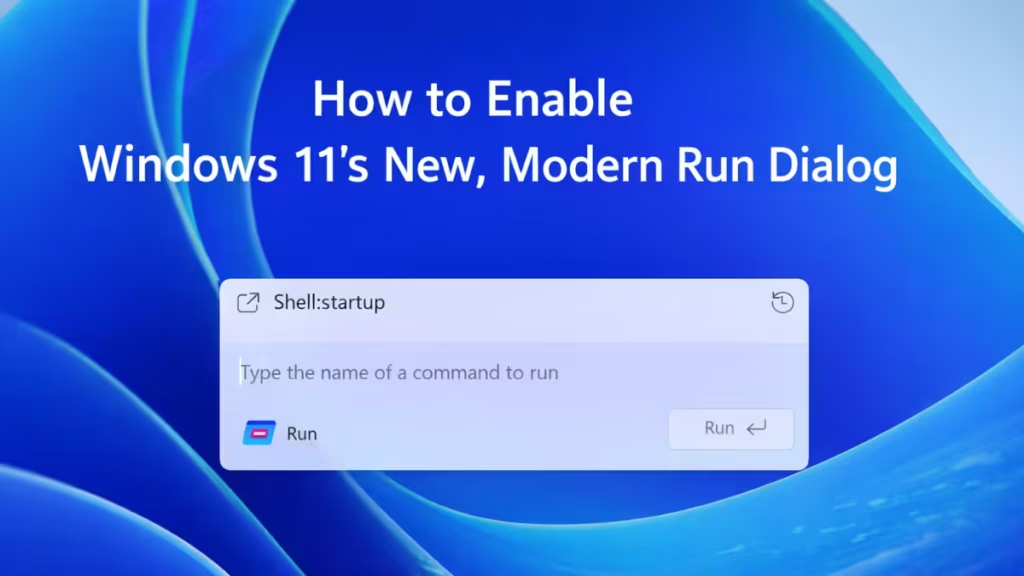
However, this new Run dialog is not enabled for everyone yet. It’s currently rolling out in Insider Preview builds, and in some cases, it needs to be manually unlocked.
This guide explains who can enable it, how to enable it, and why you might not see it yet.
What Is the New Windows 11 Run Dialog?
The new Run dialog is a modern replacement-style interface built using WinUI, Microsoft’s newer UI framework.
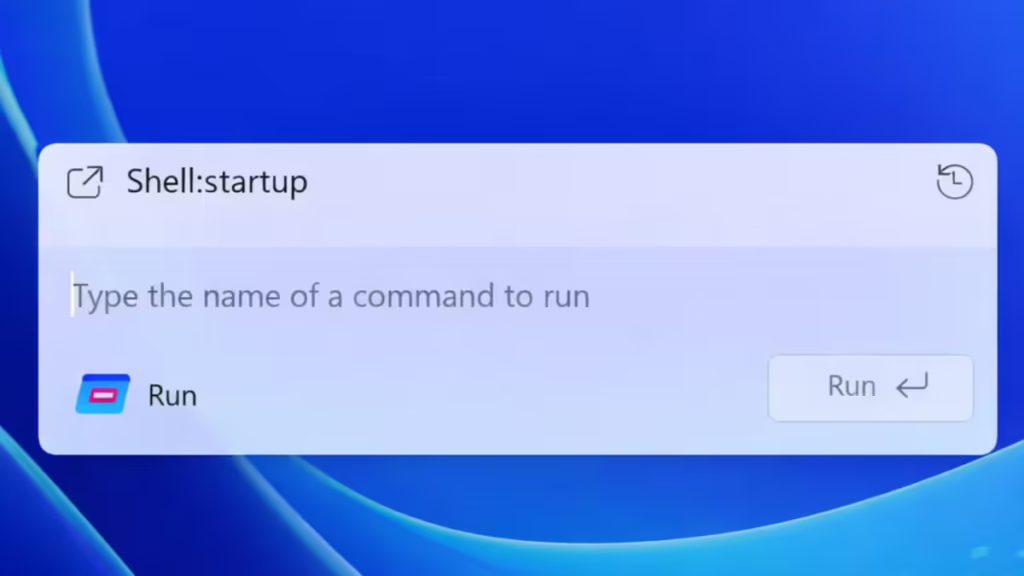
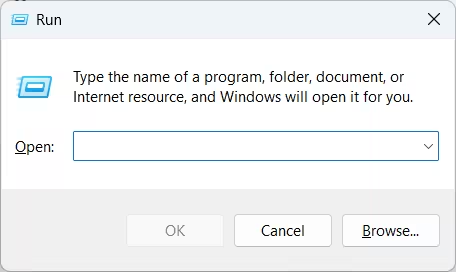
Compared to the classic Run box, the new version:
- Uses rounded corners and Fluent UI styling
- Matches system light and dark mode automatically
- Opens as a modern flyout instead of a fixed dialog box
- Includes a simple command history view
- Feels more consistent with Start and Search UI
Important: It does NOT replace the classic Run dialog yet.
For now, it exists alongside the legacy Run, and Microsoft treats it as optional.
Availability: Who Can Enable the New Run Dialog?
Before trying anything, it’s important to understand availability.
Currently supported:
- Windows 11 Insider Preview builds
- Dev Channel
- Beta Channel
- Systems running recent preview updates (example: KB5072043 and newer)
Not available yet:
- Stable Windows 11 releases
- Older Insider builds
- Systems without required feature flags
If you’re on stable Windows 11, you may not see the new Run dialog at all, even after updates.
Method 1: Enable the New Run Dialog from Settings (If Available)
On some Insider builds, Microsoft provides a built-in toggle.
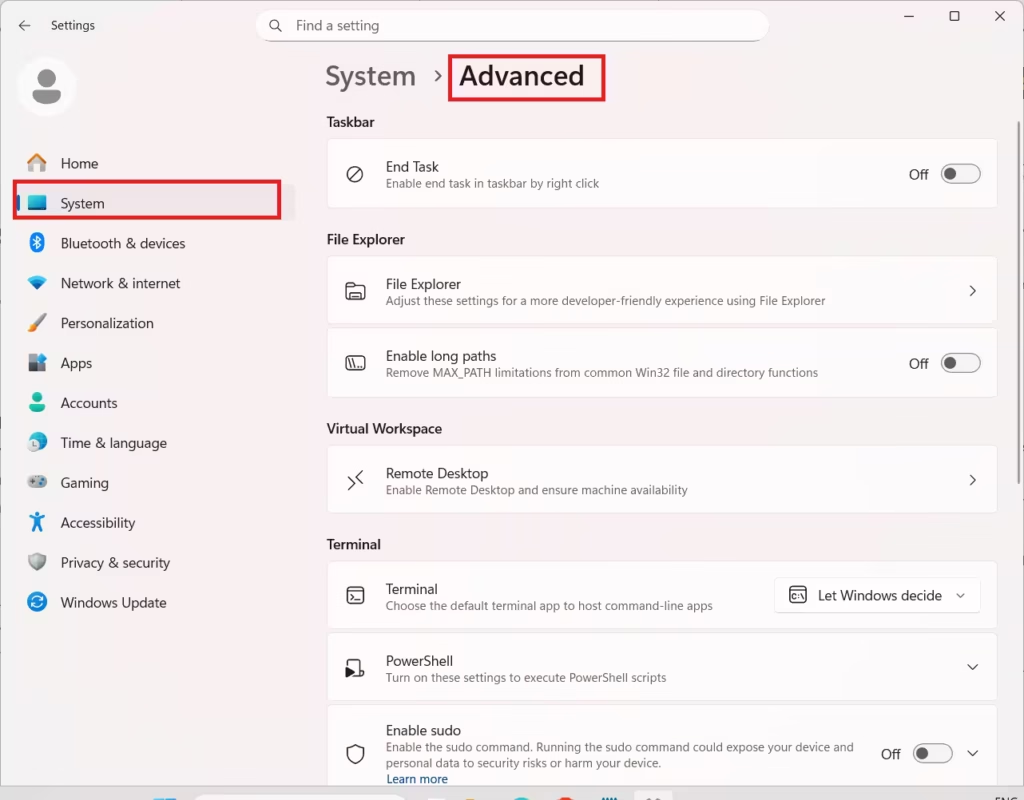
Steps:
- Press Win + I to open Settings
- Go to System
- Open Advanced
- Look for Run dialog
- Turn it On
- Restart your PC
After restart, press Win + R to check if the modern Run dialog appears.
If you don’t see this toggle, move to the next method.
Method 2: Force-Enable the New Run Dialog Using ViVeTool (Advanced)
If the Settings toggle is missing, you can manually unlock the feature using ViVeTool, a trusted open-source utility used by Windows enthusiasts.
Warning: ViVeTool enables experimental features. Visual glitches or unfinished behavior are possible.
Step 1: Download ViVeTool
- Download the latest release from ViVeTool’s GitHub page
- Extract it to a simple folder (for example:
C:\ViVeTool)
Step 2: Open Command Prompt as Administrator
- Press Win
- Type cmd
- Right-click Command Prompt
- Select Run as administrator
Step 3: Navigate to the ViVeTool Folder
cd C:\ViVeToolStep 4: Enable the Modern Run Dialog Feature IDs
Run the following command:
vivetool /enable /id:58381341,58527096,57156807,57259990These feature IDs control the modern Run dialog UI and Settings toggle.
Step 5: Restart Your PC
After reboot:
- Go to Settings → System → Advanced
- Enable Run dialog if the toggle appears
- Press Win + R to test
What’s Missing in the New Run Dialog?
While the design is modern, some legacy features are not present yet:
- No Browse button for file selection
- Cannot move the Run window around the screen
- No classic title bar
Microsoft has not confirmed whether these features will return.
Is the New Run Dialog Slower?
No.
Despite being WinUI-based, the modern Run dialog opens almost instantly, similar to the classic version. It also feels more touch-friendly and visually consistent with Windows 11.
Can You Switch Back to the Old Run Dialog?
Yes — for now.
To disable the new Run dialog using ViVeTool, run:
vivetool /disable /id:58381341,58527096,57156807,57259990Restart your PC after running the command.
Why You Might Not See the New Run Dialog Yet
If it’s not showing up, one of these is likely the reason:
- You’re on stable Windows 11
- Your Insider build is too old
- Microsoft hasn’t enabled the feature server-side yet
- Required feature IDs are missing
This is normal during staged rollouts.
The modern Run dialog is a small but meaningful upgrade that shows Microsoft’s ongoing effort to modernize Windows 11’s oldest components. While it’s still experimental, it’s fast, clean, and optional — making it easy to test without fully replacing the classic experience.More Tech Fixes
If you’re an Insider user, you can try it today. For everyone else, it’s best to wait for Microsoft’s official rollout.

