If your system crashes with Blue Screen error 0x000000000000010E right after waking from Hibernate, Windows is failing to restore the system’s power state correctly. This usually happens due to driver conflicts, corrupted hibernation data, or power management issues introduced after updates.
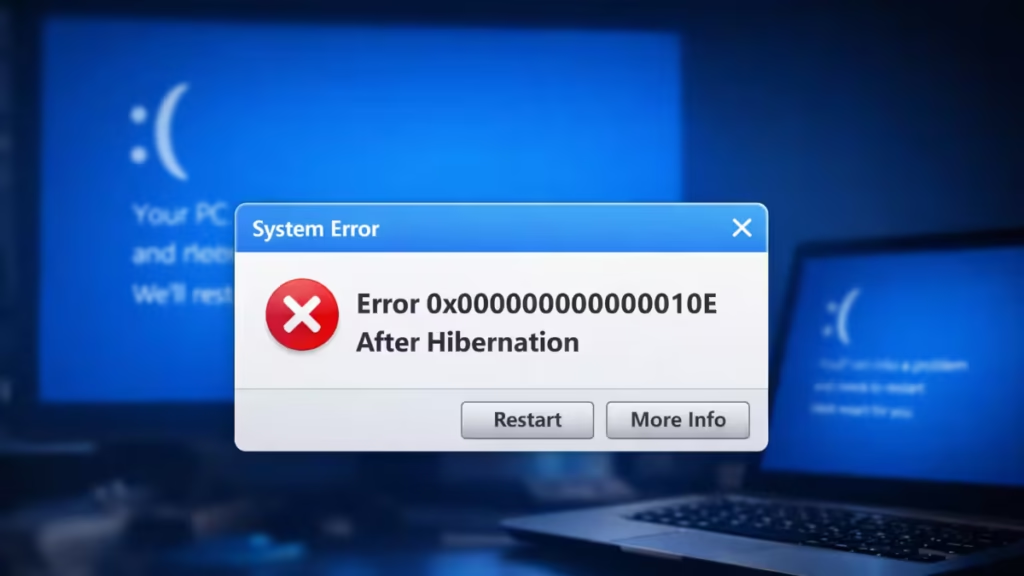
Why Error 0x000000000000010E Happens After Hibernation
When Windows enters hibernation, it saves the system state to disk. During wake-up, all drivers must resume correctly. If even one critical driver fails, Windows triggers this stop code.
Most common causes:
- Corrupted hiberfil.sys
- Graphics or storage driver resume failure
- Fast Startup interfering with hibernation
- BIOS or chipset power-state incompatibility
- System file corruption after Windows updates
Fix 1: Reset Hibernation Completely (Recommended First)
This clears corrupted hibernation data and recreates the system hibernation file.
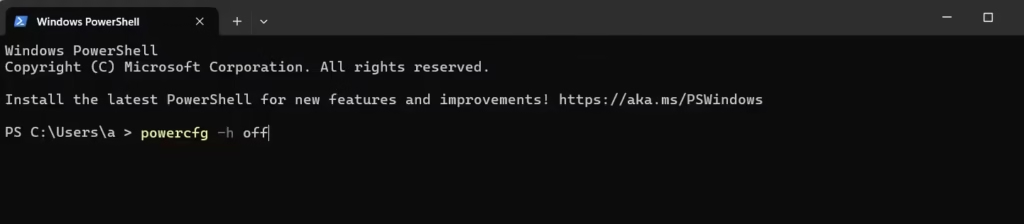
Steps
- Press Win + X → select Terminal (Admin)
- Run:
powercfg -h off- Restart your PC
- Open Terminal (Admin) again and run:
powercfg -h onThis recreates hiberfil.sys from scratch.
Fix 2: Disable Fast Startup
Fast Startup uses a partial hibernation state and often conflicts with full hibernation resume.
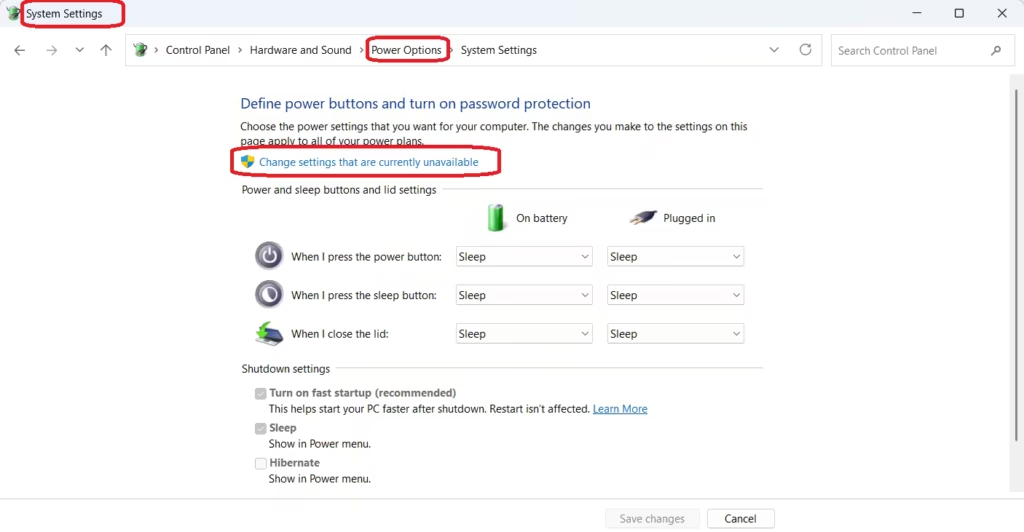
Steps
- Open Control Panel
- Go to Power Options
- Click Choose what the power buttons do
- Select Change settings that are currently unavailable
- Uncheck Turn on fast startup
- Save changes and restart
Fix 3: Update or Roll Back Display Drivers
GPU drivers are the most common trigger for post-hibernation BSODs.
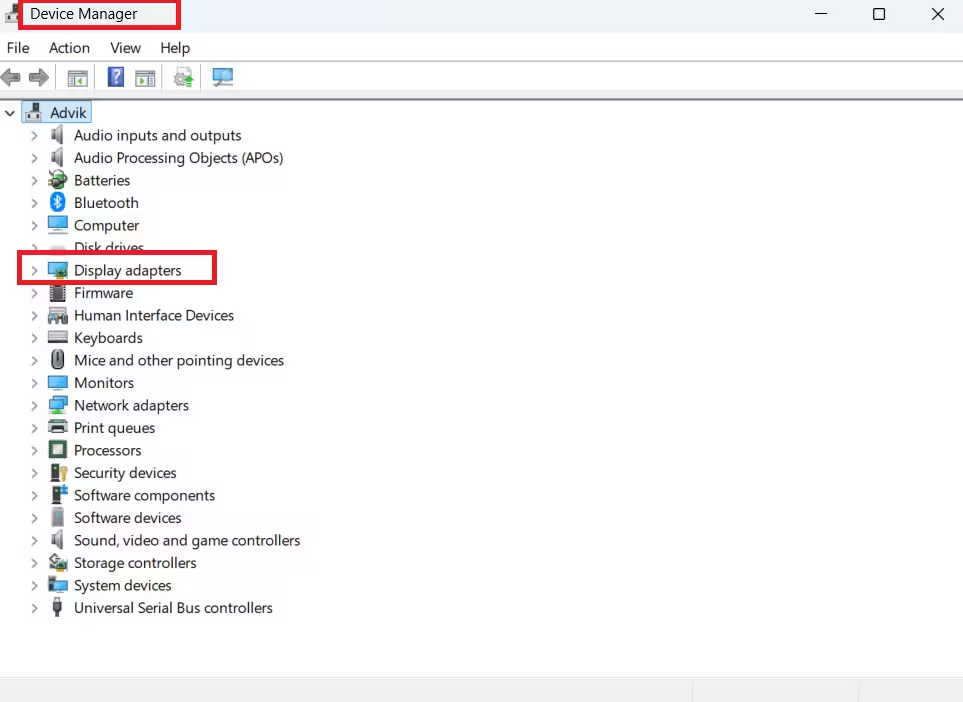
Steps
- Press Win + X → Device Manager
- Expand Display adapters
- Right-click your GPU → Update driver
- If the issue started after an update:
- Open Properties
- Go to Driver
- Click Roll Back Driver
Restart after changes.
Fix 4: Update Storage and Chipset Drivers
Storage drivers failing to wake correctly can also cause this stop code.
What to update
- NVMe / SATA controllers
- Intel RST / AMD storage drivers
- Chipset drivers
Download them only from your laptop or motherboard manufacturer’s official site.
Fix 5: Run System File Repair Scans
Corrupted Windows system files can break resume operations.
Steps
Open Terminal (Admin) and run:
sfc /scannowAfter it finishes, run:
DISM /Online /Cleanup-Image /RestoreHealthRestart the system once both scans complete.
Fix 6: Disable Hybrid Sleep (Optional)
Hybrid Sleep can cause conflicts on some systems.
Steps
- Open Power Options
- Click Change plan settings
- Select Change advanced power settings
- Expand Sleep
- Set Allow hybrid sleep → Off
- Apply and restart
Fix 7: Update BIOS and Firmware
Older BIOS versions may not handle modern Windows power states properly.
Important
- Update only from the official manufacturer website
- Do not interrupt the update process
- Plug in AC power during the update
Temporary Workaround: Disable Hibernation
If the crash continues and you don’t use hibernation often, disabling it is safe.
powercfg -h offSleep and shutdown will still work normally.
Where to Check Crash Details (Advanced)
If the BSOD continues, check logs to identify the failing driver.
- Minidump files:
C:\Windows\Minidump - Event Viewer → Windows Logs → System
Look for driver names listed before the crash.
FAQs
What is Windows Blue Screen Error 0x000000000000010E?
Windows Blue Screen Error 0x000000000000010E is a power-state related stop code that occurs when the system fails to restore drivers or hardware correctly after hibernation or sleep mode.
Why does error 0x000000000000010E appear after hibernation?
This error usually appears after hibernation because Windows cannot properly resume a critical driver, commonly graphics, storage, or chipset drivers, during the wake process.
Is Windows Blue Screen Error 0x000000000000010E caused by a bad driver?
Yes. In most cases, outdated, incompatible, or recently updated drivers are responsible for Windows Blue Screen Error 0x000000000000010E, especially drivers that handle power management.
Does disabling hibernation fix error 0x000000000000010E?
Disabling hibernation often fixes Windows Blue Screen Error 0x000000000000010E because it prevents Windows from entering the power state that triggers the crash.
Does this BSOD affect Windows 11 only?
No. Windows Blue Screen Error 0x000000000000010E can occur on both Windows 10 and Windows 11 systems, particularly after system updates or driver changes.
Where can I find crash logs for error 0x000000000000010E?
Crash logs for this error are stored in the C:\Windows\Minidump folder and can also be reviewed using Event Viewer → Windows Logs → System.
Should I update BIOS to fix Windows Blue Screen Error 0x000000000000010E?
Updating BIOS may help if the issue is caused by power-state incompatibility, but it should only be done if recommended by the manufacturer and performed carefully.
Can Windows continue running safely if this error occurs once?
If the error occurs only once, Windows may continue running normally. However, repeated Windows Blue Screen Error 0x00000000000010E crashes should be fixed to prevent data loss.

