If your Windows 11 PC suddenly has no sound, the cause is almost always software-related: an incorrect output device, a stopped audio service, or a broken driver. Hardware failure is rarely the reason, especially when sound was working before.
This guide covers every verified fix, starting with the fastest and most common causes.
Why Is There No Sound on Windows 11?
The answer depends on when the problem started. Use this to narrow down where to begin:
- Sound stopped after a Windows update: Start with Fix 5, then Fix 6
- Sound stopped after connecting an HDMI monitor or Bluetooth device: Start with Fix 1
- No sound in one specific app only: Start with Fix 2
- No audio devices listed at all: Start with Fix 7 or Fix 9
- Sound was never set up after a clean install: Start with Fix 9
If none of these match, start at Fix 1 and work down.
Before You Begin: Rule Out Physical Causes
- Restart your PC once
- Make sure speakers or headphones are firmly connected
- Try a different audio device if one is available
If nothing produces sound on any device, continue. Windows is running, but audio is not reaching any output.
Fix 1: Check That Windows Is Using the Correct Output Device
This is the most common reason for sudden sound loss on Windows 11. After updates, Bluetooth pairing, or HDMI connections, Windows can silently switch your audio output to a device that is off or disconnected.
Steps:
- Click the speaker icon on the taskbar
- Click the arrow (>) next to the volume slider
- Select the correct output device:
- Speakers (Realtek / High Definition Audio)
- Headphones
- HDMI / Display Audio
If Windows is not listing the right device, open Win + R → type mmsys.cpl → right-click your device under Playback → Enable if shown → Set as Default Device.
If sound returns, stop here. If not, Windows sees the device but audio is still not flowing correctly.
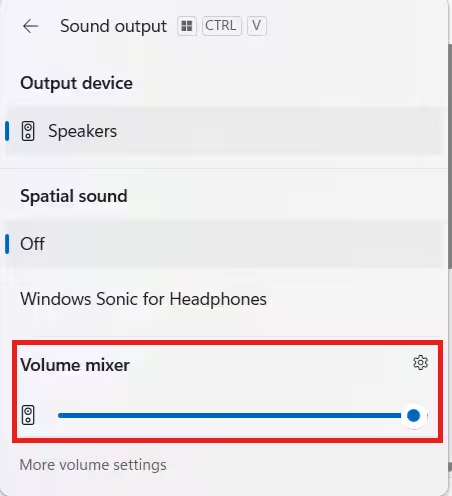
Fix 2: Unmute System Sounds and App Audio in Volume Mixer
Windows keeps a separate volume level for each app. One app can be muted while everything else plays normally.
Steps:
- Right-click the speaker icon on the taskbar
- Select Volume mixer
- Confirm system sounds are not muted and the affected app is above 50%
If an app was muted, sound returns immediately. If everything looks normal, move on.
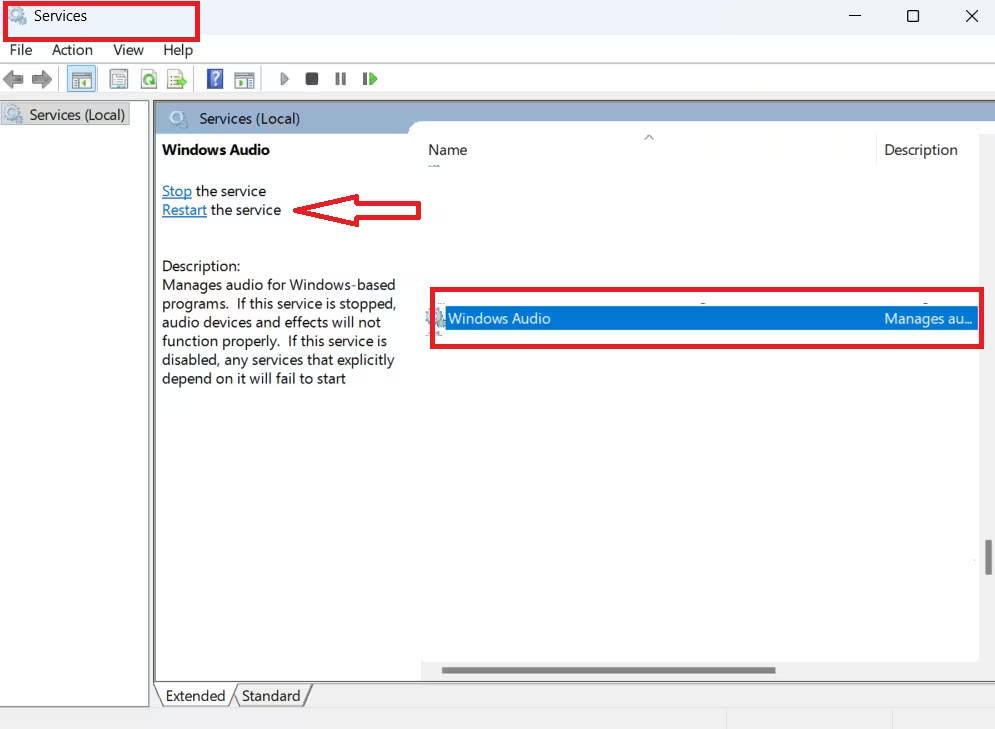
Fix 3: Restart Windows Audio Services
Audio in Windows 11 depends on two background services. If either stalls or crashes, the result is complete silence even though your device appears active and your volume is up.
Steps:
- Press Win + R, type
services.msc, press Enter - Find Windows Audio, right-click, select Restart
- Find Windows Audio Endpoint Builder, right-click, select Restart
- Restart the PC
If sound works after this, a stalled service was blocking audio. A CRITICAL_SERVICE_FAILED blue screen on the same machine is a sign that the service instability runs deeper and needs a separate fix.
Fix 4: Disable Audio Enhancements and Spatial Audio
Two Windows 11 audio features commonly break sound after updates without producing any error: audio enhancements and spatial audio.
Disable audio enhancements:
- Open Settings → System → Sound
- Click your active output device
- Turn Enhance audio off
Disable spatial audio:
- Right-click the speaker icon → Spatial sound
- Set the format to Off
Test sound after each change. Either feature can independently block playback, so disable both before moving on.
Fix 5: Disable Exclusive Mode
Exclusive mode allows apps to take full control of your audio device. If an app crashes while holding exclusive access, no other sound can play until the lock is released or the device is reset.
Steps:
- Press Win + R, type
mmsys.cpl, press Enter - Under Playback, right-click your output device → Properties
- Open the Advanced tab
- Under Exclusive Mode, uncheck Allow applications to take exclusive control of this device
- Click OK and test sound
Fix 6: No Sound on Windows 11 After an Update
If sound stopped immediately after a Windows update, the update replaced your audio driver with an incompatible version.
If you installed the April 2026 update KB5083769 and your USB speakers or headset went silent, that update has a documented audio regression. See: USB audio not working after KB5083769.
For general update-related sound loss, try rolling back the driver first:
- Press Win + X → Device Manager
- Expand Sound, video and game controllers
- Right-click your audio device → Properties → Driver tab
- Select Roll Back Driver if available
If Roll Back Driver is greyed out, the previous driver was already overwritten. Move to Fix 7.
Fix 7: Update or Reinstall the Audio Driver
Driver corruption is one of the most consistent real causes of no sound on Windows 11. Reinstalling gives Windows a completely clean driver with no residual corruption.
Update first:
- Open Device Manager → Sound, video and game controllers
- Right-click the audio device → Update driver → Search automatically
If Windows finds nothing new, download the driver directly from your PC or motherboard manufacturer’s support page.
If updating does not work, reinstall:
- Right-click the audio device → Uninstall device
- Check Delete the driver software for this device if the option appears
- Restart the PC — Windows reinstalls a clean driver automatically
On desktop PCs with a Realtek front-panel jack that stopped being detected, open Realtek Audio Console after reinstalling and enable Independent front-panel output.
Driver problems during major upgrades can also cause installation failures. If you ran into Windows 11 25H2 error 0xc1900101 during a recent upgrade, the same incompatible audio driver is likely responsible. The same clean-driver logic applies when WiFi stops working after reinstalling Windows 11: Windows needs a fresh driver state to recognize the hardware correctly.
Fix 8: Reset Audio Services via Command Prompt
Use this if Fix 3 did not work. This forces a full pipeline reset rather than a standard service restart.
Steps:
- Open Command Prompt as administrator
- Run in order:
net stop audiosrv
net stop AudioEndpointBuilder
net start AudioEndpointBuilder
net start audiosrv- Restart the PC
Fix 9: Reinstall Chipset Drivers (Audio Device Missing Entirely)
If your audio device does not appear in Device Manager at all, the problem is at the chipset level, not the audio driver. Chipset drivers control how Windows communicates with hardware on your motherboard.
Steps:
- Visit your PC manufacturer’s support site
- Download the latest chipset drivers for your exact model
- Install and restart
This also applies after a clean install using the Windows 11 Media Creation Tool. A fresh Windows installation does not include OEM chipset drivers, and the audio device will not appear until they are installed.
Fix 10: Uninstall the Recent Windows Update (Last Resort)
Only attempt this if sound stopped immediately after a specific update and no driver fix has worked.
Steps:
- Open Settings → Windows Update → Update history
- Select Uninstall updates
- Remove the most recent update
- Restart
If you are also experiencing a KB5083769 boot loop alongside your audio problems, uninstalling that update resolves both at once.
Frequently Asked Questions
Why did Windows 11 lose sound after an update?
Windows updates sometimes replace audio drivers with incompatible versions. Roll back the driver in Fix 6. If that is not available, reinstall it in Fix 7, or remove the update in Fix 10.
Why is there no sound even though the volume is not muted?
The most common reasons are the wrong output device selected, a stopped audio service, or exclusive mode locking out playback. Work through Fix 1, Fix 3, and Fix 5 in that order.
Why does Windows 11 show no audio output devices?
The audio driver is missing or corrupted. Reinstall it using Fix 7. If the device does not appear in Device Manager at all, reinstall chipset drivers using Fix 9.
Why is sound missing only in one specific app?
The app is likely muted in Volume Mixer (Fix 2), or it holds exclusive mode access and crashed without releasing it. Check Volume Mixer first, then disable exclusive mode in Fix 5.
Does this affect gaming audio on Windows 11?
Yes. If you use Xbox Mode in Windows 11 or run games through the Xbox app and also encounter Xbox error 0x8007041D, audio service failures can contribute to silent gameplay. Fix 3 and Fix 5 apply in those cases as well.
Why is the sound icon missing from the Windows 11 taskbar?
The Windows Audio service has likely crashed or failed to start. Run Fix 3 to restart it, or Fix 8 to reset it via Command Prompt.

