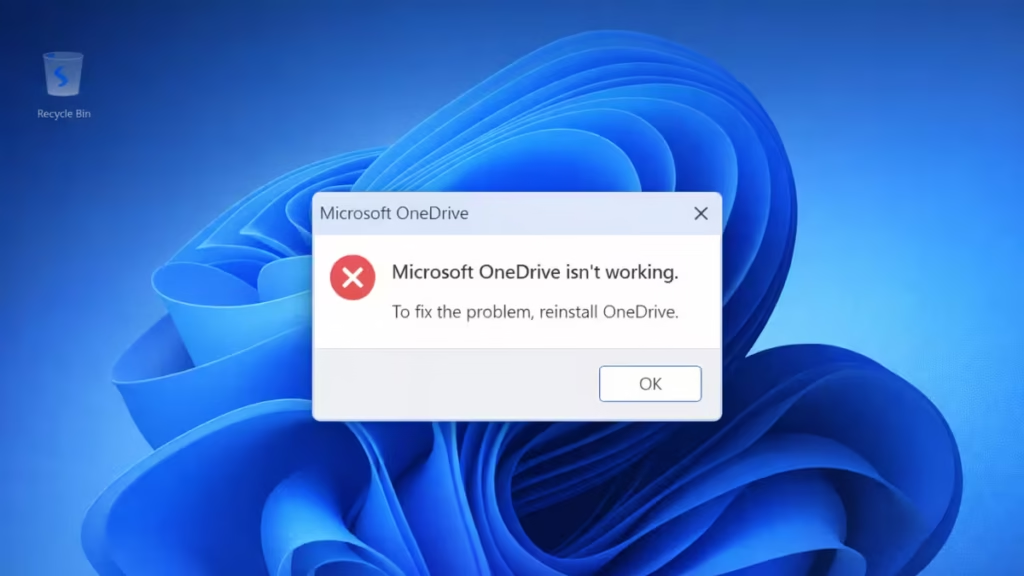
If OneDrive is not working on your Windows 11 PC, reinstalling it can often fix problems like sync failures, setup errors, or the app not opening at all. However, simply running the installer again usually does not work because leftover files and old settings remain on the system.
Before You Reinstall OneDrive
Before starting, keep these important points in mind:
- Reinstalling OneDrive does not delete your cloud files
- Your local OneDrive folder may be removed temporarily
- Make sure important files are synced or backed up
- Do not skip the cleanup steps, even if OneDrive was already uninstalled
Once ready, continue with the steps below.
Step 1: Uninstall OneDrive Completely
The first step is to remove the existing OneDrive installation from Windows 11.
Option 1: Uninstall from Settings
- Press Win + I → open Settings
- Go to Apps → Installed apps
- Find Microsoft OneDrive
- Click Uninstall and confirm
Option 2: Uninstall using Run Command
- Press Win + R
- Type the following command and press Enter:
%systemroot%\System32\OneDriveSetup.exe /uninstallOption 3: Uninstall using Winget
If you use Windows Package Manager:
winget uninstall Microsoft.OneDriveThis removes the core application files but does not clear leftover data yet.
Step 2: Delete All Leftover OneDrive Files
When OneDrive is not working, leftover cache and configuration files are often the real cause. These must be removed manually.
- Press Win + R
- Open each path below one by one and delete the entire folder if it exists:
C:\Program Files\Microsoft OneDrive
C:\Users\YourUsername\AppData\Local\Microsoft\OneDrive
C:\Users\YourUsername\AppData\Roaming\Microsoft\OneDrive- Use Shift + Delete to permanently remove them
- Restart your PC after cleanup
This step is critical. Skipping it often causes reinstall failures.
Step 3: Download and Install OneDrive Again
Now install a clean copy of OneDrive.
- Visit the official Microsoft download page: https://www.microsoft.com/microsoft-365/onedrive/download
- Download OneDriveSetup.exe
- Right-click the file and choose Run as administrator
- Follow the on-screen setup instructions
Running the installer as administrator avoids permission-related setup issues.
Step 4: Set Up OneDrive Again
After installation:
- Open OneDrive from the Start menu
- Sign in using your Microsoft account
- Choose your OneDrive folder location
- Select which folders to sync
- Finish setup and allow syncing to begin
At this stage, OneDrive should start normally and sync without errors.
Step 5: Use Microsoft Support and Recovery Assistant (Optional)
If OneDrive still does not work after reinstalling, Microsoft’s official repair tool can help.
- Download the tool from Microsoft
- Run the Microsoft Support and Recovery Assistant
- Select OneDrive and follow the prompts
This tool checks for configuration, registry, and service-level issues automatically.
Advanced Fix: Force Remove OneDrive (Only If Setup Still Fails)
Use this step only if OneDrive setup keeps failing even after cleanup.
- Open PowerShell as Administrator
- Run:
Get-AppxPackage *OneDrive* | Remove-AppxPackage- Restart your PC
- Reinstall OneDrive using the official installer again
This removes hidden app packages that can block installation.
FAQs
Why is OneDrive not working on Windows 11?
OneDrive may stop working on Windows 11 due to corrupted app files, leftover cache after an update, sign-in issues, or sync configuration errors. In many cases, a clean reinstall fixes these problems permanently.
Does reinstalling OneDrive delete my files?
No. Reinstalling OneDrive does not delete files stored in the cloud. However, the local OneDrive folder on your PC may be removed temporarily, so make sure important files are fully synced before reinstalling.
Why does OneDrive still fail after reinstalling?
OneDrive usually fails after reinstall if leftover files were not deleted or if the installer was not run with administrator permissions. Clearing all remaining OneDrive folders and reinstalling again typically resolves this issue.
Can I reinstall OneDrive on Windows 11 without using Microsoft Store?
Yes. OneDrive installs using a standalone setup file downloaded from Microsoft’s official website. The Microsoft Store is not required to reinstall OneDrive.
Is OneDrive included by default in Windows 11?
Yes. OneDrive comes preinstalled with Windows 11, but it can become corrupted after updates or system changes, which may require a full uninstall and reinstall.
How do I completely reset OneDrive on Windows 11?
To fully reset OneDrive, uninstall it first, delete all leftover OneDrive folders from AppData and Program Files, restart your PC, and then reinstall using the latest official installer.
Will reinstalling OneDrive fix sync and setup errors?
In most cases, yes. A clean reinstall fixes common issues such as OneDrive not opening, sync stuck problems, setup failures, and missing tray icons on Windows 11.
If OneDrive is not working on Windows 11, a clean reinstall usually fixes sync errors, startup failures, and setup problems. The key is removing all leftover files before reinstalling, not just uninstalling the app.
Follow the steps in order, avoid skipping cleanup, and OneDrive should work normally again.

