Microsoft has rolled out Windows 11 KB5077181, the February 2026 Patch Tuesday update, for versions 25H2 and 24H2. After installing the update on Windows 11 25H2 (Build 26200.7840), users are greeted with a new onboarding-style screen highlighting five visible features now active on the system.
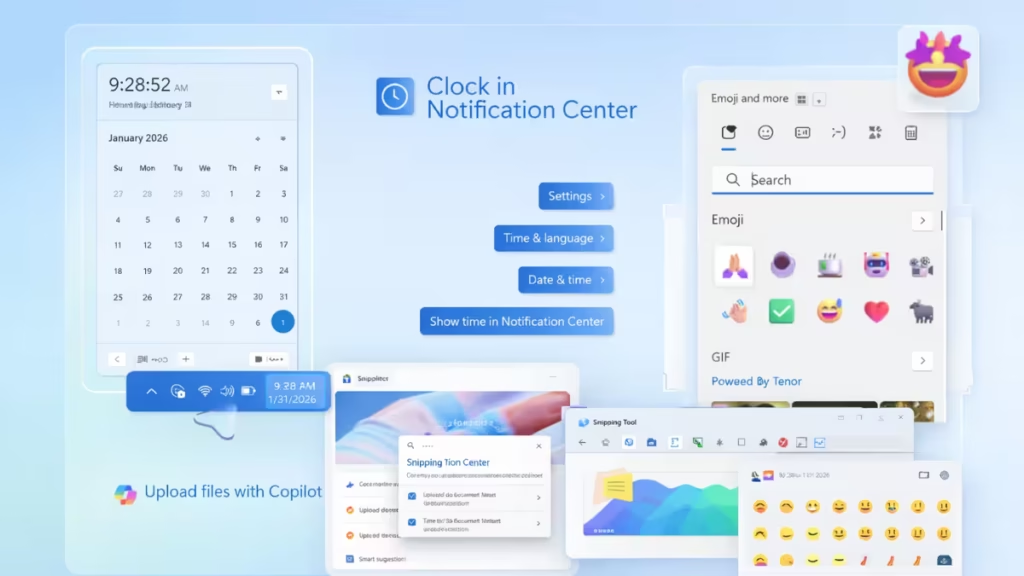
If you recently updated Windows and saw the “Your Windows 11 PC has been updated” message, this guide breaks down what actually changed, what’s new, and what’s simply being surfaced more clearly.
1. Big Clock Returns to the Notification Center
One of the most noticeable changes is the return of the large clock with seconds inside the Notification Center.
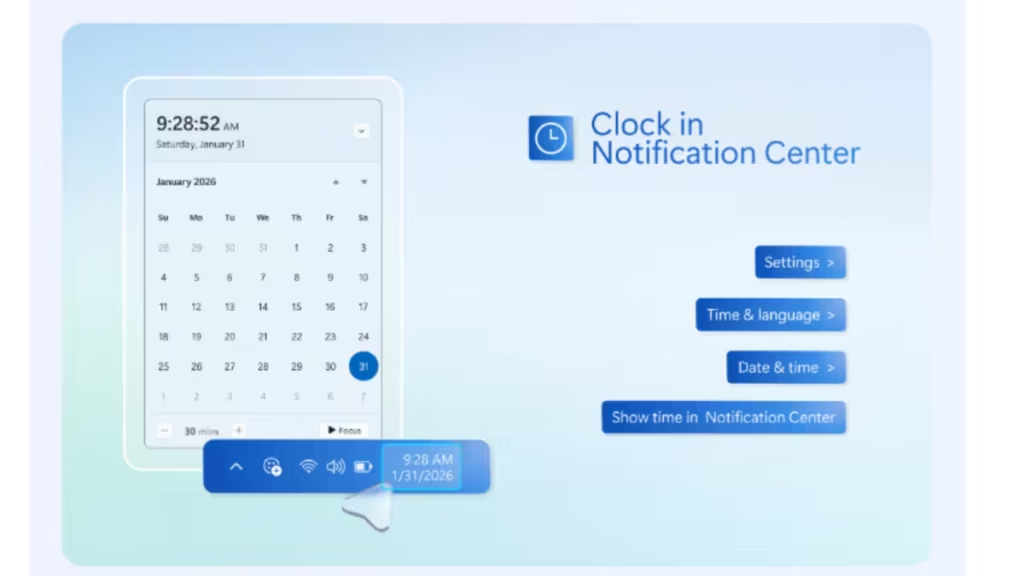
Earlier Windows 11 builds removed this view, forcing users to rely on smaller taskbar time displays. With KB5077181, Microsoft brings back a clear, glanceable clock alongside the calendar.
What’s improved
- Large digital clock with seconds
- Better date and calendar visibility
- Faster time checks without opening extra apps
This update is especially useful for users who rely on precise timing, such as traders, developers, and professionals working with scheduled tasks.
2. Copilot Can Now Work With Uploaded Files
Copilot on Windows gains a major productivity boost in this update. You can now upload files directly into Copilot and ask it to work with your documents.
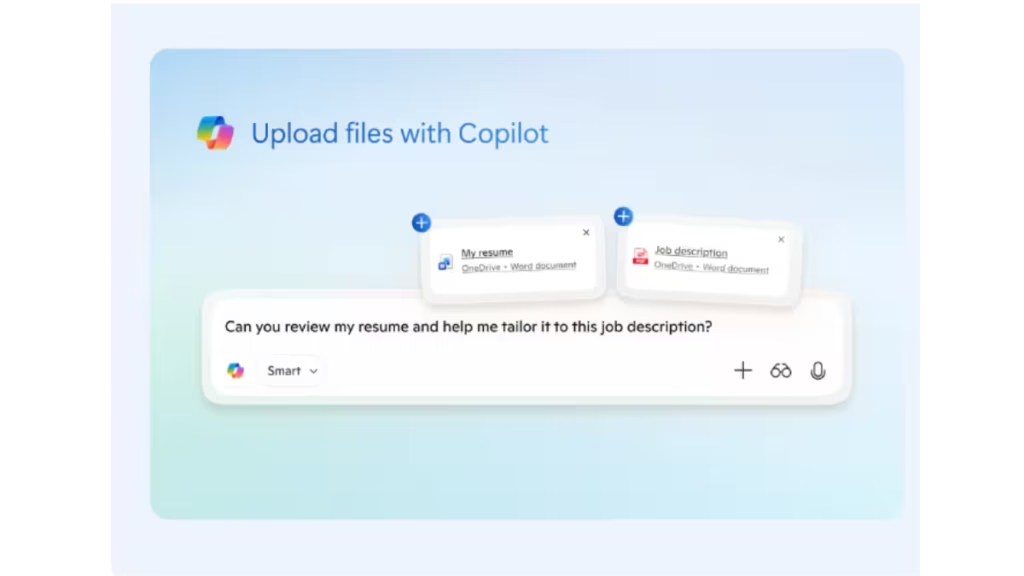
Instead of copying and pasting text, users can upload:
- Word documents
- Resumes
- Reports
- Drafts stored locally or in OneDrive
You can then ask Copilot to summarize, rewrite, expand, or analyze the content.
This turns Copilot into a practical document assistant, not just a chat tool.
3. AI Actions Arrive in File Explorer
Windows 11 now integrates AI-powered actions directly into File Explorer, making everyday file tasks faster.
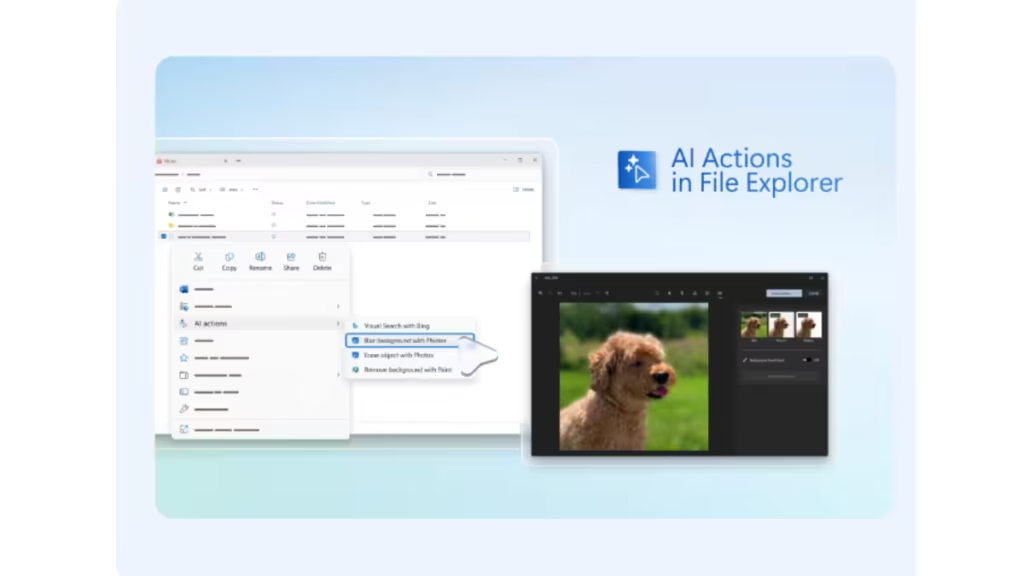
After installing KB5077181:
- Right-clicking supported files shows new AI actions
- Image files can trigger visual search or background removal
- AI tools work without fully opening the file
Microsoft positions this as a way to keep users “in their flow,” and in real use, it noticeably reduces the number of steps needed for common tasks.
This is one of the clearest signs that AI is becoming part of core Windows navigation, not just an add-on feature.
4. Snipping Tool Gets Faster Markup and Sharing
The Snipping Tool receives a workflow-focused upgrade aimed at faster communication.
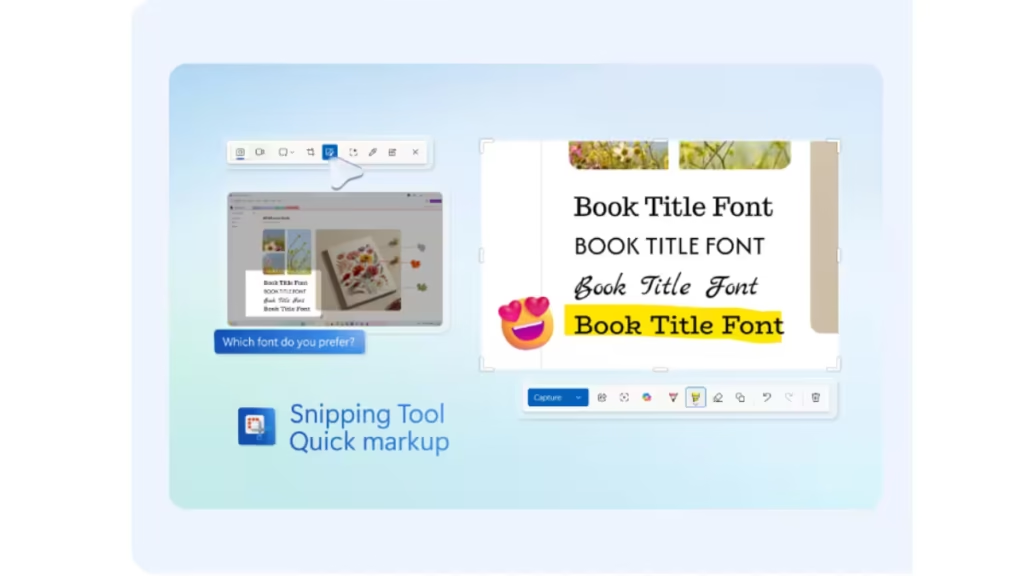
After capturing a screenshot:
- Markup tools appear instantly
- Highlights, annotations, and emojis are easier to add
- Sharing ideas or feedback takes fewer clicks
This is a small change on paper, but it significantly improves usability for:
- Tutorials
- Bug reports
- Team feedback
- Social sharing
Microsoft is clearly positioning Snipping Tool as a quick-creation utility, not just a screenshot app.
5. Emoji Panel Moves Front and Center on the Taskbar
Emoji access in Windows 11 is now faster and more visible.
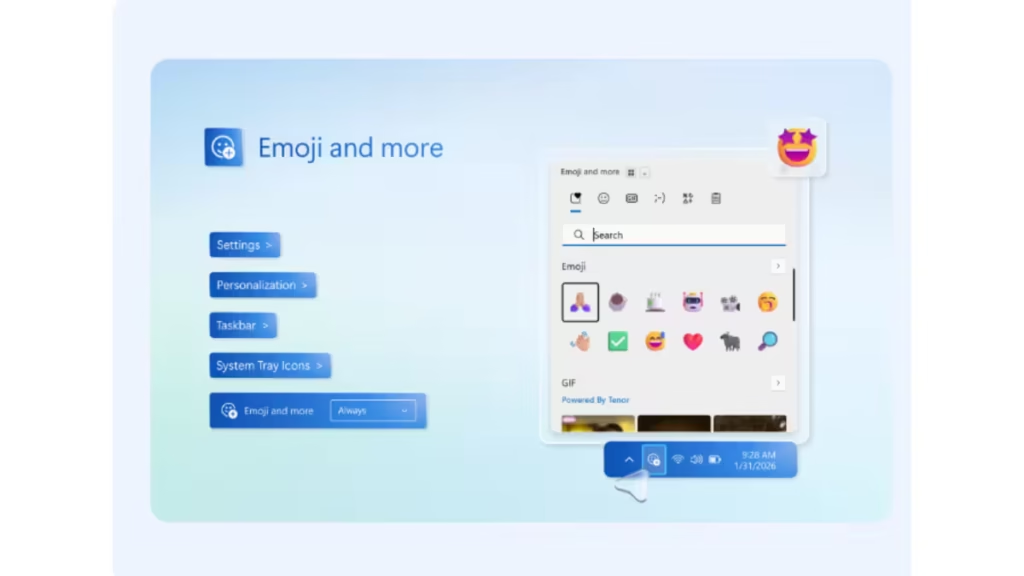
With KB5077181:
- The emoji panel can be pinned directly to the taskbar
- Emojis, GIFs, and symbols are easier to search
- No need to remember keyboard shortcuts
This change improves day-to-day communication across apps like Teams, Outlook, browsers, and messaging tools.
While subtle, it’s one of those updates you’ll notice immediately once you start using it.
How I Installed Windows 11 KB5077181 (Step-by-Step)
You can install KB5077181 directly through Windows Update, and the process is straightforward.
Here’s exactly how it works:
Step 1: Open Windows Update
- Press Win + I to open Settings
- Go to Windows Update
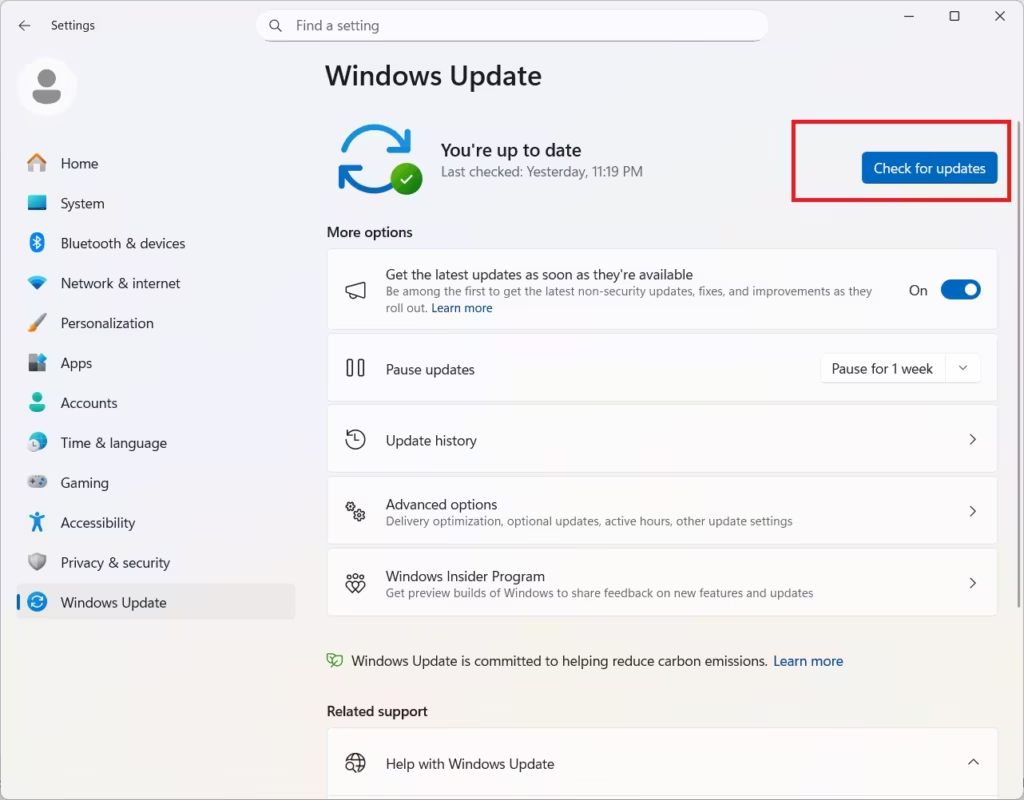
Step 2: Check for Updates
- Click Check for updates
- Windows automatically detects KB5077181
- The update begins downloading in the background
Step 3: Download and Install
Since this is a cumulative update:
- Windows downloads the package
- Installation happens automatically
- A restart prompt appears
Microsoft confirms this update installs automatically via Windows Update data1
Step 4: Restart to Complete Installation
After restarting:
- The 5 new features walkthrough is shown
- Windows finalizes the update
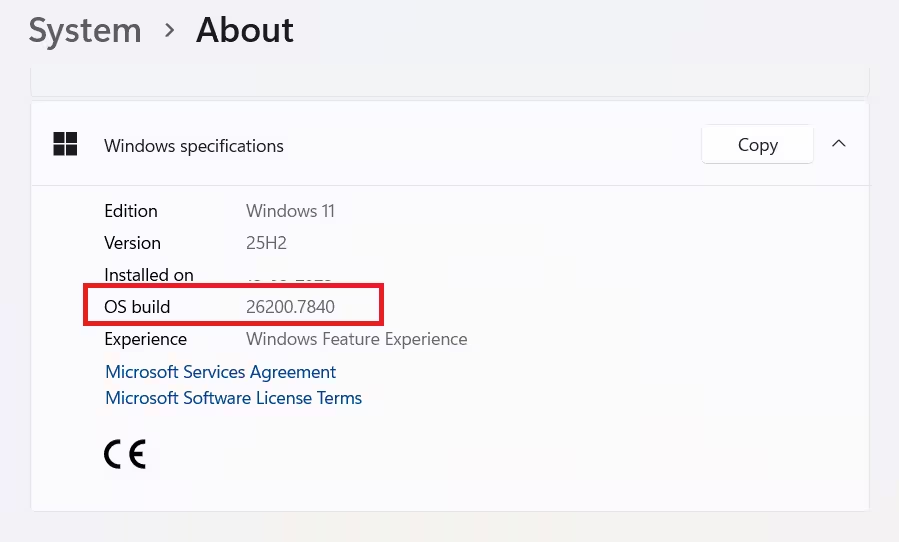
- System boots into Build 26200.7840
- The “Your Windows 11 PC has been updated” screen appears
If you’ve already installed the update, these are the five features you should explore first. And if you haven’t yet, this gives a clear picture of what’s waiting after the reboot.

