If a family member forgot their Microsoft login and cannot access their computer, do not panic. You can recover the account in most cases without resetting Windows or losing files.
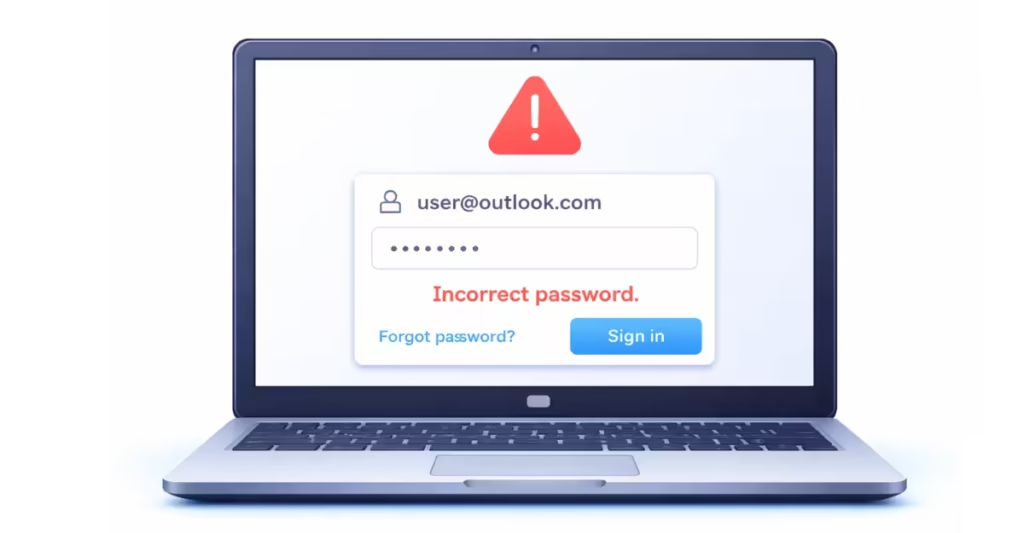
This guide shows you exactly how to recover a Microsoft account, reset the password, and update a phone number safely.
First: Check What Type of Account It Is
On the Windows sign-in screen:
- If you see an email address, the PC uses a Microsoft account.
- If you see only a username, it may be a local account.
This guide focuses on Microsoft accounts.
Method 1: Recover a Forgotten Microsoft Username
If your family member forgot the email address:
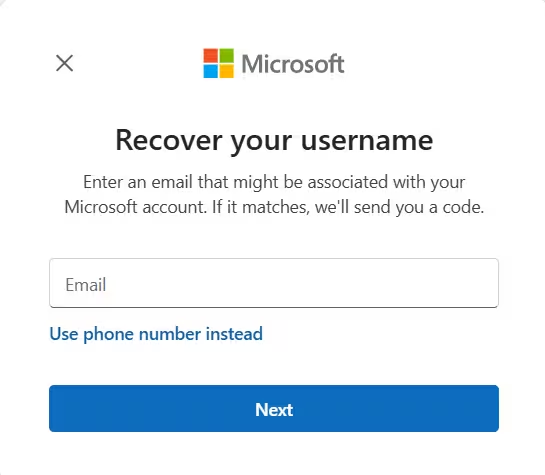
- Open another device (phone or computer).
- Go to:
https://account.live.com/username/recover - Enter:
- A recovery phone number
OR - A recovery email address
- A recovery phone number
- Request the security code.
- Enter the code.
Microsoft will show a hint of the username (example: j*****@outlook.com).
Once you identify the correct email, move to password reset.
Method 2: Reset the Microsoft Account Password
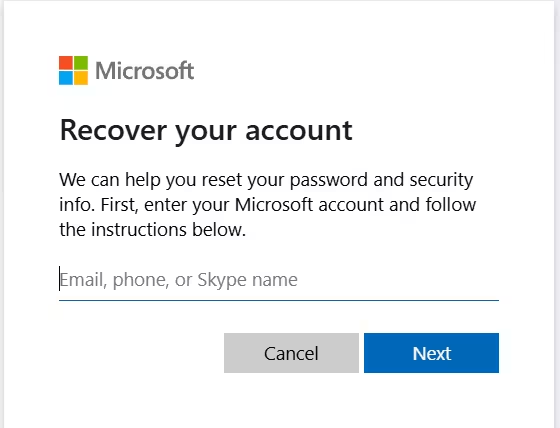
If you know the email but forgot the password:
- Go to:
https://account.live.com/password/reset - Select I forgot my password
- Enter the Microsoft email address.
- Choose where to receive a verification code.
- Enter the code.
- Create a new strong password.
Now return to the Windows PC and sign in with the new password.
Method 3: Old Phone Number No Longer Accessible
If the recovery phone number is wrong or you cannot access it, use Microsoft’s Account Recovery Form.
Go to: https://account.live.com/acsr
You will need to:
- Enter the Microsoft email
- Provide a different contact email
- Answer account questions (previous passwords, services used, Xbox, Outlook, etc.)
Answer carefully and honestly. The more accurate information you provide, the higher your approval chances.
Microsoft reviews the request and replies to the contact email.
How to Update the Phone Number After Recovery
Once you regain access:
- Go to https://account.microsoft.com/security
- Select Advanced security options
- Add a new phone number.
- Verify it with a code.
- Remove the old phone number.
Do this immediately to prevent future lockouts.
What If Two-Step Verification Is Enabled?
If two-step verification is active and you lost access to the old phone:
- You must use the recovery form.
- If you cannot verify ownership, Microsoft cannot unlock the account.
Microsoft does not bypass security verification. This protects the account from hacking.
If It Is a Local Windows Account (No Email Shown)
If the login screen shows only a name:
- Click Reset password.
- Answer the security questions.
- Create a new password.
If security questions fail, you may need to:
- Sign in with another administrator account
- Or reset Windows while keeping files
When to Consider Resetting Windows
If account recovery fails and the PC contains no critical data:
- On the login screen, click the Power icon.
- Hold Shift and click Restart.
- Choose:
Troubleshoot → Reset this PC → Keep my files.
This removes account settings but keeps personal files.
Important Tips to Avoid This Problem Again
- Always add a backup recovery email.
- Keep at least two verification methods.
- Store passwords in a secure password manager.
- Write recovery details in a safe place.
In most cases, you can recover a Microsoft account using the official recovery tools. Act quickly, provide accurate information, and update security details immediately after regaining access.
If you tell me whether this is Windows 10 or Windows 11, I can tailor the steps even more specifically for your article audience.

