If your games on PS5 Pro look slightly blurry, show ghosting trails, or have shimmering edges, you’re not alone. Sony recently rolled out PSSR 2, an upgraded AI image enhancement system that fixes these exact issues—but it’s turned off by default.
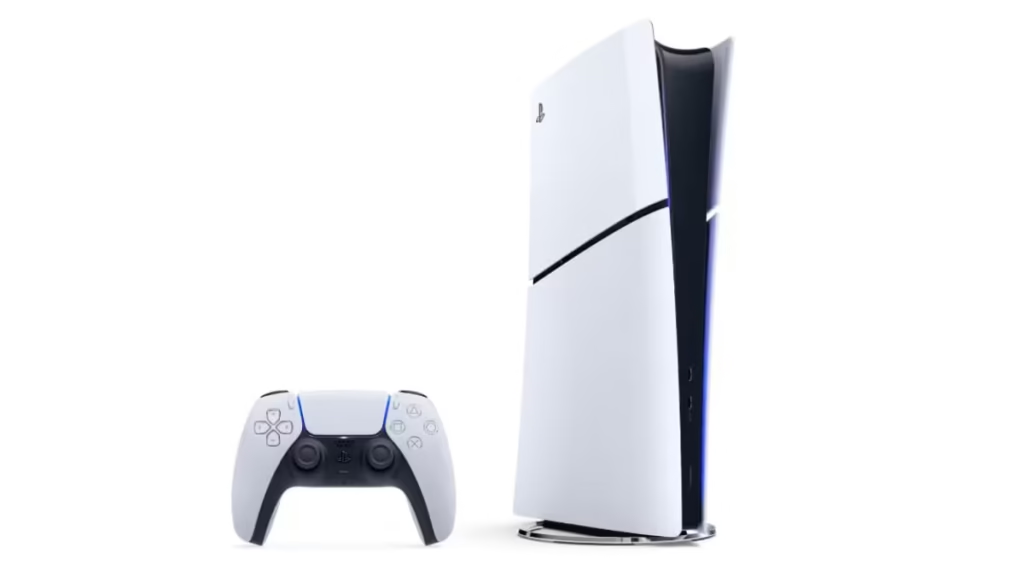
But now, you can enable it in under a minute. This guide shows you exactly how to turn on PSSR 2, what it does, and when you should disable it.
What Is PS5 Pro PSSR 2 and Why You Should Enable It
PSSR 2 is Sony’s upgraded image enhancement system for PS5 Pro that improves how games look without adding artificial details. Instead of generating new visuals, it focuses on refining what is already rendered—making the image cleaner, sharper, and more stable during gameplay.
Once you enable it, the feature works at a system level, so it automatically applies to your entire game library without needing individual game updates. You will notice clearer image quality, reduced ghosting during fast movement, and more stable edges, meaning thin objects like wires, grass, or foliage no longer flicker or shimmer while you move the camera.
Step-by-Step: Enable PSSR 2 on PS5 Pro
Follow these steps carefully:
Step 1: Update Your PS5 Pro First
- Go to: Settings → System → System Software → System Software Update
Make sure your console is updated to the latest version. PSSR 2 will not appear without it.
Step 2: Open Screen and Video Settings
From the home screen:
- Click Settings (gear icon)
- Select Screen and Video
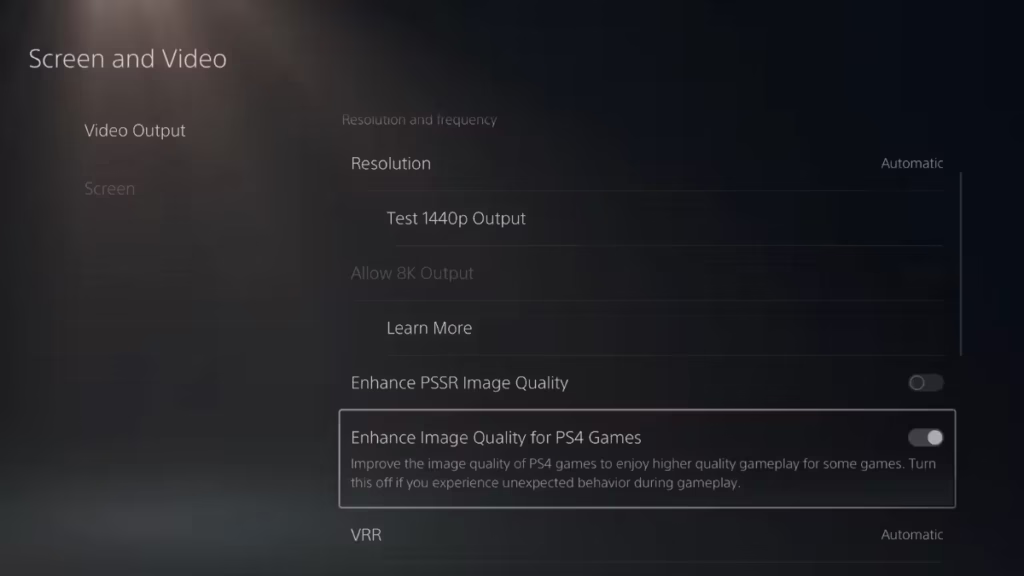
Step 3: Go to Video Output
- Select Video Output from the left menu
- Scroll down through the options
Step 4: Enable PSSR 2
- Find “Enhance PSSR Image Quality”
- Switch it to ON
That’s it. PSSR 2 is now active across your games.
Once you enable PSSR 2, most games show visible improvements right away. Textures appear sharper and more detailed, giving the overall image a cleaner look. Fast-moving objects no longer leave blurry trails behind them, which removes the ghosting effect that often distracts during gameplay.
Edges also become more stable, so thin elements like wires, fences, or foliage stop flickering when you move the camera. For example, power lines and grass look steady instead of shimmering, and fast-moving cars or bullets stay clear without leaving blur behind them.
When You Should Turn It OFF
PSSR 2 works well in most cases, but it may not suit every game or setup. Some older titles can show visual glitches, and in rare situations, you might notice slight input delay or an overly processed look. If that happens, it’s better to turn the feature off for a smoother experience.
To disable it, go back to the same setting, switch Enhance PSSR Image Quality to OFF, and then restart the game for the change to take effect.
FAQs
What is PSSR 2 on PS5 Pro?
PSSR 2 is an improved AI image enhancement feature that reduces ghosting, sharpens visuals, and stabilizes edges across games.
How do I enable PSSR 2 on PS5 Pro?
Go to Settings → Screen and Video → Video Output → Enable “Enhance PSSR Image Quality.”
Why can’t I see the PSSR option?
You either need the latest system update or you’re using a standard PS5 instead of PS5 Pro.
Does PSSR 2 improve all games?
It works system-wide, but results vary depending on the game and its compatibility.
Should I keep PSSR 2 always ON?
Yes in most cases, but turn it off if you notice visual issues in older games.

