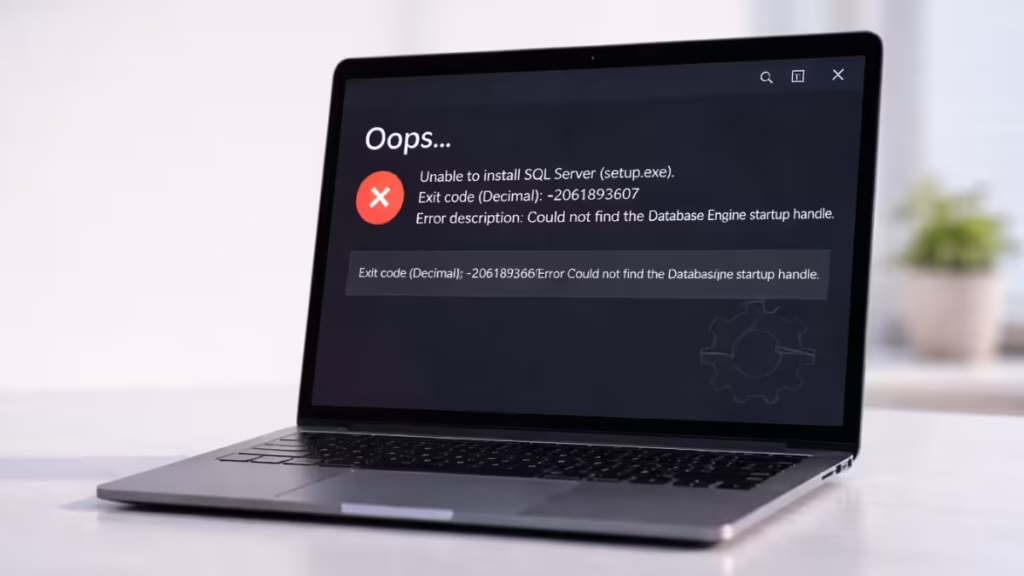
If SQL Server 2025 Express fails to install and shows the error “Exit code: -2061893607” along with “Could not find the Database Engine startup handle,” it indicates a Database Engine startup failure during installation. This does not mean your system is broken. It simply means SQL Server could not start its core service during setup. You can fix this issue by correcting permissions, resolving system dependencies, or adjusting installation settings. This guide walks you through the exact steps to fix it.
What Causes SQL Server Startup Handle Error During Installation
During installation, SQL Server performs these steps:
- Creates the Database Engine service on your system
- Attempts to start the service automatically
- Waits for a successful startup confirmation signal
If any of these steps fail:
- The service crashes or does not start properly
- SQL Server setup does not receive the startup confirmation
- Installation stops immediately and shows this error
Fix SQL Server 2025 Express Installation Error (Step-by-Step)
Follow these steps in order. Do not skip.
Step 1: Disable Antivirus Before Installing
Antivirus software often blocks SQL Server service creation.
Do this first:
- Open Windows Security
- Go to Virus & Threat Protection
- Turn off Real-time protection
If you use third-party antivirus, disable it temporarily.
Step 2: Run Installer as Administrator
Right-click the installer:
- Click Run as administrator
This ensures SQL Server can create services and write system files.
Step 3: Use Custom Installation (Avoid Basic Mode)
Basic mode hides important settings and causes silent failures.
Instead:
- Select Custom Installation
- Choose New SQL Server stand-alone installation
This gives you full control over configuration.
Step 4: Set Correct Service Account (Most Important Fix)
When you reach Server Configuration → Services:
Set:
- SQL Server Database Engine → Local System
This avoids permission-related crashes during startup.
Step 5: Enable Required Features and Updates
SQL Server depends on system components.
Do this:
Enable .NET Framework
- Press
Win + R→ typeoptionalfeatures - Enable:
- .NET Framework 3.5
- .NET Framework 4.8
Install Windows Updates
- Go to Settings → Windows Update
- Install all updates
- Restart your PC
Install Visual C++
Install:
- Visual C++ 2015–2022 Redistributable
- Visual C++ 2013 Redistributable
Step 6: Remove Old SQL Server Files (Clean Install)
Old files can break new installations.
Delete these folders:
C:\Program Files\Microsoft SQL Server\
C:\Program Files (x86)\Microsoft SQL Server\
C:\ProgramData\Microsoft\SQL Server\
Also clear temp files:
Win + R → %temp% → Delete allRestart your system.
Step 7: Check Port 1433 Conflict
SQL Server uses port 1433.
Check if it is already in use:
netstat -ano | findstr :1433If you see results:
- Identify the process using the port
- Stop or remove that application
Step 8: Install SQL Server Using Command Line (Best Fix)
If installation still fails, use this method.
Open Command Prompt as Administrator and run:
setup.exe /ACTION=Install ^
/FEATURES=SQLENGINE ^
/INSTANCENAME=SQLEXPRESS ^
/SQLSVCACCOUNT="NT AUTHORITY\SYSTEM" ^
/SQLSYSADMINACCOUNTS="%USERDOMAIN%\%USERNAME%" ^
/IACCEPTSQLSERVERLICENSETERMS ^
/TCPENABLED=1
This forces a correct service configuration and avoids startup failure.
Step 9: Check Setup Logs (If Needed)
If the error persists, check logs:
C:\Program Files\Microsoft SQL Server\170\Setup Bootstrap\Log\Open:
- Summary.txt
- Detail.txt
Look for:
- Access denied
- Port already in use
- Missing DLL
- Service failed to start
FAQs
How do I fix SQL Server could not find database engine startup handle?
Disable antivirus, use Custom install, set service account to Local System, install Windows updates, and clean old SQL files.
Why does SQL Server installation fail with error -2061893607?
This happens when the SQL Server service fails to start due to permission issues, antivirus blocking, missing updates, or port conflicts.
Can antivirus cause SQL Server installation failure?
Yes. Antivirus can block SQL Server service startup during installation and cause this error.
Do I need to reinstall Windows to fix this error?
No. This is a setup issue. You can fix it by adjusting installation settings and system configuration.
Which SQL Server versions are affected by this error?
This error can occur in SQL Server 2019, 2022, and 2025.
What is the fastest way to fix SQL Server installation failed error?
Disable antivirus, run setup as admin, and use command-line install with the correct service account.
The “Database Engine startup handle” error may look serious, but it is usually a setup configuration issue, not a system failure. Most users fix it by disabling antivirus, using Custom installation, setting the correct service account, and cleaning old files along with registry entries.
Once these are corrected, SQL Server installs normally without errors. If the issue still continues, check the setup log files, as they clearly show the exact cause.

