If your Windows 11 apps suddenly show “You’ll need the Internet for this” even when your connection works fine, you are not alone. This issue started after a recent Windows update and blocked access to apps like Teams, OneDrive, and Office.
Microsoft has now released an emergency fix: KB5085516. This update restores proper Microsoft account sign-in and removes the false “no internet” error.
What Causes Windows 11 No Internet Sign-In Error
The problem started after the March 2026 update KB5079473. This update introduced a bug that breaks Microsoft account authentication. Even when your internet connection works normally, Windows fails to verify your account and incorrectly shows a “no internet” error.
As a result, apps like Microsoft Teams fail to open, OneDrive stops syncing, Office apps cannot connect to online services, and even Microsoft Store and Copilot stop working. Microsoft confirmed that this issue affects only Microsoft account sign-ins, while business accounts using Entra ID are not impacted.
What Is KB5085516 Update
KB5085516 is an out-of-band (emergency) update released on March 21, 2026, to fix a critical issue introduced by the previous update. It directly resolves the Microsoft account sign-in problem that caused apps to display a false “no internet” error.
This update works on Windows 11 versions 24H2 and 25H2, restores access to apps like Teams and OneDrive, and fixes login failures across Microsoft services. It also includes previous security and quality improvements to ensure system stability. However, this update does not add any new features—it focuses only on fixing this major issue.
How to Fix Windows 11 No Internet Sign-In Error
Follow these steps to install the fix:
Step 1: Open Windows Update
- Press Start
- Go to Settings
- Click Windows Update
Step 2: Check for Updates
- Click Check for updates
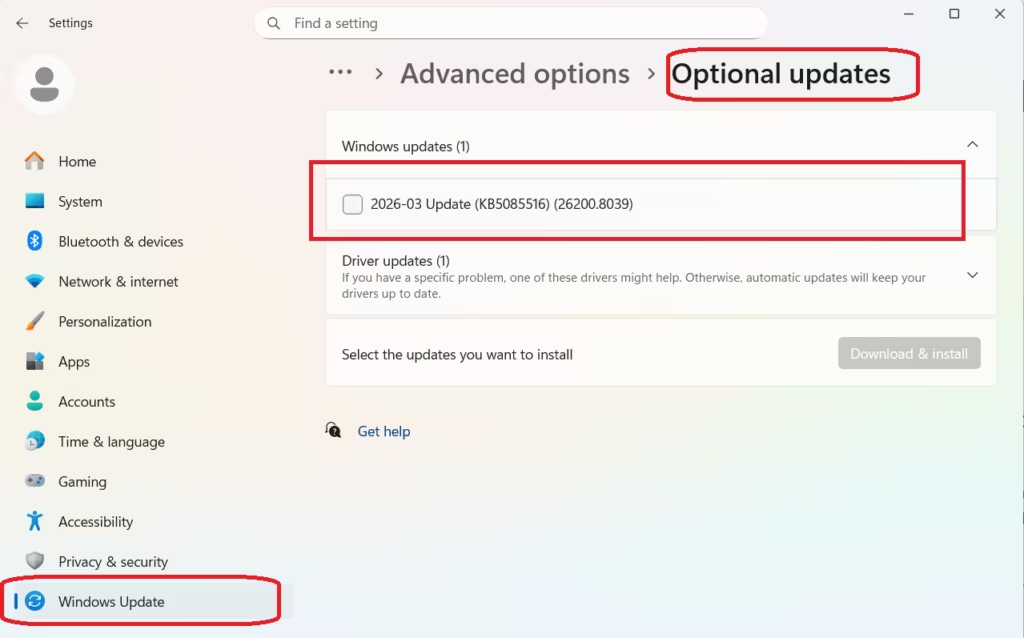
- Look for KB5085516
Step 3: Install the Update
- Click Download & Install
- Restart your PC after installation
After reboot, your apps should connect normally again.
If You Don’t See the Update
Sometimes this update does not install automatically.
In that case:
- Go to Optional Updates section
- Or download it manually from the Microsoft Update Catalog
- Install the
.msufile and restart your PC
Temporary Workaround (Before Installing Update)
If you cannot install the update immediately, try this quick fix:
- Restart your PC
- Ensure internet is active during startup
This may temporarily restore access, but it is not a permanent solution.
Quick Steps to Fix Windows 11 Sign-In Error
- Problem caused by: KB5079473 update
- Symptom: “No Internet” error during sign-in
- Real issue: Microsoft account authentication failure
- Solution: Install KB5085516 update
- Time to fix: 10–15 minutes
Should You Install This Update
You should install KB5085516 if:
- You cannot sign into Microsoft apps
- Apps show “no internet” error
- Teams, OneDrive, or Office stop working
If your system works normally, you can wait. This update is optional but recommended for affected users.
Do not troubleshoot your network. Update your system instead.

