When you replace your motherboard, Windows 11 may lose activation. The system treats your PC as a new device because the hardware ID changes. You can restore activation by following the correct method based on your license type.
What Causes Activation Failure After Motherboard Change
Windows activation links your license to your device hardware. When you change the motherboard, that link breaks, and Windows cannot verify your license anymore.
This does not mean your license is invalid. It only means Windows cannot match your current hardware with the previous activation.
Quick Checks Before You Start
Before trying any fix, confirm these basics:
- Your internet connection is stable
- You are signed into the correct Microsoft account
- Your Windows edition matches (Home or Pro)
- No VPN or proxy is active
This avoids unnecessary troubleshooting steps later.
Step 1: Check Your License Type First
This step decides which method will work.
Retail License (Transferable)
- Bought separately (Microsoft Store or product key)
- Can be reactivated on new hardware
OEM License (Limited Transfer)
- Comes pre-installed on laptops or branded PCs
- Tied to the original motherboard
OEM licenses are tied to the original motherboard and generally cannot be transferred. In some cases (such as warranty replacement), Microsoft support may reactivate it, but this is not guaranteed.
Method 1: Reactivate Using Microsoft Account (Best Method)
Use this if your license is linked to your Microsoft account.
Steps:
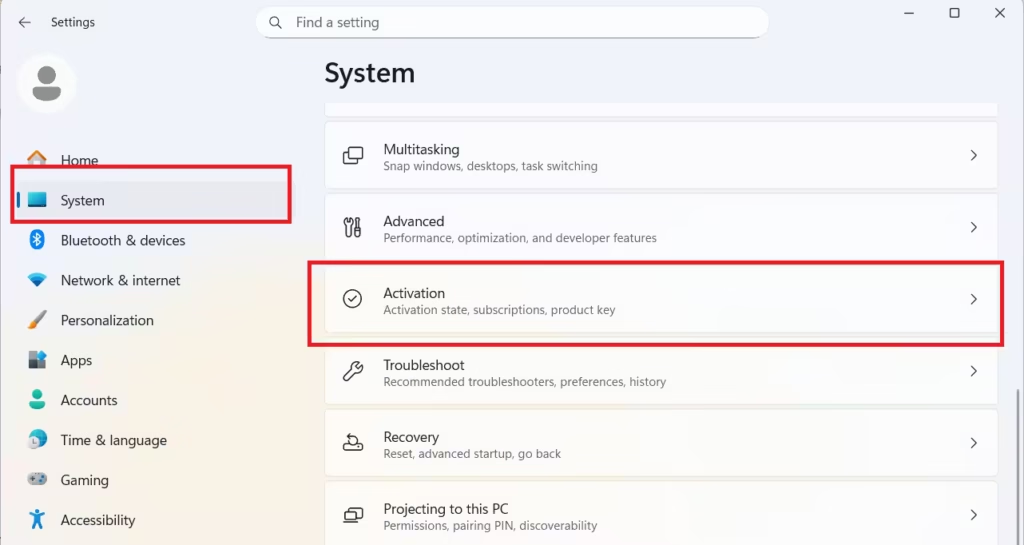
- Open Settings
- Go to System → Activation
- Click Troubleshoot
- Select I changed hardware on this device recently
- Sign in to your Microsoft account
- Select your device
- Click Activate
This works only if your license was linked before the hardware change.
Important: Digital License Without Microsoft Account (Common Case)
Many users have a digital license but never linked it to a Microsoft account.
Fix:
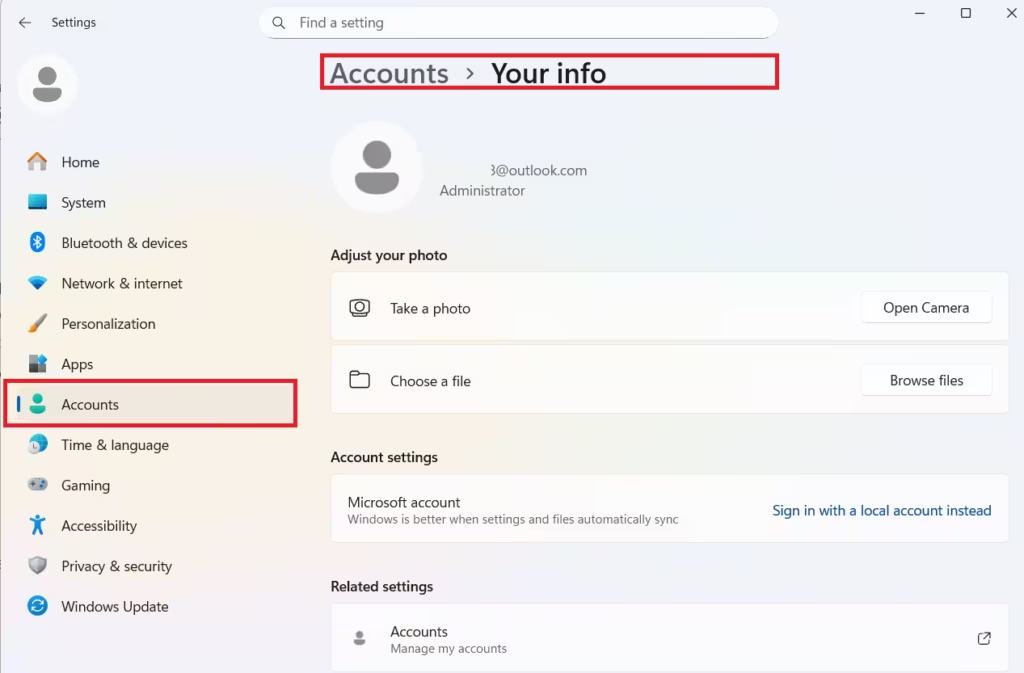
- Go to Settings → Accounts → Your Info
- Sign in with your Microsoft account
- Return to Settings → System → Activation
- Run the Activation Troubleshooter
The troubleshooter will not work until your license is linked.
Method 2: Activate Using Product Key
Use this if you have a 25-digit key.
Steps:
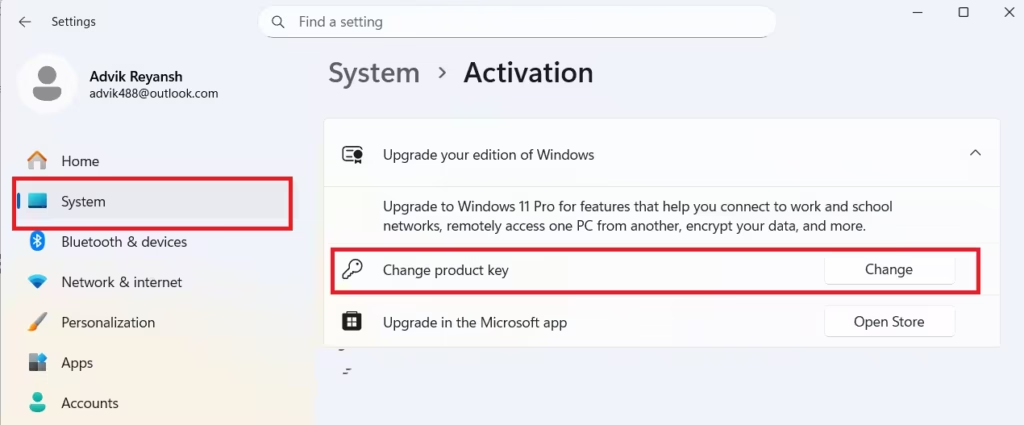
- Open Settings → System → Activation
- Click Change Product Key
- Enter your 25-digit key
- Complete activation
Make sure the key matches your Windows edition.
Method 3: Reset and Reapply License (Advanced Fix)
Use this if activation fails or shows errors.
Steps:
- Open Command Prompt as Administrator
- Run:
slmgr /upk - Restart your PC
- Go to Settings → System → Activation → Change Product Key
- Enter your product key again
This removes the old key and forces a fresh activation.
Method 4: Contact Microsoft Support
If none of the methods work, contact Microsoft support.
Explain that you changed your motherboard and still own a valid license. In some cases, support can manually reactivate your system after verification.
Common Activation Errors and Fix
After changing your motherboard, Windows 11 may show specific activation error codes instead of activating normally. These errors help identify the exact problem, whether it is a missing license, hardware mismatch, invalid product key, or network issue. Understanding what each error means allows you to apply the correct fix quickly and avoid unnecessary troubleshooting steps.
| Error Code | What It Means | Fix |
|---|---|---|
| 0x803F7001 | Windows cannot find your license | Run Activation Troubleshooter |
| 0xC004F211 | Hardware change detected | Sign in with Microsoft account and reactivate |
| 0xC004F213 | No product key found on device | Enter product key or link Microsoft account |
| 0xC004C003 | Activation server rejected the key | Check if key is valid or contact Microsoft support |
| 0xC004F050 | Invalid product key entered | Re-enter correct product key or verify edition |
| 0x80072F8F | Date/time or network issue blocking activation | Fix system date/time and check internet connection |
Always link your Windows license to your Microsoft account before changing hardware. This makes reactivation simple and avoids activation errors later.
FAQs
How do I activate Windows 11 after changing motherboard?
Go to Settings → System → Activation → Troubleshoot, then select “I changed hardware on this device recently”. Sign in with your Microsoft account and activate your device.
Why is Windows 11 not activated after motherboard change?
Windows links your license to your hardware ID. When you change the motherboard, the system detects it as a new device and cannot match the old activation.
Can I use the same Windows 11 product key after motherboard replacement?
Yes, you can reuse the same key only if it is a Retail license. OEM licenses usually do not transfer to a new motherboard.
How to fix error 0x803F7001 after hardware change?
Run the Activation Troubleshooter or re-enter your product key from Settings → Activation → Change Product Key.
How to fix error 0xC004F211 in Windows 11?
Sign in with your Microsoft account and use the Activation Troubleshooter. This error appears when Windows detects a hardware change.
What if I don’t have a product key?
You can activate Windows using a digital license linked to your Microsoft account. If no license exists, you need to purchase one from Microsoft.
Can OEM Windows be reactivated after motherboard change?
OEM licenses are tied to the original motherboard. In some cases, Microsoft support may reactivate it (such as warranty replacement), but this is not guaranteed.
Why is Activation Troubleshooter not working?
The troubleshooter fails if your license is not linked to your Microsoft account or if you sign in with a different account than the one used earlier.
Do I need to reinstall Windows after changing motherboard?
No, reinstalling is not required. You only need to reactivate Windows using your existing license or product key.
Can Microsoft manually activate Windows 11?
Yes, Microsoft support can manually activate your system after verifying your license ownership.
Will changing motherboard delete my Windows license?
No, but it disconnects the license from your device. You must reactivate it using your Microsoft account or product key.
How do I link my Windows license to my Microsoft account?
Go to Settings → Accounts → Your Info, sign in with your Microsoft account, then check activation status in Settings → System → Activation.

