Zoom error code 1132 is not a simple login error. When this appears, Zoom is usually restricting access due to a device issue, account flag, or security review. That is why standard fixes like re-entering your password do not resolve it.
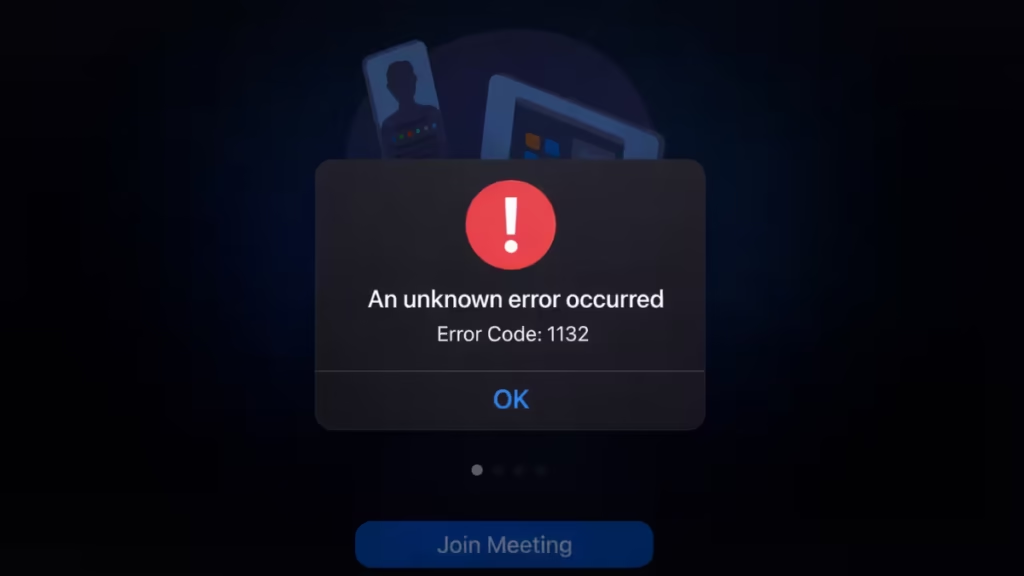
This guide walks you through the exact steps to fix the issue properly.
Why Zoom Error Code 1132 Appears During Login
Zoom error 1132 appears when Zoom blocks access during sign-in or while joining a meeting.
In most cases, it means:
- Your device may be flagged
- Your account activity triggered a security check
- Zoom requires internal review of your login attempt
Because of this, you need to combine local troubleshooting with Zoom’s reporting process.
How to Fix Zoom Error Code 1132
Follow these steps in order.
Step 1: Update Zoom to the Latest Version
Start by making sure your app is fully updated.
- Open the Zoom app
- Click your profile → Check for updates
- Install the latest version
- Restart the app after updating
- If Zoom does not open, download the latest version from the official Zoom website
Running the latest version avoids compatibility and security conflicts.
Step 2: When Error Appears, Click “Report to Zoom”
This is the most important step.
- When error 1132 appears, click Report to Zoom immediately
- Fill in your details clearly
- Submit the report
- Check your email inbox
- Confirm the report from the email
This sends your case directly to Zoom for review.
Step 3: Uninstall and Reinstall Zoom (Clean Install)
If the error continues, perform a clean reinstall.
- Uninstall Zoom from your device
- Restart your device
- Download the latest Zoom installer from the official site
- Install Zoom again
For Windows:
- Use CleanZoom tool if a normal reinstall does not fix the issue
For Mac:
- Use Zoom’s official uninstall option (from the Zoom app or installer package)
- Then reinstall the latest version
- Sign in again after reinstalling
This removes corrupted files and resets local app data.
Step 4: Clear Cache and Cookies
Old or broken session data can cause login issues.
- Close Zoom completely
- Clear Zoom app cache (or app data on mobile)
- If using browser Zoom, clear browser cache and cookies
- Restart your device
- Try signing in again
This clears stuck login sessions.
Step 5: Sign Out of All Devices
Reset all active sessions to avoid conflicts.
- Go to zoom.us and sign in
- Navigate to Account Settings → Security
- Find Sign out of all sessions/devices
- Confirm the action
- Open Zoom app again
- Sign in fresh
This forces a clean login across all devices.
Step 6: Try Zoom on Another Device or Browser
This step helps identify whether the issue is device-related.
- Try signing in using Zoom Web (browser)
- Use another phone or computer
- Check if the error appears everywhere
- Compare results
If Zoom works on another device, your main device may be restricted.
Step 7: Check Basic System Issues
Make sure your system is not causing the problem.
- Check your internet connection
- Restart your device
- Disable VPN temporarily
- Check firewall or antivirus settings
- Update your operating system
- Close unnecessary background apps
These steps remove common conflicts.
Step 8: Contact Zoom Support or Submit an Appeal
If the issue persists, escalate it to Zoom.
- Note your Zoom email ID
- Mention error code 1132
- Include device details (Windows/Mac/mobile)
- Add screenshots if possible
- Submit the issue via Zoom support
- Follow Trust & Safety or appeal instructions
At this stage, Zoom must review and remove the restriction if needed.
Why Zoom Error 1132 Keeps Coming Back
This error often returns because the root cause is not always inside the app.
In many cases:
- The device is restricted
- The account is flagged
- Zoom security blocks the login
That is why reinstalling alone does not always fix it.
FAQs
How long does Zoom error 1132 last?
It depends on the cause. Temporary issues may resolve quickly, but flagged accounts or devices require Zoom review.
Can I fix Zoom error 1132 without contacting support?
Yes, in some cases. Updating, reinstalling, and clearing cache can fix it. If not, you must contact Zoom.
Is Zoom error 1132 a ban?
No. It is usually a restriction or security check, not a permanent ban.

