When working with Arlo smart security systems whether through their mobile app or Python API, users may occasionally encounter the frustrating error:
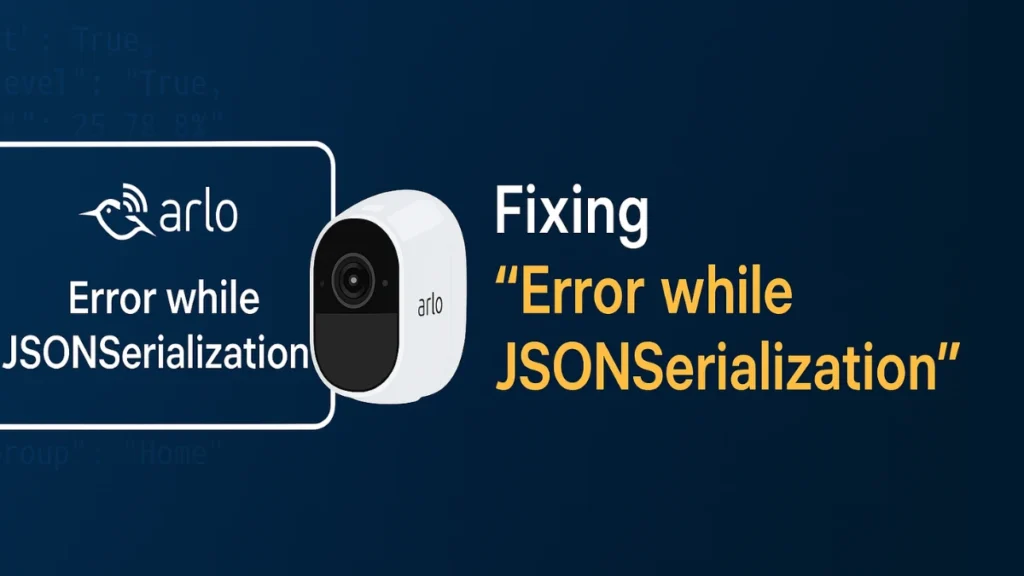
Error while JSONSerialization.
This error typically occurs when the application fails to correctly parse or encode camera/device data into a JSON-compatible format. For app users, this results in malfunctioning interfaces or blank camera feeds. For developers, this blocks automation, logging, and API responses.
In this article, we’ll break down why this error happens, how to fix it for both end users and developers, and the best practices for ensuring reliable JSON serialization with Arlo devices.
What Causes the "Error while JSONSerialization"?
For End Users (Arlo App)
On iOS devices like iPhone 11 or 12 Pro, many users report seeing this error during login or device viewing. This typically occurs due to:
- Malformed data from Arlo servers
- App version incompatibility with current iOS
- Corrupted cache or leftover session tokens
- Failed response parsing by the Arlo frontend
For Developers (Arlo APIs or Python SDKs)
Arlo’s APIs return complex objects such as ArloCamera, ArloBaseStation, etc., which include methods, private variables, and non-serializable properties like timestamps or live streams.
Typical errors include:
TypeError: Object of type 'ArloCamera' is not JSON serializableAttributeError: 'ArloBaseStation' object has no attribute 'to_dict'JSONEncodeError: Unable to serialize Arlo object
Fixes for End Users
If you’re using the Arlo mobile app and encountering the serialization error:
1. Check Arlo’s Server Status
Visit status.arlo.com or downdetector.com to confirm it’s not a server-wide issue.
2. Update the Arlo App
Make sure your Arlo app is updated to the latest version from the App Store. Older versions often fail to parse updated server responses.
3. Reinstall the App
A clean reinstall clears corrupted cache and session data:
- Delete the app
- Restart your device
- Reinstall Arlo and re-login
4. Use a Different Device Temporarily
If your iPhone is affected, try logging in on an Android or web client. This helps isolate whether the issue is device-specific.
5. Contact Arlo Support
If the error persists across devices, contact Arlo Support with logs/screenshots.
Fixes for Developers: Proper JSON Serialization of Arlo Objects
If you're building a Python automation or logging system using Arlo’s API, follow these solutions to prevent json.dumps() errors.
1. Use __dict__ to Convert Objects
Many Arlo objects store data internally using Python’s __dict__.
devices_dict = [device.__dict__ for device in devices]
json_data = json.dumps(devices_dict)
2. Build a Custom JSON Encoder
This lets you serialize complex nested Arlo objects with custom logic.
from json import JSONEncoder

class ArloEncoder(JSONEncoder):
    def default(self, obj):
        if hasattr(obj, '__dict__'):
            return obj.__dict__
        elif hasattr(obj, 'to_json'):
            return obj.to_json()
        return super().default(obj)

json_data = json.dumps(devices, cls=ArloEncoder)
3. Extract Only Required Fields
Avoid unnecessary bloat or private fields:
def serialize_arlo_device(device):
    return {
        "name": device.device_name,
        "type": device.device_type,
        "status": device.status,
        "battery": device.battery_level,
    }

json_data = json.dumps([serialize_arlo_device(d) for d in devices])
4. Use Built-in Serialization (If Available)
Some Arlo wrappers offer a .to_json() or .get_properties() method. Prefer these when possible.
json_data = [device.to_json() for device in devices]Best Practices to Avoid JSON Serialization Errors
- Filter Sensitive Data: Don’t include API tokens, passwords, or internal IPs.
- Wrap with
try-exceptBlocks to catch and log TypeErrors. - Avoid Serializing Entire Objects: Instead, cherry-pick fields you need.
- Cache Successful Conversions to avoid repeated API calls.
try:
    json_data = json.dumps(devices, cls=ArloEncoder)
except TypeError as e:
    print(f"Serialization failed: {e}")
Conclusion
Whether you're an everyday Arlo user or an automation developer, the "Error while JSONSerialization" message boils down to incompatible or malformed data. For users, clearing app data or updating usually resolves the issue. For developers, the fix lies in understanding Python object serialization and controlling how complex Arlo objects are transformed into JSON.
Next Steps
- For developers: Explore the official Arlo API or
arlo-pyGitHub documentation for model references. - For users: Subscribe to Arlo service alerts to avoid surprise server bugs.