Random Blue Screen of Death (BSOD) crashes with different BugCheck strings each time can be frustrating and confusing. One restart shows IRQL_NOT_LESS_OR_EQUAL. The next shows SYSTEM_SERVICE_EXCEPTION. Then you see KERNEL_SECURITY_CHECK_FAILURE. When the error changes every time, the problem is usually deeper than a single bad driver.

In this guide, you’ll learn how to properly diagnose and fix BSOD crashes with different BugCheck codes in Windows 11, especially on modern laptops like ThinkPad systems with docks and Ryzen processors.
What Does “Different BugCheck Strings” Mean?
If every crash shows a different stop code, Windows is signaling instability at a lower level.
Common patterns include:
- IRQL_NOT_LESS_OR_EQUAL
- SYSTEM_SERVICE_EXCEPTION
- MEMORY_MANAGEMENT
- KERNEL_SECURITY_CHECK_FAILURE
- PAGE_FAULT_IN_NONPAGED_AREA
When these rotate randomly, the cause is usually:
- Firmware instability (BIOS)
- Power state transitions
- Docking station conflicts
- Subtle RAM instability
- CPU voltage fluctuations
- Kernel memory corruption
It is rarely just “a bad driver” when the error changes each time.
Step 1: Confirm It’s a Real BugCheck (Not Power Loss)
First, confirm Windows is actually crashing and not losing power.
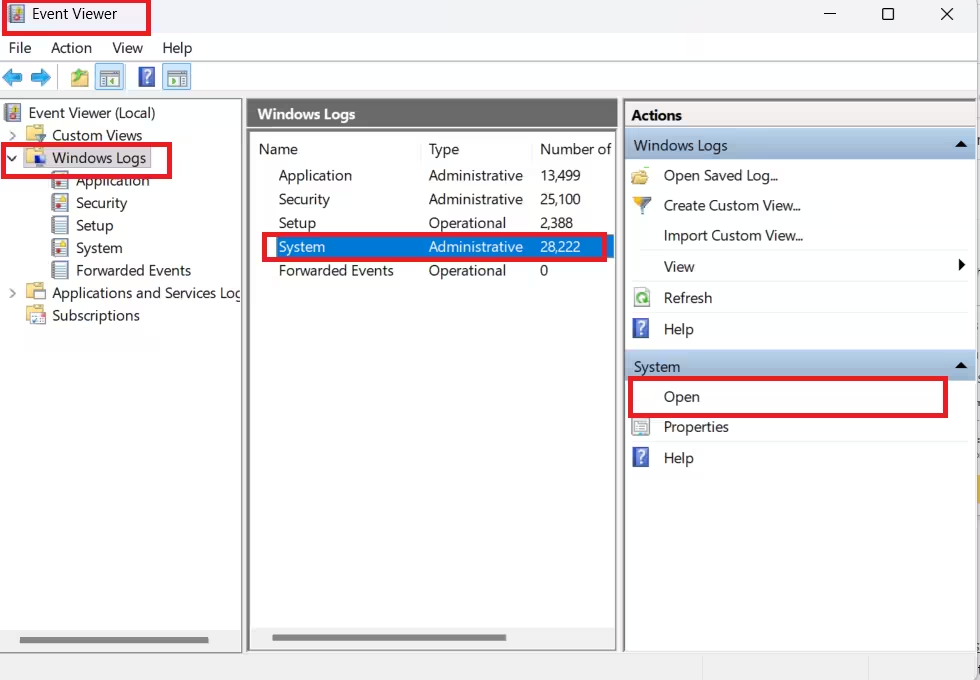
Check Event Viewer
- Press Win + X → Event Viewer
- Open Windows Logs → System
- Look for:
- Event ID 1001 (BugCheck)
- Event ID 41 (Kernel-Power)
If you see Event 1001, Windows wrote a dump file.
If you only see Event 41 with no BugCheck, you may be dealing with power delivery or firmware resets.
Step 2: Make Sure Minidumps Are Enabled
Without dump files, diagnosis becomes guesswork.
- Press Win + R
- Type:
sysdm.cpl - Go to Advanced → Startup and Recovery
- Under “Write debugging information,” select:
- Small memory dump (256 KB)
- Confirm location:
C:\Windows\MinidumpAfter the next crash, verify a new .dmp file appears.
Step 3: Test Without Docking Station (Critical for ThinkPads)
If you use:
- A ThinkPad dock
- USB-C monitor
- External GPU or display
- Power delivery over USB-C
Disconnect everything.
Run the laptop:
- On AC power only
- On battery only
- Without the dock
Dock firmware and USB-C power negotiation frequently cause idle-state crashes.
If the system stabilizes without the dock, update:
- Dock firmware
- BIOS
- Graphics drivers
Step 4: Update BIOS and Firmware Immediately
On Ryzen laptops and Windows 11 24H2 systems, early BIOS versions often cause random BugCheck strings.
Update:
- System BIOS
- Embedded Controller firmware
- Chipset drivers
- Dock firmware
Do not skip this step. Firmware instability often produces rotating stop codes.
Step 5: Disable Modern Standby (Idle Crash Fix)
Windows 11 uses Modern Standby (S0 Low Power Idle), which can trigger crashes during idle.
Check standby mode
Open Command Prompt as admin:
powercfg /aIf you see:
Standby (S0 Low Power Idle) Network ConnectedThat can cause instability on some systems.
Test Fix
- Set Sleep to Never
- Disable Fast Startup
- Let system idle for several hours
If crashes stop, power state transitions were the cause.
Step 6: Run Proper Memory Testing (Not Just Windows Memory Diagnostic)
Built-in scans miss intermittent faults.
Use:
- MemTest86 (bootable USB)
- Run at least 4 full passes
- Zero errors allowed
Even one error indicates instability.
Step 7: Adjust Power Management Settings
Ryzen systems aggressively change voltage states.
Test these adjustments:
- Set Power Mode → Best Performance
- Disable:
- PCI Express Link State Power Management
- USB selective suspend
- Set Minimum Processor State to 5% or higher
If stability improves, the issue is power-state instability.
Step 8: Analyze Minidump Files (Advanced Users)
Install WinDbg Preview from the Microsoft Store.
- Open a dump file
- Run:
!analyze -vIf every crash blames different kernel routines and no single driver repeats, the problem is almost always:
- Firmware
- Hardware
- Power instability
Not Windows corruption.
Why a Windows Reset Usually Doesn’t Fix This
A file-keeping Windows reset:
- Reinstalls system files
- Keeps BIOS, firmware, and hardware settings untouched
- Does not fix electrical or voltage issues
If crashes continue after reset, the root cause is almost never the OS.
When to Suspect Hardware Failure
If you:
- Updated BIOS
- Tested without dock
- Disabled sleep
- Passed MemTest
- Updated drivers
And crashes still rotate randomly…
The motherboard or memory controller may be unstable. In that case, hardware service or replacement is required.
FAQs: BSOD With Different BugCheck Strings
Why does my BSOD error change every time?
When the BSOD error changes every time, it indicates random kernel memory corruption. This often happens due to BIOS bugs, power delivery instability, faulty RAM, or aggressive CPU power management rather than a specific software bug.
Is BSOD with different BugCheck strings caused by a bad driver?
In most cases, no. A bad driver usually triggers the same BugCheck repeatedly. Different BugCheck strings typically indicate firmware, hardware, or power-related instability.
Can faulty RAM cause different BugCheck strings?
Yes. Faulty or marginal RAM is one of the most common causes of BSOD with different BugCheck strings, especially when crashes occur randomly during idle or light usage.
Does Windows 11 24H2 cause BSOD with different BugCheck strings?
Windows 11 24H2 does not directly cause BSODs, but its updated power management can expose existing firmware or hardware instability, resulting in different BugCheck strings.
Why do BSODs happen more often during idle?
Idle-time BSODs usually occur during power state transitions such as sleep, Modern Standby, or CPU downclocking. These transitions can trigger crashes if firmware or power settings are unstable.
Can a docking station cause BSOD with different BugCheck strings?
Yes. USB-C docks and external monitors can cause BSODs due to power delivery negotiation issues, outdated dock firmware, or display driver conflicts, especially on laptops.
Will reinstalling Windows fix BSOD with different BugCheck strings?
Usually no. Reinstalling Windows does not fix firmware, BIOS, power, or hardware issues. If BSODs continue after a reset, the problem is almost never the operating system.
How do I confirm BSOD with different BugCheck strings is not a power outage?
Check Event Viewer for Event ID 1001 (BugCheck). If present, Windows crashed properly. If only Event ID 41 (Kernel-Power) appears without a BugCheck, the system may be losing power instead of crashing.
Should I update BIOS to fix BSOD with different BugCheck strings?
Yes. Updating the BIOS is one of the most effective fixes for BSOD with different BugCheck strings, especially on Ryzen systems and Windows 11 laptops.
Can Modern Standby cause BSOD with different BugCheck strings?
Yes. Modern Standby (S0 Low Power Idle) is a known trigger for random BSODs on some systems due to aggressive sleep and wake transitions.
How do I know if BSODs are hardware-related?
If BugCheck strings change every crash, drivers are updated, and Windows was reset, the issue is almost certainly hardware, firmware, or power-related rather than software.
Do minidump files help with different BugCheck strings?
Yes, but when minidumps blame different kernel routines each time, they confirm system instability rather than a single faulty driver.
When should I consider hardware replacement?
If BIOS updates, dock removal, power tuning, and memory testing do not stop BSODs with different BugCheck strings, motherboard or RAM replacement is usually required.
Is BSOD with different BugCheck strings dangerous?
Yes. Repeated kernel crashes can cause file corruption and data loss. Backups are strongly recommended until the issue is resolved.

