If your Windows 10 PC suddenly started crashing with DPC_WATCHDOG_VIOLATION, recent Windows updates may have triggered random blue screen errors, especially on Ryzen-based systems.
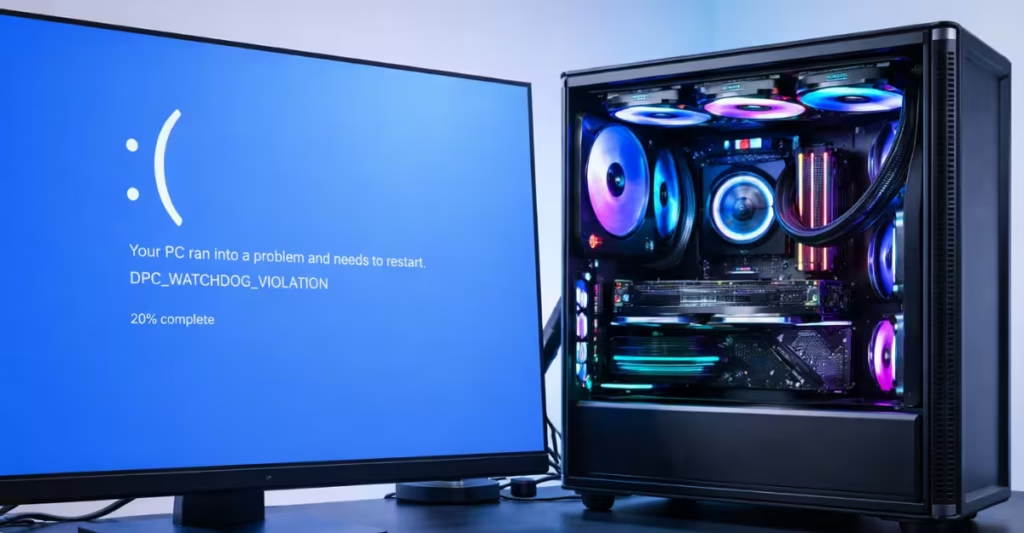
The crash often happens while the PC sits idle. The system looks stable. Then suddenly, it reboots with a watchdog error. This guide shows you exactly how to fix DPC_WATCHDOG_VIOLATION step by step.
What Is DPC_WATCHDOG_VIOLATION?
DPC stands for Deferred Procedure Call. Windows uses it to manage driver tasks. The watchdog triggers a crash when a driver takes too long to respond.
The most common causes:
- Corrupt or outdated chipset drivers
- Storage driver timeouts (NVMe/SATA)
- GPU driver conflicts
- BIOS firmware bugs
- Power state instability
On many Ryzen systems, chipset and storage drivers cause this error most often
Step 1: Update AMD Chipset Drivers (Most Important Fix)
Windows Update often installs generic AMD drivers. That creates conflicts.
Do this instead:
- Go to AMD’s official website.
- Search for your motherboard chipset (X570, B550, etc.).
- Download the latest AMD Chipset Driver.
- Install it.
- Restart your PC.
Test your system for a day. Many crashes stop here.
Step 2: Disable PCIe Link State Power Management
Idle crashes usually happen due to power state transitions.
Turn this off:
- Open Control Panel.
- Click Power Options.
- Select your active plan.
- Click Change plan settings.
- Click Change advanced power settings.
- Expand PCI Express.
- Set Link State Power Management to OFF.
- Restart your PC.
This prevents PCIe devices from entering unstable low-power states.
Step 3: Clean Reinstall Your GPU Driver
Rolling back drivers rarely fixes deep corruption. Do a clean reinstall.
- Download Display Driver Uninstaller (DDU).
- Boot into Safe Mode.
- Run DDU and remove your AMD/NVIDIA driver.
- Restart normally.
- Install the latest WHQL driver from the official website.
Avoid optional or beta drivers.
Step 4: Check Your SSD and Storage Drivers
Storage driver timeouts trigger watchdog crashes frequently.
Check SSD Health
- Download CrystalDiskInfo.
- Check drive health.
- If health shows warning or low percentage, consider replacing the SSD.
Update SSD Firmware
Use your SSD manufacturer’s tool:
- Samsung → Samsung Magician
- WD → WD Dashboard
- Crucial → Storage Executive
Update firmware if available.
Step 5: Update BIOS (Especially on Ryzen Systems)
Ryzen 5000 systems received multiple AGESA stability fixes.
- Visit your motherboard manufacturer’s support page.
- Download the latest stable BIOS.
- Follow official flashing instructions carefully.
BIOS updates fix:
- Idle instability
- Memory timing bugs
- Power state crashes
- Storage controller timeouts
Do not interrupt BIOS updates.
Step 6: Run System File Repair
Open Command Prompt as Administrator.
Run:
sfc /scannowAfter it completes, run:
DISM /Online /Cleanup-Image /RestoreHealthRestart your PC.
This repairs corrupted Windows system files.
Step 7: Use Driver Verifier (Advanced Method)
Use this only if crashes continue.
Driver Verifier forces Windows to identify the faulty driver.
- Press Win + R.
- Type
verifier. - Select Create custom settings.
- Select all non-Microsoft drivers.
- Restart your PC.
Let it crash 2–3 times.
To disable it:
Open Command Prompt (Admin) and run:
verifier /resetRestart your PC.
Driver Verifier usually exposes the exact driver causing the problem.
Extra Fix: Disable Global C-State in BIOS (Testing Only)
If crashes happen only when idle:
- Enter BIOS.
- Find Global C-State Control.
- Disable it.
- Save and exit.
Test stability.
If crashes stop, power state transitions caused the issue.
Most Effective Fix Order
Follow this order for fastest results:
- Update AMD chipset drivers
- Disable PCIe Link State Power Management
- Clean reinstall GPU driver
- Update BIOS
- Check SSD firmware
- Use Driver Verifier
Why This Error Appears After Windows Update
Windows updates sometimes:
- Replace chipset drivers
- Modify power management behavior
- Change storage stack timing
- Update system files that expose old driver bugs
Your hardware is usually not defective. Driver conflicts cause this error in most cases.
If the issue started after Windows Update, focus on driver conflicts first before replacing hardware.

