Screen flickering, random black flashes, or brief display freezes in Windows are often linked to LiveKernelEvent errors. These errors usually occur when the graphics driver crashes or resets, even though Windows does not show a blue screen.
What Is LiveKernelEvent in Windows?
LiveKernelEvent is a hardware-related error logged by Windows when a system component (most commonly the GPU) stops responding temporarily. It appears in Reliability Monitor, not as a BSOD.
Common LiveKernelEvent codes include:
- 141
- 117
- 144
These are usually related to:
- Graphics driver instability
- Hardware acceleration conflicts
- MPO (Multiplane Overlay) issues
- Overclocking or undervolting
- Power or thermal problems
Step 1: Confirm the LiveKernelEvent Error
Method A: Reliability Monitor (fastest)
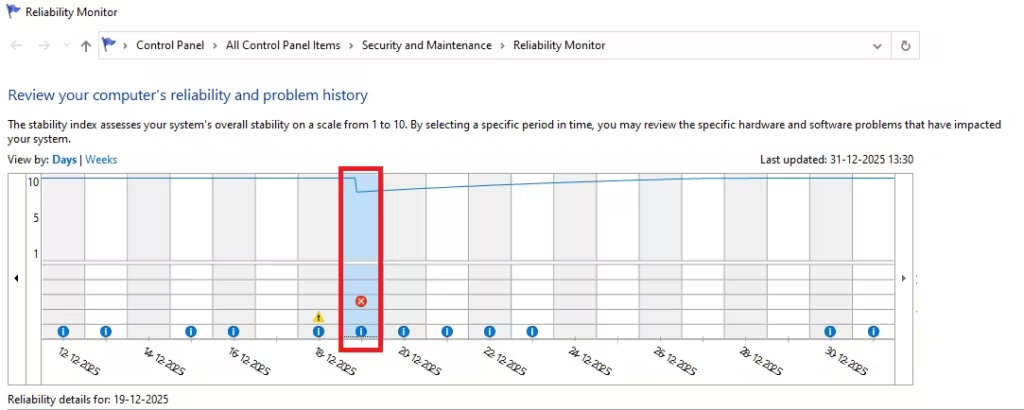
- Press Windows + S
- Type Reliability Monitor
- Open View reliability history
- Click a day with flickering → look for Windows Hardware Error
- Click it → note Problem Event Name: LiveKernelEvent and the Code (like 141, 117, 144)
Method B: Event Viewer (optional)
- Look for errors around the flicker time
- Press Windows + X → Event Viewer
- Go to Windows Logs → System
- On the right, click Filter Current Log…
- In Event sources, tick Display and nvlddmkm/amdkmdag (if shown)
Step 2: Check Display Cable and Monitor (Quick Fix)
Before changing system settings:
- If using a desktop, try:
- A different HDMI or DisplayPort cable
- A different GPU output port
- If using a laptop with external monitor:
- Disconnect the external display
- Test using only the laptop screen
If flickering stops, the issue is cable or monitor-related.
Step 3: Perform a Clean Graphics Driver Reinstall (Most Important Fix)
A normal driver update often does not fix LiveKernelEvent issues.
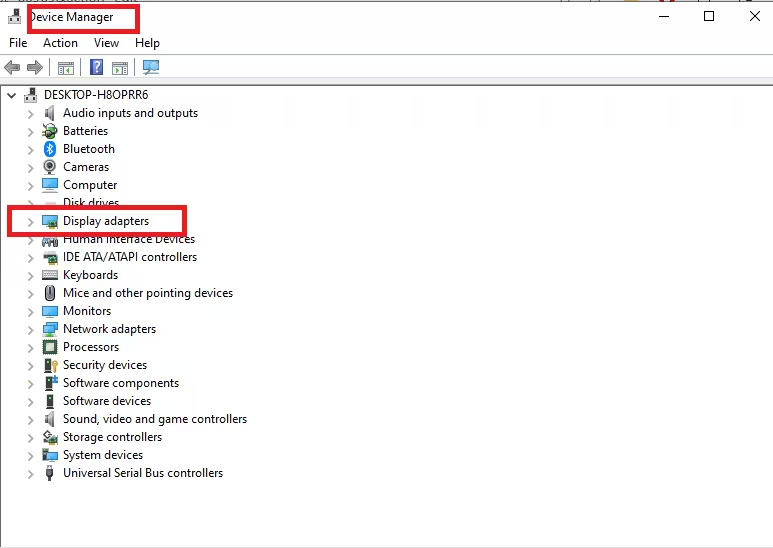
Clean Reinstall Graphics Driver
- Press Windows + X
- Click Device Manager
- Expand Display adapters
- Note your GPU (NVIDIA / AMD / Intel)
Recommended Method
- Download:
- Latest stable GPU driver from the official manufacturer website
- Display Driver Uninstaller (DDU)
Boot into Safe Mode
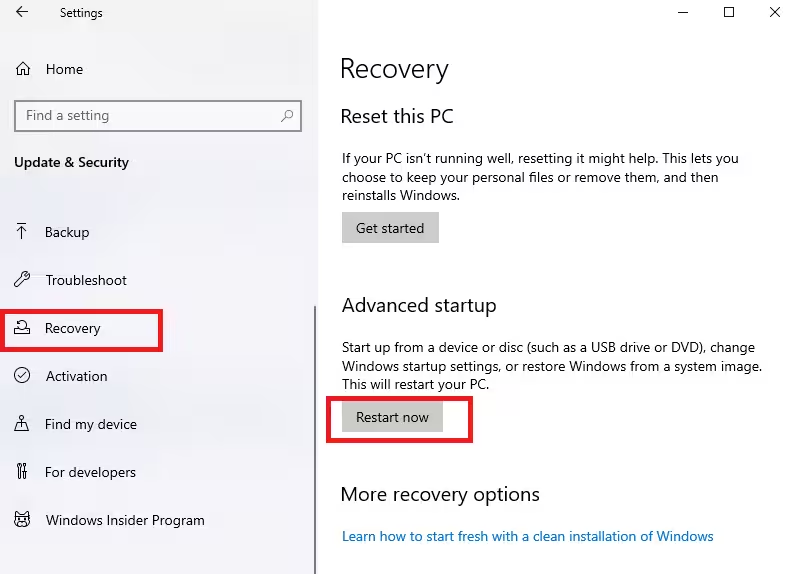
- Press Win + I → System
- Click Recovery
- Under Advanced startup, click Restart now
- Go to: Troubleshoot → Advanced options → Startup Settings → Restart
- Press 4 to enter Safe Mode
Remove Old Driver
- Run DDU
- Select your GPU type
- Click Clean and restart
Install Fresh Driver
- Install the downloaded driver
- For NVIDIA: choose Custom (Advanced) → enable Perform a clean installation
- Restart Windows
Step 4: Disable Hardware Acceleration (Very Common Flicker Trigger)
Hardware acceleration often causes flickering in browsers and apps.
Disable in Google Chrome
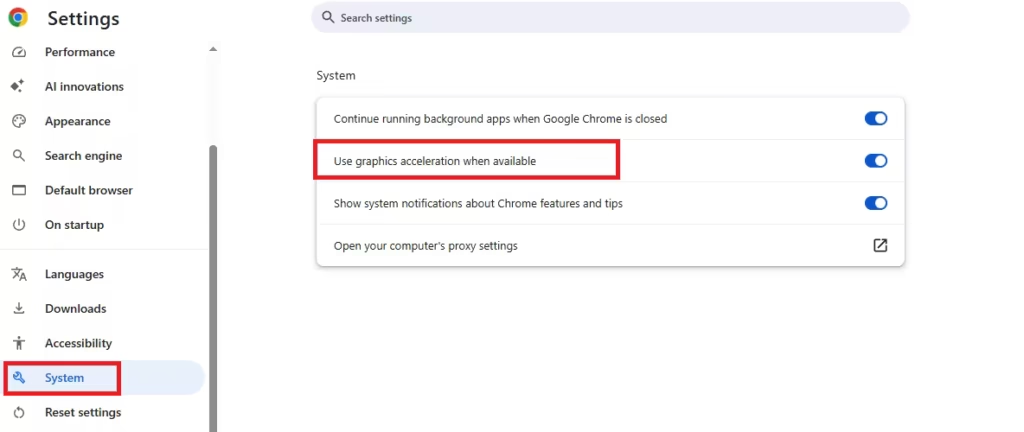
- Open Chrome
- Click ⋮ → Settings
- Select System
- Turn off Use graphics acceleration when available
- Click Relaunch
Disable in Microsoft Edge
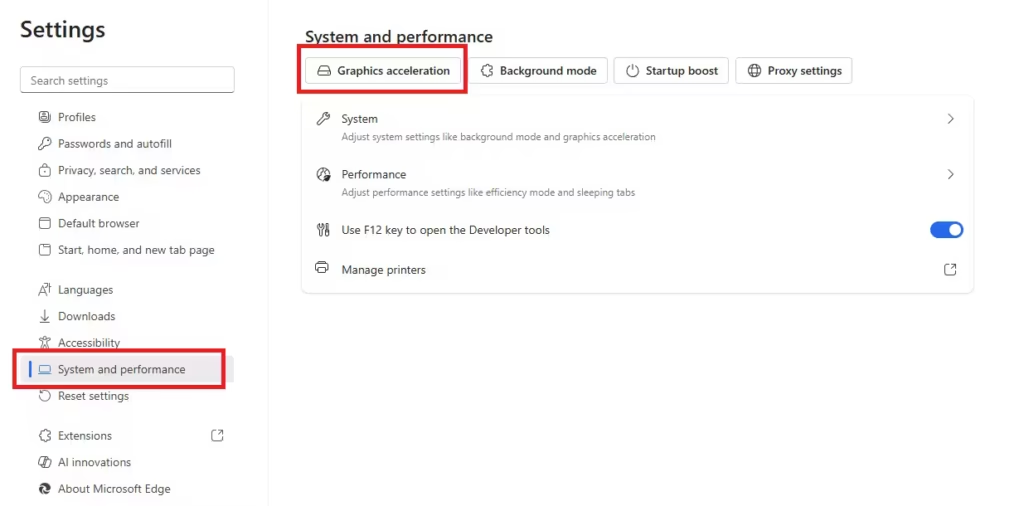
- Open Microsoft Edge
- Click ⋮ → Settings
- Open System and performance
- Click Graphics acceleration
- Turn OFF:
Use graphics acceleration when available - Close all Edge windows
- Reopen Edge
Repeat this for Discord, Teams, and other apps if installed.
Step 5: Disable Multiplane Overlay (MPO) in Windows
MPO is a known cause of flickering and LiveKernelEvent errors.
Disable MPO Using Registry Editor
- Press Windows + R
- Type regedit → press Enter
- Navigate to:
HKEY_LOCAL_MACHINE\SOFTWARE\Microsoft\Windows\Dwm- Right-click in the right panel → New → DWORD (32-bit) Value
- Name it:
OverlayTestMode- Double-click it and set Value data to:
5- Click OK
- Restart Windows
To undo this later, simply delete OverlayTestMode and restart.
Step 6: Remove GPU Overclock or Undervolt
Even small overclocks can trigger LiveKernelEvent errors.
- Open MSI Afterburner / AMD Adrenalin / Intel tuning tool
- Click Reset or Restore Defaults
- Disable:
- Overclock
- Undervolt
- Custom fan curves (for testing)
Restart and check for flickering.
Step 7: Set Windows Power Mode to Balanced
- Press Win + I
- Open System → Power & battery
- Under Power mode, select Balanced
- Restart the system
Avoid “Best performance” mode until the issue is fixed.
Step 8: Repair Windows System Files
Corrupted system files can also trigger kernel errors.
- Press Windows + S
- Type Command Prompt
- Click Run as administrator
- Run the commands below one by one:
sfc /scannow
DISM /Online /Cleanup-Image /RestoreHealth
Restart after completion.
Step 9: Update Chipset Drivers and BIOS (If Needed)
- Visit your laptop or motherboard manufacturer’s support page
- Install:
- Latest chipset drivers
- BIOS update only if it mentions stability or display fixes
If unsure, skip BIOS updates to avoid risk.
Match Fixes to LiveKernelEvent Codes
| LiveKernelEvent Code | Most Effective Fix |
|---|---|
| 141 / 117 | Clean GPU driver install + Disable MPO |
| 144 | Disable hardware acceleration + driver reinstall |
FAQs
What causes LiveKernelEvent errors in Windows?
LiveKernelEvent errors in Windows are usually caused by graphics driver crashes, hardware acceleration conflicts, GPU instability, or Multiplane Overlay (MPO) issues. These errors occur when the graphics driver temporarily stops responding, leading to screen flickering, black flashes, or display resets without showing a blue screen.
How do LiveKernelEvent errors cause screen flickering?
LiveKernelEvent errors cause screen flickering when Windows forcibly resets the graphics driver after a timeout or crash. This reset interrupts display rendering, resulting in flickering, brief black screens, or frozen visuals, especially during video playback, gaming, or browser use.
Which LiveKernelEvent codes are related to screen flickering?
The most common LiveKernelEvent codes related to screen flickering are 141, 117, and 144. These codes typically indicate a GPU driver hang, delayed response, or display recovery issue rather than a full system crash.
Can outdated graphics drivers trigger LiveKernelEvent errors?
Yes, outdated or corrupted graphics drivers are one of the main reasons users need to fix LiveKernelEvent errors in Windows. Incomplete driver updates or leftover driver files can cause instability, making a clean driver reinstall the most effective solution in many cases.
Does disabling hardware acceleration fix LiveKernelEvent errors?
Disabling hardware acceleration often fixes LiveKernelEvent errors causing screen flickering, especially in browsers like Chrome, Edge, and apps such as Discord. Hardware acceleration can conflict with certain GPU drivers, leading to repeated display resets logged as LiveKernelEvent errors.
What is MPO and why does disabling it help?
MPO (Multiplane Overlay) is a Windows display feature that can cause flickering and LiveKernelEvent errors on some systems. Disabling MPO prevents Windows from using overlay layers, which stabilizes display output and reduces GPU driver crashes.
Is LiveKernelEvent a hardware failure?
LiveKernelEvent does not always mean hardware failure. In most cases, it is a software-level issue related to drivers, power management, or display features. However, persistent errors after all fixes may indicate failing GPU hardware or power delivery problems.
Will reinstalling Windows fix LiveKernelEvent errors?
Reinstalling Windows is rarely required to fix LiveKernelEvent errors in Windows. Most issues are resolved through clean graphics driver installation, disabling MPO, turning off hardware acceleration, and removing GPU overclocking, making a full OS reinstall unnecessary.
LiveKernelEvent screen flickering issues are fixable in most cases without reinstalling Windows. The majority of users resolve the problem by:
- Clean reinstalling graphics drivers
- Disabling MPO
- Turning off hardware acceleration
If the issue persists, collecting dump files from
C:\Windows\LiveKernelReports can help pinpoint the cause further.

