Vanguard error VAN 57 appears when Riot's anti-cheat engine fails to start. The full error message reads: "An unexpected error with Vanguard has occurred and the client will now close." This blocks you from launching League of Legends entirely until you resolve it.
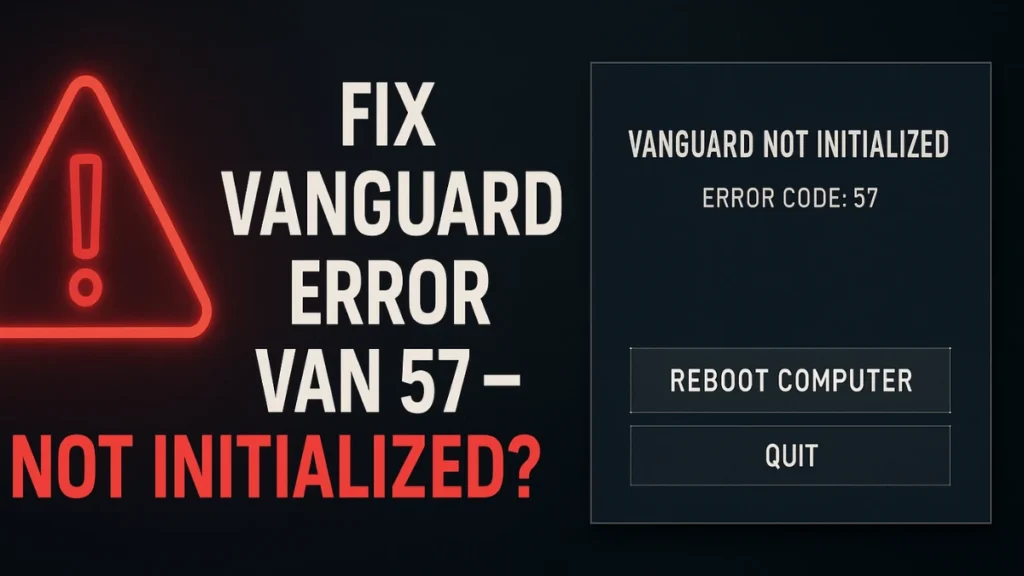
VAN 57 is a service startup failure, not a network error. The VGC background service either stopped, got disabled, or a system conflict prevented it from initializing. Corrupted Vanguard files or a bad registry entry can also trigger it.
The fixes below cover every confirmed cause. Work through them in order.
What Causes Vanguard Error VAN 57
- The VGC service is stopped or set to Manual/Disabled
- Corrupted Riot Vanguard installation files
- The
DevOverrideEnableregistry value is set to1, blocking Vanguard's kernel driver - A third-party startup program loaded before Vanguard and caused a conflict
- Corrupted Windows system files preventing the VGC service from running
Fix 1: Restart the Riot Client and Your PC
A full restart clears temporary service conflicts and forces Vanguard to reinitialize. Do not just close the game window. Kill all Riot processes first.
- Right-click the taskbar and select Task Manager.
- On the Processes tab, find every process related to Riot Client and Vanguard.
- Right-click each one and select End task.
- Check your system tray for the Riot Client icon. Right-click it and select Exit or End task.
- Restart your PC.
- Launch League of Legends and check if VAN 57 is gone.
Fix 2: Enable and Start the VGC Service
The VGC service is the core background process that runs Riot Vanguard. If its startup type is set to Manual or Disabled, Vanguard cannot start with your PC, which directly causes the VAN 57 error.
- Press Windows + R, type
services.msc, and press Enter. - Scroll down and find vgc in the list.
- Right-click vgc and select Properties.
- Under Startup type, select Automatic from the dropdown.
- Click the Start button under Service status.
- Click Apply, then OK.
- Restart your PC so Vanguard launches automatically on the next boot.
- Open League of Legends to confirm the error is fixed.
If the service fails to start with an error, move to Fix 3 or Fix 5 before trying again.
Fix 3: Fix the DevOverrideEnable Registry Entry
The DevOverrideEnable registry value controls whether Windows allows driver overrides at kernel level. When it is set to 1, it can block Vanguard's kernel driver from loading, which directly causes VAN 57. Changing it back to 0 removes that block.
Warning: Editing the registry incorrectly can cause system issues. Follow the steps exactly.
Path 1 (CI Policy):
- Press Windows + R, type
regedit, and press Enter. - Navigate to:
HKEY_LOCAL_MACHINE\SYSTEM\CurrentControlSet\Control\CI\Policy - On the right panel, find DevOverrideEnable.
- Double-click it and change the Value data to
0. - Click OK and close the Registry Editor.
Path 2 (Image File Execution Options):
- In the Registry Editor, navigate to:
HKEY_LOCAL_MACHINE\SOFTWARE\Microsoft\Windows NT\CurrentVersion\Image File Execution Options - If DevOverrideEnable exists here, double-click it and set the Value data to
0. - Click OK.
Restart your PC after editing either or both paths, then try launching the game.
Fix 4: Clean Reinstall Riot Vanguard
If Vanguard's files are corrupted, no amount of service restarts will fix the error. A clean reinstall removes broken files and lets Vanguard install fresh through the Riot Client.
- Press Windows + R, type
appwiz.cpl, and press Enter. - Find Riot Vanguard in the list.
- Right-click it and select Uninstall. Confirm any prompts.
- Restart your PC after the uninstall completes.
- Open the Riot Client and select League of Legends.
- Click Play or Update. The Riot Client reinstalls Vanguard automatically.
- Restart your PC once more after installation.
- Launch League of Legends and check if VAN 57 is resolved.
Do not manually download Vanguard separately. The Riot Client handles it during the game launch process.
Fix 5: Perform a Clean Boot
A third-party application loading at startup before Vanguard can cause a service conflict that results in VAN 57. A clean boot starts Windows with only Microsoft services active, which isolates whether an external program is the cause.
- Press Windows + R, type
msconfig, and press Enter. - Go to the Services tab.
- Check Hide all Microsoft services at the bottom.
- Click Disable all to turn off all non-Microsoft startup services.
- Open Task Manager and go to the Startup tab.
- Disable every startup application listed.
- Restart your PC.
- Try launching League of Legends.
If the game launches without VAN 57 after a clean boot, a background program is causing the conflict. Re-enable startup programs one at a time, rebooting after each, until you find the one that triggers the error. Common culprits include RGB software, overclocking tools, and VPN clients.
Fix 6: Run System File Checker (SFC)
Corrupted Windows system files can prevent the VGC service from starting correctly. The System File Checker scans your Windows installation and replaces any damaged files it finds.
- Press the Windows key, search for Command Prompt, and right-click it.
- Select Run as administrator.
- Type the following and press Enter:
sfc /scannow- Wait for the scan to complete. This can take 10 to 15 minutes.
- If SFC reports corrupted files that it could not repair, run this command next:
DISM /Online /Cleanup-Image /RestoreHealth- Restart your PC after either command finishes.
- Launch League of Legends and check for VAN 57.
Other Vanguard Errors on Riot Games
VAN 57 is a service startup failure, which means the fixes above are specific to it. If you run into other Vanguard error codes on different Riot titles, those follow different troubleshooting paths. For VAN 84 error Valorant issues, the cause is connection-based rather than a service failure. Similarly, Vanguard error 68 points to network communication problems with Riot servers.
FAQs
What is Vanguard error VAN 57?
VAN 57 means the Riot Vanguard anti-cheat service (VGC) failed to start. League of Legends requires Vanguard running in the background before it launches, so the game blocks entirely until the service is active again.
Why does VAN 57 keep coming back after I restart?
The VGC service startup type is set to Manual instead of Automatic. Open services.msc, find VGC, and change Startup type to Automatic. This makes Vanguard start with Windows every time so the error stops returning.
Does VAN 57 affect Valorant too?
Yes. Riot Vanguard is shared across all Riot titles. If VGC fails to start, Valorant blocks at launch the same way League does. The same fixes resolve it on both games.
Do I need to reinstall League of Legends or just Vanguard?
Reinstalling only Riot Vanguard is enough in most cases. The game files are not the problem. Only reinstall League of Legends if the error persists after a clean Vanguard reinstall.