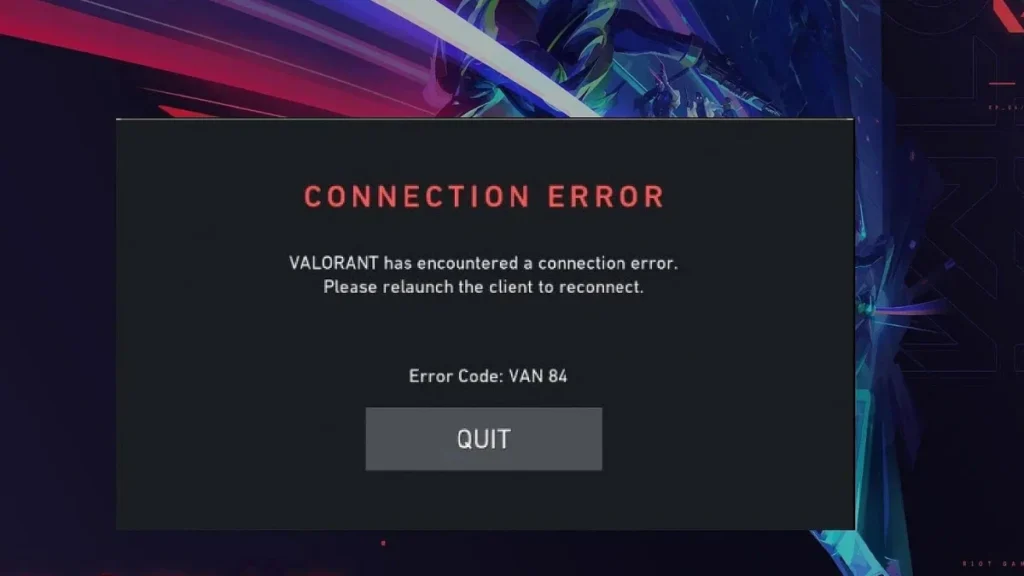
VAN 84 error in Valorant is a connection issue that stops your game from communicating with Riot servers. It usually appears when your internet is unstable, Vanguard isn’t running properly, or Riot servers are temporarily down.
However, you can fix VAN 84 quickly. In most cases, restarting your system or Vanguard service resolves it within minutes.
See also: How to Fix Valorant Audio Not Working on Windows (Sound Cuts Out Completely)
VAN 84 Quick Fix (Try This First)
If you don’t want to go through all steps, try these first:
- Restart Riot Client and your PC
- Restart your router (wait 30 seconds before turning it back on)
- Disable VPN (if you are using one)
- Restart Vanguard (vgc service)
- Check Riot server status
These fixes solve the issue for most players.
What is VAN 84 Error in Valorant?
VAN 84 is a network-related error that occurs when Valorant fails to maintain a stable connection with Riot servers.
It is not a ban and not a permanent issue. VAN 84 usually happens due to:
- Unstable or slow internet connection
- Riot server downtime or maintenance
- Vanguard (anti-cheat) service not running
- Firewall or antivirus blocking the game
- VPN interference
- Incorrect DNS or network settings
How to Fix VAN 84 Error in Valorant
Follow these steps in order for the best results.
1. Restart Valorant and Your PC
This is the fastest fix and works in many cases.
- Close Valorant and Riot Client completely
- Restart your PC
- Launch the game again
2. Check Riot Server Status
Sometimes the issue is not on your side.
- Visit Riot Games Service Status page
- If servers are down, wait until they are restored
3. Restart Riot Vanguard (Most Important Fix)
Vanguard must run correctly for Valorant to connect.
- Press
Win + R→ typeservices.msc - Find vgc
- Right-click → Properties
- Set Startup type to Automatic
- Click Start → Apply → OK
- Restart your PC
4. Disable VPN
VPNs often interfere with Riot servers.
- Turn off VPN completely
- Restart the game
5. Restart Your Internet Connection
Network glitches can trigger VAN 84.
- Turn off your router
- Wait 30 seconds
- Turn it back on
- Use wired connection if possible
6. Flush DNS and Reset Network
Fixes hidden network issues.
Open Command Prompt (Admin) and run:
ipconfig /flushdns
ipconfig /release
ipconfig /renew
netsh winsock reset
Restart your PC after this.
7. Disable IPv6 (If Issue Persists)
Some networks conflict with IPv6.
- Go to Network Settings
- Open adapter properties
- Uncheck Internet Protocol Version 6 (IPv6)
- Restart your PC
See also: Valorant Mobile Banned? Why Your Account Was Suspended and How to Appeal the Ban
8. Check Firewall and Antivirus
Security software may block Valorant.
- Allow:
- Valorant
- Riot Client
- Vanguard
- Temporarily disable antivirus to test
9. Reinstall Riot Vanguard
If Vanguard is corrupted, reinstalling fixes it.
- Go to Control Panel → Programs
- Uninstall Riot Vanguard
- Restart PC
- Launch Valorant (Vanguard will reinstall automatically)
FAQs
What is VAN 84 error in Valorant?
VAN 84 error in Valorant is a network connection issue that prevents the game from communicating with Riot servers. It usually occurs due to unstable internet, Vanguard service issues, or server downtime.
How do I fix VAN 84 error in Valorant quickly?
The fastest way to fix VAN 84 error is to restart your PC, restart Riot Client, and restart the Vanguard (vgc) service. You should also check Riot server status and disable any VPN.
Why does VAN 84 error keep happening in Valorant?
VAN 84 keeps appearing when your connection to Riot servers is unstable. Common causes include weak internet, ISP routing issues, Vanguard not running properly, or firewall restrictions.
Is VAN 84 error a ban in Valorant?
No, VAN 84 is not a ban. It is only a connection-related error and does not affect your account status.
Can Riot server issues cause VAN 84 error?
Yes, Riot server downtime or maintenance can trigger VAN 84 error. In such cases, the issue resolves automatically once servers are back online.
Does VPN cause VAN 84 error in Valorant?
Yes, using a VPN can cause VAN 84 error because it interferes with Riot server communication. Disabling VPN usually fixes the issue.
How do I restart Vanguard service to fix VAN 84?
Press Win + R, type services.msc, find vgc, set it to Automatic, click Start, and restart your PC. This ensures Vanguard runs correctly.
Does changing DNS fix VAN 84 error?
Yes, resetting or changing DNS settings can fix VAN 84 if the issue is caused by network configuration problems. Flushing DNS and resetting Winsock often helps.
Can firewall or antivirus cause VAN 84 error?
Yes, firewall or antivirus software can block Valorant or Vanguard. Allowing these programs through your firewall can resolve the error.
Is VAN 84 error permanent?
No, VAN 84 is a temporary issue. It can usually be fixed using simple troubleshooting steps or resolves automatically if caused by server problems.
Why does VAN 84 appear after launching the game?
VAN 84 may appear at launch if Vanguard fails to start properly or if your system cannot establish a stable connection to Riot servers.
Can reinstalling Valorant fix VAN 84 error?
Reinstalling Valorant or Riot Vanguard can fix VAN 84 if the issue is caused by corrupted game or anti-cheat files.
VAN 84 error is not a serious problem—it’s usually a temporary connection issue. In most cases, restarting Vanguard or your network fixes it instantly. If none of the fixes work, the issue is likely server-side, and waiting is the best option.