If Grok suddenly shows “500 Internal Server Error”, many users experience this issue while using Grok chat, Imagine Creator, or even while trying to log in.
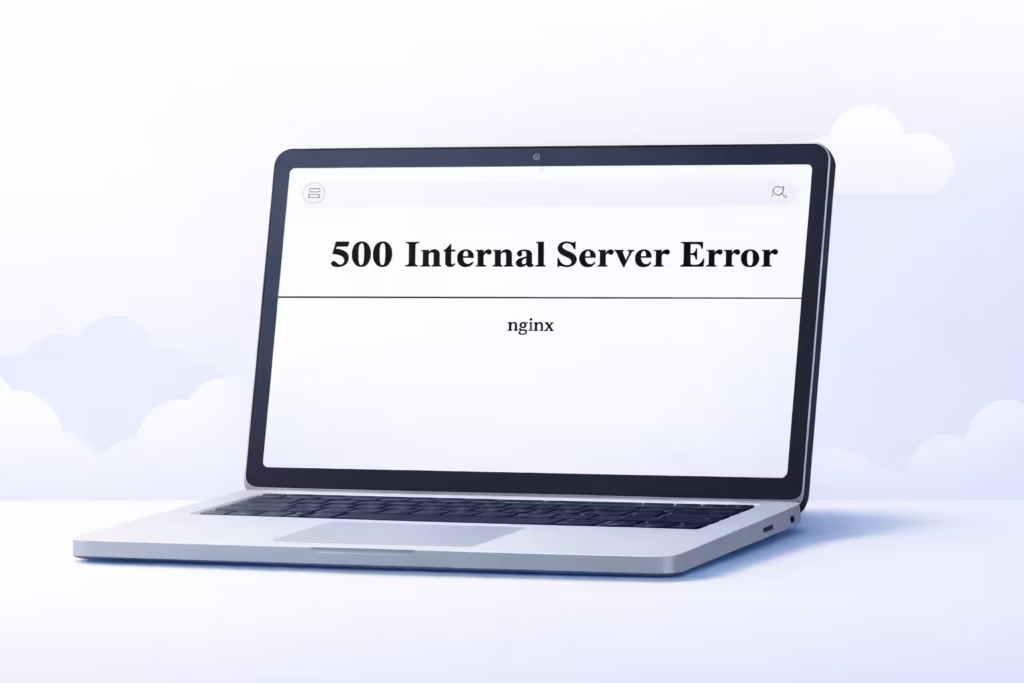
In most cases, this error is not your fault. It usually points to a server-side problem. In this guide, I’ll explain what the error means, why it happens, and what you can realistically do to fix it.
What Is Grok 500 Internal Server Error?
A 500 Internal Server Error means Grok’s server failed while processing your request. When you send a prompt, upload an image, or load chat history, Grok’s backend must:
- Process your request
- Access internal services
- Generate a response
- Send it back to you
If something breaks during that chain, the system returns a 500 error.
This error does not mean:
- Your account is banned
- Your device is broken
- Your internet is too slow
It simply means the server failed.
Is This a Server Problem or Your Device?
In most cases, Grok 500 Internal Server Error is a server-side issue.
You can confirm this quickly by checking the official Grok status page: https://status.x.ai/grok-com
If the status page shows:
- “Grok is Temporarily Unavailable”
- Increased error rates
- Recent outages
- Latency issues
Then the problem sits on Grok’s infrastructure — not your device.
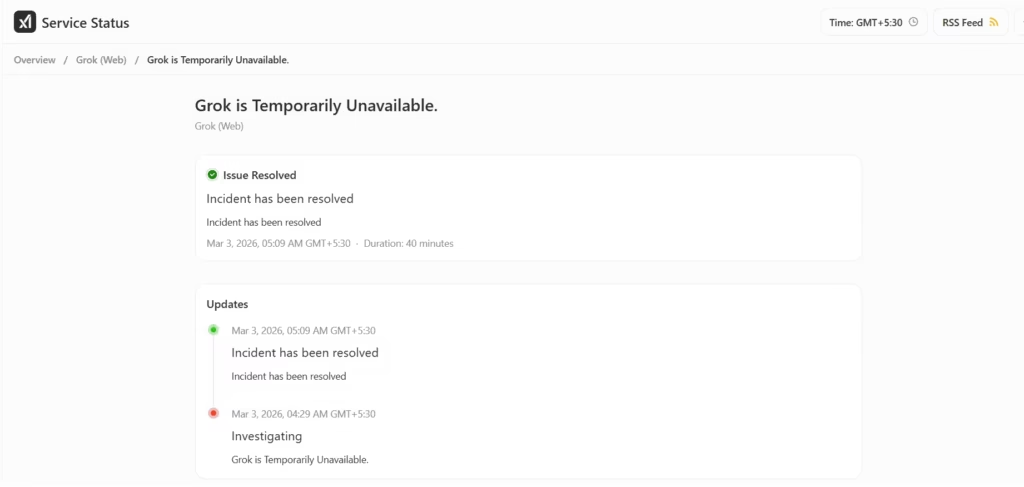
For example, on March 3, Grok experienced a temporary outage that triggered a 500 Internal Server Error. The incident was resolved within 40 minutes, as confirmed on the official status page.
You can also verify by:
- Checking Reddit or X — many users often report it at the same time
- Trying another device — the same error appears
- Switching networks — the issue continues
When multiple users see the same 500 error simultaneously, the problem sits on Grok’s infrastructure.
However, in rare cases, browser extensions, corrupted cache, or VPN conflicts can trigger similar behavior.
How to Fix Grok 500 Internal Server Error
You cannot directly fix a server crash. But you can rule out local issues quickly.
Fix 1 — Hard Refresh the Page
Press Ctrl + F5 (Windows) or Cmd + Shift + R (Mac).
This forces the browser to reload everything.
Fix 2 — Open Incognito Mode
- Open Grok in private browsing mode.
- If it works there, your cache or extension caused the issue.
Fix 3 — Disable Extensions
- Ad blockers and script blockers often interfere with AI platforms.
- Disable them temporarily and test again.
Fix 4 — Turn Off VPN
- Some VPN endpoints trigger rate limits or security blocks.
- Disable the VPN and reload the page.
Fix 5 — Try Another Device
- Open Grok on your phone or another computer.
- If the same 500 error appears, the issue is clearly server-side.
When the Only Fix Is to Wait
If many users report the issue at the same time, login fails repeatedly, chat history does not load, or image generation crashes over and over, the problem almost certainly sits on Grok’s servers. In this situation, no local troubleshooting will fix the error.
The best approach is to wait 10–30 minutes, retry later, and check the official status page for updates. Most server-side outages resolve within a short period once the technical team stabilizes the system.
Are You Banned If You See 500 Error?
No. A ban usually shows:
- Account suspended message
- Access denied page
- Authentication failure
A 500 error shows a server failure, not an account restriction.
Does Grok Lose Chats During 500 Errors?
Usually No. However, if the server crashes mid-response:
- You may lose the current prompt
- The response may not save
If you work on important prompts, copy them before refreshing.
The Grok 500 Internal Server Error almost always indicates a server-side failure. You cannot repair the backend from your device.
If the error appears repeatedly over several days, then it points to broader infrastructure problems. But in most cases, it resolves quickly.
