Many users encounter the error message: “Request could not be completed in absence of response from UIDAI. Please retry after sometime.” This issue usually arises when attempting Aadhaar-related verifications or services due to a temporary connectivity failure between the service provider and UIDAI (Unique Identification Authority of India) servers.
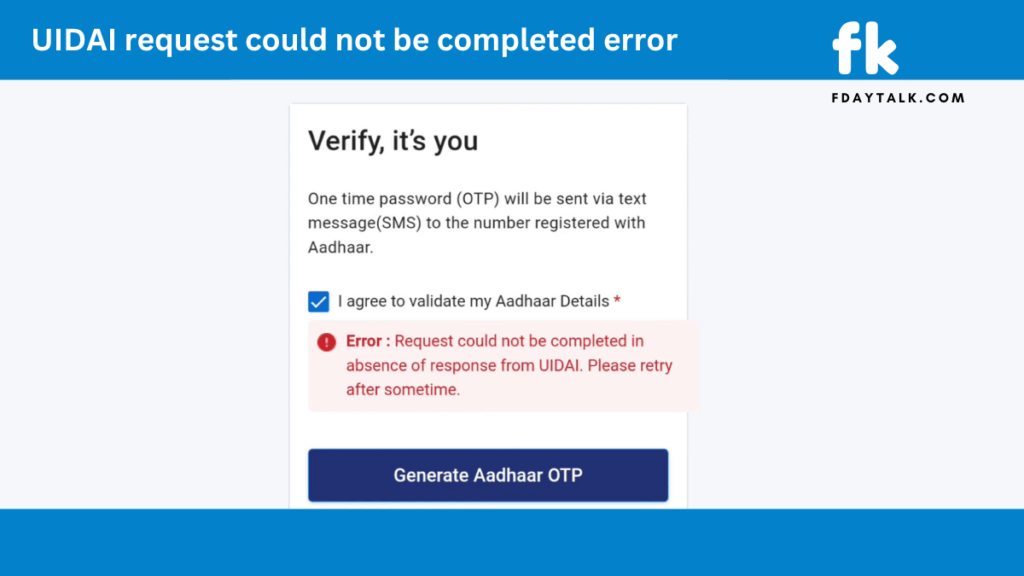
If you’re facing this error, don’t worry! Here’s a step-by-step guide to resolving it.
Possible Causes of the Error
- Temporary UIDAI Server Downtime – The UIDAI system may be undergoing maintenance or experiencing high traffic.
- Poor Internet Connection – A slow or unstable internet connection can cause verification requests to fail.
- Browser Cache or Cookies Issue – Stored data in your browser may interfere with the verification process.
- Service Provider Issues – The platform you’re using (bank, e-KYC provider, government portal) may have trouble connecting with UIDAI.
How to Fix the UIDAI “Request Could Not Be Completed” Error?
1. Retry After Some Time
Since this is often a temporary issue, the simplest solution is to wait and try again after a few minutes. If UIDAI’s servers are overloaded, your request might go through later.
2. Check Your Internet Connection
Ensure you have a stable and fast internet connection. Try switching between mobile data and Wi-Fi to see if that helps.
3. Clear Your Browser Cache & Cookies
If you’re using a web browser, old cache data can cause errors. To clear it:
- Google Chrome: Go to
Settings > Privacy & Security > Clear Browsing Dataand select “Cookies and cached images/files.” - Mozilla Firefox: Go to
Settings > Privacy & Security > Clear Data. - Microsoft Edge: Click on
Settings > Privacy, search, and services > Choose what to clear.
After clearing the cache, restart your browser and try again.
4. Try a Different Browser or Device
If the error persists, switch to another web browser (Chrome, Edge, Firefox) or use a different device to check if the problem is browser-specific.
5. Verify UIDAI Server Status
Sometimes, UIDAI’s servers may be down for maintenance. You can check their official website www.uidai.gov.in or search for updates on social media or news portals.
6. Contact Customer Support
If none of the above solutions work, reach out to the support team of the service you’re using. For UIDAI-related issues, you can contact:
- UIDAI Helpline: 1947
- UIDAI Email: [email protected]
Final Thoughts
The “Request could not be completed in absence of response from UIDAI“ error is often temporary and usually resolves on its own. However, by following the troubleshooting steps above, you can fix it quickly and ensure smooth access to Aadhaar-related services.

