Most people buy a smart TV for the picture and the apps. Few realize the set also works as a reporting tool. Out of the box, nearly every major TV brand runs a feature that identifies what plays on the screen and sends that record back to the manufacturer and its ad partners.
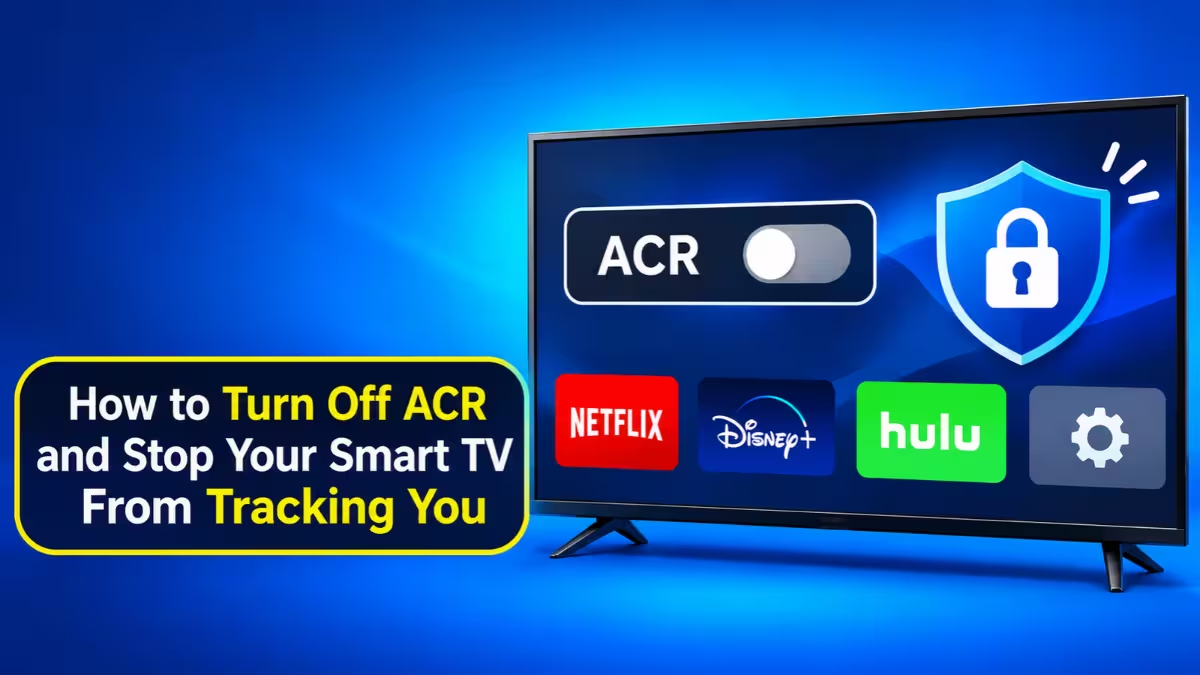
You can switch most of it off in a few minutes. This guide shows you where each brand hides the setting, what else on your phone and computer feeds advertisers, and which extra steps actually make a difference.
What Is ACR and How Does Your Smart TV Track What You Watch?
ACR stands for Automatic Content Recognition. The TV samples small pieces of the picture or the audio every few seconds, turns them into a digital fingerprint, and compares that fingerprint against a huge reference library of shows, movies, games and commercials. Once it finds a match, it logs the title, the time and how long you stayed on it.
Three things make ACR more invasive than ordinary app tracking:
- It ignores the source. ACR reads the screen itself, so it can identify a Blu-ray disc, a cable channel, an antenna broadcast or a game console plugged into HDMI. Netflix only knows what you watch inside Netflix. Your TV can know everything.
- Manufacturers enable it by default on most new sets, usually during the setup screens nobody reads.
- Brands give it vague names. Samsung calls it Viewing Information Services, LG calls it Live Plus, Vizio uses Viewing Data, Roku uses Smart TV Experience, and Sony relies on Samba Interactive TV. None of these labels tells you that the TV watches what you watch.
What Data Does Your Smart TV Collect and Who Gets It?
ACR is only one piece. A connected TV also records:
- Viewing history: every show, channel, app and commercial, with timestamps and session length.
- App activity: which apps you install, open and use, and what you search for inside the TV menu.
- Device and network details: your IP address, device IDs, Wi-Fi information and TV settings.
- Location clues: an approximate location from your IP address or the ZIP code you typed during setup.
- Voice data: voice commands that travel to cloud servers whenever you use the built-in assistant.
Manufacturers combine these records into a household viewing profile. They share it with advertisers, analytics firms, content providers and data brokers, who match it with your other devices to target ads across your phone and computer. That profile can follow you well beyond the living room.
How to Turn Off ACR on Samsung, LG, Roku, Fire TV, Vizio and Sony TVs
Menu names shift between models and firmware versions, so treat these paths as a starting point. If a label doesn't match exactly, look for anything mentioning viewing information, viewing data, interest-based ads or content recognition.
How to Turn Off ACR on Samsung TV (Tizen)
- Open Settings > All Settings > General & Privacy > Terms & Privacy (older models: Settings > Support > Terms & Policies).
- Turn off Viewing Information Services. This kills ACR.
- Turn off Interest-Based Advertising.
- Under Settings > General > Voice, disable voice wake-up if you never talk to your TV.
How to Turn Off ACR on LG TV (webOS)
- Go to Settings > All Settings > General > System > Additional Settings.
- Switch off Live Plus, LG's ACR feature.
- Also turn off Live Promotion, Content Recommendations and Home Promotion if your model shows them.
- On newer sets, open Settings > Privacy & Terms > User Agreements and withdraw from the Viewing Information Agreement and the interest-based advertising agreement.
- Turn off Voice Recognition if you don't use it.
How to Turn Off ACR on Roku TV and Roku Players
- Open Settings > Privacy > Smart TV Experience and uncheck Use Info from TV Inputs. On some models the option reads Automatic Content Recognition.
- Go to Settings > Privacy > Advertising and enable Limit Ad Tracking.
- Select Reset Advertising Identifier in the same menu.
- Check Settings > Privacy > Microphone and restrict access.
Roku keeps data it already collected before you opted out, so turning ACR off only stops future collection.
How to Turn Off ACR on Amazon Fire TV
- Go to Settings > Preferences > Privacy Settings.
- Turn off Automatic Content Recognition where it appears.
- Turn off Device Usage Data.
- Turn off Collect App and Over-the-Air Usage Data.
- Turn off Interest-based Ads.
How to Turn Off ACR on Vizio TV (SmartCast)
- Press Menu and open System > Reset & Admin.
- Highlight Viewing Data and switch it off.
- Under System > Reset & Admin > Advertising, turn on Limit Ad Tracking.
How to Turn Off ACR on Sony, Google TV and Android TV
- On Sony sets, open Settings > Initial Setup (or All Settings) and disable Samba Interactive TV.
- Go to Settings > Privacy > Usage & Diagnostics and switch it off.
- Under Settings > Privacy > Ads, enable Opt out of Ads Personalization and reset or delete the advertising ID.
- Visit your Google Account activity controls and pause Web & App Activity and YouTube History to cut cross-device tracking.
How to Turn Off ACR on Hisense (VIDAA)
Open Settings > System > Privacy, then turn off Viewing Information Services and enable Limit Ad Tracking.
How to Limit Tracking on Apple TV
Apple TV doesn't run ACR, which makes it one of the better streaming boxes for privacy. You can still tighten it: go to Settings > Privacy (or General > Privacy), turn off Personalized Ads under Apple Advertising, and switch off Share Apple TV Analytics.
Turning off ACR won't break Netflix, YouTube or any other app. You'll simply get fewer "recommended for you" tiles on the home screen.
How to Turn Off Ad Tracking on Android, iPhone, Windows and Mac
Advertisers link your TV data with what your phone and laptop report, so locking down the TV alone leaves gaps. Each platform gives your device an advertising ID that apps use to follow you around.
Android
- Open Settings > Google > Ads (on Android 12 and later: Settings > Privacy > Ads).
- Tap Delete advertising ID, or on older versions enable Opt out of Ads Personalization and tap Reset advertising ID.
- Some phone makers add location-based ads under Security & Privacy > Location > System services. Disable that too.
iPhone and iPad
- Go to Settings > Privacy & Security > Tracking and turn off Allow Apps to Request to Track.
- Under Settings > Privacy & Security > Apple Advertising, switch off Personalized Ads.
- In Settings > Privacy & Security > Location Services > System Services, turn off Location-Based Apple Ads.
- If the toggles look greyed out, check Screen Time > Content & Privacy Restrictions, which can lock them.
Windows 10 and 11
- Open Settings > Privacy & security > General and turn off Let apps show me personalized ads by using my advertising ID. Windows resets the ID when you do this.
- Then visit your Microsoft privacy dashboard to stop personalized ads across your Microsoft account.
Mac
- Go to System Settings > Privacy & Security > Apple Advertising and turn off Personalized Ads.
- Under Location Services > System Services, uncheck Location-Based Apple Ads.
How to Stop Google and Meta From Tracking You for Ads
Device settings don't cover the ad profiles that big platforms tie to your login. Two quick stops handle most of it:
- Google: Open My Ad Center and switch Personalized ads off. Before you do, scroll through the interest categories Google assigned you. Most people find the list surprisingly accurate.
- Meta (Facebook and Instagram): Go to Settings > Accounts Center > Ad preferences and limit the use of activity information from ad partners.
For the wider web, the Digital Advertising Alliance's WebChoices tool places opt-out cookies for dozens of ad networks at once. Run it in every browser you use, and run it again after you clear cookies, because clearing them also deletes the opt-outs.
How to Block Smart TV Tracking at the Network Level (Pi-hole, Guest Wi-Fi, DNS)
Menu toggles stop the obvious data flows, but a smart TV can keep sending diagnostics and analytics in the background. If you want more control, stack these defenses:
- Block tracking domains with a DNS filter. Pi-hole, AdGuard Home or NextDNS stops the TV from reaching known telemetry and ad servers while streaming keeps working. Some Samsung and LG models use hardcoded DNS servers, so add a router rule that forces all DNS traffic through your filter.
- Put the TV on a separate network. Your router's guest network or an IoT VLAN keeps the TV away from your laptop and phone, and it stops the set from mapping other devices in your home.
- Shrink what you hand over at setup. Use an email alias for the TV account, decline every "improve services" or "personalization" prompt, give profiles generic names like "Living Room", and uninstall apps you never open.
A VPN on its own won't solve the problem. It hides your IP address, but the TV still collects ACR data and ships it through the tunnel.
Should You Disconnect Your Smart TV From the Internet?
If you want the strongest protection, yes. A TV that can't reach the network can't report what you watch, fingerprint your screen for a server or serve ads on its home screen. Skip the Wi-Fi step during setup, or choose "forget network" if you already joined one.
You give up built-in apps, voice features and automatic updates, but the TV still works as a display for game consoles, antenna channels and anything you plug into HDMI. Pair it with a streaming box you control and you keep the convenience without the TV maker's tracking.
One caution: some models store data locally and upload it once they reconnect, so keep the TV offline for good if you choose this route. A commercial display or a large computer monitor goes one step further, since neither ships with a smart platform or a microphone.
Which Streaming Device Is Best for Privacy?
When the TV stays a plain screen, the streaming box takes over the tracking question. Here is how the main options compare:
| Device | Privacy strength | Trade-off |
|---|---|---|
| Apple TV 4K | No ACR and stricter defaults, since Apple does not depend on ads for this product | Locks you into the Apple ecosystem and still gathers some analytics |
| NVIDIA Shield | Highly configurable and friendly to local media servers | Android TV base still sends Google telemetry |
| Chromecast with Google TV | Cheap and manageable through Google's ad settings | Ties your viewing to your Google account |
| Roku | Straightforward privacy menus | Ad-driven business model, so it tracks aggressively by default |
| Amazon Fire TV | Wide app support | Feeds Amazon's ad and shopping ecosystem |
| Mini PC with Kodi or Jellyfin | Full local control and no telemetry | Needs technical setup, and some DRM apps may not run |
Whichever box you pick, open its privacy menu on day one. Every platform tracks something by default.
Is Smart TV Tracking Legal?
Mostly yes, but the rules are tightening. Regulators have already punished the worst cases. The FTC fined Vizio $2.2 million in 2017 for collecting and selling viewing data from roughly 11 million TVs without proper disclosure.
Newer action keeps coming:
- European Union: GDPR requires companies to get your consent before they collect personal data for ad tracking.
- United Kingdom: The Information Commissioner's Office announced an investigation into whether smart TV makers follow privacy law and ask users for consent.
- Kentucky: A new state law requires tech companies to get consent before they collect data about what you watch on a smart TV.
- California: The CCPA lets you demand that a company delete your data, but it does not force companies to ask permission before they start tracking.
Laws move slowly and manufacturers adapt slowly, so your own settings remain the fastest fix.
Why Do Smart TV Privacy Settings Reset After Updates?
Firmware updates redraw menus, add new features and sometimes switch data collection back to its defaults. Many users never notice, because the TV gives no warning. Build a short routine to stay ahead of it:
- Recheck ACR and ad settings after every firmware update.
- Read the privacy section whenever the TV asks you to accept new terms. That screen often hides fresh opt-in toggles.
- Review your DNS filter logs now and then for new tracking domains.
- Write down your settings so you can restore them quickly after a factory reset.
Frequently Asked Questions
Does turning off ACR void my TV warranty?
No. Manufacturers include these toggles for users to change, and switching them off has no effect on warranty coverage.
Will I lose apps or streaming quality?
No. ACR only monitors what you watch. Every app keeps working, and picture quality stays the same.
Do I still see ads after opting out?
Yes. Home screen banners and in-app ads remain, but they no longer draw on a detailed record of your viewing.
Can the TV still listen to me with ACR off?
If the voice assistant stays on, the microphone keeps listening for its wake word and can send voice data to the cloud. Disable voice features separately if you don't use them, and cover any built-in camera.
Does a VPN stop smart TV tracking?
Not by itself. A VPN hides your IP address, but the TV still captures and transmits viewing data. Disabling ACR and blocking tracking domains work better.
Is the most private option a "dumb" TV?
For maximum privacy, yes. A smart TV kept permanently offline, a commercial display or a large monitor paired with a streaming box you control gives you the picture without the reporting.
Related Guides
- How to Turn Off Smart TV Tracking on Samsung, LG, Roku, Vizio and Fire TV
- Best Smart Home Devices for Beginners: 5 Easy Picks to Buy First
- How to Turn Any Smart TV Into Your Home Automation Hub
- Wyze Security Breach: How It Happened, How It Was Fixed, and What It Means for Smart Home Devices
- Motorola Smart Feed App Caught Injecting Amazon Affiliate Codes Without Permission