If you run into problems on Windows 11, Microsoft already includes several built-in ways to get help. You don’t need third-party apps or random fixes from the internet. Windows 11 offers official tools that guide you to the right solution based on your issue.
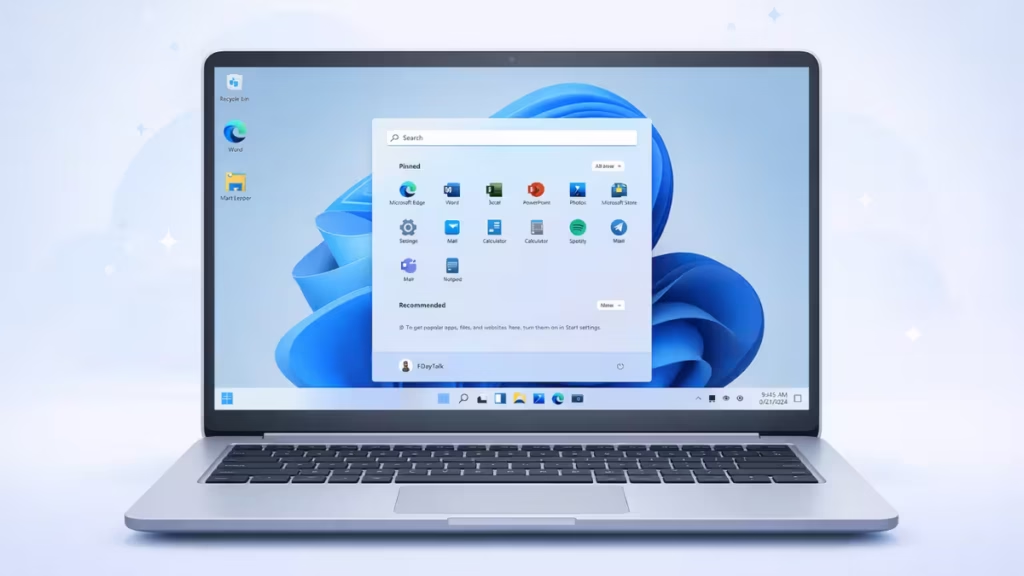
This guide explains every reliable way to get help in Windows 11, step by step, so you can fix issues on your own.
1. Use the Get Help App in Windows 11
The Get Help app is the main support tool in Windows 11. Microsoft designed it to diagnose issues and guide users to fixes.
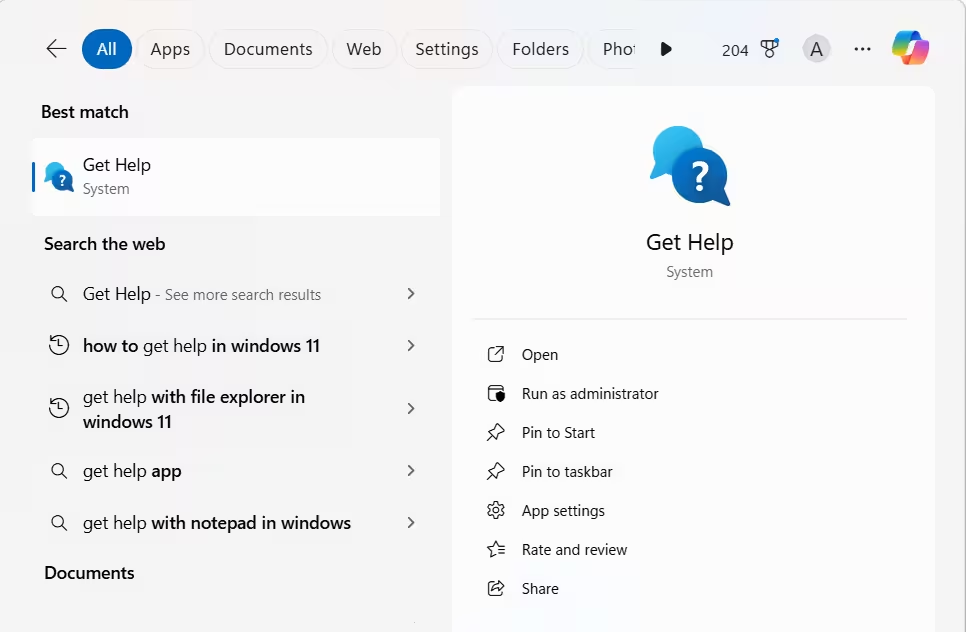
How to open Get Help
- Press Windows + S
- Type Get Help
- Click the app from search results
What you can do in Get Help
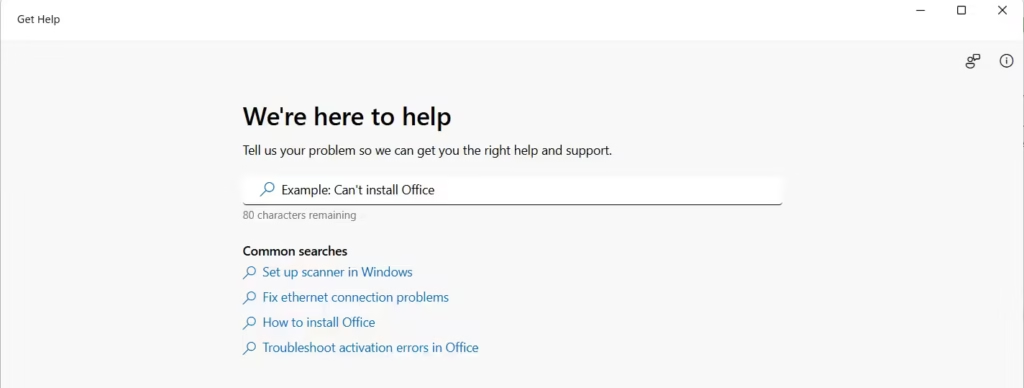
- Search for Windows errors and system problems
- Run automated troubleshooters
- Follow guided repair steps
- Contact Microsoft Support for select issues
This app works best for activation errors, update failures, hardware problems, and account issues.
2. Get Help Through Windows Settings
Windows Settings includes built-in troubleshooting tools for common problems.
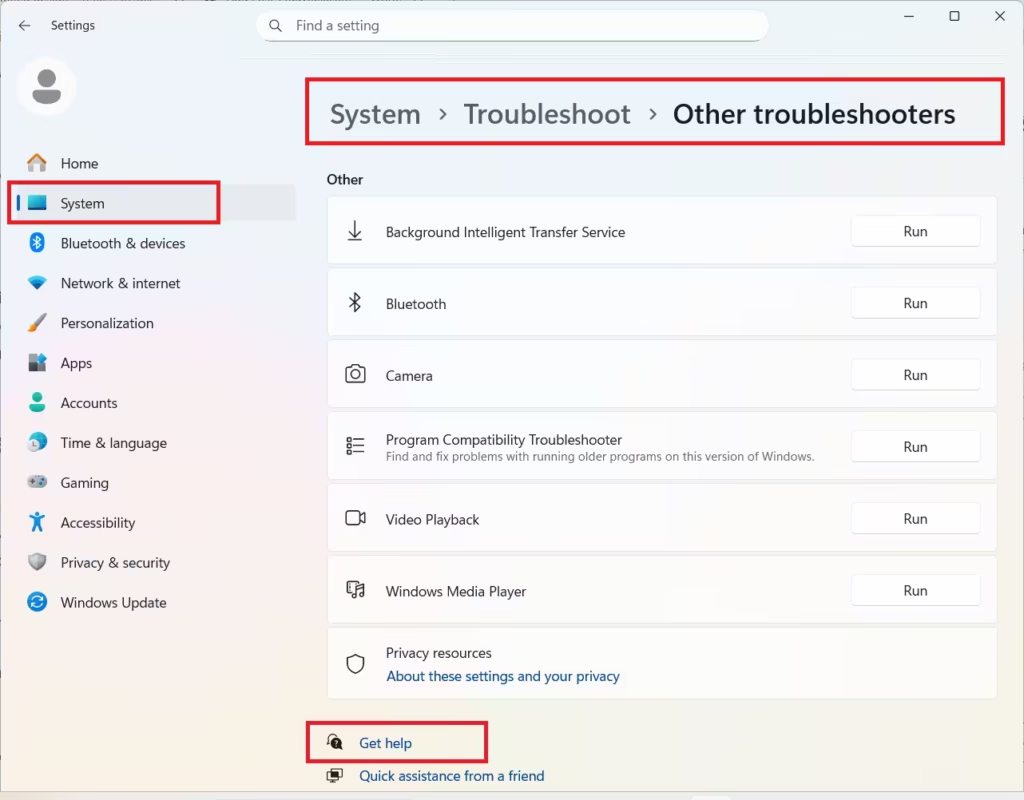
Steps to access troubleshooting
- Open Settings
- Go to System
- Select Troubleshoot
- Click Other troubleshooters
Problems you can fix here
- Internet and Wi-Fi issues
- Audio not working
- Bluetooth connection errors
- Printer problems
- Windows Update failures
Run the recommended troubleshooter and follow the on-screen instructions.
3. Press F1 to Open Windows Help
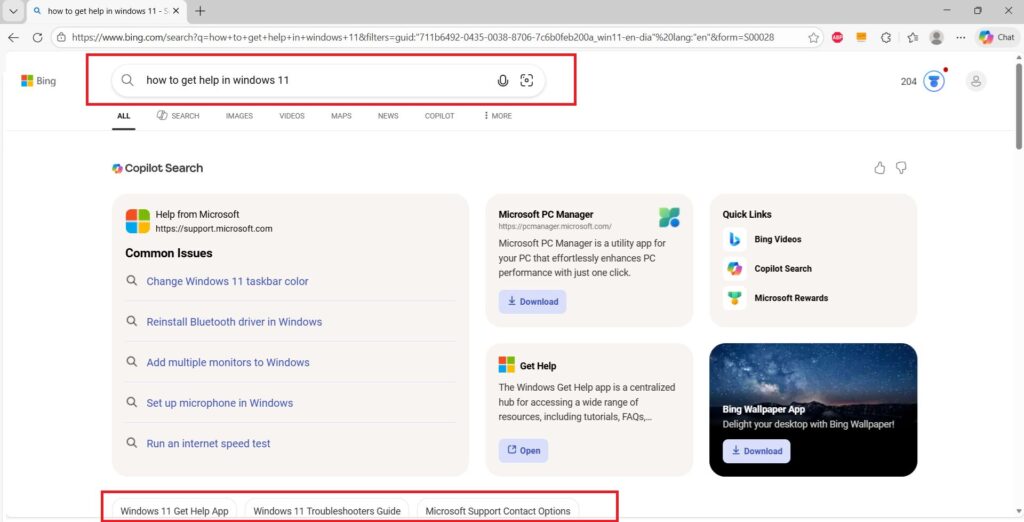
You can press F1 on your keyboard to open Windows help.
What happens when you press F1
- Windows opens Microsoft’s online help page
- Your browser displays support articles related to Windows 11
This method works well for learning features and basic how-to instructions, but it does not fix system issues automatically.
4. Use Windows Search to Find Help Instantly
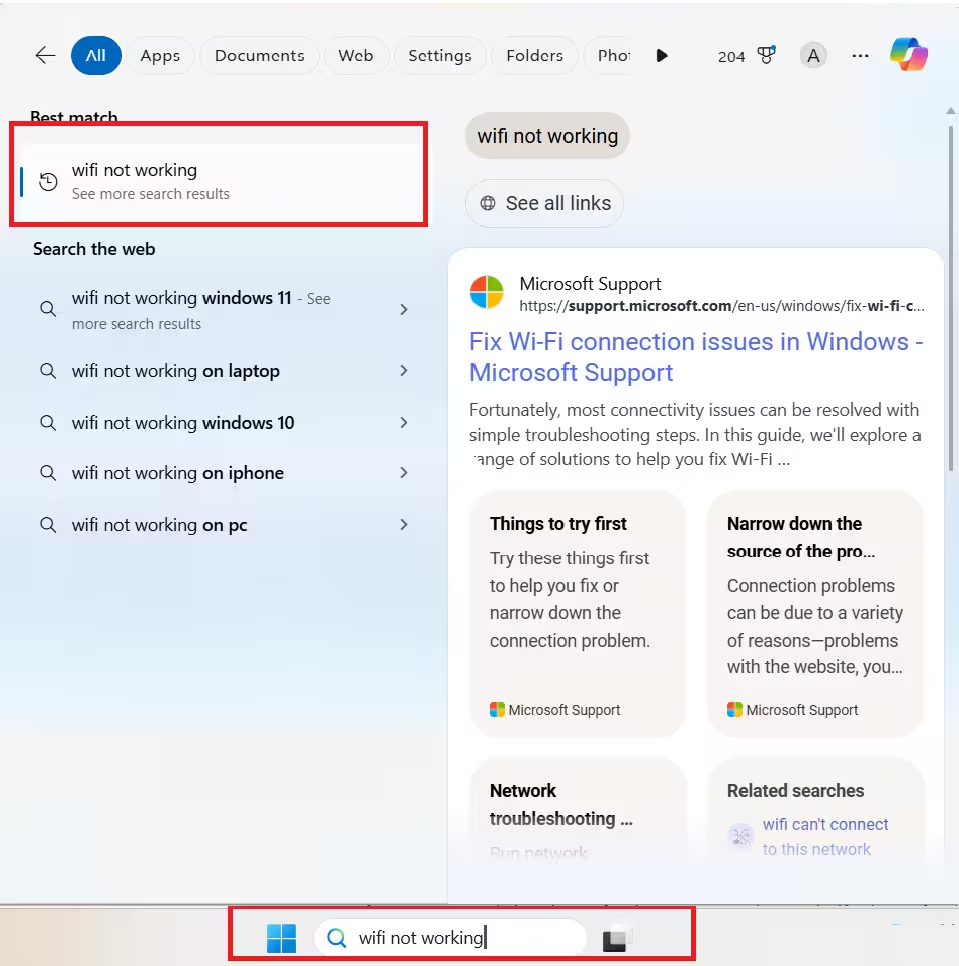
Windows Search acts as a quick help tool for common tasks.
How to use it
- Click the Search icon on the taskbar
- Type your problem (example: Wi-Fi not working)
- Open the suggested settings or help result
Windows often shows:
- Direct settings shortcuts
- Recommended fixes
- Help articles
This method works best for simple settings changes.
5. Get Help Inside Windows Apps
Many Windows apps include built-in help options.
Common examples
- File Explorer → Three dots → Help
- Microsoft Edge → Settings → Help and feedback
- Microsoft Store → Help & support
Use these menus when you face app-specific problems.
6. Contact Microsoft Support When Needed
Some issues require direct support from Microsoft.
When to contact support
- Windows activation fails
- Account or license problems appear
- Updates break system features
- Hardware drivers cause crashes
How to contact support
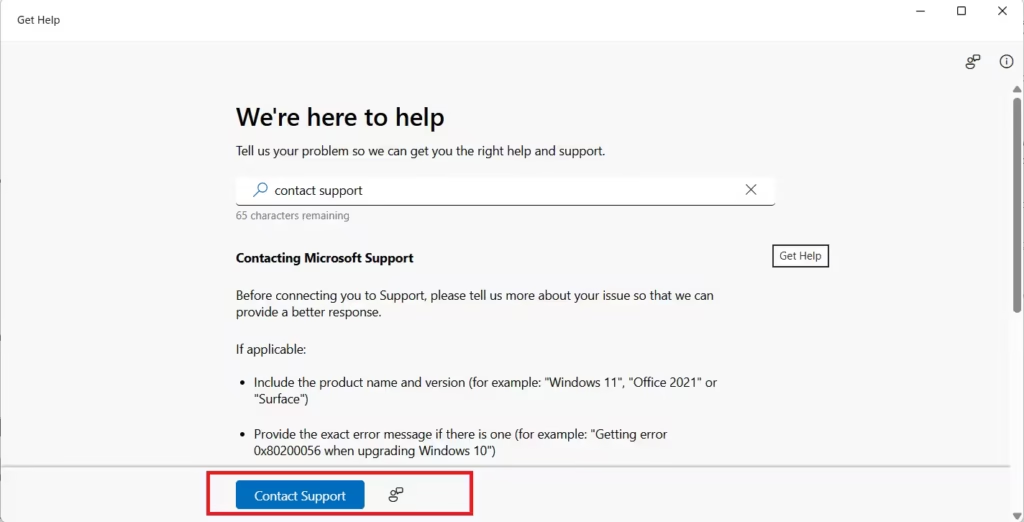
- Open the Get Help app
- Choose Contact Support
- Follow the prompts to chat or schedule help
Availability depends on your region and issue type.
Which Windows 11 Help Option Should You Use?
| Problem Type | Best Method |
|---|---|
| General Windows issues | Get Help app |
| Internet, audio, updates | Settings → Troubleshoot |
| Learning Windows features | F1 key |
| Quick fixes | Windows Search |
| Activation or account issues | Contact Microsoft Support |
Always start with the Get Help app. It connects you to Microsoft’s official tools and avoids unsafe fixes. If Windows cannot solve the problem automatically, use troubleshooting or contact support directly.

