Being locked out of a Microsoft 365 admin account because of MFA Error 500121 can immediately halt access to your entire tenant. This situation is especially critical if you are the only Global Administrator, as you cannot reset MFA or regain access on your own.
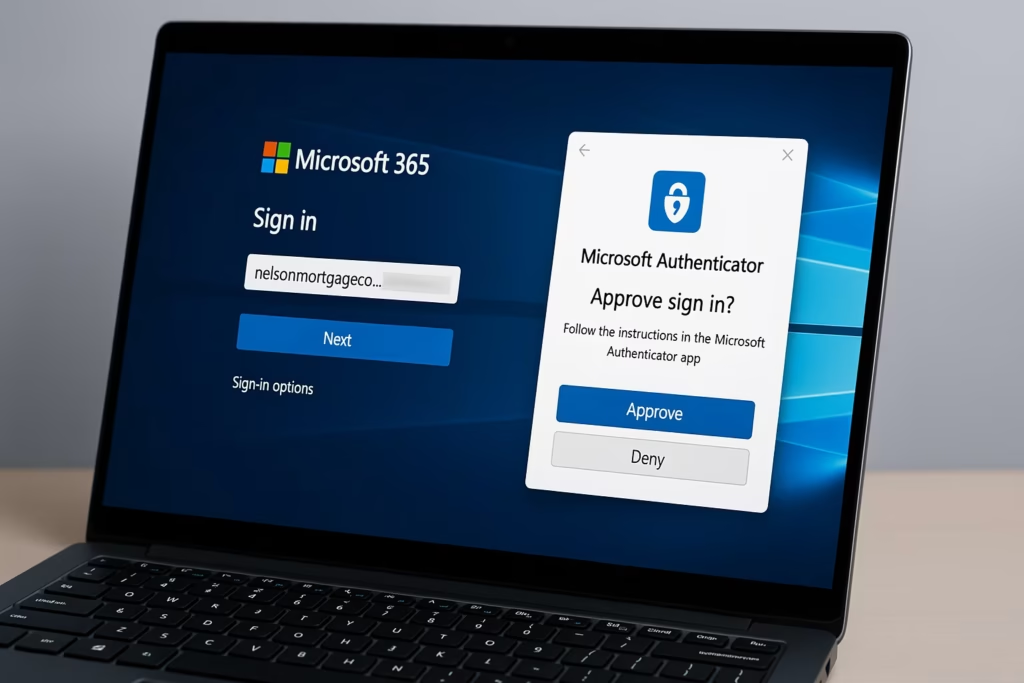
If you are currently locked out, do not attempt random fixes. Follow the steps below in order to minimize downtime and avoid permanent access delays.
What Does MFA Error Code 500121 Mean?
Error Code 500121 indicates that authentication failed during the multi-factor authentication (MFA) stage. Microsoft blocks sign-in to protect the tenant when it detects that MFA verification cannot be completed or trusted.
This typically occurs when:
- The Microsoft Authenticator app was removed, reset, or is out of sync
- “Not me” or “Report fraud” was selected during an MFA prompt
- No backup MFA methods (SMS, call, security key) are configured
- The account is listed under Blocked users in Entra ID
- Conditional Access policies enforce MFA with no fallback path
Typical Error Message
Error Code: 500121
Authentication failed during strong authentication
If you are the only Global Admin, this error prevents you from:
- Resetting MFA
- Creating a Temporary Access Pass
- Modifying Conditional Access policies
If You Are the Only Global Admin (Read This First)
If your tenant has only one Global Administrator, there is an important limitation you must understand:
- You cannot unblock yourself
- You cannot reset MFA alone
- You must involve Microsoft Support
This is expected behavior and not a tenant corruption issue. Microsoft requires ownership verification before restoring access to prevent hostile takeovers.
Fix 1: Check Blocked MFA Status (If Another Admin Exists)
If your organization has another Global Administrator, this is the fastest recovery path.
Steps:
- Sign in to the Microsoft Entra admin center
- Go to Protection → Multifactor authentication
- Open Block/unblock users
- Check whether your account is listed
- Select your user and click Unblock
- Retry sign-in and approve the MFA request
If you are the only admin, move to Fix 2.
Fix 2: Contact Microsoft 365 Support to Reset MFA (Official Recovery)
When no other admin exists, Microsoft Support is the only valid recovery path.
How to Open the Correct Support Case
- Visit admin.microsoft.com
- Choose Support → Help & support
- Select Technical support
- Category: Sign-in or MFA issue
Information You Must Provide
Prepare the following to avoid delays:
- Tenant primary domain (example:
yourcompany.com) - Error code 500121
- Approximate timestamp of the failure
- Tenant ID (from billing emails or Azure portal)
- Proof of ownership (billing email, invoice, domain verification)
What to Tell Microsoft Support (Recommended Wording)
“I am locked out of my Microsoft 365 tenant due to MFA Error 500121. I am the only Global Administrator and cannot approve MFA. I am requesting a temporary MFA reset or access restoration after tenant ownership verification.”
Once ownership is verified, Microsoft can:
- Temporarily disable MFA for your admin account
- Reset MFA registration
- Issue a Temporary Access Pass
Fix 3: Use a Backup MFA Method (If Configured)
If you previously configured additional verification methods, select “Use another verification method” during sign-in.
Supported backups include:
- SMS or phone call verification
- Security key
- Secondary Authenticator device
If no backup exists, continue to Fix 4.
Fix 4: Verify Tenant Ownership (When No MFA Backup Exists)
Microsoft may require manual tenant ownership verification before unlocking access.
You may be asked to:
- Add a DNS TXT record provided by Microsoft
- Confirm billing details or invoices
- Validate the primary domain
Once confirmed, Microsoft can safely restore admin access.
Fix 5: Request a Temporary Access Pass (TAP)
If your tenant supports it, ask Microsoft Support to generate a Temporary Access Pass.
A TAP allows you to:
- Sign in without MFA temporarily
- Access Security info
- Re-register Microsoft Authenticator or backup methods
This is a secure, time-limited recovery option.
Fix 6: Restore Microsoft Authenticator from Backup (If Enabled)
If cloud backup was enabled in Microsoft Authenticator:
- Install Microsoft Authenticator on a new device
- Sign in using the same Microsoft account
- Choose Restore from backup
- Retry the MFA prompt
If backup was not enabled, this option will not work.
What Will NOT Fix Error 500121
These actions do not restore access when you are the only admin:
- Reinstalling Authenticator without backup
- Clearing browser cache or cookies
- Resetting your password alone
- Waiting for the lock to expire
Avoid these steps to prevent wasted time.
How to Prevent Future MFA Lockouts (Highly Recommended)
Once access is restored, apply these safeguards immediately:
| Action | Purpose |
|---|---|
| Add at least two Global Admins | Prevents single-admin lockout |
| Configure multiple MFA methods | Provides recovery paths |
| Create a break-glass account | Emergency access without MFA |
| Enable Self-Service Password Reset | Safer recovery |
| Test recovery quarterly | Prevents surprises |
Bonus: How to Create a Break-Glass Admin Account
A break-glass account is an emergency Global Admin excluded from MFA.
Steps:
- Go to Entra admin center → Users
- Create a new user (example:
[email protected]) - Assign Global Administrator
- Exclude from MFA Conditional Access policies
- Store credentials securely (offline + password manager)
- Sign in once every 30–60 days
For maximum safety, maintain two break-glass accounts.
FAQs
What is Microsoft 365 admin MFA lockout?
Microsoft 365 admin MFA lockout occurs when an administrator cannot complete multi-factor authentication and is blocked from signing in, often due to Error 500121, Authenticator issues, or blocked MFA status.
Why am I locked out of my Microsoft 365 admin account?
You may be locked out if your MFA verification fails, the Authenticator app is removed or reset, “Not me” was selected during sign-in, or no backup MFA methods are configured for your admin account.
Can I fix Microsoft 365 admin MFA lockout by myself?
No. If you are the only Global Administrator, you cannot fix an MFA lockout on your own. Microsoft Support must verify tenant ownership and reset or temporarily disable MFA.
How do I recover access if I am the only Global Admin?
If you are the only Global Admin, you must contact Microsoft 365 Support, provide tenant ownership proof, and request an MFA reset or Temporary Access Pass to regain access.
How long does Microsoft 365 admin MFA recovery take?
In most cases, Microsoft restores access within 24 to 72 hours, depending on how quickly tenant ownership verification is completed.
Will reinstalling Microsoft Authenticator fix Error 500121?
Reinstalling Microsoft Authenticator only works if cloud backup was enabled. Without a backup or alternate MFA method, reinstalling the app will not resolve the admin MFA lockout.
Is my tenant data safe during an MFA lockout?
Yes. A Microsoft 365 admin MFA lockout does not delete or expose tenant data. The lockout is a security measure to protect the environment.
Can billing ownership alone unlock my admin account?
Billing information helps prove ownership, but Microsoft may also require DNS domain verification or additional validation before restoring admin access.
How can I prevent Microsoft 365 admin MFA lockouts in the future?
You can prevent future lockouts by adding multiple Global Admins, configuring backup MFA methods, creating break-glass accounts, and regularly testing recovery access.
What is a break-glass account in Microsoft 365?
A break-glass account is an emergency Global Administrator account excluded from MFA, used only when all other admin accounts are locked out.
Being locked out of a Microsoft 365 admin account due to MFA Error 500121 is disruptive, but it is not permanent. If you are the only Global Administrator, Microsoft Support is the fastest and safest recovery path after ownership verification.
Once access is restored, implement redundancy immediately to ensure this situation never happens again.

