If Minecraft Bedrock Edition refuses to launch and shows “Failed to start game”, don’t panic. This error usually points to launcher issues, Xbox services conflicts, corrupted game files, or account sync problems.
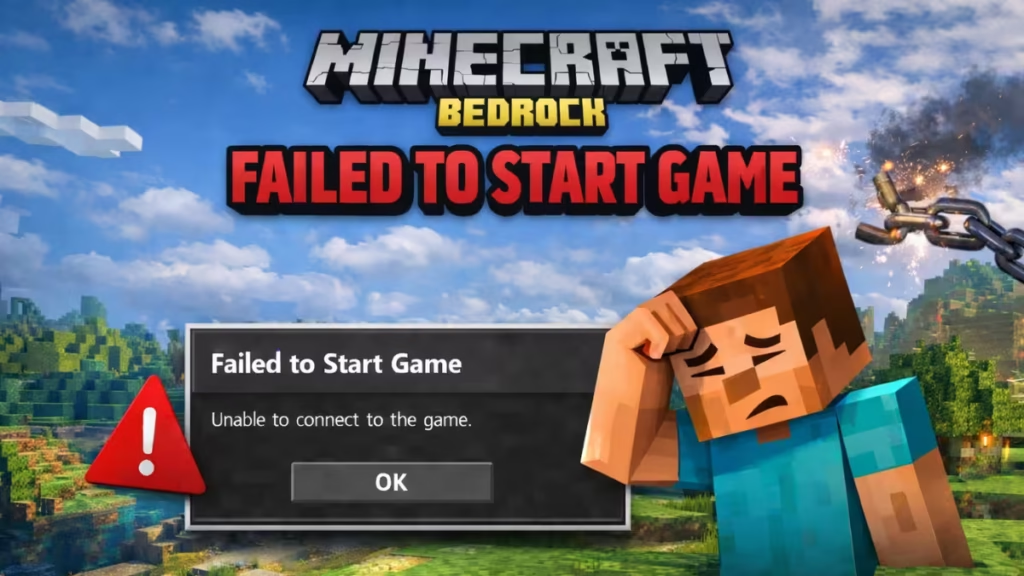
This guide walks you through direct fixes in the correct order. Start from Step 1 and stop when the game launches successfully.
What Causes Minecraft Bedrock Failed to Start Game Error?
On Windows PCs, Minecraft Bedrock Edition depends on:
- Xbox services
- Microsoft Store authentication
- Gaming Services
- Updated GPU drivers
- Clean game files
If any of these fail, the game won’t start.
Step 1: Launch Minecraft Without the Launcher
The Minecraft Launcher itself often causes the issue.
Do this:
- Close the Minecraft Launcher completely.
- Press Windows key.
- Search for “Minecraft for Windows.”
- Click the app directly.
If the game opens, the launcher caused the issue.
Step 2: Restart Xbox Services (Critical Fix)
Many users skip this step. Don’t.
Follow these steps:
- Press Win + R
- Type:
services.msc - Restart these services:
- Xbox Live Auth Manager
- Xbox Live Game Save
- Xbox Networking Service
- Restart your PC.
- Try launching Minecraft again.
Step 3: Repair Minecraft (No Data Loss)
This fixes broken files without deleting your worlds.
- Go to Settings → Apps → Installed Apps
- Find Minecraft
- Click Advanced Options
- Click Repair
- Launch the game
If it still fails, try Reset (this may remove local data).
Step 4: Sign Out and Back Into Microsoft Store + Xbox App
Account mismatch often blocks startup.
- Open Microsoft Store
- Sign out of your account
- Open the Xbox App
- Sign out there too
- Restart your PC
- Sign back into both apps using the same account
- Launch the game
Step 5: Verify and Repair from Xbox App
- Open Xbox App
- Click the three dots next to Minecraft
- Select Manage
- Go to Files
- Click Verify and Repair
Also repeat this for Minecraft Launcher.
Step 6: Disable Resource Packs (If Game Crashes on Startup)
Corrupt packs can block the game.
Navigate to:
C:\Users\YourName\AppData\Local\Packages\
Microsoft.MinecraftUWP_8wekyb3d8bbwe\LocalState
Rename:
resource_packs→resource_packs_oldbehavior_packs→behavior_packs_old
Launch Minecraft again.
Step 7: Update or Roll Back Graphics Drivers
If the issue started after a Windows update, your GPU driver may conflict.
Update driver:
- Open Device Manager
- Expand Display Adapters
- Right-click GPU → Update Driver
Or roll back:
- Right-click GPU → Properties → Driver → Roll Back
Step 8: Check Windows Version
Minecraft Bedrock requires:
- Windows 10 version 19041 or later
- Fully updated Windows 11
Press:
Win + R → winverInstall all pending updates.
Step 9: Reinstall Minecraft (Last Resort)
Before uninstalling, back up your worlds.
World backup location:
LocalState\games\com.mojang\minecraftWorlds- Copy the folder to a safe location.
- Uninstall Minecraft.
- Restart your PC.
- Reinstall from Microsoft Store.
Does This Affect Java Edition?
No. This error applies only to the Microsoft Store version of Minecraft.
FAQs
Why does Minecraft Bedrock fail to start the game?
Minecraft Bedrock fails to start the game due to Xbox services issues, corrupted game files, launcher conflicts, or Microsoft account sync problems on Windows.
How do I fix Minecraft Bedrock failed to start game error?
You can fix the Minecraft Bedrock failed to start game error by restarting Xbox services, repairing the app, signing back into Microsoft Store and Xbox App, or launching the game without the launcher.
Does repairing Minecraft delete worlds?
No. Repairing Minecraft Bedrock does not delete worlds. Only resetting or reinstalling the game removes local data if you don’t back it up.
Can Xbox services cause Minecraft Bedrock startup errors?
Yes. If Xbox Live Auth Manager or Xbox Game Save services stop running, Minecraft Bedrock may fail to start the game.
Is this error related to Minecraft Java Edition?
No. The failed to start game error only affects Minecraft Bedrock Edition from the Microsoft Store, not Java Edition.
Can outdated graphics drivers stop Minecraft Bedrock from launching?
Yes. Outdated or incompatible GPU drivers can prevent Minecraft Bedrock from starting on Windows 10 or 11.
Will reinstalling Minecraft fix the failed to start game error?
Reinstalling Minecraft Bedrock usually fixes the error, but you should try repairing the app and restarting Xbox services first.
Does Windows version matter for Minecraft Bedrock?
Yes. Minecraft Bedrock requires an updated Windows version. Older Windows builds can trigger startup failures.
Most players fix this error by restarting Xbox services or repairing the app. Don’t jump straight to reinstalling. Start with simple fixes first.

