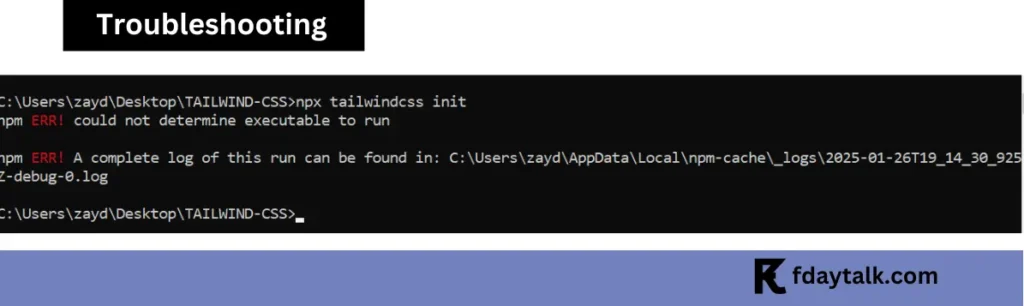
If you’ve recently tried running the npx tailwindcss init command while setting up Tailwind CSS and encountered the error:
npx tailwindcss init
npm ERR! could not determine executable to run
npm ERR! A complete log of this run can be found in:
C:\Users\XXX\AppData\Local\npm-cache\_logs\2025-01-26T19_14_39_925Z-debug-0.log
you’re not alone. This issue has caught many developers off-guard, especially with the recent release of Tailwind CSS version 4. Let’s explore why this happens and how to resolve it efficiently.
Why npx tailwindcss init Error Occurs
With the release of Tailwind CSS v4, the initialization process has undergone significant changes. The npx tailwindcss init command, which was widely used in previous versions, has been deprecated.
Tailwind’s new approach moves away from the traditional tailwind.config.js file and opts for a more streamlined, “CSS-first” configuration. While this simplifies some workflows, it also means older guides and tools may no longer work as expected.
How to Resolve the Issue
Step 1: Verify Your Tailwind CSS Version
First, check which version of Tailwind CSS is installed in your project. Run the following command:
npm list tailwindcssThis will display the installed version. If you’re using Tailwind CSS v4, proceed with the steps below.
Step 2: Installing Tailwind CSS v4
Since the init command has been removed, you’ll need to configure Tailwind directly in your CSS file. Here’s how:
- Install Tailwind CSS and required dependencies:
npm install -D tailwindcss@latest postcss autoprefixer- Create a CSS Entry File: In your project, create a file like
global.cssand include the following imports:
@import "tailwindcss/base";
@import "tailwindcss/components";
@import "tailwindcss/utilities";- Build Your Tailwind CSS: If using the CLI, you can build your CSS with:
npx tailwindcss build global.css -o output.css- Update Your Scripts (Optional): Add a script to your
package.jsonto simplify the build process:
"scripts": {
  "build:css": "tailwindcss build global.css -o output.css"
}
Step 3: Using Tailwind CSS v3 (Optional)
If you prefer using Tailwind CSS v3 to retain the older initialization process, you can explicitly install version 3. Here’s how:
- Install Tailwind CSS v3:
npm install -D tailwindcss@3 postcss autoprefixer- Run the Init Command:
npx tailwindcss init -p This will generate the tailwind.config.js and postcss.config.js files, enabling you to proceed with the traditional setup.
Understanding Tailwind’s “CSS-First” Configuration in v4
One of the biggest changes in Tailwind CSS v4 is the shift to CSS-first configuration. Instead of using a tailwind.config.js file, you can now define customizations directly in your CSS file. For example:
@import "tailwindcss";
@theme {
  --font-display: "Satoshi", sans-serif;
  --breakpoint-3xl: 1920px;
  --color-avocado-500: oklch(0.84 0.18 117.33);
}
This approach reduces the number of files in your project and keeps all styling-related configurations in one place.
Performance Comparison: Tailwind v3 vs. v4
Wondering if upgrading is worth it? Here’s how they compare:
| Feature | Tailwind v3 | Tailwind v4 |
|---|---|---|
| Build Speed | Slower (JIT compilation) | Faster (optimized engine) |
| Bundle Size | Larger (unused utilities may remain) | Smaller (better tree-shaking) |
| Configuration | Requires tailwind.config.js | CSS-first (optional config file) |
| JIT Mode | Opt-in (mode: 'jit') | Default (no setup needed) |
| Browser Support | Standard PostCSS pipeline | Modern browsers (ESM-friendly) |
Key Takeaways:
- v4 is leaner and faster but requires adapting to CSS-centric workflows.
- v3 is more flexible for complex theming but may lag in performance.
Common Use Cases for tailwind.config.js in Tailwind v4
While Tailwind CSS v4 promotes a “CSS-first” approach, there are scenarios where you might still need a tailwind.config.js file:
1. Custom Plugins
- If you’re using third-party plugins (e.g.,
@tailwindcss/typography,@tailwindcss/forms), you may need a config file to define them. - Example:
module.exports = {
  plugins: [require('@tailwindcss/typography')]
};
2. Advanced Theme Extensions
- While
@themein CSS works for basic customizations, complex projects may need a config file for fine-grained control over:- Custom breakpoints
- Dynamic color palettes
- Component-specific variants
3. Legacy Projects
- If migrating from v3 to v4 incrementally, a hybrid setup with
tailwind.config.jsmight be necessary.
4. Build Tool Integrations
- Some tools (like Storybook or custom PostCSS pipelines) may expect a config file for proper processing.
Troubleshooting Common Tailwind v4 Issues
If you encounter problems beyond the npx tailwindcss init error, try these fixes:
1. PostCSS Configuration Errors
- Symptom: Styles don’t compile, or Tailwind directives are ignored.
- Solution: Ensure
postcss.config.jsexists with:
module.exports = {
  plugins: {
    tailwindcss: {},
    autoprefixer: {},
  },
};
2. Missing Dependencies
- Symptom:
npm run buildfails with “Cannot find module ‘tailwindcss'”. - Solution: Reinstall dependencies:
npm install -D tailwindcss@latest postcss autoprefixer3. CSS File Not Detected
- Symptom: No styles appear after running
npx tailwindcss build. - Solution: Verify the input/output paths in your build command:
npx tailwindcss build ./src/global.css -o ./dist/output.css4. Conflicts with Other CSS Libraries
- Symptom: Unexpected style overrides.
- Solution: Load Tailwind’s base layer first in your CSS:
@import "tailwindcss/base"; /* Before other imports */
@import "custom-styles.css";
Working with Vite and Tailwind CSS
If you’re using Vite to build your project, the setup process involves the following steps:
- Install Vite and Tailwind CSS:
npm create vite@latest
npm install -D tailwindcss@latest postcss autoprefixer- Configure Vite: In your
vite.config.js, include the Tailwind plugin:
import tailwindcss from '@tailwindcss/vite';

export default {
  plugins: [
    tailwindcss()
  ]
}- Include Tailwind in Your CSS: Add the
@importdirectives in yourglobal.cssor equivalent file as shown earlier.
Key Takeaways
- The
npx tailwindcss initcommand is no longer applicable in Tailwind CSS v4. - Tailwind now uses a CSS-first approach for configuration, simplifying the project structure.
- If you’re encountering issues with version compatibility, you can always revert to Tailwind CSS v3.
For detailed documentation and guides, refer to the official Tailwind CSS website: Tailwind Documentation
By following the steps above, you can seamlessly integrate Tailwind CSS into your project without getting stuck on deprecated commands or outdated processes and npx tailwindcss init error.