The ntoskrnl.exe BSOD error in Windows 11 usually appears due to system file corruption, faulty drivers, memory problems, or disk errors. Since this crash occurs at the kernel level, it can cause repeated blue screens and unexpected restarts if not fixed properly.
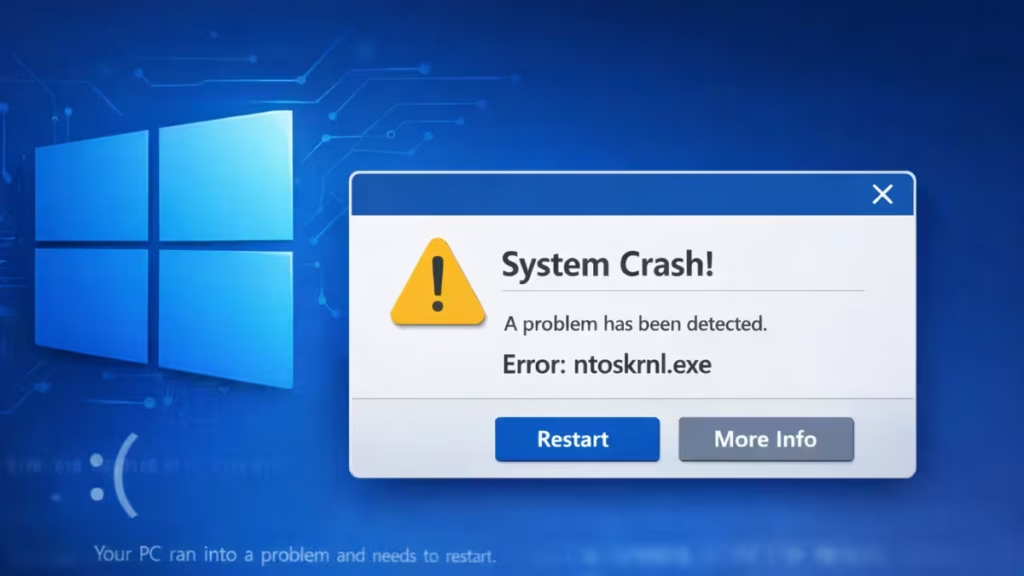
Fix ntoskrnl.exe BSOD Errors in Windows 11
Follow the fixes below in order to resolve ntoskrnl.exe BSOD errors in Windows 11.
Fix 1: Run System File Checker (SFC)
Kernel crashes often happen when core Windows system files become corrupted after updates, crashes, or forced shutdowns. This is the fastest and safest place to start.
- Press Windows + S
- Type cmd
- Right-click Command Prompt → Run as administrator
- Run:
sfc /scannow- Wait until the scan completes
- Restart the system
If the BSOD appears again, move to the next fix.
Fix 2: Repair Windows Image Using DISM
If SFC cannot repair everything, the Windows system image itself may be damaged. DISM fixes the underlying image that Windows uses to restore system files.
- Open Command Prompt (Admin)
- Run:
DISM /Online /Cleanup-Image /RestoreHealth- Wait for completion
- Restart Windows
Continue only if the issue persists.
Fix 3: Check Memory for Errors
ntoskrnl.exe BSOD errors are very commonly triggered by faulty or unstable RAM. Even a single memory error can crash the Windows kernel.
- Press Windows + S
- Type Windows Memory Diagnostic
- Open the tool
- Select Restart now and check for problems
- Allow the test to complete
If errors are detected:
- Disable memory overclock or XMP
- Reseat RAM modules
- Replace faulty RAM if required
If no errors are found, proceed to driver checks.
Fix 4: Update or Roll Back Device Drivers
Drivers run at the same low level as the Windows kernel. A single incompatible or buggy driver can directly trigger ntoskrnl.exe BSOD crashes.
Update Drivers
- Press Windows + X → Device Manager
- Expand:
- Display adapters
- Network adapters
- Storage controllers
- Right-click each device → Update driver
- Select Search automatically for drivers
Roll Back Drivers (If the Issue Started After an Update)
- Right-click the device → Properties
- Open the Driver tab
- Click Roll Back Driver (if available)
If crashes continue, move on to power and startup settings.
Fix 5: Disable Fast Startup
Fast Startup can reload corrupted kernel states after shutdown, especially after Windows updates, leading to repeat BSODs.
- Press Windows + S
- Type Control Panel
- Open Power Options
- Click Choose what the power buttons do
- Select Change settings that are currently unavailable
- Uncheck Turn on fast startup
- Click Save changes
- Restart the PC
If the issue persists, check disk health next.
Fix 6: Check Disk for File System Errors
Disk errors or bad sectors can corrupt system files and crash Windows at the kernel level.
- Open Command Prompt (Admin)
- Run:
chkdsk C: /f /r- Type Y when prompted
- Restart the system
Once disk checks complete, continue if needed.
Fix 7: Remove Overclocking and Reset BIOS Settings
Overclocked or unstable hardware settings can cause unpredictable kernel crashes, even if the system appears to work normally.
- Disable CPU overclock
- Disable XMP / memory overclock
- Load Optimized Defaults in BIOS
Update BIOS only if the manufacturer specifically mentions BSOD or stability fixes.
Fix 8: Run Full Virus Scan Using Windows Security
Although rare, low-level malware can interfere with system processes and cause kernel crashes.
- Press Windows + I
- Open Privacy & security
- Click Windows Security
- Open Virus & threat protection
- Click Scan options
- Select Full scan
- Click Scan now
If no threats are found, continue to system updates.
Fix 9: Install Pending Windows Updates
Microsoft often releases silent stability and kernel fixes through cumulative updates.
- Press Windows + I
- Open Windows Update
- Click Check for updates
- Install all available updates
- Restart the system
If the BSOD still occurs, use the final fix.
Fix 10: Perform Windows 11 Repair Install (Last Resort)
If all fixes fail, a repair install replaces corrupted system components without deleting your files or apps.
- Use the Windows 11 ISO
- Choose Keep personal files and apps
- Complete the repair install
This resolves most persistent ntoskrnl.exe BSOD errors caused by deep system corruption.
FAQs
What causes ntoskrnl.exe BSOD errors in Windows 11?
ntoskrnl.exe BSOD errors in Windows 11 are usually caused by faulty or incompatible drivers, corrupted system files, memory issues, disk errors, or unstable system settings such as overclocking. Since ntoskrnl.exe is the Windows kernel, it appears in crash reports when low-level system components fail.
Is ntoskrnl.exe a virus or malware?
No, ntoskrnl.exe is a legitimate Windows system file and is not a virus. It is a core part of the Windows operating system. However, malware or corrupted drivers can indirectly cause crashes that reference ntoskrnl.exe in BSOD error screens.
Can I delete or replace ntoskrnl.exe to fix the BSOD?
No, you should never delete or manually replace ntoskrnl.exe. Doing so can make Windows unbootable. The correct way to fix ntoskrnl.exe BSOD errors in Windows 11 is by repairing system files, updating drivers, and checking hardware stability.
Does faulty RAM cause ntoskrnl.exe BSOD errors?
Yes, faulty or unstable RAM is one of the most common causes of ntoskrnl.exe BSOD errors in Windows 11. Memory errors can trigger kernel crashes, which is why running Windows Memory Diagnostic is an important troubleshooting step.
Can driver updates fix ntoskrnl.exe BSOD in Windows 11?
Yes, updating or rolling back problematic drivers often fixes ntoskrnl.exe BSOD errors. Graphics, network, chipset, and storage drivers are frequent causes, especially after Windows updates or driver installations.
Will reinstalling Windows 11 fix ntoskrnl.exe BSOD errors?
A Windows 11 repair install can fix ntoskrnl.exe BSOD errors if they are caused by corrupted system files or software conflicts. If the issue is hardware-related, such as failing RAM or SSD, reinstalling Windows may not resolve the problem.
Does ntoskrnl.exe BSOD indicate hardware failure?
Not always, but persistent ntoskrnl.exe BSOD errors can indicate hardware problems, especially with RAM or storage devices. If software fixes do not resolve the issue, hardware diagnostics are recommended.
Is ntoskrnl.exe BSOD related to Windows updates?
Yes, ntoskrnl.exe BSOD errors can occur after Windows 11 updates, particularly if a driver becomes incompatible or system files are corrupted during the update process. Installing pending updates or rolling back recent drivers can help.
Can overclocking cause ntoskrnl.exe BSOD errors?
Yes, CPU or memory overclocking can destabilize the Windows kernel and trigger ntoskrnl.exe BSOD errors. Disabling overclocking and restoring default BIOS settings often resolves the issue.
How do I stop ntoskrnl.exe BSOD errors permanently?
To stop ntoskrnl.exe BSOD errors permanently, ensure Windows system files are intact, keep drivers updated, verify memory and disk health, disable unstable system settings, and install Windows updates regularly. If crashes persist, hardware testing or a repair install may be required.

