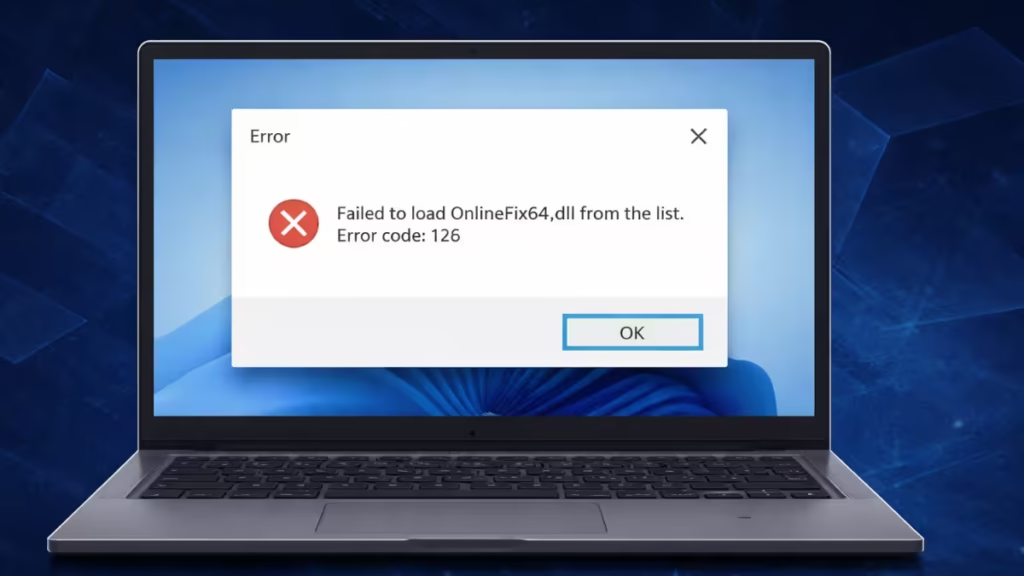
The OnlineFix64.dll error code 126 appears when launching some multiplayer or modded games on Windows. When this error shows up, the game fails to start and displays a message like:
“Failed to load OnlineFix64.dll from the list. Error Code 126.”
This issue usually happens when Windows cannot locate or load the required onlinefix64.dll file. The file may be missing, blocked by antivirus software, or unable to load because another dependency is missing.
In this guide, you will learn how to fix the OnlineFix64.dll error code 126 on Windows 10 and Windows 11 using several proven troubleshooting methods.
Fix 1: Restore OnlineFix64.dll from Windows Defender
Windows Defender frequently flags OnlineFix64.dll as suspicious and removes it automatically.
When that happens, the game cannot load the required file.
Steps
- Open Windows Security.
- Click Virus & Threat Protection.
- Select Protection History.
- Look for an entry related to onlinefix64.dll.
- Click the entry and choose Restore.
After restoring the file, try launching the game again.
Fix 2: Add the Game Folder to Antivirus Exclusions
If Windows Defender deleted the file once, it may remove it again after a restart. Adding the game folder to exclusions prevents this problem.
Steps
- Open Windows Security.
- Go to Virus & Threat Protection.
- Click Manage Settings.
- Scroll down to Exclusions.
- Select Add or Remove Exclusions.
- Click Add an Exclusion.
- Choose Folder.
- Select the game installation folder.
This step prevents antivirus software from deleting the DLL again.
Fix 3: Re-extract or Reinstall the Game Files
Corrupted archives or incomplete extraction can remove important DLL files.
If the game files are incomplete, the launcher cannot load onlinefix64.dll.
Steps
- Delete the current game folder.
- Download or locate the original game archive.
- Extract the files again using WinRAR or 7-Zip.
- Temporarily disable antivirus during extraction.
- Add the folder to antivirus exclusions afterward.
Once the files extract correctly, launch the game again.
Fix 4: Install Microsoft Visual C++ Redistributables
Many games require Visual C++ runtime libraries to load DLL files correctly.
If these libraries are missing, Windows cannot load the module and shows error code 126.
Install these versions
After installing both packages, restart your computer and try launching the game again.
Fix 5: Install the DirectX Runtime
Some games rely on older DirectX libraries that modern Windows installations do not include by default.
Installing the DirectX runtime restores these missing files.
Steps
- Download DirectX End-User Runtime (June 2010).
- Run the installer.
- Complete the installation process.
- Restart the PC.
After installing DirectX components, launch the game again.
Fix 6: Unblock the OnlineFix64.dll File
Windows may block DLL files downloaded from the internet.
When Windows blocks the file, the game cannot load it.
Steps
- Navigate to the game installation folder.
- Right-click onlinefix64.dll.
- Click Properties.
- Look for an Unblock option.
- Check the box and click Apply.
After unblocking the file, start the game again.
Fix 7: Run the Game as Administrator
Some games require elevated permissions to load external DLL files.
Running the game as administrator may resolve the loading error.
Steps
- Right-click the game’s .exe file.
- Select Run as administrator.
If the game launches normally, you can enable administrator mode permanently in the file properties.
The OnlineFix64.dll error code 126 usually occurs because antivirus software removed the DLL file or because Windows lacks required runtime libraries.
Most users fix the problem by restoring the DLL from Windows Defender and adding the game folder to antivirus exclusions. If that method fails, reinstalling game files and installing missing Visual C++ or DirectX libraries usually resolves the issue.
By following the fixes in this guide, you should be able to launch your game without encountering the OnlineFix64.dll loading error again.