If you’re seeing a “Bad Image” popup pointing to SecurityHealthSSO.dll with status 0xc000012f every time Windows starts, you’re not alone and you don’t need to download anything from the internet to fix it.
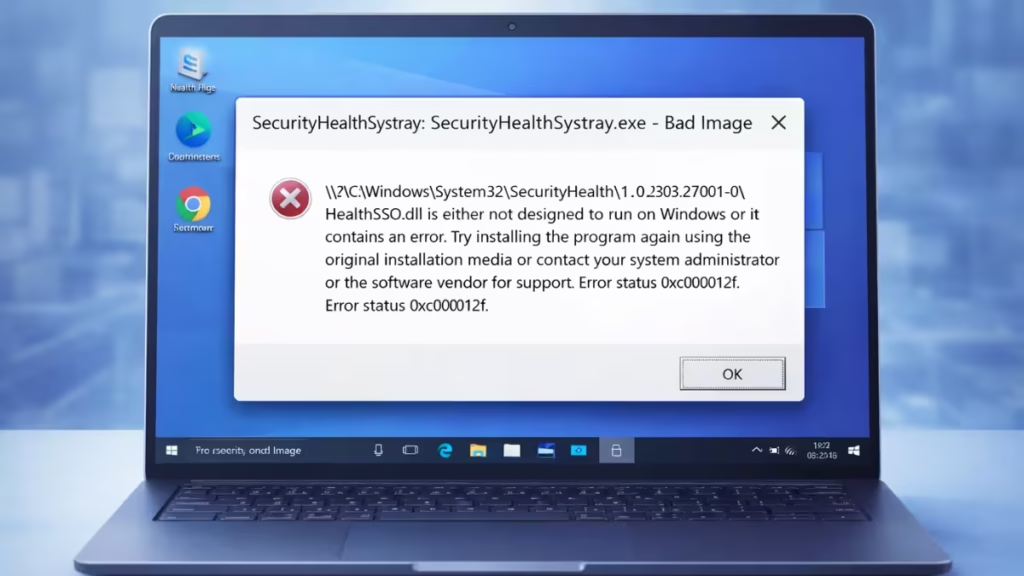
This error means Windows has detected a corrupted or signature-mismatched system file tied to the Windows Security Health service. It commonly appears after:
- System crashes or sudden power loss
- Unstable RAM / XMP / EXPO overclocking
- Incomplete or interrupted Windows updates
- BIOS changes that caused memory instability
All fixes below use built-in Windows tools. No DLL downloads needed and those can make things worse.
Important Warning Before You Start
Do not download SecurityHealthSSO.dll from any website or copy it from another PC.
Windows actively protects security DLLs with signature verification. Manually replacing them almost always causes more errors, breaks Windows Update, or creates security vulnerabilities. The only safe fix is using Windows’ own repair tools.
Method 1: Repair Corrupted System Files Using SFC (Recommended)
System File Checker (SFC) scans all protected Windows files and automatically restores any corrupted ones from a cached copy. This is the fastest and most reliable first step.
Steps:
- Right-click the Start button
- Select Terminal (Admin) or Command Prompt (Admin)
- Type the following and press Enter:
sfc /scannow - Wait until the scan reaches 100%. Do not close the window.
- Restart your PC
If SFC reports “Windows Resource Protection found corrupt files and successfully repaired them”, your error should be gone after the reboot.
If SFC says it could not repair some files, proceed to Method 2.
Method 2: Use DISM to Repair the Windows Image
SFC relies on the Windows component store. If that store itself is damaged, SFC can’t fix anything. DISM repairs the underlying Windows image that SFC depends on.
Steps:
- Open Command Prompt (Admin)
- Run this command:
DISM /Online /Cleanup-Image /RestoreHealth - Wait for the process to complete (may take 10–20 minutes)
- Restart your PC
- Run
sfc /scannowone more time to confirm the repair
DISM downloads replacement files from Windows Update if needed, so an active internet connection is recommended.
Method 3: Reset the Windows Security App
Sometimes the DLL file itself is intact, but the Windows Security app fails to load it properly due to a registration or cache issue. Resetting the app resolves this without touching system files.
Steps:
- Open Settings (Win + I)
- Go to Apps → Installed apps
- Search for Windows Security
- Click Advanced options
- Click Repair first and wait for it to complete.
- If the error persists, click Reset
- Restart your PC
Method 4: Re-register Security Health Components via PowerShell
This command forces Windows to rebuild the Security Health app’s internal registrations. It’s safe, quick, and doesn’t modify any system files.
Steps:
- Right-click Start and open PowerShell (Admin)
- Run:
Get-AppxPackage Microsoft.SecHealthUI -AllUsers | Reset-AppxPackage - Wait for the command to complete
- Restart your PC
Method 5: Revert RAM or BIOS Tweaks
This is a critical and often overlooked cause. If the 0xc000012f error appeared after enabling XMP/EXPO, adjusting RAM frequency/voltage, or changing BIOS settings; memory instability is the most likely root cause.
Unstable memory corrupts files during writes. Security and boot-time files are among the first affected.
What to do:
- Restart and enter your BIOS (usually Del, F2, or F12 at startup)
- Disable XMP / EXPO profiles
- Remove any manual CPU or RAM voltage/frequency changes
- Select Load Optimized Defaults
- Save and reboot
- After Windows loads stably, run
sfc /scannowto repair any files corrupted during the instability period
Even if your RAM has been running fine for weeks, unstable settings can cause intermittent corruption. Test with defaults first.
Method 6: Perform an In-Place Windows Repair Install (Last Resort)
If all methods above have failed, an in-place repair install replaces every Windows system file while keeping your personal files, apps, and settings completely intact.
Steps:
- Download the latest Windows ISO from microsoft.com/software-download/windows11 (or Windows 10)
- Double-click the ISO to mount it
- Run setup.exe from the mounted drive
- When prompted, choose Keep personal files and apps
- Let the installation complete and restart
This is the last option for system file corruption and it works when nothing else does.
What to Avoid When Fixing This Error
Avoid these common mistakes that make the problem worse:
- Do not download DLL files from sites like dll-files.com, dllme.com, etc.
- Do not copy system DLLs from another Windows installation.
- Do not disable Windows Security services to silence the error this removes your system’s protection and doesn’t fix anything.
- Do not use third-party “registry cleaners” as they frequently cause this exact type of error and will not fix i
FAQs
What is the SecurityHealthSSO.dll error 0xc000012f?
It is a Bad Image error that appears when Windows detects a corrupted or signature-mismatched security file. It is typically triggered by system crashes, unstable RAM, or incomplete Windows updates.
Is SecurityHealthSSO.dll a virus?
No. It is a legitimate Windows system file located in C:\Windows\System32\. The error signals file corruption, not malware.
Can I download SecurityHealthSSO.dll to fix the error?
No. Manual replacement is unsafe because Windows verifies the digital signature of security DLLs. Use SFC and DISM instead.
What is the safest way to fix the SecurityHealthSSO.dll 0xc000012f error?
Run sfc /scannow in an elevated Command Prompt. If that fails, follow up with DISM /Online /Cleanup-Image /RestoreHealth, then run SFC again.
Will SFC or DISM delete my personal files?
No. Both tools only repair Windows system files and do not affect your documents, photos, or installed apps.
Why did this error start after RAM or BIOS changes?
Unstable memory settings can corrupt files during system writes. Security files are among the first affected, so reverting to BIOS defaults and running SFC usually resolves it.
Should I disable Windows Security to stop the error?
No. It won’t fix the corruption and removes your system’s malware protection. Use the repair methods above instead.
Does resetting Windows Security fix this error?
Yes, in some cases. If the DLL is intact but the app has a registration issue, resetting via Settings → Apps → Windows Security → Reset can resolve it.
Will a Windows Update fix the SecurityHealthSSO.dll error?
Sometimes, but SFC and DISM are faster and more reliable since Windows Update may fail if the corruption is already present.
What if the error still appears after trying all methods?
Perform an in-place Windows repair install using the latest Windows ISO. It replaces all system files while keeping your personal data and apps intact.
Does this error affect my PC’s security protection?
Yes. Windows Security may not load correctly while the error is active, so fixing it promptly restores full protection.
Still Seeing the 0xc000012f Error?
If the error persists after trying all methods, comment below with:
- Your Windows version (10 or 11, and build number)
- Whether you made any BIOS or RAM changes before the error appeared
- The exact message SFC or DISM returned
We’ll help you diagnose the specific cause and find a fix.

