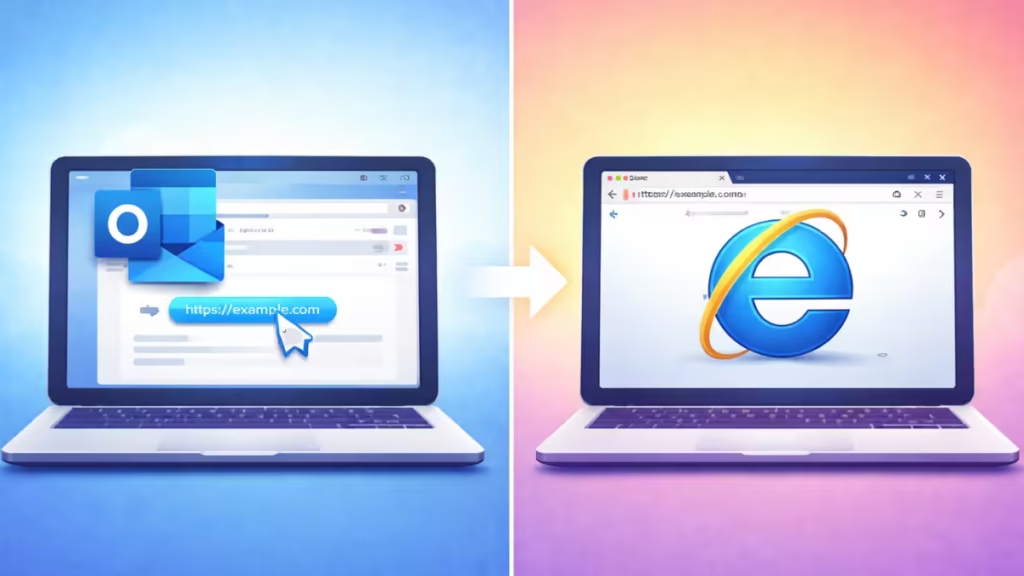
If Outlook 2024 LTSC opens email links using Internet Explorer instead of your default browser, Google sign-in and other modern websites will fail. This happens even though Internet Explorer is officially retired.
This guide shows exact steps to fix it permanently without reinstalling Outlook or Windows.
Why Outlook 2024 LTSC Uses Internet Explorer
Outlook LTSC does not use a built-in browser. It relies on Windows system URL handlers. On many systems:
- Legacy Internet Explorer handlers remain active
- HTTP and HTTPS protocols point to IE internally
- Outlook ignores visible “default browser” settings
- LTSC builds lack newer Edge WebView integrations
Because Google no longer supports IE-based authentication, sign-in fails when links open.
Fix 1: Set a Modern Browser as Default (Required)
This step fixes the issue for most users.
Steps
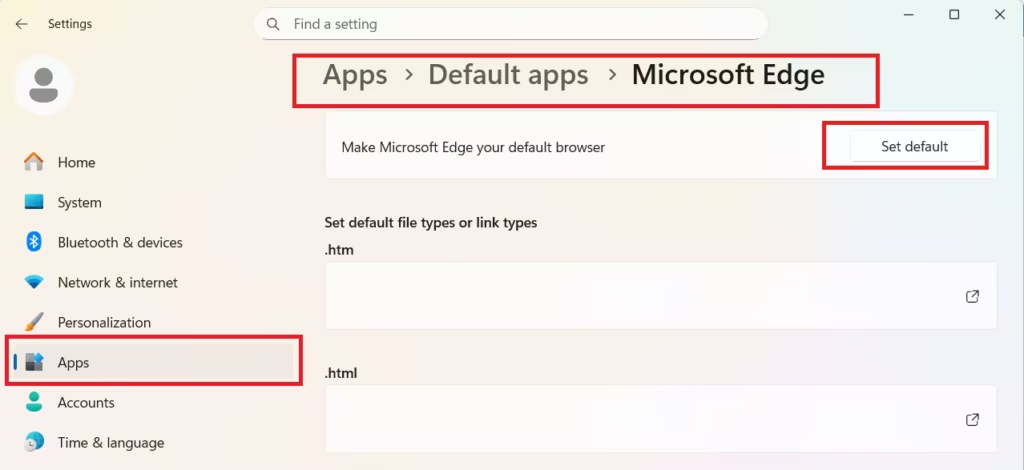
- Open Settings
- Go to Apps → Default apps
- Select Microsoft Edge or Google Chrome
- Click Set default
Now scroll down and manually assign:
- HTTP
- HTTPS
- .html
- .htm
Make sure none of them point to Internet Explorer.
Restart Outlook and test a link.
Fix 2: Disable Internet Explorer Completely (Recommended)
Even when hidden, IE components can stay active.
Steps
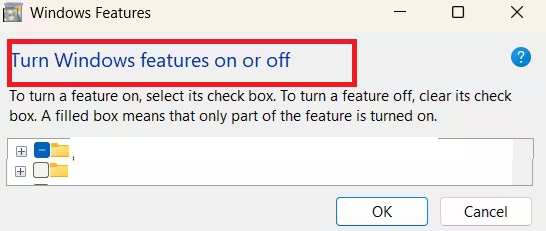
- Press Win + R
- Type:
optionalfeatures- Uncheck Internet Explorer 11
- Click OK
- Restart Windows
This forces Outlook to use a modern browser automatically.
Fix 3: Force Outlook to Use a Modern Browser via Registry
Use this fix if Outlook still opens links in IE.
Steps
- Press Win + R, type:
regedit- Navigate to:
HKEY_CURRENT_USER\Software\Microsoft\Office\16.0\Common\Links- Create a DWORD (32-bit) value:
- Name: BrowserChoice
- Value:
1
- Close Registry Editor
- Restart Outlook
This override prevents Outlook from using legacy handlers.
Fix 4: Reset Windows Web Protocol Associations
Corrupted associations can also cause this issue.
Steps
- Open Command Prompt as Administrator
- Run:
assoc .html=htmlfile
assoc .htm=htmlfile- Restart Windows
Why Outlook 2024 LTSC Opens Links Using Internet Explorer
Outlook 2024 LTSC prioritizes long-term stability, so it sticks to older Windows link-handling components that can still route web links through Internet Explorer–based handlers. Even if you set Chrome or Edge as your default browser, legacy HTTP/HTTPS and protocol associations can override that setting inside Outlook.
Microsoft 365 subscription builds get frequent web-integration updates, so they usually follow modern browser rules more reliably. In LTSC, this behavior is common and does not mean your Outlook install is broken. Once you switch the link handler to Edge or Chrome, Google sign-in and other secure websites will open normally.
Still not fixed? Comment below with your Windows version and default browser, and we’ll help you troubleshoot it step by step.

