If Outlook Classic freezes, shows “Not Responding,” refuses to close, or fails to reopen after the January 2026 Windows update, your system likely installed KB5074109. Microsoft confirmed that this update breaks Outlook profiles that use POP accounts or PST files stored in OneDrive.

The issue forces many users to end Outlook from Task Manager or reboot their PC every time. Sent emails may not appear in Sent Items, and Outlook may start re-downloading messages.
Systems Impacted by This Bug
Microsoft confirmed the issue on:
- Windows 11: 25H2, 24H2, 23H2
- Windows 10: 22H2, Enterprise LTSC 2019 / 2021
- Windows Server: 2019, 2022, 2025
If your PC shows OS Build 26200.7623 or 26100.7623, the KB5074109 update is installed.
Fix 1 — Uninstall Windows Update KB5074109 (Most Reliable)
Removing the update restores Outlook immediately for most users.
Steps
- Open Settings.
- Click Windows Update.
- Select Update history.
- Scroll down and click Uninstall updates.
- Locate KB5074109.
- Click Uninstall.
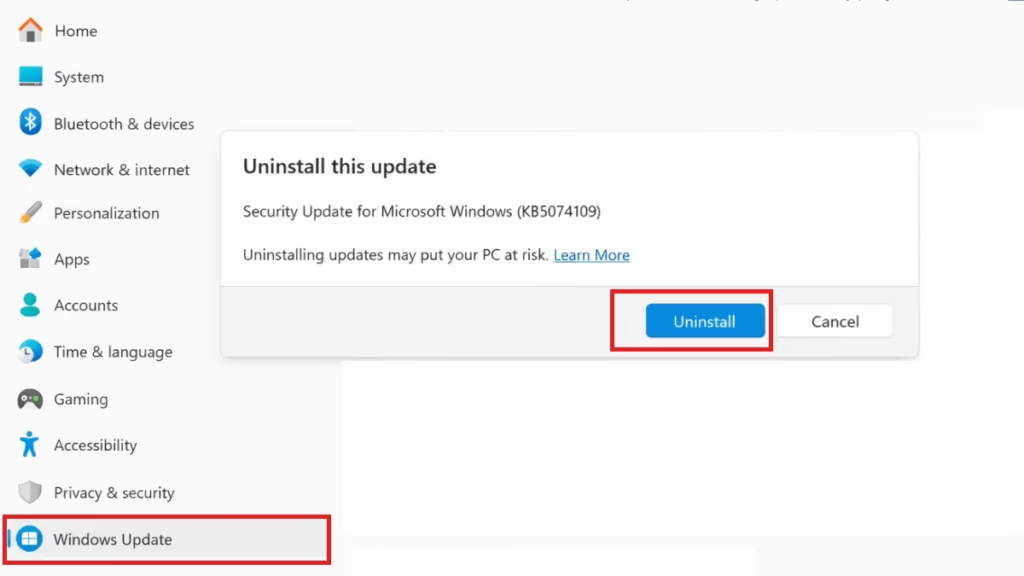
- Confirm and restart your PC.
After the reboot, launch Outlook and verify that it opens and closes normally.
Important: This update contains security fixes. Pause updates temporarily until Microsoft releases a corrected patch.
Fix 2 — Move PST Files Out of OneDrive
If you must keep the update installed, relocate your Outlook data file.
When PST files stay inside OneDrive folders, OneDrive locks the file during syncing. Outlook waits for file access and freezes.
Steps
- Close Outlook completely.
- Open File Explorer.
- Navigate to your PST file location (usually inside a OneDrive folder).
- Move the PST file to a local folder such as:
Documents\Outlook Files - Open Outlook.
- If Outlook cannot find the file, browse and reconnect the PST when prompted.
This prevents OneDrive from interfering with Outlook file access.
Fix 3 — Use Outlook Web Temporarily
Microsoft recommends using webmail until a permanent fix becomes available.
How
- Open your browser.
- Sign in at outlook.office.com or your mail provider’s web portal.
- Access mail directly without using the desktop app.
This avoids the freezing issue completely.
Why This Bug Happens
Outlook writes POP mail data directly into PST files. When the PST file sits inside a OneDrive-synced folder, OneDrive may lock the file during sync operations. Outlook cannot release the file and waits indefinitely, causing the application to hang and remain open in memory.
FAQs
Why is Outlook Classic hanging after Windows update KB5074109?
KB5074109 conflicts with POP accounts and PST files stored in OneDrive, causing Outlook to freeze or stay stuck in memory.
How do I fix Outlook Classic hanging after Windows update?
Uninstall KB5074109 or move your PST file out of OneDrive and restart Outlook.
Does this issue affect the new Outlook app?
No. The issue only impacts Outlook Classic, not the new web-based Outlook.
Which Windows versions are affected by this Outlook issue?
Windows 11 (25H2, 24H2, 23H2) and Windows 10 (22H2, LTSC editions) are impacted.
Can I safely uninstall KB5074109 to fix Outlook hanging?
Yes. Uninstalling the update restores Outlook stability, but pause updates until Microsoft releases a fixed patch.
Why does OneDrive cause Outlook to hang after the update?
OneDrive locks PST files during syncing, preventing Outlook from closing or saving data properly.
What is the fastest workaround if I cannot uninstall the update?
Use Outlook Web temporarily or move your PST file to a local folder outside OneDrive.
How do I check if KB5074109 is installed on my PC?
Open Settings → Windows Update → Update history and look for KB5074109.

