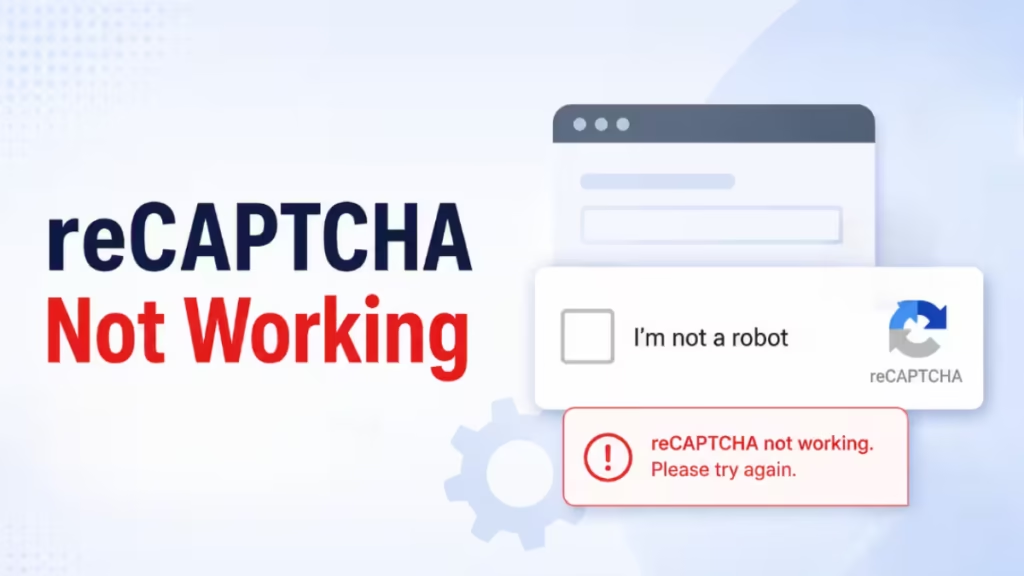
reCAPTCHA blocks you from submitting forms, logging in, or accessing services when it fails to verify you as human. The causes range from browser extensions and cached data to VPNs and expired verification tokens. This guide walks you through every working fix, including solutions for specific error messages like "timeout-or-duplicate" and "BROWSER_ERROR."
What Causes reCAPTCHA to Stop Working?
reCAPTCHA runs a multi-step verification process. It loads scripts from Google's servers, analyzes your browser behavior, generates a token, and validates that token on the backend. Any break in that chain causes verification to fail. Common triggers include:
- Browser extensions blocking Google scripts
- VPN or proxy services interfering with Google APIs
- Outdated or unsupported browsers
- Corrupted cache or cookies
- JavaScript disabled in browser settings
- IP address flagged by Google as suspicious
- Token expiration after two minutes of inactivity
Fix 1: Restart Your Device and Browser
A simple restart clears temporary session data and resets network connections. Close your browser completely, restart your computer or mobile device, then try the reCAPTCHA again. This resolves random one-time failures caused by memory or connection state issues.
Fix 2: Check Your Internet Connection
reCAPTCHA communicates with Google's servers in real time. A slow or unstable connection causes the widget to freeze, load incorrectly, or time out before verification completes.
Steps to check:
- Open a speed test site like fast.com and confirm you have a stable connection.
- Switch from Wi-Fi to a wired connection if possible.
- On mobile, toggle between Wi-Fi and mobile data.
- Close background apps or browser tabs that consume bandwidth.
Fix 3: Use a Supported Browser
reCAPTCHA supports a limited set of browsers. Using an unsupported or niche browser causes the widget to fail silently or not render at all.
Supported browsers on desktop:
- Google Chrome
- Mozilla Firefox
- Microsoft Edge (Chromium)
- Safari
Supported browsers on mobile:
- Google Chrome
- Safari
- Android native browser
If you use Brave, Opera, or any other browser, open the page in Chrome or Firefox and try again.
Fix 4: Update Your Browser
Running an outdated browser version causes compatibility issues with reCAPTCHA's JavaScript. Browser updates fix these bugs.
To update Chrome:
- Click the three-dot menu in the top-right corner.
- Go to Help > About Google Chrome.
- Chrome checks for updates automatically. Click Relaunch if an update is available.
To update Firefox:
- Click the hamburger menu.
- Go to Help > About Firefox.
- Firefox downloads the update automatically. Click Restart to Update.
After updating, restart your browser and test reCAPTCHA again.
Fix 5: Disable Browser Extensions
Browser extensions, especially ad blockers, privacy tools, and script blockers, frequently interfere with reCAPTCHA by blocking requests to google.com or gstatic.com.
How to disable all extensions temporarily in Chrome:
- Click the three-dot menu and go to More tools > Extensions.
- Toggle off every extension.
- Reload the page and try reCAPTCHA.
If reCAPTCHA works after disabling extensions, re-enable them one at a time to find the problematic one. Common culprits include uBlock Origin, Privacy Badger, NoScript, and Ghostery.
Alternatively, open the page in a private or incognito window. Most extensions do not run in incognito mode by default. If reCAPTCHA works there, an extension is causing the conflict.
Fix 6: Clear Browser Cache and Cookies
Corrupted cache files or outdated cookies interfere with how reCAPTCHA loads and validates tokens.
To clear cache and cookies in Chrome:
- Press
Ctrl + Shift + Delete(Windows) orCmd + Shift + Delete(Mac). - Set the time range to All time.
- Check Cached images and files and Cookies and other site data.
- Click Clear data.
- Restart Chrome and test reCAPTCHA.
In Firefox:
- Press
Ctrl + Shift + Delete. - Select Everything from the time range dropdown.
- Check Cookies and Cache.
- Click Clear Now.
Fix 7: Disable Your VPN or Proxy
VPN services route your traffic through shared IP addresses. Google flags many VPN IP ranges as suspicious bot traffic and blocks reCAPTCHA verification for those addresses.
- Open your VPN app and disconnect.
- If you use a browser-based proxy extension, disable it.
- Reload the page and complete reCAPTCHA.
If reCAPTCHA works after disabling your VPN, try switching to a different VPN server location before reconnecting. US or EU servers with lower traffic tend to have cleaner IP reputations.
Fix 8: Change Your IP Address
Google blocks IP addresses it associates with bot activity. Changing your IP resets your standing with Google's verification system.
The simplest method:
- Unplug your router or modem from the power outlet.
- Wait 2 to 3 minutes.
- Plug it back in and wait for the connection to restore.
- Most ISPs assign a new dynamic IP address after a modem restart.
Once reconnected, try reCAPTCHA again. This fix works well when your current IP carries a negative history from previous users on the same network.
Fix 9: Enable JavaScript in Your Browser
reCAPTCHA depends entirely on JavaScript to function. If JavaScript is disabled, the widget does not load at all.
To enable JavaScript in Chrome:
- Click the three-dot menu and go to Settings.
- Select Privacy and security > Site Settings.
- Scroll to JavaScript and set it to Sites can use JavaScript.
To enable JavaScript in Firefox:
- Type
about:configin the address bar and press Enter. - Search for
javascript.enabled. - If the value shows
false, click the toggle icon to set it totrue.
Reload the page after enabling JavaScript.
How to Fix Specific reCAPTCHA Error Messages
1. "timeout-or-duplicate" Error
This error means your verification token expired or you submitted the form more than once. reCAPTCHA tokens expire after exactly two minutes and work only once.
Fix: Refresh the page to generate a new token. Complete and submit the form within two minutes of solving the CAPTCHA. Avoid clicking the submit button more than once.
2. "reCAPTCHA Verification Expired" Error
This appears on long forms where you take more than two minutes between solving the CAPTCHA and submitting.
Fix: Prepare all form information before you start filling it out. Use browser autofill to speed up completion. If the page shows a "expired" message, click the reCAPTCHA checkbox again to get a fresh token before submitting.
3. "BROWSER_ERROR"
This error signals that the reCAPTCHA script failed to execute on your browser due to client-side issues.
Fix checklist:
- Update your browser to the latest version
- Disable ad blockers and privacy extensions
- Clear browser cache and cookies
- Disconnect your VPN or proxy
- Try a different browser (Chrome or Firefox)
4. "ERROR for site owner: Invalid site key"
This is a server-side configuration error on the website, not a problem on your end. The site's reCAPTCHA key does not match Google's records.
Fix: Contact the website's support team and report the exact error message along with the URL. The website owner needs to correct the key in their Google reCAPTCHA admin console.
5. "missing-input-response" or "missing-input-secret" Error
These errors occur during backend verification. They indicate the website's integration is sending incomplete data to Google's API.
Fix: Report these errors to the website administrator. These require a server-side code fix and fall outside what you can resolve as a user.
Before You Contact Support: reCAPTCHA Fixes to Try First
Before contacting support, verify each of these steps:
- Update your browser to the latest version
- Enable JavaScript in your browser settings
- Disable all extensions and test them one by one
- Disconnect your VPN or proxy service
- Clear your browser cache and cookies
- Switch to a supported browser: Chrome, Firefox, Edge, or Safari
- Submit the form within two minutes of solving the CAPTCHA
- Click the submit button only once
- Restart your modem to get a fresh IP address if all else fails
Working through this list in order resolves reCAPTCHA failures in most cases. If none of these fixes work, try completing the action from a different device or network to isolate whether the issue follows your account or your hardware.