If you’re a Roblox player, encountering the “Roblox encountered an unexpected error: memory dump” message can be a frustrating experience. This error typically indicates a problem with your system’s configuration, outdated software, or corrupted Roblox files. To fix this error, there are several steps you can take to resolve the issue and get back to enjoying your favorite games.
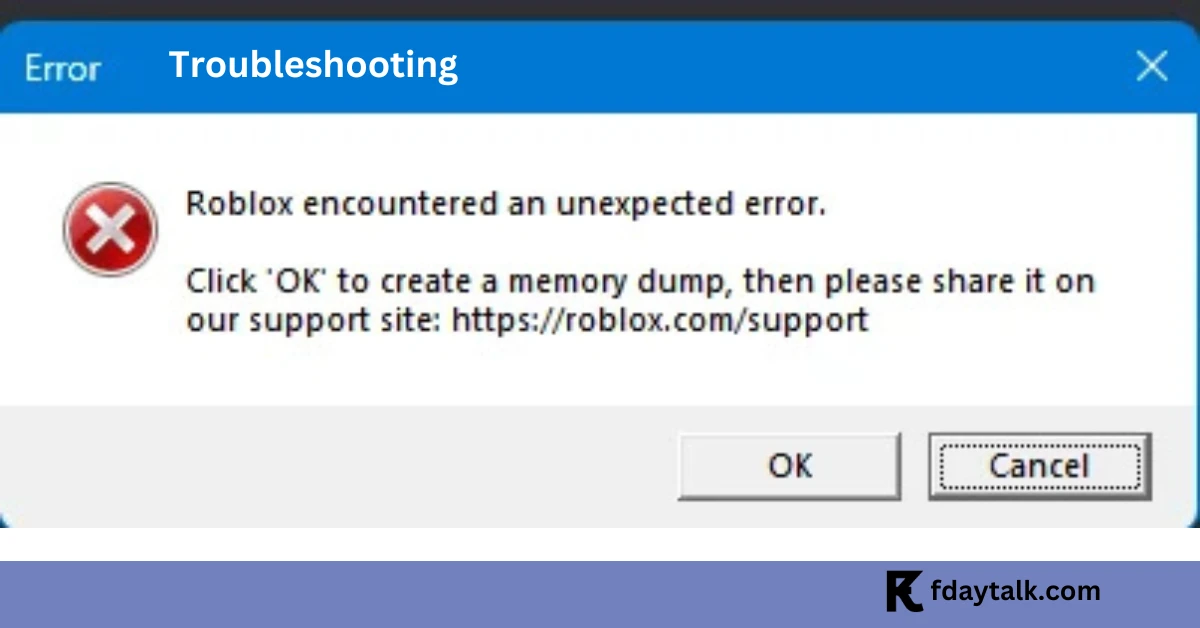
Roblox encountered an unexpected error.
Click ‘OK’ to create a memory dump, then please share it on our support site: https://roblox.com/support
Step 1: Adjust Startup and Recovery Settings
A useful step is modifying the memory dump settings:
- Press
Windows + R, typesysdm.cpl, and press Enter.
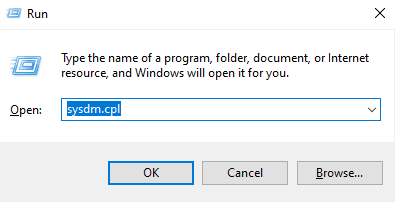
- Go to the Advanced tab, and under Startup and Recovery, click Settings.
- Under Write debugging information, select Complete Memory Dump.
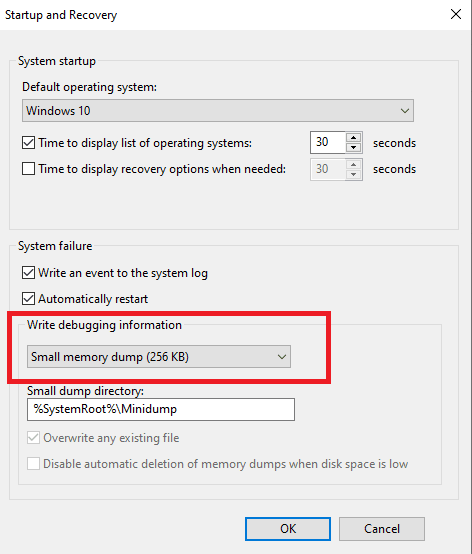
- Click OK and restart your computer.
After the restart, follow these steps:
- Press
Windows + R, type%localdata%, and locate the Roblox folder. Delete it. - Uninstall the Roblox Player from Settings > Apps & Features.
- Download and reinstall Roblox from the official website, ensuring you run the installer as an administrator.
Step 2: Clear Temporary Files and AppData
Corrupted temporary files can cause issues with Roblox. Clearing these files can often fix the problem:
- Press
Windows + Rto open the Run dialog box. - Type
%temp%and press Enter.
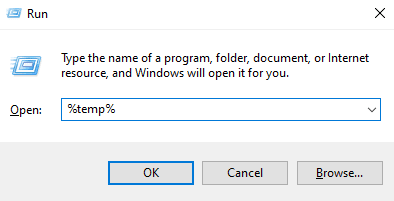
- Delete all files in the Temp folder (some may require administrative permissions).
- Navigate to
C:\Users\[YourUsername]\AppData\Localand delete theRobloxfolder.
Step 3: Create a New Windows User Profile
If the above steps don’t resolve the issue, try launching Roblox from a new Windows user profile:
- Uninstall Roblox.
- Navigate to Settings > Accounts > Other users.
- Click Add a user without a Microsoft account and set up a new local account.
- Log in to the new account, install Roblox, and attempt to launch it.
- If it works, you can either continue using the new profile or return to your main account and reinstall Roblox.
This solution worked for some users, as a new profile can bypass potential configuration issues in the original account.
Step 4: Update Your Operating System and Drivers
Outdated drivers or system software can also trigger memory dump errors. Make sure to:
- Update Windows: Open Settings, go to “Windows Update,” and check for updates.
- Update Your Drivers: Use a tool like Device Manager or a driver update utility to ensure your graphics card, sound card, and other essential drivers are up-to-date.
Step 5: Install the Microsoft Store Version of Roblox
If the error persists, consider installing the Microsoft Store version of Roblox. Many users have found this version to be more stable:
- Open the Microsoft Store on your PC.
- Search for Roblox and install it from there.
Step 6: Check Your Internet Connection
A poor or unstable internet connection can sometimes cause unexpected errors. To ensure your connection isn’t the issue:
- Restart your router.
- Use a wired Ethernet connection instead of Wi-Fi if possible.
- Test your connection speed to confirm it meets Roblox’s minimum requirements.
Step 7: Disable Background Applications
Too many background applications running simultaneously can consume memory and trigger errors. Close unnecessary programs to free up system resources:
- Open Task Manager by pressing
Ctrl + Shift + Esc. - End processes that are not essential, but avoid closing system-critical tasks.
Step 8: Contact Roblox Support
If none of these steps resolve the issue, it’s time to reach out to Roblox Support for assistance. Provide as much detail as possible, including screenshots of the error and the steps you’ve already taken. You can contact them through the official Roblox Support page.
Conclusion
The “Roblox encountered an unexpected error: memory dump” issue can be resolved by following these troubleshooting steps. Whether it’s adjusting memory dump settings, clearing temporary files, creating a new user profile, or updating your drivers, these solutions can help get you back in the game. If you’re still experiencing issues, comment down below for further assistance.