Seeing the SecurityHealthSSO.dll error with status 0xc000012f on every Windows startup can be alarming, especially when it appears as a Bad Image dialog linked to Windows Security. This issue usually shows up after system crashes, unstable RAM or BIOS tweaks, or incomplete Windows updates, and it prevents the Windows Security Health service from loading correctly.
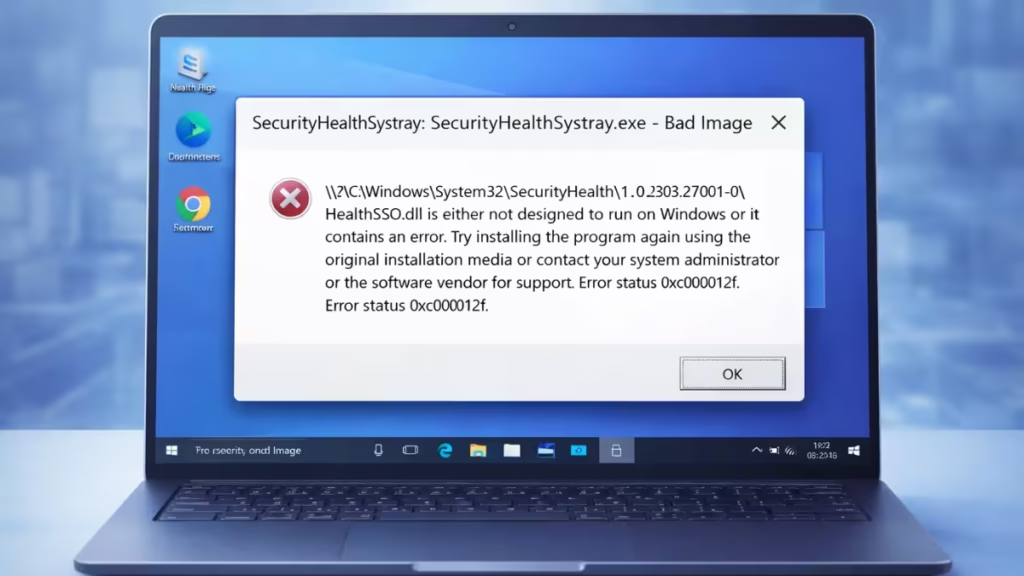
n this guide, you’ll learn how to fix it safely using built-in Windows repair methods—without downloading risky DLL files or breaking system protection.
Important Warning Before You Start
Do not download or copy SecurityHealthSSO.dll from the internet or another PC. Windows protects security DLLs, and manual replacement often causes more errors or security risks.
The correct fix is to repair Windows system files using built-in tools.
Method 1: Repair Corrupted System Files Using SFC (Recommended)
This method restores the correct version of the file automatically.
Steps:
- Right-click Start
- Select Terminal (Admin) or Command Prompt (Admin)
- Run this command:
sfc /scannow - Wait until the scan reaches 100%
- Restart your PC
If SFC fixes the corruption, the error will stop appearing.
Method 2: Use DISM If SFC Cannot Fix the Error
If SFC reports it could not repair some files, use DISM.
Steps:
- Open Command Prompt (Admin)
- Run:
DISM /Online /Cleanup-Image /RestoreHealth- Wait for completion
- Restart the system
- Run
sfc /scannowonce more
This process repairs the Windows image that SFC depends on.
Method 3: Reset the Windows Security App
Sometimes the DLL is fine, but the Windows Security app fails to load it correctly.
Steps:
- Open Settings
- Go to Apps → Installed apps
- Find Windows Security
- Click Advanced options
- Select Repair
- If the issue remains, select Reset
- Restart your PC
Method 4: Re-register Security Health Components
This step rebuilds Security Health registrations without replacing system files.
Steps:
- Open PowerShell (Admin)
- Run:
Get-AppxPackage Microsoft.SecHealthUI -AllUsers | Reset-AppxPackage- Restart your system
Method 5: Revert RAM or BIOS Tweaks (Very Important)
If the error started after RAM tuning or overclocking, system instability likely caused file corruption.
What to do:
- Disable XMP / EXPO
- Remove manual voltage or frequency changes
- Load Optimized Defaults in BIOS
- Save and reboot
Unstable memory often corrupts security and boot-time files first.
Method 6: Perform an In-Place Windows Repair (Last Resort)
If none of the above fixes work, repair Windows without deleting data.
Steps:
- Download the latest Windows ISO
- Mount the ISO
- Run
setup.exe - Choose Keep personal files and apps
- Complete the repair and restart
This replaces all system files safely.
What Not to Do
- Do not download DLL files from random websites
- Do not copy system DLLs from another computer
- Do not disable Windows Security services permanently
These actions often create new startup and update problems.
FAQs
What is the SecurityHealthSSO.dll error 0xc000012f?
The SecurityHealthSSO.dll error 0xc000012f appears when Windows detects corruption or signature mismatch in a protected Windows Security file. System crashes, unstable RAM, or interrupted updates usually trigger this error.
Is SecurityHealthSSO.dll a virus?
No. SecurityHealthSSO.dll is a legitimate Windows system file used by Windows Security. The error does not indicate malware. It signals file corruption or system instability.
Can I download SecurityHealthSSO.dll to fix the error?
No. Downloading or copying SecurityHealthSSO.dll is unsafe and often causes more errors. Windows protects security DLLs, and manual replacement usually fails or breaks updates.
What is the safest way to fix SecurityHealthSSO.dll error 0xc000012f?
The safest fix is to repair system files using SFC and DISM. These tools restore the correct, signed version of the file directly from Windows without manual replacement.
Will SFC and DISM delete my files?
No. SFC and DISM do not delete personal files or apps. They only repair corrupted Windows system files.
Why did this error start after RAM or BIOS changes?
Unstable RAM settings can corrupt system files during crashes or restarts. Security-related files fail first, which is why this error often appears after XMP, EXPO, or voltage tuning.
Should I disable Windows Security to stop the error?
No. Disabling Windows Security is not recommended. It does not fix the root cause and exposes your system to security risks.
Does resetting Windows Security fix this error?
Yes, in some cases. If the DLL itself is fine but the app fails to load it, resetting Windows Security can resolve the issue.
Will a Windows update fix the SecurityHealthSSO.dll error?
Sometimes. If Windows Update completes successfully, it may replace corrupted components. However, SFC and DISM provide a faster and more reliable fix.
What if the error still appears after all fixes?
If the error persists, perform an in-place Windows repair install. This replaces system files while keeping personal data and installed apps intact.
Does this error affect Windows security protection?
Yes. While the error appears, Windows Security may not load correctly. Fixing it restores proper system protection.
If you still face the problem after trying all methods, comment below with your Windows version and whether you changed BIOS or RAM settings. We’ll help you fix it.

