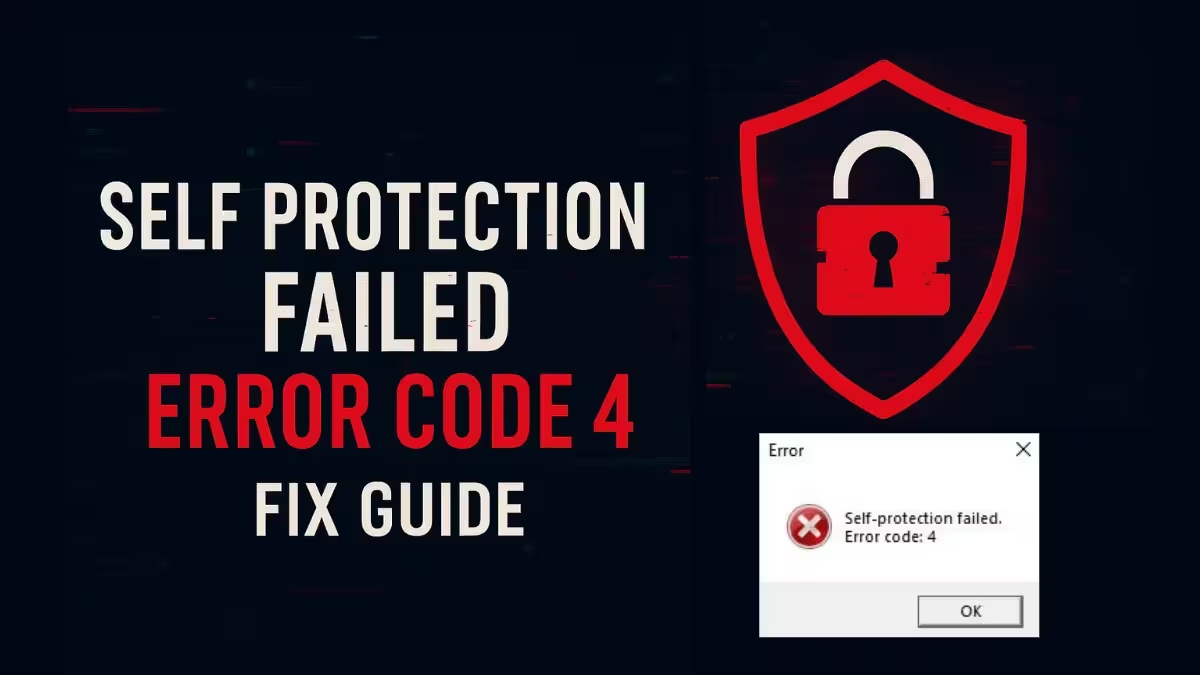
Self Protection Failed Error Code 4 blocks a game or app from launching because its anti-tamper or anti-cheat system cannot complete a security check. The error shows up most often in titles that use EasyAntiCheat or BattlEye, and it also appears when Windows security features like Tamper Protection interfere with an installer. This guide walks through every proven fix, starting with the ones that solve the problem fastest.
What Causes Self Protection Failed Error Code 4
- Antivirus or Windows Defender blocking a game's anti-cheat files
- Corrupted or outdated EasyAntiCheat or BattlEye service files
- Missing administrator permissions for the game executable
- Leftover mod files or old installation data conflicting with the anti-cheat check
- Corrupted game files or missing runtime dependencies like .NET or Visual C++ Redistributables
- Background apps such as Corsair iCUE or RGB software clashing with kernel-level security drivers
- Outdated chipset drivers or motherboard BIOS versions
Fix 1: Run the Game as Administrator
Most self-protection failures happen because the anti-cheat service does not get the permissions it needs to initialize.
- Right-click the game's executable file.
- Select Run as administrator.
- Launch the game and check if the error clears.
If the game runs fine this way, set the executable to always launch with administrator rights through its Properties menu under the Compatibility tab.
Fix 2: Restore Files Quarantined by Your Antivirus
Antivirus software often flags anti-cheat components like UnityCrashHandler64.exe as suspicious and deletes them before you ever see the error.
- Open your antivirus program and check its protection or quarantine history.
- Look for any recently removed game files.
- Restore the flagged files and add the game folder to your exclusions list so they are not removed again.
For Windows Defender:
- Go to Settings > Privacy and security > Windows Security > Virus & threat protection.
- Click Manage settings, then scroll to Exclusions.
- Click Add or remove exclusions and select your game's installation folder.
For Bitdefender:
- Open the dashboard and go to Protection > Antivirus Settings > Exceptions.
- Add the exact path to your game folder.
- Check the Advanced Threat Defense exceptions separately, since ATD often blocks multiplayer
.dllfiles on its own.
For Malwarebytes:
- Open the app and click the gear icon for Settings.
- Go to the Allow List and select Add.
- Choose Allow a file or folder and point it to your game directory.
For Norton 360:
- Open the classic interface and go to Settings > Antivirus > Scans and Risks.
- Scroll to Exclusions / Low Risks.
- Add the game folder to both the scan exclusions and the auto-protect exclusions.
Fix 3: Verify or Repair Game Files
Corrupted or missing game files trigger integrity checks that the self-protection system cannot pass.
For Steam users:
- Right-click the game in your library.
- Select Properties > Installed Files.
- Click Verify integrity of game files.
For Epic Games Store users:
- Click the three dots next to the game title in your library.
- Select Manage, then click Verify.
For EA App users:
- Select the game in your collection.
- Click Manage, then choose Repair.
If the built-in repair does not resolve the error, repair the anti-cheat service directly. Open the game's installation folder, go into the EasyAntiCheat folder, right-click EasyAntiCheat_Setup.exe, and run it as administrator. Select the game from the drop-down menu and click Repair Service.
Fix 4: Run SFC and DISM to Fix System File Corruption
Corrupted Windows system files can trigger a security driver conflict that shows up as Error Code 4.
- Open Command Prompt as administrator.
- Type
sfc /scannowand press Enter. Wait for the scan to finish. - Type
DISM /Online /Cleanup-Image /RestoreHealthand press Enter.
These commands check your core Windows files against Microsoft's servers and replace any damaged ones automatically.
Fix 5: Run a Clean Boot to Find Background App Conflicts
Software like Corsair iCUE, Razer Synapse, and Asus Armoury Crate can conflict with kernel-level anti-cheat drivers.
- Press
Win + R, typemsconfig, and press Enter. - Go to the Services tab.
- Check Hide all Microsoft services so you don't disable anything essential.
- Click Disable all.
- Go to the Startup tab, click Open Task Manager, and disable all startup items there too.
- Restart your PC and launch the game again.
If the game launches without the error, re-enable the disabled programs one at a time to find which one was causing the conflict.
Fix 6: Uninstall and Manually Delete Leftover Anti-Cheat Folders
A standard uninstall often leaves behind corrupted files that keep triggering the anti-tamper check.
- Remove the game through your platform's library to clear the primary files.
- Navigate to your library directory (for example,
Steam\steamapps\common) and delete any leftover game folder. - Go to
C:\Program Files (x86)and delete the EasyAntiCheat and EasyAntiCheat EOS folders. - Open Registry Editor by searching REGEDIT, press
Ctrl + F, search forEasyAntiCheat_EOS, and delete any leftover keys. - Reinstall the game fresh so the anti-cheat service installs cleanly alongside it.
Fix 7: Update Chipset Drivers and BIOS
Outdated chipset drivers or an old motherboard BIOS can cause a security driver conflict, since anti-cheat software expects your hardware communication layers to stay current.
- Visit your motherboard manufacturer's support site, such as MSI, Gigabyte, or ASUS.
- Download the latest chipset drivers for your exact model.
- Install them and restart your PC before launching the game again.
Self Protection Failed Error Code 4 on Pirated Games
If you are running a modified, cracked, or otherwise unofficial version of the game, the self-protection failure may be intentional and designed to block unauthorized use. Switching to the official licensed version resolves this in most cases. If you already own the official version and still see the error, contact the game's support team with your error logs for further troubleshooting.
How to Prevent Error Code 4 From Happening Again
A few simple habits keep your antivirus and anti-cheat software from clashing again.
- Update your antivirus exclusions whenever you move a game to a new drive, since exclusions do not carry over automatically.
- Remove any mods completely before connecting to official game servers.
- Run only one antivirus program at a time. Two active security suites competing for file permissions is a common cause of this exact error.
- Keep your game, OS, and chipset drivers updated.
Self Protection Failed Error Code 4 almost always comes down to a permissions issue, a blocked or quarantined file, or a conflict between your security software and the game's anti-cheat service. Working through the fixes above in order clears the error for most players without needing a full reinstall.
Frequently Asked Questions
What causes Self Protection Failed Error Code 4?
It is caused by a tamper protection conflict. Your antivirus may be blocking game files, or the anti-cheat software itself is corrupted by leftover mod files.
Is Error Code 4 a virus?
No. It is typically a false positive from aggressive antivirus software or a temporary driver conflict, not an actual infection.
Can antivirus cause Error Code 4?
Yes. Antivirus programs frequently quarantine modified or unfamiliar game files, which is one of the leading causes of this error.
How do I disable self protection temporarily?
Open Windows Security, go to Virus & threat protection, click Manage settings, and toggle off Real-time protection. Third-party antivirus programs usually offer a similar pause option from their system tray icon.
Will reinstalling the game fix Error Code 4?
Only if you manually delete the leftover game and anti-cheat folders first. Otherwise the corrupted files remain on your drive and the fresh install fails the same way.
How do I run SFC and DISM for Error Code 4?
Open Command Prompt as administrator, run sfc /scannow, wait for it to complete, then run DISM /Online /Cleanup-Image /RestoreHealth.
Why does the error persist after adding a Windows Defender exclusion?
The exclusion only prevents future blocking. If the files were already quarantined, you need to restore them from your protection history or extract fresh copies from the original installer.
Can a VPN trigger the self protection failed error?
It can happen occasionally. A restrictive VPN protocol can interfere with the anti-cheat service's connection to its authentication server, causing it to shut down. Disabling the VPN temporarily helps confirm this.