Transferring large files from a Windows PC to a Mac often feels harder than it should be. Bluetooth transfers crawl at unusable speeds, cloud uploads waste time and bandwidth, and external drives cost more than ever.

You can move hundreds of gigabytes quickly and safely over your local network using built-in tools already available in Windows and macOS. This guide shows you the fastest method and two advanced alternatives if you need more control.
Why Bluetooth and Cloud Transfers Fail for Large Files
Bluetooth moves data at less than 1 MB per second in real conditions. A 100 GB folder can take multiple hours or even days to complete.
Cloud uploads create the same problem. You upload the files first, then download them again, which doubles the transfer time and consumes bandwidth.
A local network transfer avoids both problems. Your router already provides much higher bandwidth, especially on Wi-Fi 6 or Ethernet.
Best Method: Share a Windows Folder and Copy From Mac (SMB)
This method works on Windows 10 Home and all modern versions of macOS. You don’t need extra software.
Step 1: Share the Folder on Windows
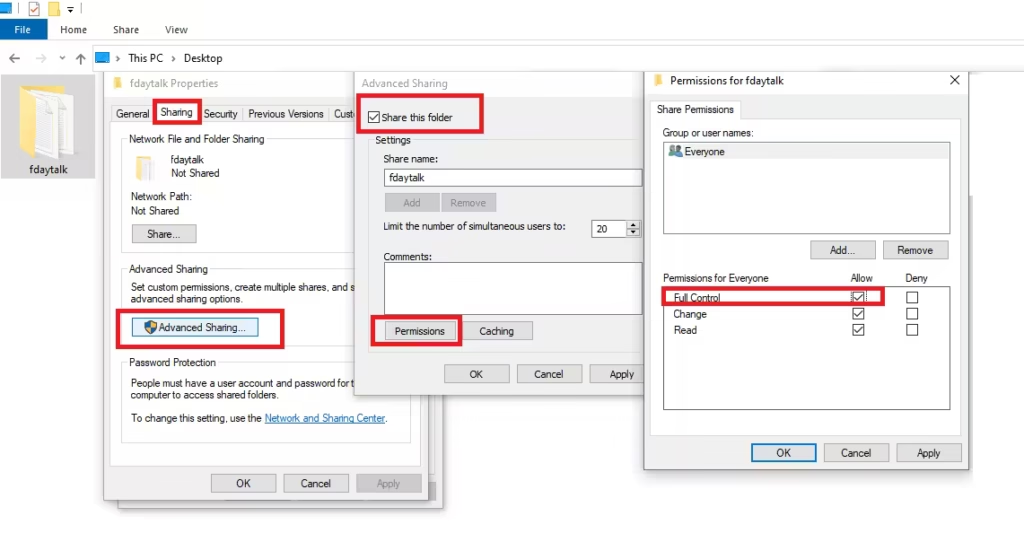
- Open File Explorer.
- Right-click the folder you want to transfer.
- Click Properties → Sharing tab → Advanced Sharing.
- Enable Share this folder.
- Click Permissions.
- Enable Full Control (or Read if you only want copy access).
- Click OK twice.
Windows now exposes the folder on your local network.
Step 2: Find Your Windows IP Address
- Press Windows + R.
- Type:
cmd- Press Enter.
- Type:
ipconfig- Locate IPv4 Address (example:
192.168.1.50).
Keep this address ready.
Step 3: Connect From Mac
- Open Finder.
- Click Go in the menu bar.
- Select Connect to Server.
- Enter:
smb://192.168.1.50(Replace the IP with your own.)
- Click Connect.
- Enter your Windows username and password.
- Select the shared folder.
macOS mounts the folder like a local drive.
Step 4: Copy Files to Your Mac
- Open the mounted Windows folder in Finder.
- Open the destination folder on your Mac.
- Drag and drop the files.
Finder shows real-time transfer progress and speed.
Expected Transfer Speed
Your actual speed depends on your network quality.
| Connection Type | Typical Speed |
|---|---|
| Gigabit Ethernet | 80–110 MB/s |
| Wi-Fi 6 | 40–90 MB/s |
| Wi-Fi 5 | 25–60 MB/s |
| Bluetooth | ~0.05 MB/s |
A 100 GB transfer usually finishes in 15–40 minutes on a healthy network.
Advanced Option: Rsync Over SSH (Best for Huge Transfers)
If you want automatic resume, file verification, and scripting control, use rsync.
Enable SSH on Windows
- Open Settings → Apps → Optional Features.
- Click Add a feature.
- Install OpenSSH Server.
- Start the service.
Run Rsync From Mac
Open Terminal and run:
rsync -av --progress [email protected]:/path/to/files /Users/yourname/Desktop/Replace:
usernamewith your Windows account name- IP address with your PC address
- Source path with the shared folder path
- Destination path with your Mac folder
Rsync continues from interruptions automatically and validates file integrity.
Rsync resumes interrupted transfers automatically, verifies file integrity during copy, and transfers only changed data when re-running a job. SCP lacks resume support and forces a full restart if the connection drops. For large transfers above 50 GB, rsync delivers higher reliability and better throughput across unstable networks.
Automatic Sync Option: Syncthing
Syncthing syncs folders continuously between devices on your local network.
- Install Syncthing on both Windows and Mac.
- Pair both devices.
- Select the folders you want to sync.
- Let the app handle transfers automatically.
Syncthing encrypts transfers and resumes automatically after interruptions.
This option works well if you plan to keep both machines synced long-term.
FAQs
How do I transfer files from PC to Mac on same network?
You can transfer files from PC to Mac on same network by sharing a folder on Windows using SMB and connecting to it from Finder on macOS using the PC’s IP address.
What is the fastest way to transfer files from PC to Mac on same network?
The fastest way to transfer files from PC to Mac on same network is to use SMB file sharing over a wired Ethernet connection or high-speed Wi-Fi, which delivers up to 100 MB/s on gigabit networks.
Can I transfer large files from Windows to Mac without an external hard drive?
Yes, you can transfer large files from Windows to Mac without an external hard drive by copying them directly over your local network using SMB or rsync.
Why is Bluetooth file transfer so slow between PC and Mac?
Bluetooth file transfer runs at very low bandwidth and heavy interference, which limits real-world speeds to under 1 MB per second for large files.
Do I need to install any software to transfer files from PC to Mac?
No, you don’t need to install any software because Windows and macOS already support SMB file sharing and SSH-based transfers.
Can I resume a file transfer if the connection drops?
Yes, you can resume a file transfer by using rsync, which continues copying only the remaining data instead of restarting the entire transfer.
Is it safe to transfer files over a local network?
Yes, local network transfers remain safe when you use password-protected SMB sharing or encrypted SSH connections.
How long does it take to transfer 100 GB from PC to Mac on same network?
A 100 GB transfer usually completes in 15 to 40 minutes on a wired gigabit network and 30 to 90 minutes on strong Wi-Fi.
Can I transfer files from PC to Mac using Wi-Fi only?
Yes, you can transfer files from PC to Mac using Wi-Fi as long as both devices connect to the same router and network segment.
Why does my Mac fail to connect to my Windows shared folder?
Your Mac may fail to connect if firewall rules block SMB traffic, the IP address changed, network discovery remains disabled, or login credentials are incorrect.

