Upgrading to Windows 11 sometimes does not go as planned. Many users report the installation getting stuck at a certain percentage, freezing on a black screen, or failing and rolling back to Windows 10 without a clear error message. This issue usually happens due to driver conflicts, low disk space, corrupted system files, or background services blocking the upgrade.
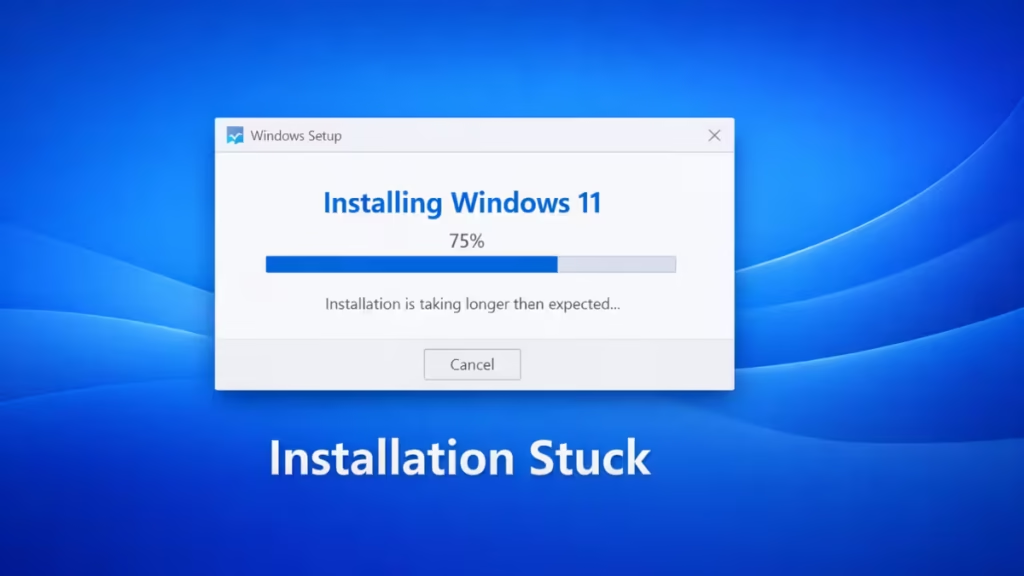
Why Windows 11 Installation Gets Stuck or Fails
Before applying fixes, it helps to understand the most common causes:
- Incompatible or outdated drivers
- Insufficient free space on the system drive
- Third-party antivirus or security software
- Corrupted Windows system files
- External devices interfering with setup
- Background services blocking the upgrade process
Fix 1: Wait and Confirm the Upgrade Is Actually Stuck
Windows upgrades can appear frozen while performing background tasks.
What to do
- Wait at least 90 to 120 minutes
- Check if the hard disk LED is blinking
- Press Caps Lock to see if the keyboard responds
If there is no disk activity and no response for over two hours, proceed to the next fix.
Fix 2: Disconnect External Devices Before Upgrading
External hardware is a frequent reason for upgrade failures.
Steps
- Shut down the PC completely
- Disconnect all non-essential devices:
- USB drives
- External hard disks
- Printers
- Game controllers
- Keep only the keyboard and mouse connected
- Restart the Windows 11 upgrade
This prevents driver conflicts during setup.
Fix 3: Free Up Space on the System Drive
Windows 11 requires at least 25–30 GB of free space on the C: drive.
Steps
- Open Settings → System → Storage
- Turn on Storage Sense
- Remove:
- Temporary files
- Windows Update cache
- Empty the Recycle Bin
- Restart the system
Low disk space often causes the upgrade to stall silently.
Fix 4: Disable Antivirus and Device Encryption Temporarily
Third-party security tools can block system file changes.
Do this temporarily
- Disable any third-party antivirus software
- Turn off BitLocker or device encryption
- Pause real-time protection
After Windows 11 installs successfully, you can enable everything again.
Fix 5: Repair Corrupted System Files
Corrupted Windows files frequently cause upgrade failures.
Steps
- Open Command Prompt as Administrator
- Run:
sfc /scannow- After it completes, run:
DISM /Online /Cleanup-Image /RestoreHealth- Restart your PC
These commands repair system files required for a successful upgrade.
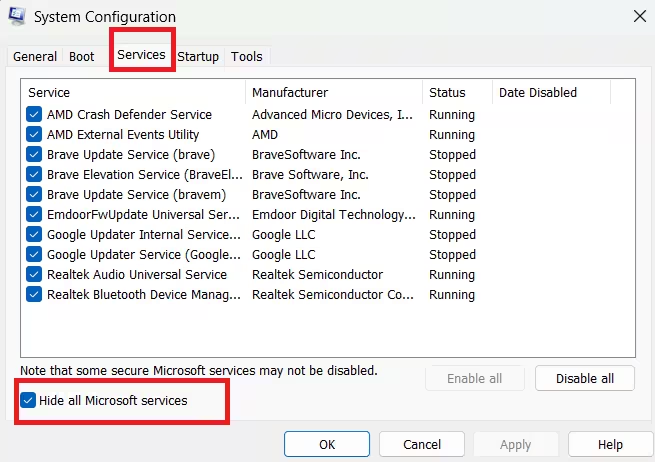
Fix 6: Perform a Clean Boot Before Running the Upgrade
Background services may interfere with Windows setup.
Steps
- Press Win + R, type
msconfig - Go to the Services tab
- Check Hide all Microsoft services
- Click Disable all
- Restart the PC
- Start the Windows 11 upgrade again
This ensures only essential services run during installation.
Fix 7: Upgrade Using the Windows 11 Installation Assistant
Windows Update sometimes fails silently.
Recommended approach
- Download the official Windows 11 Installation Assistant
- Right-click and choose Run as administrator
- Follow on-screen instructions
This method bypasses many Windows Update–related problems.
Fix 8: Update Storage and Chipset Drivers (Advanced)
Outdated drivers can prevent Windows 11 from completing setup.
Only if needed
- Update chipset drivers from your PC manufacturer
- Install the latest Intel RST or NVMe storage drivers
- Avoid third-party driver tools
Incorrect or missing storage drivers often cause installation freezes.
Fix 9: Check Windows Upgrade Logs for the Exact Failure Reason
If Windows 11 fails repeatedly, logs reveal the cause.
Log location
C:\$WINDOWS.~BT\Sources\PantherImportant files:
setupact.logsetuperr.log
These logs usually show blocked drivers, services, or compatibility issues.
FAQs
Why is my Windows 11 installation stuck during the upgrade process?
Windows 11 installation can get stuck due to incompatible drivers, insufficient disk space, antivirus interference, corrupted system files, or background services blocking the upgrade.
How long should I wait if Windows 11 installation is stuck?
You should wait at least 90 to 120 minutes. If there is no disk activity or progress for over two hours, the installation is likely stuck and needs intervention.
Is it safe to restart my PC when Windows 11 installation is stuck?
Yes, it is generally safe to restart if the system shows no activity for a long time. Windows will usually roll back changes automatically without damaging your data.
Can low disk space cause Windows 11 installation to fail?
Yes, insufficient free space on the system drive is a common reason why Windows 11 installation gets stuck or fails during the upgrade process.
Will my files be deleted if Windows 11 installation fails?
No, a failed Windows 11 upgrade does not delete personal files. Your system normally reverts back to Windows 10 with all data intact.

