Upgrading from Windows 10 to Windows 11 sometimes does not go as planned. Many users report the installation getting stuck at a specific percentage such as 32%, 74%, or 99%, freezing on a black screen, or failing with no error message and rolling back to Windows 10. Others see error codes like 0xC1900101, 0x800F0922, or 0x8007025D with no clear explanation.
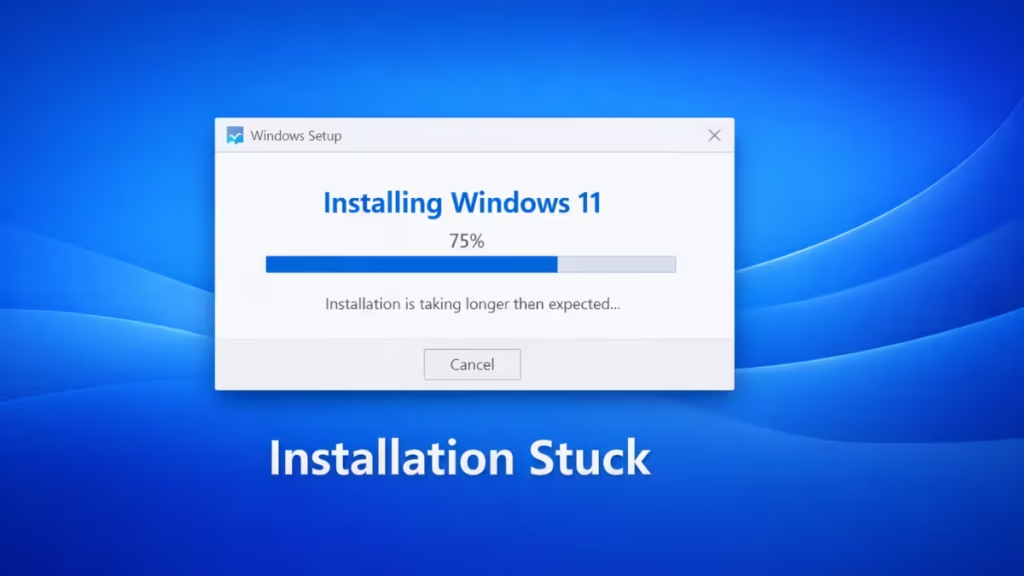
This happens most often due to TPM or Secure Boot issues, driver conflicts, low disk space, corrupted system files, or background services blocking the upgrade. This guide covers every fix in order, from the simplest checks to advanced troubleshooting.
Why Windows 10 to Windows 11 Upgrade Gets Stuck or Fails
Before applying fixes, here are the most common causes:
- TPM 2.0 or Secure Boot not enabled in BIOS
- Incompatible or outdated drivers (especially storage and chipset)
- Insufficient free space on the C: drive
- Third-party antivirus or security software blocking setup
- Corrupted Windows system files
- External devices interfering with setup
- Background services conflicting with the upgrade process
Fix 1: Wait and Confirm the Upgrade Is Actually Stuck
Windows upgrades can appear frozen while running background tasks.
What to do:
- Wait at least 90 to 120 minutes
- Check if the hard disk LED is blinking
- Press Caps Lock to see if the keyboard responds
If there is no disk activity and no keyboard response for over two hours, proceed to the next fix.
Fix 2: Check TPM 2.0 and Secure Boot in BIOS
Windows 11 requires TPM 2.0 and Secure Boot to be enabled. If either is disabled, the upgrade will silently fail or roll back.
Steps:
- Restart the PC and press F2, Del, or F10 to enter BIOS (key varies by manufacturer)
- Find the Security or Advanced tab
- Enable TPM 2.0 (may appear as PTT on Intel systems or fTPM on AMD systems)
- Enable Secure Boot
- Save changes and restart
- Run the upgrade again
How to check before entering BIOS:
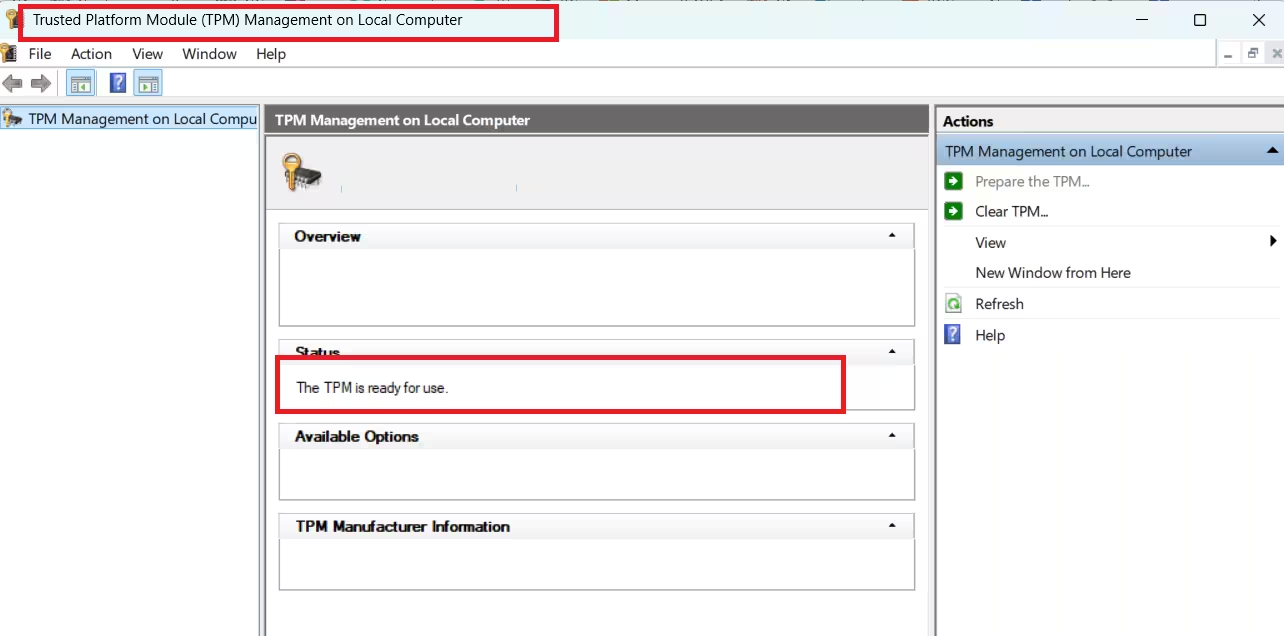
- Press Win + R, type
tpm.msc, press Enter - If it shows “TPM is ready,” TPM 2.0 is active
- For Secure Boot: open System Information (msinfo32) and look for Secure Boot State
Fix 3: Run the PC Health Check Tool
Before upgrading, confirm your PC officially meets Windows 11 requirements.
Steps:
- Download the PC Health Check tool from Microsoft
- Run it and click Check now
- If any requirement fails, the tool will tell you exactly what is missing
- Address the flagged issue before running the upgrade again
Fix 4: Disconnect External Devices Before Upgrading
External hardware is a frequent cause of upgrade failures.
Steps:
- Shut down the PC completely
- Disconnect all non-essential devices:
- USB drives
- External hard disks
- Printers
- Game controllers
- Docking stations
- Keep only the keyboard and mouse connected
- Restart and run the Windows 11 upgrade again
This prevents driver conflicts during setup.
Fix 5: Free Up Space on the System Drive
Windows 11 requires at least 25 to 30 GB of free space on the C: drive.
Steps:
- Open Settings → System → Storage
- Turn on Storage Sense
- Remove temporary files, Windows Update cache, and Recycle Bin contents
- Restart the system
Low disk space often causes the upgrade to stall silently with no error message.
Fix 6: Run the Windows Update Troubleshooter
Windows Update problems can prevent the upgrade from completing.
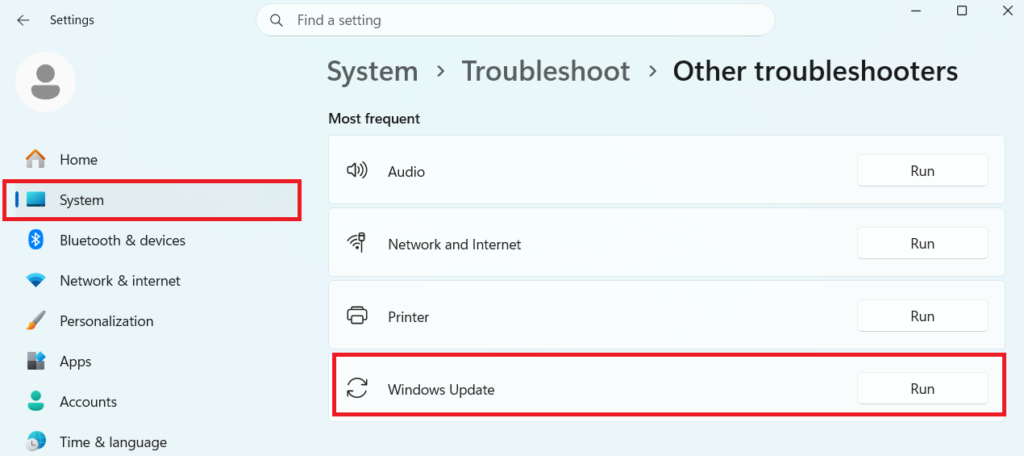
Steps:
- Open Settings → System → Troubleshoot → Other troubleshooters
- Click Run next to Windows Update
- Follow the on-screen instructions and apply any fixes
- Restart the PC and try the upgrade again
Fix 7: Disable Antivirus and Device Encryption Temporarily
Third-party security tools can block system file changes during setup.
Do this temporarily:
- Disable any third-party antivirus software
- Turn off BitLocker or device encryption
- Pause real-time protection in Windows Security
After Windows 11 installs successfully, re-enable everything.
Fix 8: Repair Corrupted System Files
Corrupted Windows files frequently cause upgrade failures.
Steps:
- Open Command Prompt as Administrator
- Run:
sfc /scannow- After it completes, run:
DISM /Online /Cleanup-Image /RestoreHealth- Restart your PC before attempting the upgrade again
These commands repair system files required for a successful upgrade.
Fix 9: Perform a Clean Boot Before Running the Upgrade
Background services may interfere with Windows setup.
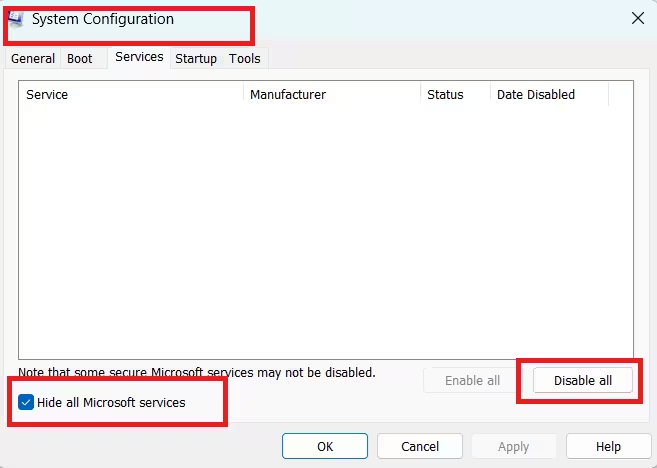
Steps:
- Press Win + R, type
msconfig, press Enter - Go to the Services tab
- Check Hide all Microsoft services
- Click Disable all
- Go to the Startup tab and open Task Manager
- Disable all startup items
- Restart the PC and start the Windows 11 upgrade again
This ensures only essential services run during installation.
Fix 10: Upgrade Using the Windows 11 Installation Assistant
Windows Update sometimes fails silently. The Installation Assistant is Microsoft’s recommended alternative.
Steps:
- Go to microsoft.com/software-download/windows11
- Under Windows 11 Installation Assistant, click Download Now
- Run the downloaded file as Administrator
- Click Accept and install
- Let the process run without interrupting it — it will restart your PC once or twice automatically
This method bypasses many Windows Update issues and is the most reliable way to upgrade when the standard process fails.
Fix 11: Use the Media Creation Tool for a Clean Upgrade
If the Installation Assistant also fails, use the Media Creation Tool to perform an in-place upgrade.
Steps:
- Go to microsoft.com/software-download/windows11
- Under Create Windows 11 Installation Media, click Download Now
- Run the tool and select Upgrade this PC now
- Choose Keep personal files and apps
- Click Install
This performs the same upgrade but using locally downloaded installation files, which avoids network-related failures.
Fix 12: Update Storage and Chipset Drivers
Outdated drivers can prevent Windows 11 from completing setup, especially if the upgrade freezes early in the process.
Steps:
- Visit your PC or motherboard manufacturer’s support page
- Download the latest chipset drivers
- Install the latest Intel RST or NVMe storage drivers if applicable
- Avoid third-party driver update tools
- Restart and try the upgrade again
Fix 13: Check Windows Upgrade Logs for the Exact Error
If Windows 11 fails repeatedly, logs reveal the specific cause.
Log location:
C:\$WINDOWS.~BT\Sources\PantherKey files to check:
setupact.log— full record of what setup did and where it stoppedsetuperr.log— lists specific errors that caused the failure
Open these files in Notepad and search for “error” or “fail” to find the relevant lines. The log entries usually name the driver, file, or service that blocked the upgrade.
FAQs
Why is my Windows 11 upgrade stuck at 99%?
Getting stuck at 99% is common and usually means Windows is finalizing driver installation or running post-setup tasks. Wait at least 60 minutes. If nothing changes, check if TPM 2.0 and Secure Boot are enabled, then run the upgrade using the Installation Assistant instead.
Why is my Windows 10 to Windows 11 upgrade stuck during the upgrade process?
The most common causes are TPM 2.0 or Secure Boot being disabled, incompatible drivers, insufficient disk space, antivirus interference, or corrupted system files. Run through the fixes above starting with the TPM check.
How long should I wait if Windows 11 installation is stuck?
Wait at least 90 to 120 minutes. If there is no disk activity and no progress for over two hours, the installation is likely stuck and needs intervention.
Is it safe to restart my PC when Windows 11 upgrade is stuck?
Yes, it is generally safe to force a restart if the system shows no activity for a long time. Windows will normally roll back changes automatically without affecting your personal files.
Can low disk space cause the Windows 11 upgrade to fail?
Yes. Windows 11 requires at least 25 to 30 GB of free space on the C: drive. Insufficient space often causes the upgrade to stall silently with no error message.
Will my files be deleted if the Windows 11 upgrade fails?
No. A failed upgrade reverts your system to Windows 10 with all personal files intact.
What does error code 0xC1900101 mean during Windows 11 upgrade?
Error 0xC1900101 is a driver-related failure. Update or uninstall the problematic driver, especially storage and chipset drivers, then retry the upgrade.

