If your WordPress block editor (Gutenberg) opens as a blank or white screen, and none of the usual fixes work — disabling plugins, switching themes, reinstalling WordPress — this guide is for you.
This issue commonly appears after enabling server-level object caching on LiteSpeed-based setups, where the injected cache layer disrupts the WordPress editor.
The Problem: Gutenberg Editor Blank Screen With No Error

Typical symptoms:
/wp-admin/post-new.phpopens but shows a blank page- No PHP error message
- Disabling all plugins does not fix it
- Switching to a default theme does not fix it
- WordPress Classic Editor works, but Gutenberg does not
- REST API (
/wp-json/) works fine
This usually leads users to think WordPress core is broken — but it isn’t.
Why Common Fixes Fail
Most guides suggest:
- Disable all plugins
- Switch to Twenty Twenty-Four theme
- Reinstall WordPress core
- Increase PHP memory
These do not work if the problem is caused by a WordPress drop-in file, because drop-ins load before plugins and themes.
That’s why even a “clean” WordPress install can still show a blank editor.
The Real Cause: object-cache.php Drop-In Conflict
On Hostinger and LiteSpeed servers, this issue is commonly caused by:
wp-content/object-cache.php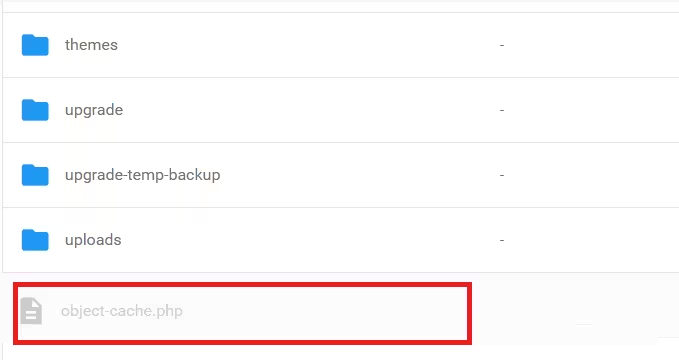
This file is called a WordPress drop-in.
- It loads before plugins
- It runs even when plugins are disabled
- If it is outdated or misconfigured, it can break wp-admin JavaScript
- Gutenberg depends heavily on JavaScript → result is a blank editor
In many cases, the file is created by LiteSpeed Cache Object Cache, but becomes out of sync after:
- PHP version changes
- Hosting cache toggles
- Plugin updates
- Server maintenance
How to Confirm This Is Your Issue
Before fixing, check these two things:
1) REST API Test
Open (while logged in):
https://your-site.com/wp-json/wp/v2/types/postIf JSON data loads, REST API is not the problem.
2) Classic Editor Test
If Classic Editor works but Gutenberg is blank, it strongly points to a JS or cache drop-in issue, not content or database corruption.
The Actual Fix (Works When Everything Else Fails)
Step 1: Disable the Object Cache Drop-In
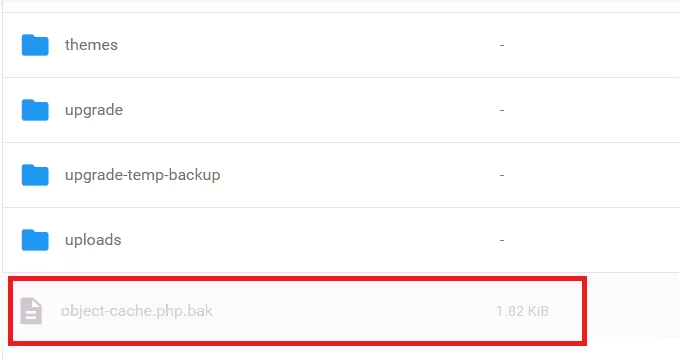
- Open File Manager
- Go to:
wp-content/- Find:
object-cache.php- Rename it to:
object-cache.php.bakDo not delete the file yet — renaming is safer and reversible.
Important: Clear All Caches Before Testing
After renaming the file, you must clear caches, or WordPress may continue serving cached admin responses.
Do the following:
- Flush server / hosting cache (if available)
- Flush Cloudflare cache (if Cloudflare is enabled)
- Open the editor in a private / incognito browser window
Skipping this step can make the editor appear broken even after applying the correct fix.
Step 2: Decide the Safe Long-Term Configuration
You now have two choices.
Option A (Recommended): Disable Object Cache Completely
This is the safest option for content-heavy sites.
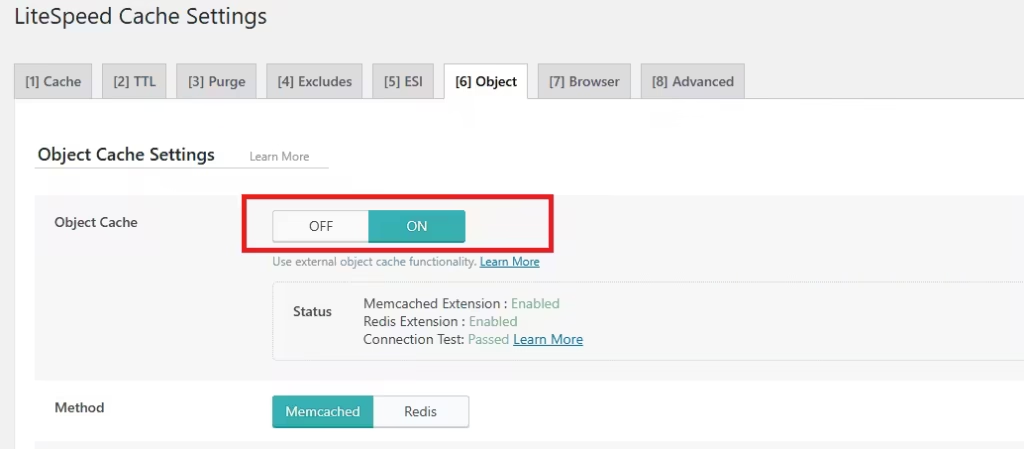
- WordPress Admin → LiteSpeed Cache → Cache → Object
- Set Object Cache = OFF
- Save changes
- Keep
object-cache.phpremoved or renamed
This prevents the issue from coming back.
Performance impact is minimal because:
- Page cache
- Cloudflare
- Browser cache
already handle most traffic.
Option B (Advanced): Re-Enable Object Cache Correctly
Only do this if you really need object cache.
- Delete old
object-cache.phpand.bak - LiteSpeed Cache → Toolbox
- Click Drop Object Cache
- Go to Cache → Object
- Enable Object Cache
- Let LiteSpeed regenerate a fresh drop-in
- Test
/wp-admin/post-new.php
If Gutenberg breaks again, revert to Option A immediately.
FAQs
Why is my WordPress Gutenberg editor showing a blank screen?
A WordPress Gutenberg editor blank screen is usually caused by a cache drop-in conflict, not by plugins or themes. On Hostinger and LiteSpeed setups, a corrupted or mismatched object-cache.php file can break admin JavaScript loading, resulting in a white or blank editor.
Why does the Gutenberg editor stay blank even after disabling all plugins?
Disabling plugins does not stop WordPress drop-in files from loading. Files like wp-content/object-cache.php load before plugins, so a broken object cache drop-in can still break Gutenberg even when all plugins are disabled.
How do I fix the WordPress Gutenberg editor blank screen issue permanently?
The most reliable fix is to disable the object cache drop-in by renaming or removing wp-content/object-cache.php. After that, turn off Object Cache in the LiteSpeed Cache plugin to prevent the file from being recreated. This restores Gutenberg immediately and prevents the issue from returning.
Is this Gutenberg blank screen issue common on Hostinger?
Yes. This issue is commonly reported on Hostinger WordPress hosting, especially when LiteSpeed Object Cache is enabled. Hosting-level cache recommendations can create a mismatched object-cache.php file that breaks the WordPress block editor.
Does reinstalling WordPress fix the Gutenberg blank screen problem?
No. Reinstalling WordPress core does not fix this issue if the cause is a cache drop-in file. Drop-ins are not removed during core reinstalls, so the blank editor problem persists unless the object cache file is addressed.
How can I check if REST API is causing the Gutenberg issue?
You can test the REST API by opening: /wp-json/wp/v2/types/post. If JSON data loads correctly, the REST API is working and is not the cause of the Gutenberg editor blank screen.
Why does the Classic Editor work when Gutenberg is blank?
Classic Editor does not rely heavily on modern JavaScript modules. Gutenberg depends on multiple JS files loaded through wp-admin, so when caching or compression breaks those scripts, Gutenberg fails while Classic Editor continues to work.
Is it safe to disable Object Cache in WordPress?
Yes. Disabling Object Cache is safe for most content-based websites. Page caching, browser caching, and CDN caching already handle the majority of performance needs. Stability of the WordPress admin area is more important than a marginal performance gain from object caching.
Will disabling object cache affect SEO or site speed?
No. Disabling object cache does not negatively affect SEO. Search engines do not evaluate object cache usage. As long as page caching and CDN caching are active, site performance remains strong.
Can WordPress automatically recreate the object-cache.php file?
No. WordPress does not create object-cache.php by itself. The file is created only by cache plugins or hosting tools with admin-level permissions. Using a non-admin role prevents accidental recreation.
What should I check first if Gutenberg becomes blank again in the future?
The first thing to check is whether wp-content/object-cache.php exists. If it does, rename or remove it immediately. This is the fastest way to restore the Gutenberg editor.
A blank Gutenberg editor is rarely caused by plugins or themes. In most cases, the issue comes from a server-level object cache drop-in that loads before WordPress core and silently breaks the editor. Renaming object-cache.php, clearing all cache layers, and testing in a private browser window is the fastest and most reliable way to confirm and fix the problem. Prioritizing admin stability over aggressive caching ensures the editor remains usable and prevents the issue from returning.

