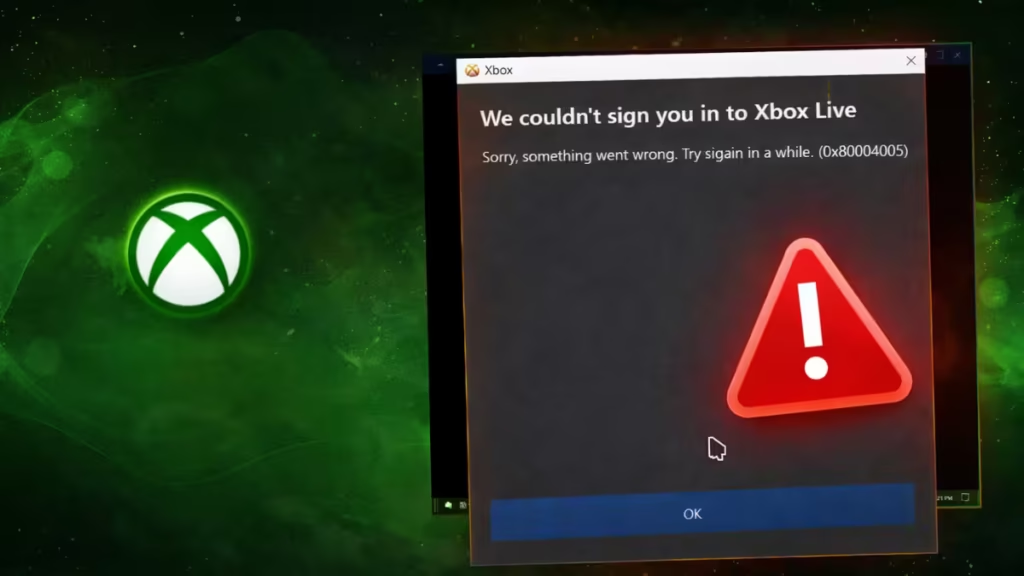
If you see error 0x80004005 while signing into the Xbox app, you’re not alone. This issue blocks Xbox Live login and usually shows the message:
“We couldn’t sign you in to Xbox Live. Try again later.”
This error typically occurs due to broken Xbox services, corrupted cache, or Gaming Services issues—not your account.
This guide walks you through all working fixes step by step.
What Causes Xbox Error 0x80004005?
Before jumping into fixes, understand the root problem. This error appears when the Xbox app fails to communicate with Xbox Live services.
Common causes include:
- Corrupted Xbox app or Microsoft Store cache
- Broken or missing Gaming Services
- Disabled Xbox services
- Windows update issues
- Incorrect time or region settings
- Conflicts between multiple Microsoft accounts
If you use more than one account, this error appears more often.
Method 1: Restart Xbox Services (Most Effective Fix)
This is the fastest and most reliable fix.
Steps:
- Press Win + R
- Type
services.mscand press Enter - Find these services:
- Xbox Live Auth Manager
- Xbox Live Game Save
- Xbox Live Networking Service
- Right-click each → click Restart
- Double-click each service → set Startup Type = Automatic
Now open the Xbox app and try signing in again.
Method 2: Reset Xbox App and Microsoft Store
Corrupted cache is a major cause of this error.
Reset Xbox App:
- Go to Settings → Apps → Installed Apps
- Find Xbox App
- Click Advanced Options
- Click Reset
Reset Microsoft Store:
- Press Win + R
- Type:
wsreset.exe - Wait for the Store to reopen
Then try signing in again.
Method 3: Reinstall Gaming Services (Critical Fix)
If the error still appears, Gaming Services is likely broken.
Steps:
- Open PowerShell as Administrator
- Run:
get-appxpackage Microsoft.GamingServices | remove-AppxPackage -allusers- Then run:
start ms-windows-store://pdp/?productid=9MWPM2CQNLHN- Reinstall Gaming Services from the Store
This fix resolves most persistent login issues.
Method 4: Fix Date, Time, and Region Settings
Incorrect system settings can block Xbox login.
Steps:
- Go to Settings → Time & Language
- Turn ON:
- Set time automatically
- Set time zone automatically
- Go to Region
- Set it to your correct country
Restart your PC after changes.
Method 5: Sign Out and Remove Account Conflicts
If you use multiple accounts, conflicts can prevent login.
Steps:
- Open Xbox app → Sign out
- Open Microsoft Store → Sign out
- Restart your PC
- Sign in with only one account first
Avoid switching accounts repeatedly.
Method 6: Update Windows Completely
Outdated Windows builds often break Xbox services.
Steps:
- Go to Settings → Windows Update
- Click Check for updates
- Install everything available
- Restart your PC
Method 7: Disable VPN or Firewall (Temporary Test)
Network restrictions can block Xbox Live.
Steps:
- Turn off VPN
- Disable third-party antivirus/firewall temporarily
- Try signing in again
If this fixes the issue, adjust your firewall settings.
Quick Fix (If You Want Fast Solution)
If you don’t want to try everything, do this:
- Restart Xbox services
- Run
wsreset.exe - Reinstall Gaming Services
This combination fixes most cases.
FAQs
Why does Xbox error 0x80004005 happen?
It happens when Xbox services fail to connect due to cache issues, broken Gaming Services, or system misconfiguration.
Does this error mean my account is banned?
No. This error is not related to bans. It is a system or service issue.
Can multiple accounts cause this error?
Yes. Account conflicts often trigger login failures in the Xbox app.
What is the fastest fix for 0x80004005?
Restart Xbox services and reinstall Gaming Services. This works in most cases.
Always keep Gaming Services and Windows updated. Most Xbox errors come from outdated or broken system components—not the app itself.

