If VS Code shows the error “Error loading webview: Could not register service workers: InvalidStateError: Failed to register a ServiceWorker: The document is in an invalid state”, this guide covers every working fix for Windows, macOS, and Linux.
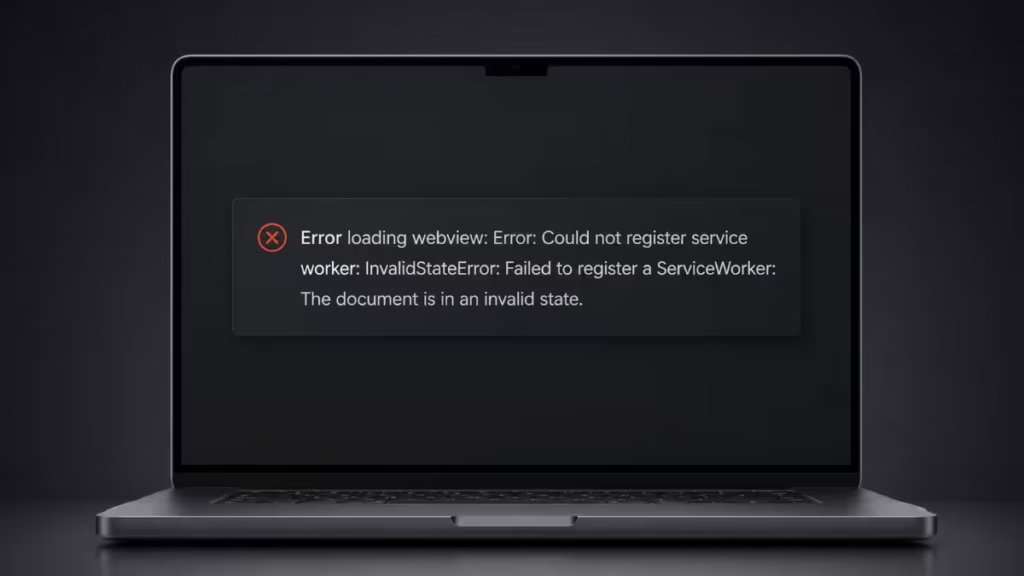
What Causes the “Could Not Register Service Workers” Error in VS Code?
This error appears when VS Code fails to register a service worker for its built-in webview. Common causes include:
- Corrupted cache files: VS Code cache can become corrupted over time, causing service worker registration to fail.
- Background VS Code processes: Multiple instances running simultaneously can conflict with each other.
- Antivirus or firewall interference: Security software may block VS Code webview operations.
- Workspace Trust restrictions: VS Code Restricted Mode can block webview features including service workers.
- Extension conflicts: A faulty or incompatible extension can interfere with service worker initialization.
- Outdated VS Code version: Older builds may have bugs that affect service worker registration.
Fix 1: Restart VS Code and Kill All Background Processes
Before trying anything else, close every VS Code instance completely.
On Windows:
- Close VS Code.
- Open Task Manager with
Ctrl + Shift + Esc. - Under the Processes tab, look for any
Code.exeentries. - Right-click each one and select End Task.
- Relaunch VS Code.
On macOS/Linux:
Open Terminal and run:
killall codeThen relaunch VS Code and check if the error is gone.
Fix 2: Run VS Code as Administrator (Windows)
On corporate or restricted machines, VS Code may not have sufficient permissions to register service workers.
- Close VS Code completely.
- Right-click the VS Code shortcut or executable.
- Select Run as administrator.
- Check if the error still appears.
If this resolves it, you can set VS Code to always run as administrator:
- Right-click the VS Code shortcut.
- Go to Properties > Compatibility.
- Check Run this program as an administrator.
- Click Apply.
Fix 3: Clear VS Code Cache Files
Corrupted cache is one of the most common causes of this error. Clearing it forces VS Code to rebuild clean cache on the next launch.
On Windows:
- Close VS Code completely.
- Open File Explorer and navigate to:
C:\Users\<your_username>\AppData\Roaming\Code\- Delete these folders:
- Cache
- CachedData
- CachedExtensions
- CachedExtensionVSIXs
- Code Cache
- Restart VS Code.
On macOS:
- Close VS Code.
- Open Terminal and run:
rm -rf ~/Library/Application\ Support/Code/*Cache*- Restart VS Code.
On Linux:
- Close VS Code.
- Open Terminal and run:
rm -rf ~/.config/Code/*Cache*- Restart VS Code.
Fix 4: Disable GPU Acceleration
A known workaround for webview and service worker failures in VS Code is disabling GPU acceleration.
Launch VS Code with GPU acceleration disabled:
code --disable-gpuIf this resolves the error, you can make it permanent by adding --disable-gpu to your VS Code desktop shortcut or launch script.
Fix 5: Check Workspace Trust Settings
VS Code’s Restricted Mode limits certain features, including webview operations and service worker registration.
- Open VS Code.
- Look for a Restricted Mode badge in the bottom-left status bar.
- Click it and select Trust for the current workspace.
- Alternatively, go to File > Preferences > Settings, search for
workspace trust, and review your configuration.
If the project is on a network drive or external folder, VS Code may default to Restricted Mode. Trusting the workspace should resolve the error.
Fix 6: Disable Extensions and Identify the Conflict
A faulty extension can block service worker initialization. Test this by disabling all extensions temporarily.
- Open VS Code.
- Go to Extensions (
Ctrl + Shift + X). - Click the three-dot menu at the top and select Disable All Installed Extensions.
- Restart VS Code and check if the error is gone.
If the error disappears, re-enable extensions one at a time and restart VS Code after each to find the problematic extension.
Fix 7: Disable Antivirus or Add VS Code to the Exclusion List
Some antivirus programs and firewalls block VS Code’s webview service, preventing service worker registration.
- Temporarily disable your antivirus and firewall.
- Restart VS Code and check if the error is resolved.
- If the issue disappears, add the following to your antivirus exclusion list:
- VS Code installation folder (e.g.,
C:\Users\<username>\AppData\Local\Programs\Microsoft VS Code) - VS Code data folder (e.g.,
C:\Users\<username>\AppData\Roaming\Code)
- VS Code installation folder (e.g.,
This prevents your security software from interfering with future VS Code sessions.
Fix 8: Update or Reinstall VS Code
Older VS Code versions may have bugs that affect service worker registration.
Update VS Code:
- Open VS Code.
- Go to Help > About (Windows) or Code > About Visual Studio Code (macOS).
- If an update is available, install it and restart.
Reinstall VS Code:
- Uninstall VS Code from Control Panel > Programs (Windows) or the Applications folder (macOS).
- Download the latest version from the official VS Code website.
- Install and restart your system.
Fix 9: Reset VS Code to a Clean Profile
If none of the above fixes work, the issue may be caused by a corrupted VS Code user profile. Creating a new profile isolates whether the corruption is profile-specific.
- Open VS Code.
- Go to File > Preferences > Profiles (or
Ctrl + Shift + Pand search for Profiles: Create Profile). - Create a new profile and switch to it.
- Check if the error appears in the new profile.
If the error is gone in the new profile, your original profile is corrupted. You can migrate your settings manually or continue using the new profile.
Still Getting the Error?
If none of these solutions resolve the “Could Not Register Service Workers” error in VS Code, report it on the VS Code GitHub repository with your VS Code version, OS, and the exact error message. The VS Code team actively monitors reported issues.
FAQs
What does “The document is in an invalid state” mean in VS Code?
This means VS Code’s internal webview tried to register a service worker but the document context was not ready or was blocked. It is usually caused by corrupted cache, Restricted Mode, or an extension conflict.
Does clearing the VS Code cache delete my extensions or settings?
No. Clearing the cache folders listed in Fix 3 only removes temporary files. Your extensions, settings, and user data are stored in separate locations and are not affected.
Will reinstalling VS Code remove my settings?
A standard uninstall does not delete your user settings or extensions. They are stored in AppData\Roaming\Code (Windows) or ~/.config/Code (Linux). To fully reset, manually delete those folders after uninstalling.
Does disabling GPU acceleration affect VS Code performance?
For most users, there is no noticeable difference. GPU acceleration in VS Code primarily affects rendering. Disabling it is a safe workaround for webview-related errors.
Why does VS Code run in Restricted Mode?
VS Code automatically opens folders in Restricted Mode when it cannot verify they are safe, such as network drives, external storage, or cloned repositories. You can trust the workspace to disable this.

