Are you encountering Marvel Rivals Error Code 211 when launching the game through Steam? This issue usually stems from connection or compatibility problems. Here’s a comprehensive guide on how to fix Error 211 and get back into the game quickly.
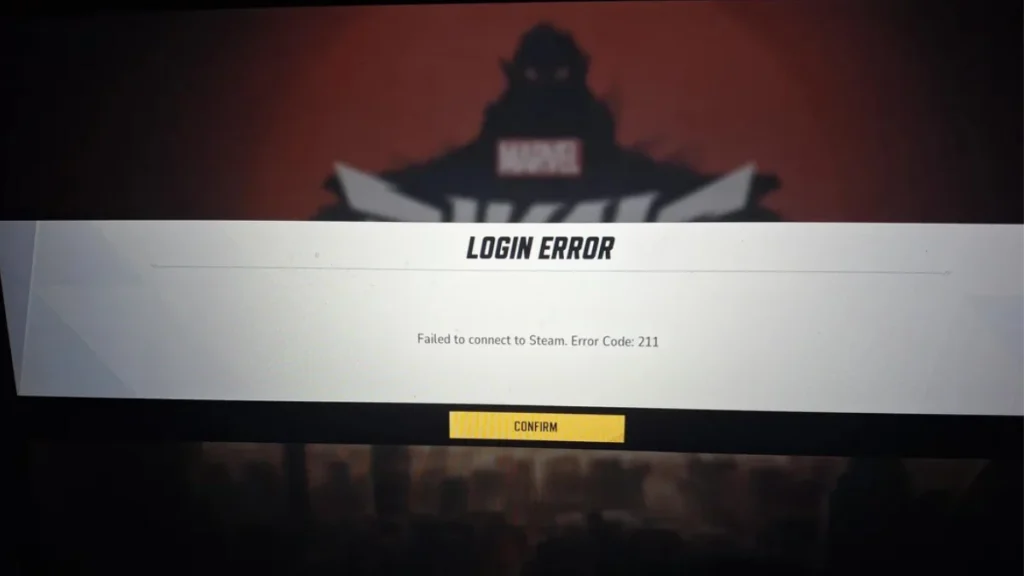
What is Marvel Rivals Error Code 211?
Error Code 211 in Marvel Rivals typically occurs when there’s a failure in the communication between the game launcher and the Steam client. It can be due to:
- Network issues
- Corrupted game files
- Compatibility settings
- DNS or firewall problems
- Steam server outages
Fix 1: Verify Integrity of Game Files
This is the most common and effective fix.
Steps:
- Open Steam Library.
- Right-click on Marvel Rivals → Click Properties.
- Navigate to the Installed Files tab.
- Click on “Verify Integrity of Game Files.”
Let Steam check and repair any corrupted or missing files.
Fix 2: Adjust Compatibility Settings
If the game isn’t launching properly, tweaking compatibility may help.
Steps:
- Go to your Marvel Rivals game directory.
- Find Marvel Rivals Launcher.exe.
- Right-click → Properties → Compatibility tab.
- Check “Run this program as administrator.”
- Enable Compatibility Mode and test with:
- Windows 8
- Windows 7
Click Apply and try launching the game again.
Fix 3: Change DNS Server (Cloudflare or Google DNS)
DNS-related issues can block communication with game servers. You can switch to either Cloudflare or Google DNS.
Cloudflare DNS:
- Preferred:
1.1.1.1 - Alternate:
1.0.0.1
Google DNS:
- Preferred:
8.8.8.8 - Alternate:
8.8.4.4
Steps:
- Open the Settings app → Network & Internet → Ethernet → Change adapter options.
- Right-click your active network → Properties.
- Double-click on Internet Protocol Version 4 (TCP/IPv4).
- Select Use the following DNS server addresses, enter the DNS of your choice, and click OK.
Fix 4: Flush Your DNS Cache
Clearing your DNS cache can solve hidden network issues.
Steps:
- Open Command Prompt as Administrator.
- Type:
ipconfig /flushdns - Press Enter, then restart your PC and the game.
Fix 5: Perform a Full Network Reset
A network reset removes and reinstalls all network adapters and resets settings.
Steps:
- Go to Settings > Network & Internet > Status.
- Click Network Reset at the bottom.
- Choose Reset now and confirm.
- Restart your PC.
Fix 6: Restart Steam Completely
Sometimes a fresh Steam restart solves connectivity hiccups.
Steps:
- Exit Steam entirely from the system tray.
- Reopen Steam and try launching the game again.
Fix 7: Disable VPNs, Mods, and Server Blockers
Marvel Rivals may block connections due to anti-cheat protections or region locks.
Do the following:
- Disable any active VPN or proxy.
- Remove game mods or unauthorized files.
- Disable any network filtering tools or firewalls temporarily to test.
Fix 8: Allow Marvel Rivals Through Firewall and Controlled Folder Access
Security features may block the game from launching properly.
Steps (Firewall):
- Go to Control Panel > Windows Defender Firewall.
- Click Allow an app or feature through the firewall.
- Add Marvel Rivals exe file and allow it for both Private and Public.
Steps (Controlled Folder Access):
- Go to Settings > Windows Security > Virus & threat protection.
- Click Manage settings under Virus & threat protection settings.
- Enable Controlled Folder Access, then Allow an app.
- Browse and add the Marvel Rivals exe file.
Fix 9: Check Steam and Marvel Rivals Server Status
Error 211 can also occur due to server-side issues.
Where to check:
- Steam Status
- DownDetector
- Marvel Rivals official Twitter/X account
- Marvel Rivals Discord for updates or maintenance notices
Fix 10: Contact Marvel Rivals Support
If nothing else works, contact official support:
- Join their Discord server
- Reach out via official website or community forums
Support may help diagnose account-specific or regional issues.
Final Thoughts
Error Code 211 may seem intimidating, but following these simple steps usually fixes the problem. We recommend starting with verifying the game files, then progressing through the network and compatibility fixes.
Let us know in the comments which method worked for you!

