The “Hmm… Can’t Reach This Page” error appears when Microsoft Edge, Chrome, or another browser fails to load a website even though your internet seems active. This issue usually comes from DNS failures, network misconfiguration, corrupted browser data, firewall interference, or Windows network glitches.
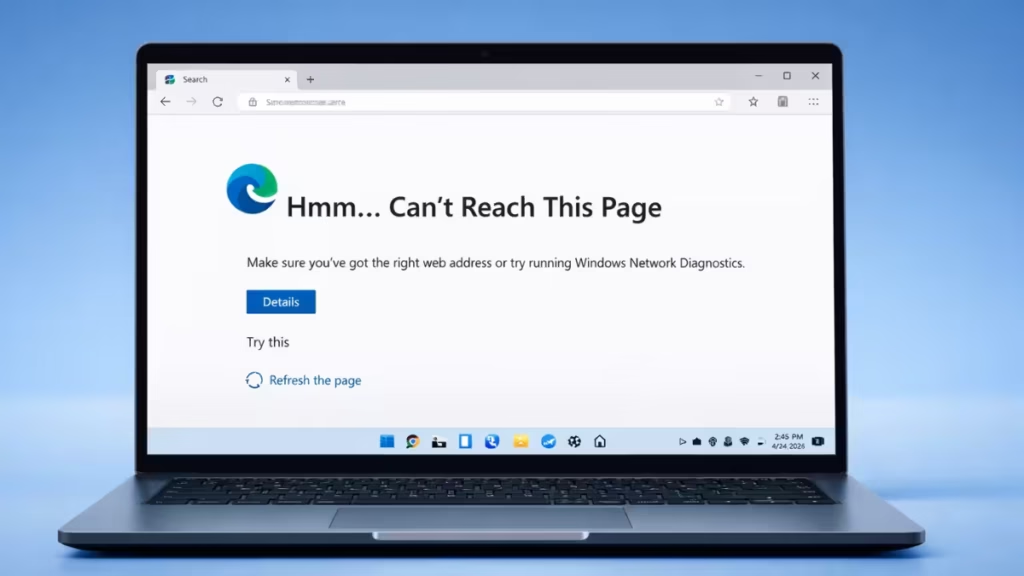
Many Windows 11 users report this error after system updates, VPN changes, or router resets. But you can fix it quickly by following the correct troubleshooting sequence.
What “Hmm… Can’t Reach This Page” Means
This error occurs when your browser cannot resolve a website’s address or establish a network connection. Your device may stay connected to Wi-Fi or Ethernet, but DNS resolution or routing fails in the background. As a result, Edge or Chrome cannot load the page and displays this message instead.
Common triggers include unstable DNS servers, corrupted browser cache, blocked connections by security software, outdated network settings, or incorrect system routing.
1. Fix Network Connection Issues Causing “Hmm Can’t Reach This Page”
Start with the simplest fix to rule out temporary connectivity problems.
- Turn off your modem and router.
- Wait for 60–90 seconds.
- Power them back on and reconnect your PC.
- Open Edge or Chrome and reload the website.
A fresh network session clears temporary routing glitches.
2. Clear Edge / Chrome Cache to Fix Page Loading Errors
Corrupted cache often prevents browsers from loading pages correctly.
Microsoft Edge
- Click the three-dot menu → Settings.
- Open Privacy, search, and services.
- Click Clear browsing data.
- Select Cached images and files, Cookies, and Browsing history.
- Set time range to All time and click Clear.
Google Chrome
- Open Settings → Privacy and security.
- Click Clear browsing data.
- Select the same options and clear data.
Restart the browser and test again.
3. Flush DNS to Fix Website Connection Errors in Windows 11
A broken DNS cache frequently causes the “can’t reach this page” error.
- Press Windows + S, type cmd.
- Right-click Command Prompt → Run as administrator.
- Run each command:
netsh winsock reset
netsh int ip reset
ipconfig /release
ipconfig /renew
ipconfig /flushdns- Restart your PC and test the website.
This resets Windows networking and clears corrupted DNS records.
4. Change DNS Servers to Bypass ISP Network Issues
Public DNS servers often resolve connection failures faster than ISP DNS.
- Open View network connections.
- Right-click your active adapter → Properties.
- Double-click Internet Protocol Version 4 (IPv4).
- Select Use the following DNS server addresses.
- Enter:
Google DNS
- Preferred:
8.8.8.8 - Alternate:
8.8.4.4
or
Cloudflare DNS
- Preferred:
1.1.1.1 - Alternate:
1.0.0.1
- Click OK and restart the browser.
5. Temporarily Disable Firewall or Antivirus Blocking Websites
Security software sometimes blocks safe connections incorrectly.
- Temporarily disable your antivirus and firewall.
- Reload the website.
- If the site opens, add the browser as an exception.
- Re-enable protection immediately.
Do not leave security software disabled.
6. Restart DNS Client Service in Windows
Refreshing the DNS Client clears internal networking glitches without rebooting.
- Press Windows + S, type services.
- Open Services.
- Locate DNS Client.
- Right-click → Restart.
7. Reset Network Settings to Fix Persistent Browser Errors
If the error continues, reset Windows networking.
- Open Settings → Network & Internet.
- Click Advanced network settings → Network reset.
- Click Reset now.
- Restart your PC.
This removes saved Wi-Fi passwords and custom network settings.
8. Fix “Hmm Can’t Reach This Page” After Windows Update
Windows updates sometimes reset adapters, DNS profiles, and VPN routing.
If the error started after an update:
- Reconfigure DNS manually.
- Disable unused VPN adapters.
- Update network drivers from Device Manager.
- Perform a network reset if needed.
This resolves most post-update connectivity problems on Windows 11.
9. Check Hosts File for Blocked Website Entries
The hosts file can block websites silently.
- Open Notepad as Administrator.
- Open:
C:\Windows\System32\drivers\etc\hosts- Remove any suspicious website entries.
- Save and close.
FAQs
Why does this error appear even when internet works?
DNS or browser routing fails even when Wi-Fi remains connected, causing the browser to block page loading.
Can VPNs trigger this error?
Yes. VPNs can interfere with DNS resolution and routing, especially after updates or network changes.
Will network reset delete my files?
No. It removes saved Wi-Fi networks and adapter settings only.
Does clearing cache always fix the issue?
It fixes errors caused by corrupted browser data but not DNS or network problems.
Why does Edge show the error but Chrome works?
Edge may store corrupted cache or use different DNS routing than Chrome.
How do I know DNS is the problem?
If switching to Google or Cloudflare DNS resolves the error, DNS caused the issue.
The “Hmm Can’t Reach This Page” error usually comes from DNS conflicts, browser cache corruption, or Windows network misconfiguration. By following the steps in order — starting with simple restarts and ending with network reset — you can resolve the problem safely without reinstalling Windows.
If the issue continues after all fixes, contact your ISP or network administrator because the problem may exist outside your local network.

